Puppeteer vs Selenium: Which Browser Automation Tool Should You Choose in 2026?
 Bex Tuychiev
TL;DR
- The two tools split on one design choice. Puppeteer drives Chrome directly over the Chrome DevTools Protocol. Selenium drives any browser through the W3C WebDriver standard and a separate driver. Everything else follows from that.
- Puppeteer is a Node.js library, so it is JavaScript or TypeScript only, and it targets Chrome and Chromium. The direct link makes it the lighter, faster option for Chrome work.
- Selenium drives Chrome, Firefox, Safari, and Edge, with official bindings in Java, Python, C#, Ruby, and JavaScript. Selenium Grid runs your tests across many machines.
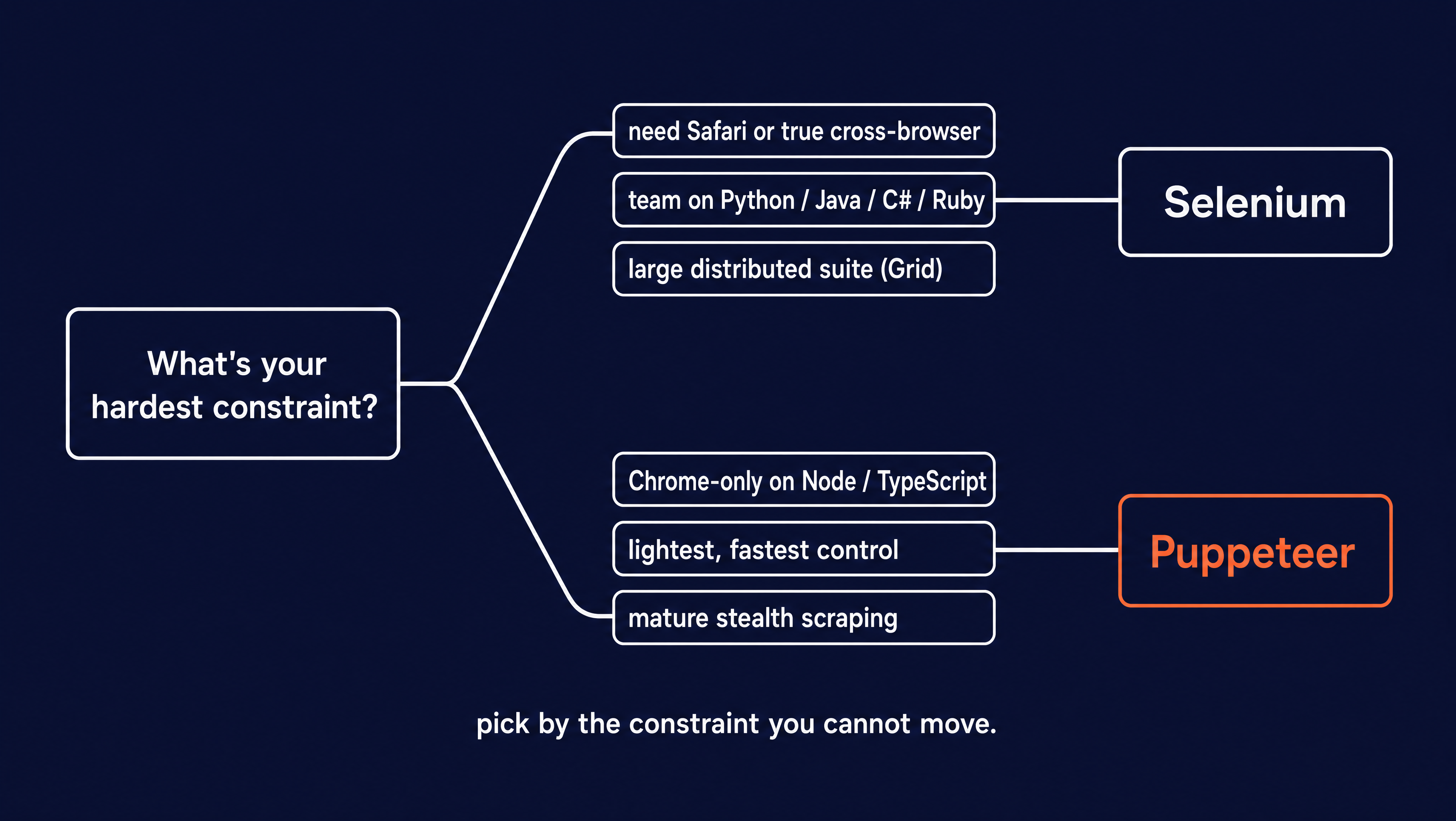
- Pick by your hardest constraint. If you need Safari, a non-JavaScript language, or distributed runs, go with Selenium. If you want the lightest Chrome control or mature stealth scraping, go with Puppeteer.
- For pulling data off the web, you maintain the proxies, parsing, and everything else yourself with either tool. Firecrawl handles that part for you, and this guide runs the same scrape in all three so you can see the difference.
Introduction
You need to automate a browser. Maybe you are testing a checkout flow, or scraping a page that only fills in its data after JavaScript runs. You start looking, and two names come up over and over among the available browser automation tools. Puppeteer and Selenium. They solve overlapping problems, so picking between them is hard.
The two come from different places. Selenium started in 2004 as a browser-testing project built to work across browsers and languages. Puppeteer arrived years later from Google's Chrome DevTools team with the focused goal of driving Chrome, and driving it fast.
That difference in origin still shapes which one fits your work, and the sections that follow trace it through architecture, the same scraper written in both, and rules for picking the right tool.
What is Puppeteer?
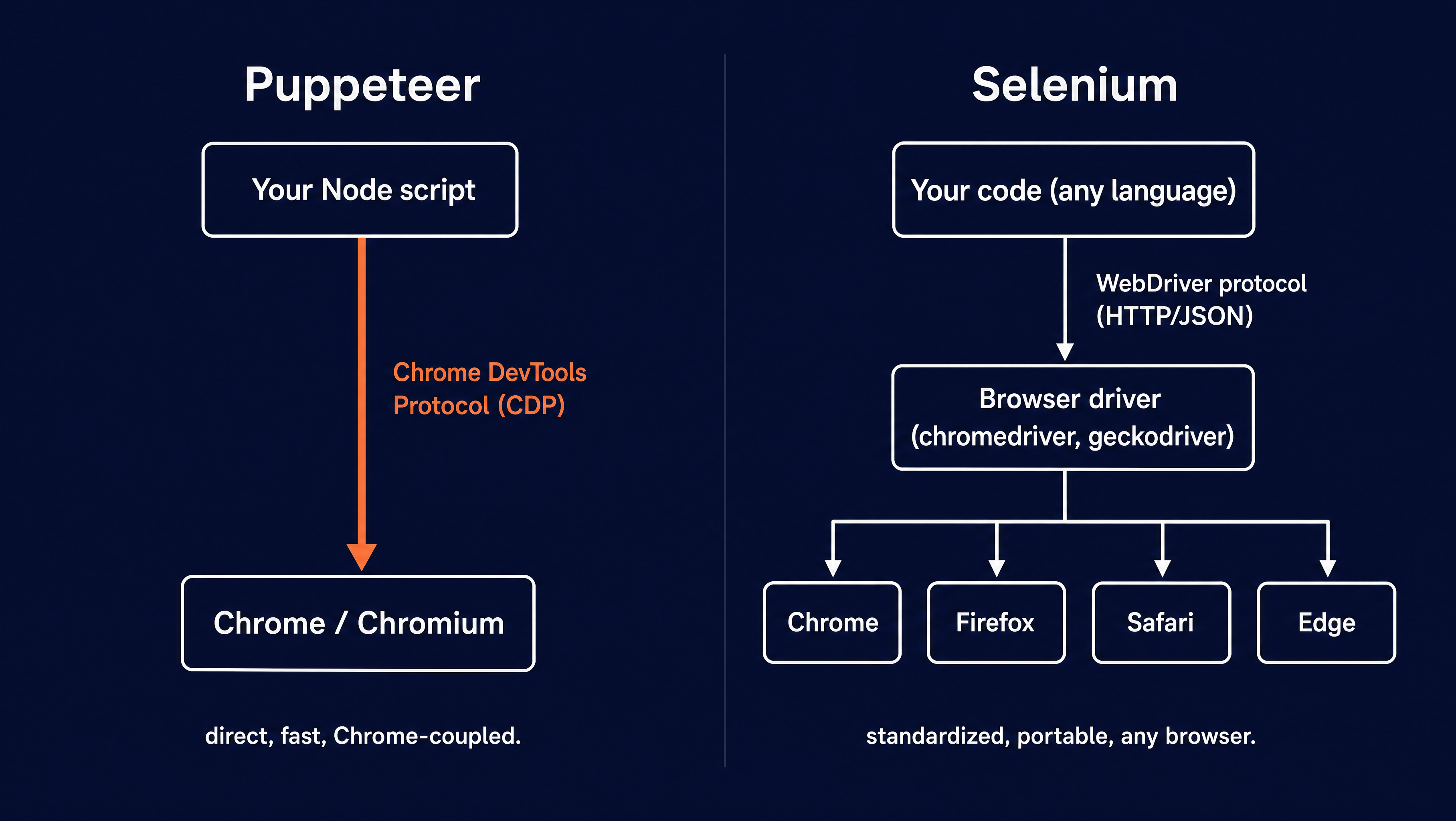
Puppeteer is a Node.js library from Google's Chrome DevTools team that controls Chrome and Chromium. It speaks to the browser over the Chrome DevTools Protocol (CDP). That is the same low-level API Chrome's own developer tools use.
There is no separate driver process in between, so commands reach the browser directly. That direct connection also exposes deep Chrome features straight from the protocol:
- Intercept and modify network requests
- Record performance traces
- Generate PDFs of a page
- Capture screenshots of any element
Setup is one step. Running npm install puppeteer downloads a matched build of Chromium alongside the library. You get a working browser with no driver to configure and no version to match. You write a script and run it.
The project has about 94,000 GitHub stars as of June 2026 and gets around 11.7 million npm downloads a week. Developers use it to run Chrome-based tests and to scrape dynamic websites that need a real browser to render their content.
A lot of that weekly download count is from indirect usage. Many higher-level scraping and testing libraries depend on Puppeteer under the hood, so you end up running it even when you never call it directly.
What is Selenium?
Selenium is an open-source browser automation framework that has been around since 2004. It is built on the W3C WebDriver standard, so the API you write against is browser-neutral and no single vendor owns it. That standard is what lets one script drive Chrome, Firefox, Safari, and Edge.
Reaching a browser takes a few steps.
Your code calls a language binding. The binding speaks the WebDriver protocol, which controls a browser driver such as chromedriver or geckodriver, and the driver controls the browser. Because the binding is the only language-specific piece, Selenium ships official ones for Java, Python, C#, Ruby, and JavaScript, all maintained at the same level. Your test can be Python while a teammate's is Java, and both talk to the same protocol underneath.
That reach is why large teams stay with it. Netflix, Google, Microsoft, and Amazon all use Selenium for cross-browser UI testing, and Selenium Grid runs those tests across many machines at once.
SeleniumHQ/selenium has about 34,000 GitHub stars. The selenium-webdriver npm package gets around 2.2 million downloads a week, but that counts only the JavaScript binding. Most Selenium usage runs through the Python and Java packages on PyPI and Maven, so real adoption sits well above that number.
What are the differences between Puppeteer and Selenium?
Those origins turn into real tradeoffs once you start building. The table below lines the two up on the dimensions that decide a project, and each one gets a closer look after it.
| Feature | Puppeteer | Selenium |
|---|---|---|
| Architecture | Chrome DevTools Protocol, direct | W3C WebDriver, via a driver |
| Browser support | Chrome/Chromium, Firefox (BiDi), no Safari | Chrome, Firefox, Safari, Edge |
| Language support | JavaScript / TypeScript only | Java, Python, C#, Ruby, JavaScript |
| Speed | Lighter and faster for single-Chrome tasks | Extra protocol hop adds latency |
| Scaling | Roll your own parallelism | Selenium Grid, built in |
| Web scraping / stealth | Mature (puppeteer-extra-plugin-stealth) | undetected-chromedriver, selenium-stealth |
| Maintainer | Google Chrome DevTools team (2017) | Selenium project / W3C (2004) |
| Community | ~94K GitHub stars, ~11.7M npm/week | ~34K GitHub stars, multi-language packages |
Architecture: CDP vs WebDriver
This is the split everything else grows from. Puppeteer speaks the Chrome DevTools Protocol straight to the browser. Selenium speaks the W3C WebDriver protocol over HTTP and JSON, and that goes through a separate driver before it reaches the browser.
The direct CDP link is short, and it works with Chrome only. The WebDriver layer adds an extra step but you get portability. Any browser vendor can ship a conforming driver, which is how one Selenium script reaches four browsers. Selenium 4 can still reach Chrome over CDP, though it now treats CDP as a legacy path and is moving its DevTools features onto WebDriver BiDi.
Installation and setup
Puppeteer is one command. npm install puppeteer pulls the library and a matched Chromium together, and you are ready to run a script. That bundled Chromium is a few hundred megabytes. On your own machine you download it once and forget it, so the size only matters in automated build pipelines, where you cache it to avoid re-downloading on every run.
Selenium asks for two pieces: a language binding and a browser driver. In older versions you downloaded and version-matched the driver by hand, which broke often when Chrome updated. Selenium 4 fixed that with Selenium Manager, a Rust command-line tool that resolves the right driver and browser for you. It downloads the driver the first time you run a script, so that first run needs an internet connection.
The install command also depends on your language, which follows straight from Selenium's multi-language design. You use pip for Python, Maven for Java, NuGet for C#, gem for Ruby, or npm for JavaScript.
Language and SDK support
Puppeteer is JavaScript and TypeScript only. Pyppeteer, an unofficial Python port, exists but lags behind official releases and gets patchy maintenance. Selenium covers five languages (Java, Python, C#, Ruby, and JavaScript), so a Python or Java team can use it without leaving its stack. If your team is on Python, our Selenium web scraping walkthrough covers the full setup.
The difference comes from the architecture. WebDriver is a language-neutral protocol by design, so any language with an HTTP client can implement a binding. CDP is reached through a Node library, so Puppeteer runs only where Node runs. If your team writes Python, Java, or C#, this difference often decides the choice on its own.
Browser support
Selenium drives Chrome, Firefox, Safari, and Edge as first-class targets. The same script runs against any of them with a one-line change to the driver.
Puppeteer is Chrome and Chromium first. Firefox works through WebDriver BiDi but stays in beta, and Safari is not supported at all. That gap matters if your users browse on Safari. Safari is built on a different engine than Chrome, so a page can look right in Chrome and break in Safari, and the only way to catch that is to test the page in Safari itself, which Puppeteer can't do.
Speed and performance
Puppeteer's direct CDP link is lighter for a single Chrome task. Commands skip the driver process and reach the browser in one step, so there is less overhead per call. Each Selenium command is an HTTP request to the driver, which then talks to the browser, so the per-command cost is higher.
The difference is small for one short script and grows when you send thousands of commands. A test that clicks, types, and reads across hundreds of steps pays that per-command cost on every one of them.
Waiting and reliability
Most flaky browser scripts come from acting on an element before the page has it ready. The two tools handle that wait differently. Puppeteer's Locator API waits on its own. page.locator(selector).wait() blocks until the element is in the DOM, so you rarely write a timeout by hand.
Selenium uses explicit waits instead.
You name a condition and a timeout yourself, like driver.wait(until.elementLocated(locator), 10000). Sure, that's more to type, but it's also more to control. You can wait on a custom condition that no built-in covers, which matters on pages with their own loading quirks.
Selenium does offer implicit waits as a blunter global option, though mixing the two is a known source of confusing timeouts, so most teams pick one model and stick with it.
Scaling and distribution
Running one test at a time is slow when you have thousands of them. Selenium Grid solves that by spreading the work across many machines at once. It ships with Selenium, so there's nothing extra to install.
A Grid setup has two parts: a hub and a set of nodes. The nodes are the machines that actually run browsers, each one offering a particular browser and version. The hub is the front door you send your tests to. It reads what each test needs, say Chrome on Windows, and hands it to a node that matches.
You point all your tests at the hub and it keeps every node busy, so a suite that took an hour on one machine can finish in minutes across ten. That payoff is why teams with large test suites keep Selenium around.
Puppeteer has no built-in equivalent. You orchestrate parallelism yourself, often with a library like puppeteer-cluster that pools browser instances, or you hand it off to a cloud browser service. For a handful of Chrome jobs that is fine. For large runs across many browser versions and machines, you are rebuilding part of what Selenium Grid already does.
Testing Puppeteer and Selenium on a sample project
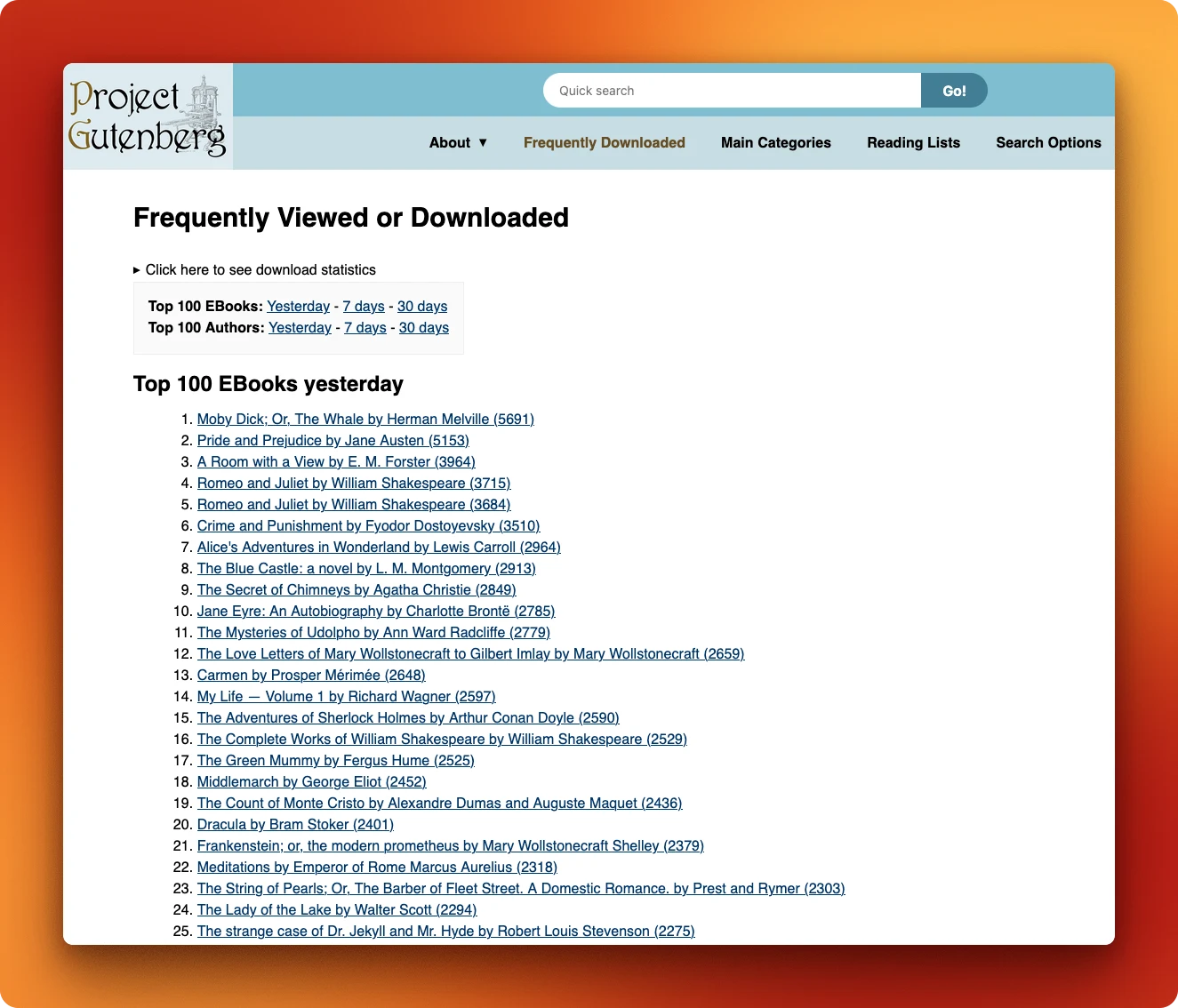
The difference is clearest when you run the same task in both. We will scrape the Project Gutenberg Top 100 page. We'll open it, wait for the ranked list, and pull the top 10 books with their authors and download counts. Each script also saves a screenshot and prints the rows. It's a real, stable, public page, so the demo holds up when you run it yourself.
Both scripts here are Node.js, so the comparison is direct and not skewed by language. The Selenium one could be Python (and it usually is in practice), Java, or C# with the same logic and the same API calls, since the binding is the only part that changes.
Installing both tools
Each tool is one npm install.
npm install puppeteer
npm install selenium-webdriver
Puppeteer brings its own Chromium. Selenium needs a driver too, and Selenium Manager resolves chromedriver for you on the first run, so neither script needs a manual download step.
The Puppeteer script
The opening block imports the library and launches a browser pointed at the Gutenberg page:
const puppeteer = require("puppeteer");

const URL = "https://www.gutenberg.org/browse/scores/top";

(async () => {
  const browser = await puppeteer.launch({ headless: true });
  const page = await browser.newPage();
  await page.goto(URL, { waitUntil: "domcontentloaded" });
puppeteer.launch starts the Chromium that came with the install, and headless: true runs it with no visible window, the usual choice for scraping and CI. Every call is awaited because driving a browser is asynchronous. Each command travels to Chrome and back, and you wait for that round trip before the next step.
The list is the part you came for, so the next block waits for it and reads the rows:
await page.locator("#books-last1 + ol li a").wait();

const rows = await page.evaluate(() => {
  const links = document.querySelectorAll("#books-last1 + ol li a");
  return Array.from(links, (a) => a.textContent.trim());
});
The page builds its ranked list with JavaScript after the first load, so the links are not there the instant the page opens. page.locator(...).wait() blocks until they appear, which is Puppeteer's auto-wait at work, no manual timeout needed. Then page.evaluate runs the function inside the browser, where the page's DOM lives, and returns the link text back out to your script.
Note: The
#books-last1 + ol li aselector matches Gutenberg's markup as it stands today, and both scripts use it. Pages change their HTML over time, so if a script stops returning rows, open the page in your browser's developer tools, inspect the list, and copy the current selector.
The last block turns those raw rows into readable output and saves a screenshot:
  rows.slice(0, 10).forEach((text, i) => {
    const { title, author, downloads } = parseEntry(text);
    console.log(
      `${String(i + 1).padStart(2)}. ${title} — ${author} (${downloads} downloads)`,
    );
  });

  await page.screenshot({ path: "puppeteer-shot.png" });
  await browser.close();
})();
A small parseEntry helper splits each line like Moby Dick by Herman Melville (5691) into title, author, and count. page.screenshot captures the rendered page straight from the protocol, then browser.close() shuts Chromium down so it does not linger. The helper is the same plain JavaScript in both scripts, so the only real difference between them is the browser-driving code.
The Selenium script
The Selenium version does the same task, and its opening block builds a driver and opens the page:
const { Builder, By, until } = require("selenium-webdriver");
const chrome = require("selenium-webdriver/chrome");
const fs = require("fs");

const URL = "https://www.gutenberg.org/browse/scores/top";

(async () => {
  const options = new chrome.Options().addArguments("--headless=new");
  const driver = await new Builder()
    .forBrowser("chrome")
    .setChromeOptions(options)
    .build();
  try {
    await driver.get(URL);
This chained Builder setup is the visible difference from Puppeteer's one-line launch. You name the browser with forBrowser("chrome"), and that string is the only thing you would change to drive Firefox or Edge instead, the portability the WebDriver layer buys you. Everything runs inside a try block so the matching finally can always close the driver, even if a step fails.
The same list now needs the explicit-wait treatment, which the next block spells out before reading the rows:
// Explicit wait: block until the list elements are located.
const locator = By.css("#books-last1 + ol li a");
await driver.wait(until.elementLocated(locator), 10000);

const links = await driver.findElements(locator);
const rows = [];
for (const link of links.slice(0, 10)) {
  rows.push((await link.getText()).trim());
}
Here is the explicit-wait model from earlier in real code. driver.wait(until.elementLocated(locator), 10000) spells out both the condition and a 10-second cap, where Puppeteer waited on its own. findElements then returns the matching elements, and getText reads the visible text from each, one round trip to the browser per call.
The closing block formats the rows and saves a screenshot, then shuts the driver down:
    rows.forEach((text, i) => {
      const { title, author, downloads } = parseEntry(text);
      console.log(
        `${String(i + 1).padStart(2)}. ${title} — ${author} (${downloads} downloads)`,
      );
    });

    const png = await driver.takeScreenshot();
    fs.writeFileSync("selenium-shot.png", png, "base64");
  } finally {
    await driver.quit();
  }
})();
The formatting reuses the same parseEntry helper. takeScreenshot returns the image as base64 text rather than writing a file, so you save it yourself with fs.writeFileSync, and driver.quit() in the finally shuts everything down.
Comparing the results
Both scripts print the same 10 books in the same order, with the same ranks and download counts. Here is the Puppeteer run, and Selenium returns a line-for-line match:
$ node puppeteer-demo.js
Puppeteer: top 10 Project Gutenberg books (yesterday)

 1. Moby Dick; Or, The Whale — Herman Melville (5691 downloads)
 2. Pride and Prejudice — Jane Austen (5153 downloads)
 3. A Room with a View — E. M. Forster (3964 downloads)
 4. Romeo and Juliet — William Shakespeare (3715 downloads)
 5. Romeo and Juliet — William Shakespeare (3684 downloads)
 6. Crime and Punishment — Fyodor Dostoyevsky (3510 downloads)
 7. Alice's Adventures in Wonderland — Lewis Carroll (2964 downloads)
 8. The Blue Castle: a novel — L. M. Montgomery (2913 downloads)
 9. The Secret of Chimneys — Agatha Christie (2849 downloads)
10. Jane Eyre: An Autobiography — Charlotte Brontë (2785 downloads)

saved puppeteer-shot.png
Same result, different amount of code to get there. Both launched a headless Chrome and finished in a couple of seconds, with no measurable speed gap at this size. Selenium's explicit Builder and wait took a few more lines than Puppeteer's launch and Locator, and that discrepancy widens on a real site once you add error handling and retries.
A modern alternative to Puppeteer and Selenium
Most of the lines in those scripts went to driving the browser, like launching it, waiting for the DOM, then parsing messy link text into clean fields.
There, you also write proxy rotation for large-scale jobs, HTML cleanup/extraction and many other additional steps. And you have to maintain all that code as long as the scraper runs because websites always change their markup.
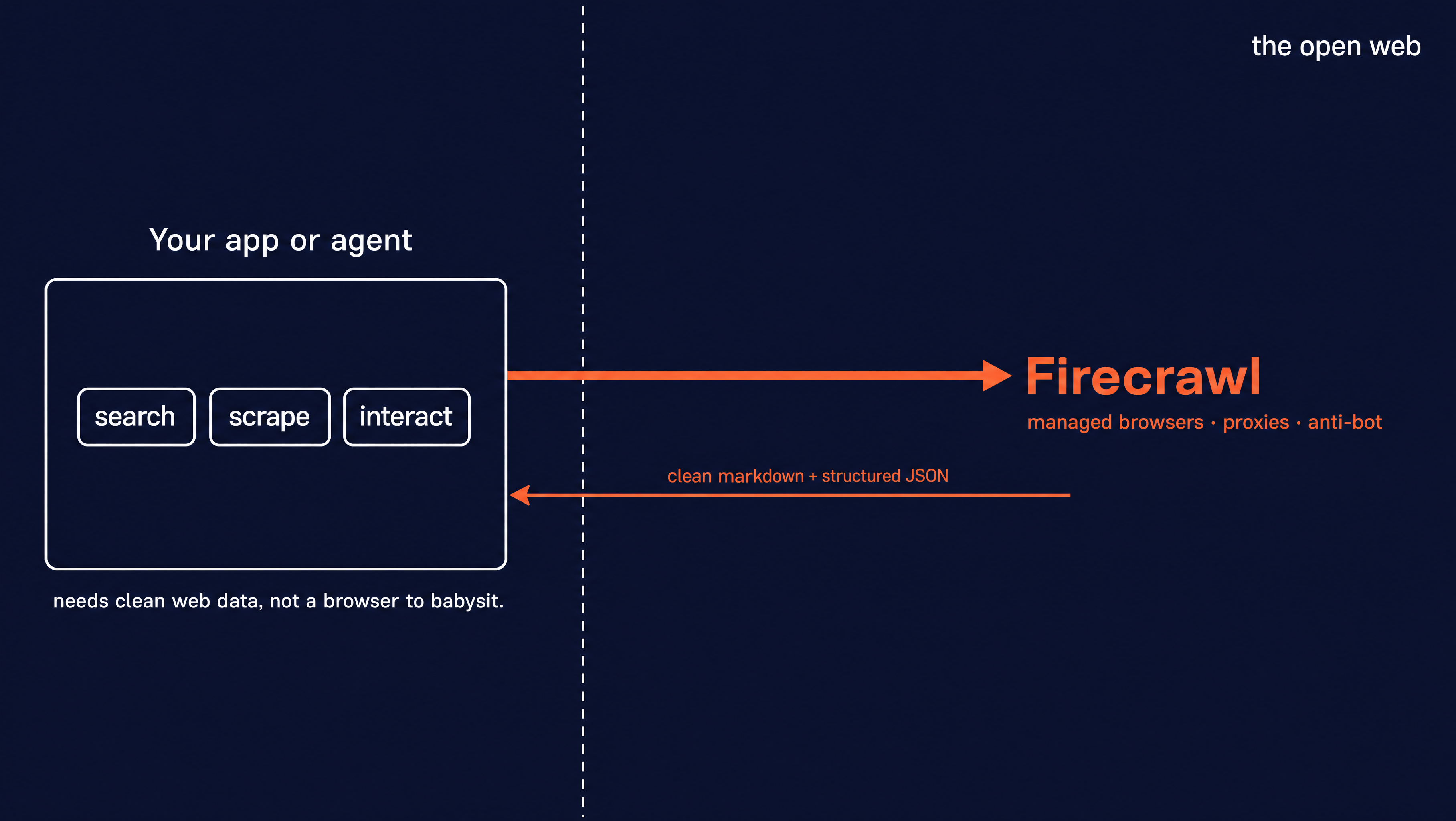
Firecrawl handles that maintenance for you. It gives AI agents and apps fast, reliable web context through search, scraping, and page interaction. You ask for a URL or a query and get back clean markdown or structured JSON, with the browser, proxies, and everything else managed on Firecrawl's side.
Firecrawl is keyless, so you can call the API, CLI, or MCP without an API key. Every developer gets 1,000 free credits a month, and you only sign up when you outgrow that.
The same Gutenberg scrape shrinks to a single call. There is no browser to launch, no wait to tune, and no driver to install:
from firecrawl import Firecrawl

app = Firecrawl(api_key="fc-YOUR-API-KEY")

doc = app.scrape(
    "https://www.gutenberg.org/browse/scores/top",
    formats=["markdown"],
    only_main_content=True,
)

print(doc.markdown)
scrape fetches the page through a managed browser and returns it as markdown. only_main_content drops the nav and footer, so the ranked list arrives as clean numbered entries you can read or hand straight to a model. Pulling the top 10 titles out of that markdown gives the same books Puppeteer and Selenium did:
 1. Moby Dick; Or, The Whale — Herman Melville (5691 downloads)
 2. Pride and Prejudice — Jane Austen (5153 downloads)
 3. A Room with a View — E. M. Forster (3964 downloads)
 4. Romeo and Juliet — William Shakespeare (3715 downloads)
 5. Romeo and Juliet — William Shakespeare (3684 downloads)
 6. Crime and Punishment — Fyodor Dostoyevsky (3510 downloads)
 7. Alice's Adventures in Wonderland — Lewis Carroll (2964 downloads)
 8. The Blue Castle: a novel — L. M. Montgomery (2913 downloads)
 9. The Secret of Chimneys — Agatha Christie (2849 downloads)
10. Jane Eyre: An Autobiography — Charlotte Brontë (2785 downloads)
Scraping a known URL is one of several things Firecrawl does. The harder case, the one neither Gutenberg script could handle, is when you do not have the URL yet and have to go find it. The /search endpoint takes a plain query and, with scrape_options, returns not just a list of links but the full scraped content of each result page in the same call:
from firecrawl import Firecrawl
from firecrawl.v2.types import ScrapeOptions

app = Firecrawl(api_key="fc-YOUR-API-KEY")

results = app.search(
    "best public domain books to read 2026",
    limit=5,
    scrape_options=ScrapeOptions(formats=["markdown"], only_main_content=True),
)

for r in results.web:
    print(r.title, "—", r.url)
    if hasattr(r, "markdown"):
        print(r.markdown[:400])
With Puppeteer or Selenium, the same output would mean standing up a separate search API, parsing the returned URLs, then opening each page in a browser session to read it — two APIs, browser orchestration, and DOM parsing for one question. Here it is one call and one response, with the Gutenberg page from the earlier demo showing up in the results on its own.
Firecrawl also offers two more endpoints in the same short-syntax style.
When a page needs clicks to reveal its data, scrape it first to get a session ID, then call the /interact endpoint to continue in that same live browser — filling forms, clicking through, and pulling data that only appears after interaction, with no browser session of your own to manage. And the /crawl endpoint walks a whole site from a single seed URL. SDKs cover Python, Node, Go, and Rust.
Sometimes an agent still needs full browser control, not a clean scrape. Browser Sandbox covers that case with a managed browser that has Playwright pre-installed, each session in its own isolated container. You run many sessions in parallel without spinning up a grid, and there is no local Chromium to install or driver to keep current.
Making the choice between Puppeteer and Selenium
If you are driving a browser yourself, the pick is usually quick once you sort your requirements and find the one you can't give up. That constraint picks the tool.
Choose Selenium when:
- You need real cross-browser coverage, including Safari.
- Your team writes Python, Java, C#, or Ruby.
- You run large distributed test suites with Grid.
- You want a vendor-neutral W3C standard behind your code.
Choose Puppeteer when:
- You are Chrome-only on Node or TypeScript.
- You want the lightest, fastest Chrome control.
- You need deep DevTools features like network interception or tracing.
- You want the most mature stealth-scraping ecosystem.
If you also want to compare Puppeteer to the other modern Chrome-first option, see Playwright vs Puppeteer.
Both of those are for driving a browser yourself. If what you actually want is clean data off the web, Firecrawl gives you that without the pipeline, on a free tier with 1,000 credits and paid plans from $16 a month. Try Firecrawl on the scrape you were about to write by hand.
Frequently Asked Questions
Is Puppeteer faster than Selenium?
For single-Chrome tasks, usually yes. Puppeteer talks straight to the browser over the Chrome DevTools Protocol, while Selenium sends commands through the WebDriver protocol and a separate driver process. That extra hop adds latency. The gap is small for one short script and matters more when you run many of them.
Does Selenium only support Chrome?
No. Selenium drives Chrome, Firefox, Safari, and Edge through the same WebDriver API, and that cross-browser reach is its main advantage over Puppeteer. Puppeteer targets Chrome and Chromium first, with Firefox support through WebDriver BiDi and no Safari.
Can Puppeteer run in Python?
Not officially. Puppeteer is a JavaScript and TypeScript library. Pyppeteer is an unofficial Python port, but it lags behind official releases and gets inconsistent maintenance. If you need Python, Selenium has an official binding that tracks the main project.
Which is better for web scraping, Puppeteer or Selenium?
Both can scrape, and both use plugins to reduce detection signals: puppeteer-extra-plugin-stealth for Puppeteer, undetected-chromedriver and selenium-stealth for Selenium. These help on simpler sites, but services like Cloudflare and Akamai fingerprint at the protocol level, which no plugin fully addresses. At scale, the real overhead is the infrastructure you have to build and maintain: proxy pools, browser management, and request routing on top of your scraping code. Firecrawl handles that infrastructure for you, so you get clean data without building the pipeline.
Is Selenium still relevant in 2026?
Yes. Selenium is the W3C WebDriver standard. It drives every major browser and has official bindings in Java, Python, C#, Ruby, and JavaScript. Large test suites and non-JavaScript teams still rely on it, and Selenium 4 added Selenium Manager to remove the old driver-setup pain.
Can Puppeteer replace Selenium?
Only if your needs fit Puppeteer's box: Chrome or Chromium, JavaScript or TypeScript, no Safari, and parallelism you orchestrate yourself. The moment you need real cross-browser coverage, a non-JavaScript language, or built-in distributed runs, Selenium does work Puppeteer does not.
Which is easier to learn, Puppeteer or Selenium?
Puppeteer has the gentler start. One npm install gives you a working browser with no driver setup, and the API auto-waits for elements. Selenium asks you to pick a language binding and learn the explicit-wait model, though Selenium Manager now handles drivers for you. If you already write Node, Puppeteer gets you running faster.