The modern web runs on JavaScript. When you visit a site built with React or Vue, your browser downloads a minimal HTML shell and JavaScript builds the page in front of you. Traditional scraping tools like BeautifulSoup only see that initial HTML, so when you try to scrape these sites, you get back empty containers instead of the content you're after.
The fix is to use a headless browser, which runs a real browser engine without the graphical interface. It loads the page, executes JavaScript, and waits for content to render before you extract anything.
This tutorial walks through three ways to scrape dynamic sites in Python: Selenium, Playwright, and Pyppeteer. You'll see how each one works, what they cost to run, and when managed alternatives like Firecrawl might be a better fit if you'd rather skip the infrastructure setup.
TL;DR
- Modern websites load content with JavaScript, which traditional scraping tools like BeautifulSoup can't handle
- Headless browsers (Selenium, Playwright, Pyppeteer) solve this by running a real browser engine that executes JavaScript before extraction
- Selenium has the largest community but runs slower; Playwright is faster with better defaults; Pyppeteer works well but sees less maintenance
- Self-hosting requires managing browser infrastructure and memory limits (200-500MB per instance)
- Infrastructure costs run $200-800/month plus ongoing maintenance time at scale
- Managed APIs like Firecrawl handle JavaScript rendering and scaling automatically through a simple API
- Start with headless browsers to learn fundamentals, but consider managed solutions for production systems that need reliability and scale
What is dynamic web scraping?
Dynamic web scraping extracts content from websites that use JavaScript to load data after the initial page loads, compared to a traditional, static website that sends complete HTML from the server. Today, we have a bunch of dynamic web scraping tools to help execute this.
With a static site, what you see in the page source is exactly what shows up in your browser. A dynamic website works differently: the server sends a skeleton HTML file, and JavaScript fills in the content after the page loads, requiring a headless browser to execute the JavaScript and render the full content before extraction.
A prime example is Airbnb:
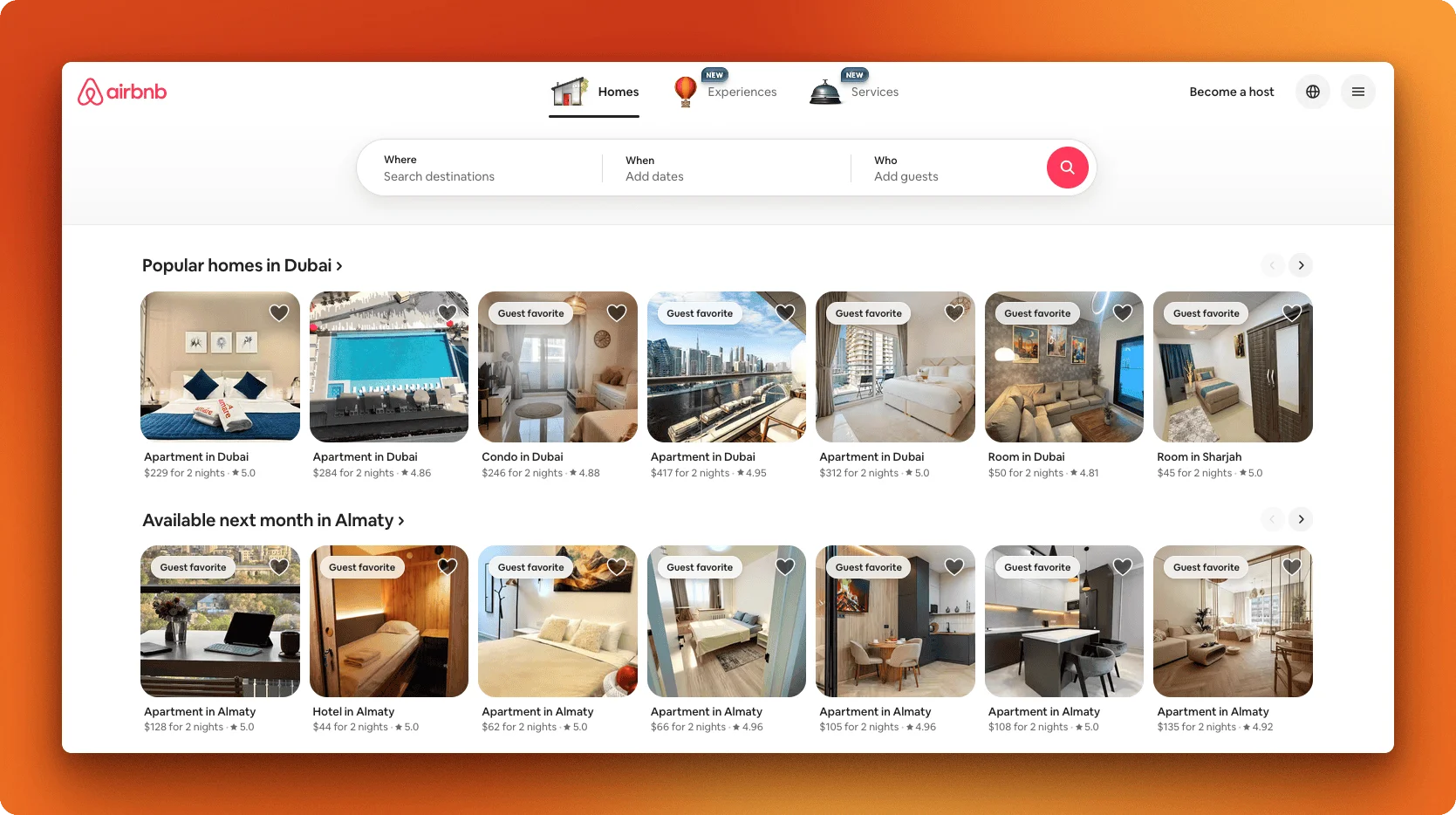
If you right-click and "View Page Source" on a React app, you'll often see just a single <div id="root"></div> with no actual content.
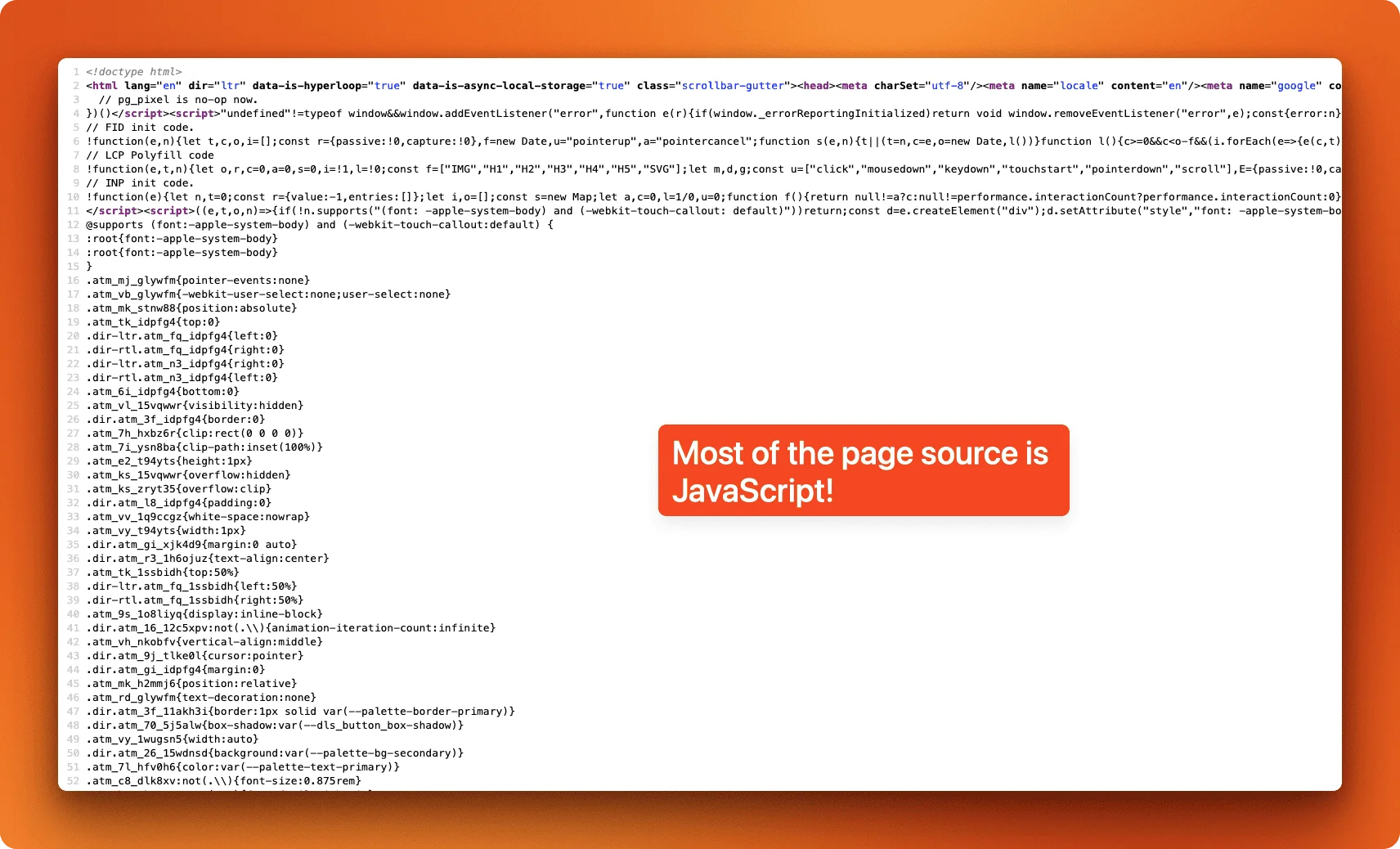
You can test this yourself in Chrome DevTools. Compare "View Page Source" (which shows the raw server response) with "Inspect Element" (which shows the live DOM after JavaScript runs). If they look completely different, you're dealing with a dynamic site. Another quick test: disable JavaScript in your browser settings and reload the page. If the content disappears, JavaScript was rendering it.
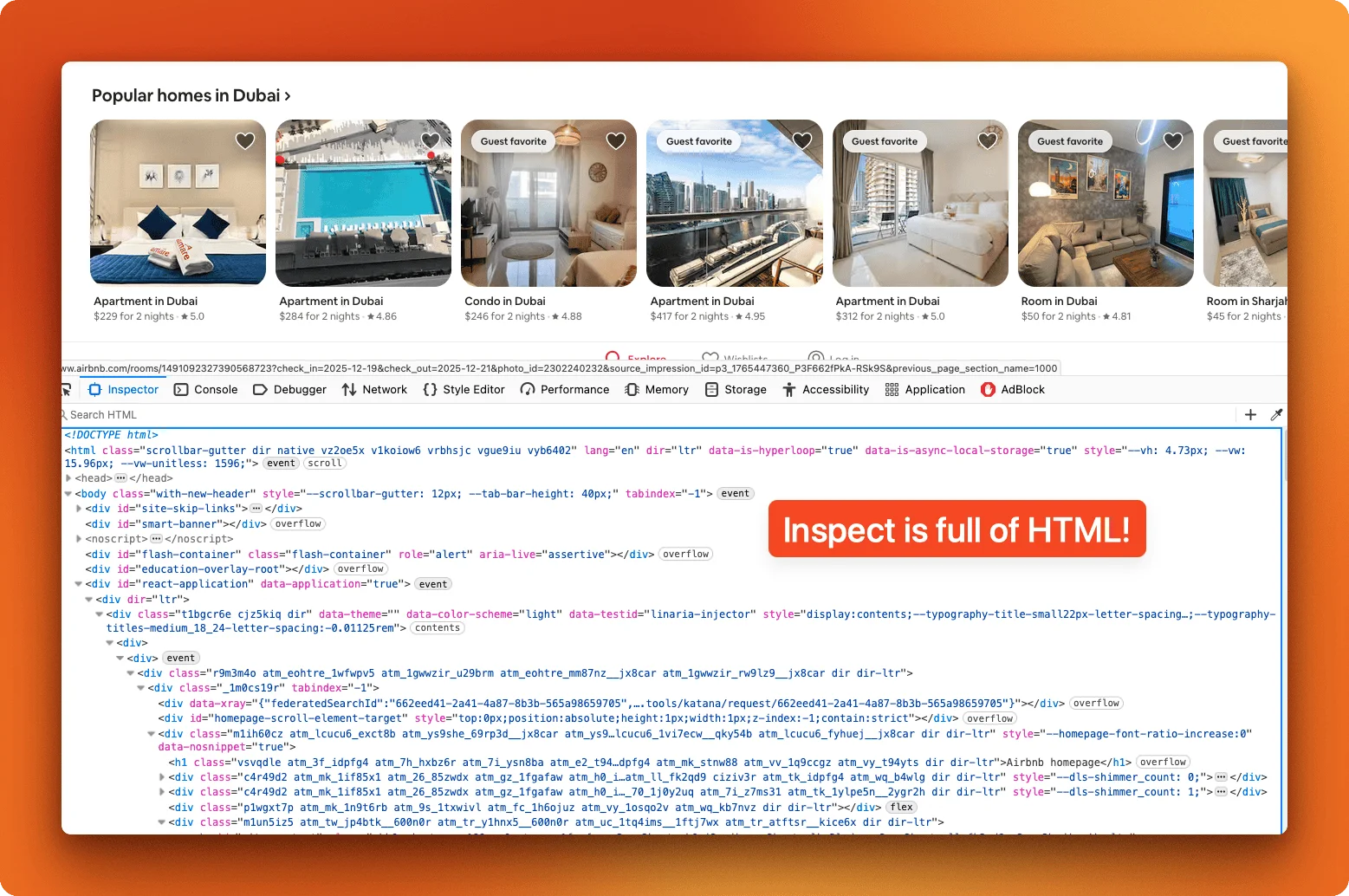
Sites load content dynamically in a few common ways. Single-page applications built with React, Vue, or Angular render everything client-side. Infinite scroll fetches more items as you scroll down. Lazy-loaded images only load when they enter the viewport. And many sites pull content from APIs after the initial page load.
Three Python libraries handle these situations well, each with different tradeoffs. For a broader comparison of automation options, see our guide to browser automation tools.
Headless browser tools overview
Selenium has been around since 2004 and remains the most widely used option. It works with Chrome, Firefox, Safari, and Edge, which makes it the go-to choice when you need cross-browser compatibility. The community is massive, so most problems you run into already have answers on Stack Overflow. However, Selenium runs slower than newer tools because it communicates with browsers through the WebDriver protocol rather than connecting directly.
Playwright came out in 2020, built by the same team that created Puppeteer at Google before they moved to Microsoft. It's faster than Selenium, handles waiting automatically, and has a cleaner API. It supports Chromium, Firefox, and WebKit (Safari's engine), and Microsoft actively maintains it. If you're starting a new project and don't need legacy browser support, Playwright is usually the better choice.
Pyppeteer is a Python port of Google's Puppeteer library. It talks directly to Chrome through the DevTools Protocol, which makes it fast, but it only works with Chromium-based browsers. The project is less actively maintained than the other two, so keep that in mind for long-term projects.
| Tool | Speed | Browser Support | Learning Curve | Active Development |
|---|---|---|---|---|
| Selenium | Slower | All major browsers | Moderate | Very active |
| Playwright | Fast | Chromium, Firefox, WebKit | Easy | Very active |
| Pyppeteer | Fast | Chromium only | Easy | Less active |
We'll start with Selenium since it's the most common, then cover Playwright and Pyppeteer with the same example so you can compare them directly.
How do you scrape dynamic websites with Selenium?
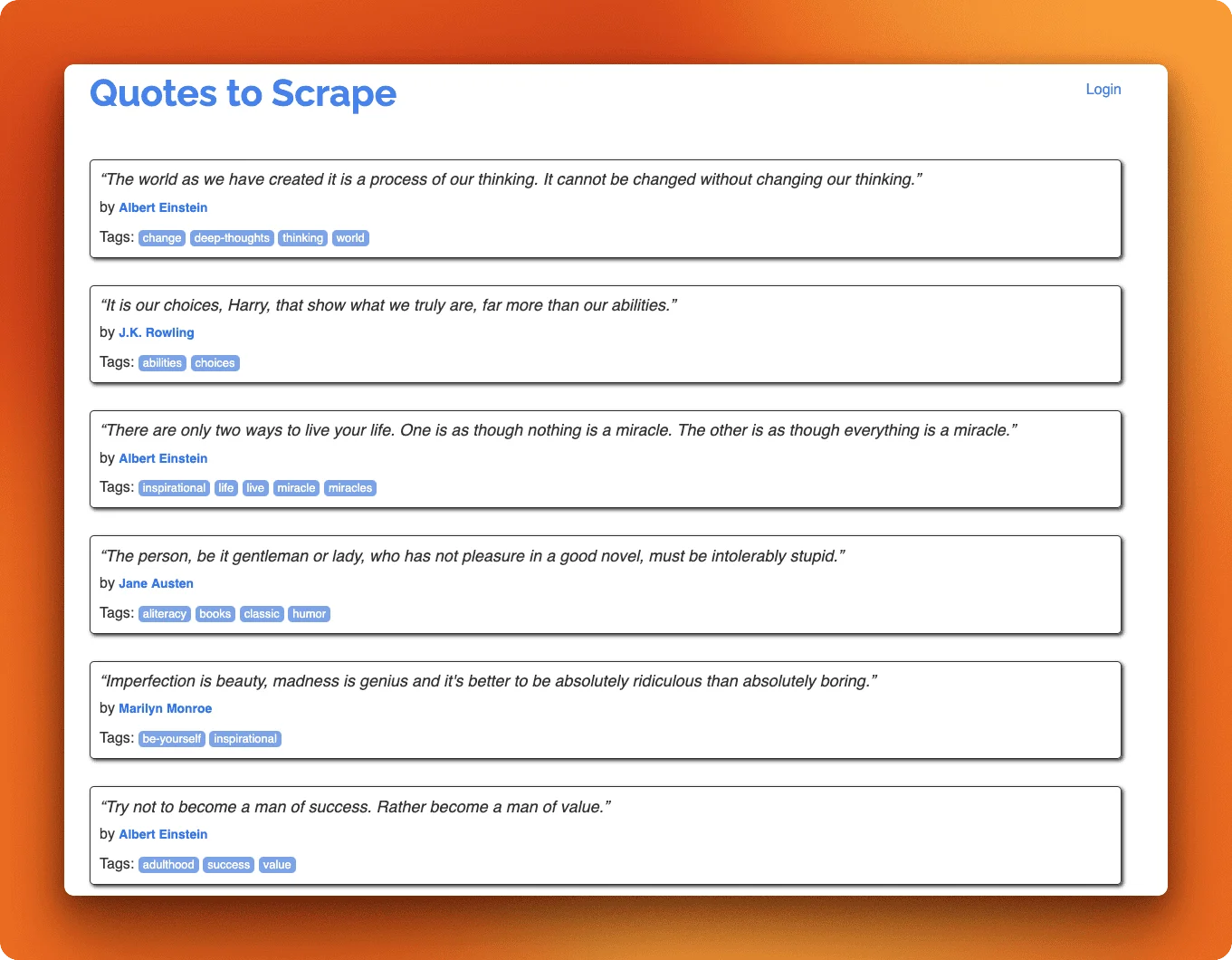
We'll scrape all 100 quotes from quotes.toscrape.com/js. This practice site renders content with JavaScript, making it a good target for learning headless browser techniques. The site splits quotes across 10 pages, so we'll iterate through each page URL. You can find the complete script here.
Installation and imports
pip install selenium webdriver-managerSelenium needs several modules to work properly. The webdriver module controls the browser itself. Service and Options let us configure how Chrome launches. By defines how we locate elements on the page, whether by CSS selector, XPath, or ID. WebDriverWait paired with expected_conditions gives us smart waiting that pauses until specific elements appear rather than waiting a fixed time. Finally, webdriver_manager automatically downloads the correct Chrome driver for your browser version, saving you from manual driver management.
from selenium import webdriver
from selenium.webdriver.chrome.service import Service
from selenium.webdriver.chrome.options import Options
from selenium.webdriver.common.by import By
from selenium.webdriver.support.ui import WebDriverWait
from selenium.webdriver.support import expected_conditions as EC
from webdriver_manager.chrome import ChromeDriverManager
import json
Configuring headless Chrome
Headless mode runs the browser without a visible window, which is faster and works on servers without displays. We set a specific window size because some sites render content differently at smaller dimensions.
options = Options()
options.add_argument("--headless")
options.add_argument("--disable-gpu")
options.add_argument("--no-sandbox")
options.add_argument("--window-size=1920,1080")

driver = webdriver.Chrome(
    service=Service(ChromeDriverManager().install()),
    options=options
)
Our approach is straightforward:
- Iterate through pages 1-10
- Wait for quotes to load on each page
- Extract the data
- Combine all results
Since the site uses JavaScript rendering, we need to wait for the quote elements to appear before extracting.
Finding elements with CSS selectors
To scrape any page, you need to identify which HTML elements contain the data you want. Right-click on a quote in Chrome and select "Inspect" to open DevTools. This shows the HTML structure where you can find class names and IDs that uniquely identify elements.
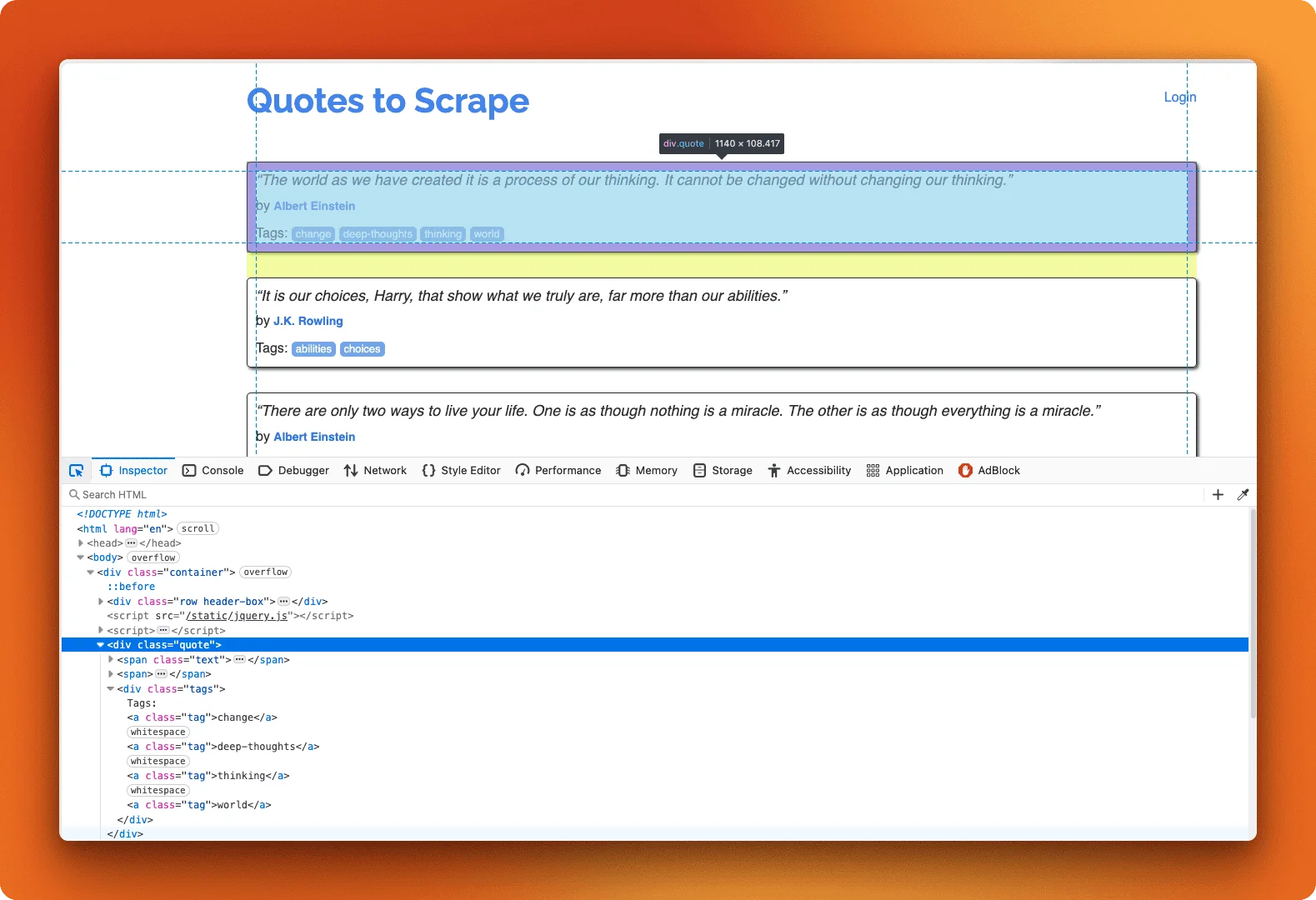
Each quote sits inside a .quote div. The text is in .text, the author in .author, and tags are individual .tag elements inside .tags.
Loading pages and extracting quote data
The get() method navigates to a URL, but the page might still be loading when it returns. Instead of using time.sleep() with a guessed duration, WebDriverWait polls the page until a condition is met or a timeout occurs. This approach is faster when elements load quickly and more reliable when they're slow.
base_url = "https://quotes.toscrape.com/js/page/{}/"
all_quotes = []

for page_num in range(1, 11):
    url = base_url.format(page_num)
    driver.get(url)

    WebDriverWait(driver, 10).until(
        EC.presence_of_element_located((By.CSS_SELECTOR, ".quote"))
    )
This waits up to 10 seconds for at least one quote to appear on each page.
Extracting quote data
Once quotes are loaded, we extract the data. The text element includes quotation marks that we strip out. Tags come as multiple elements that we collect into a list.
# Continuing inside the for page_num loop from above
    quotes = driver.find_elements(By.CSS_SELECTOR, ".quote")

    for quote in quotes:
        text = quote.find_element(By.CSS_SELECTOR, ".text").text
        # Remove surrounding quotation marks
        text = text.strip("\u201c\u201d")

        author = quote.find_element(By.CSS_SELECTOR, ".author").text

        tags = [tag.text for tag in quote.find_elements(By.CSS_SELECTOR, ".tag")]

        all_quotes.append({
            "text": text,
            "author": author,
            "tags": tags
        })

with open("quotes_selenium.json", "w") as f:
    json.dump(all_quotes, f, indent=2)

print(f"Saved {len(all_quotes)} quotes to quotes_selenium.json")
Running this script produces:
Saved 100 quotes to quotes_selenium.json

First 3 quotes:
1. "The world as we have created it is a process of our thinking..."
   Author: Albert Einstein | Tags: change, deep-thoughts, thinking, world
2. "It is our choices, Harry, that show what we truly are, far m..."
   Author: J.K. Rowling | Tags: abilities, choices
3. "There are only two ways to live your life. One is as though ..."
   Author: Albert Einstein | Tags: inspirational, life, live, miracle, miracles
Selenium gets the job done, but this script is verbose. Playwright offers a more modern API that handles much of this automatically, and it runs faster. We'll implement the same scraper with Playwright next.
Handling infinite scroll and screenshots
The quotes site uses pagination, but many modern sites load content as you scroll. Here's how to handle infinite scroll with Selenium when you are dealing with other websites:
import time

last_height = driver.execute_script("return document.body.scrollHeight")

while True:
    driver.execute_script("window.scrollTo(0, document.body.scrollHeight);")
    time.sleep(2)  # Wait for content to load

    new_height = driver.execute_script("return document.body.scrollHeight")
    if new_height == last_height:
        break  # No more content loading
    last_height = new_height
For debugging or archival purposes, you can capture screenshots:
driver.save_screenshot("page_screenshot.png")For more advanced Selenium features including handling alerts, frames, and file uploads, see the official documentation.
Close the driver when you're done with all examples:
driver.quit()How do you scrape dynamic websites with Playwright?
Playwright handles the same quotes scraper with less code and better defaults. You can find the complete script here.
Installation and imports
pip install playwright
playwright install chromium
Playwright bundles its own browser binaries, so there's no need for webdriver-manager or manual driver downloads.
from playwright.sync_api import sync_playwright
import json
Configuring headless Chrome
The browser launches inside a context manager that handles cleanup automatically. No separate Service or Options objects needed.
with sync_playwright() as p:
    browser = p.chromium.launch(headless=True)
    page = browser.new_page(viewport={"width": 1920, "height": 1080})
Loading pages and waiting
Playwright waits for elements automatically. Instead of setting up WebDriverWait with expected_conditions, you just call wait_for() on a locator.
    base_url = "https://quotes.toscrape.com/js/page/{}/"
    all_quotes = []

    for page_num in range(1, 11):
        url = base_url.format(page_num)
        page.goto(url)
        page.locator(".quote").first.wait_for()
Extracting quote data
Locators chain more naturally than Selenium's find_element calls. The extraction logic stays similar but reads cleaner.
# Continuing inside the for page_num loop from above
        quotes = page.locator(".quote").all()

        for quote in quotes:
            text = quote.locator(".text").text_content().strip()
            text = text.strip("\u201c\u201d")

            author = quote.locator(".author").text_content().strip()

            tags = [tag.text_content() for tag in quote.locator(".tag").all()]

            all_quotes.append({
                "text": text,
                "author": author,
                "tags": tags
            })

    browser.close()

with open("quotes_playwright.json", "w") as f:
    json.dump(all_quotes, f, indent=2)

print(f"Saved {len(all_quotes)} quotes to quotes_playwright.json")
The output matches the Selenium version. Playwright typically runs faster since it communicates directly with the browser through the Chrome DevTools Protocol rather than going through WebDriver.
Handling infinite scroll and visual capture
For sites with infinite scroll, Playwright's approach is similar but with cleaner syntax:
previous_height = 0
while True:
    current_height = page.evaluate("document.body.scrollHeight")
    if current_height == previous_height:
        break
    page.evaluate("window.scrollTo(0, document.body.scrollHeight)")
    page.wait_for_timeout(2000)
    previous_height = current_height
Playwright excels at visual capture via its built-in screenshot API. Take screenshots with optional full-page mode:
page.screenshot(path="screenshot.png", full_page=True)Generate PDFs for archival (Chromium only, requires headless mode):
page.pdf(path="page.pdf", format="A4")For network interception, tracing, and mobile emulation, see the Playwright Python documentation.
How do you scrape dynamic websites with Pyppeteer
Pyppeteer is a Python port of Google's Puppeteer library. Unlike Selenium and Playwright, it's async by default, so all your scraping code runs inside an async function. You can find the complete script here.
A note on maintenance: Pyppeteer hasn't seen active development since 2022, and newer dependency versions break it. To run the code below, you need to pin websockets==8.1 (versions 9+ removed the API that Pyppeteer depends on). Install with:
pip install pyppeteer websockets==8.1For new projects, Playwright is the safer choice.
Imports and setup
Pyppeteer downloads its own Chromium binary on first run. The asyncio module handles the async execution.
import asyncio
from pyppeteer import launch
import json
Configuring headless Chrome
The browser launches inside an async function. The setup looks similar to Playwright but with slightly different parameter names.
async def scrape_quotes():
    browser = await launch(headless=True)
    page = await browser.newPage()
    await page.setViewport({"width": 1920, "height": 1080})
Loading pages and waiting
Navigation and waiting use await for each operation. waitForSelector works like Playwright's wait_for() — both are examples of wait strategies in browser automation that ensure elements are ready before interaction.
    base_url = "https://quotes.toscrape.com/js/page/{}/"
    all_quotes = []

    for page_num in range(1, 11):
        url = base_url.format(page_num)
        await page.goto(url)
        await page.waitForSelector(".quote")
Extracting quote data
Pyppeteer returns element handles that you query with querySelector. Text extraction requires evaluating JavaScript on each element.
# Continuing inside the async for page_num loop from above
        quotes = await page.querySelectorAll(".quote")

        for quote in quotes:
            text_elem = await quote.querySelector(".text")
            text = await page.evaluate("el => el.textContent", text_elem)
            text = text.strip().strip("\u201c\u201d")

            author_elem = await quote.querySelector(".author")
            author = await page.evaluate("el => el.textContent", author_elem)

            tag_elems = await quote.querySelectorAll(".tag")
            tags = []
            for tag_elem in tag_elems:
                tag_text = await page.evaluate("el => el.textContent", tag_elem)
                tags.append(tag_text)

            all_quotes.append({
                "text": text,
                "author": author,
                "tags": tags
            })

    await browser.close()
    return all_quotes

# Run the async function
all_quotes = asyncio.run(scrape_quotes())

with open("quotes_pyppeteer.json", "w") as f:
    json.dump(all_quotes, f, indent=2)

print(f"Saved {len(all_quotes)} quotes to quotes_pyppeteer.json")
The async pattern adds verbosity compared to Playwright, and the project sees fewer updates these days. If you're starting fresh, Playwright is usually the better choice. Pyppeteer still works well if you're already familiar with Puppeteer from JavaScript or have existing code to port.
Handling infinite scroll and screenshots
The async infinite scroll pattern follows the same logic:
async def scroll_to_bottom(page):
    previous_height = 0
    while True:
        current_height = await page.evaluate("document.body.scrollHeight")
        if current_height == previous_height:
            break
        await page.evaluate("window.scrollTo(0, document.body.scrollHeight)")
        await asyncio.sleep(2)
        previous_height = current_height
Screenshots work similarly to Playwright:
await page.screenshot({"path": "screenshot.png", "fullPage": True})Given Pyppeteer's maintenance status, consider Playwright for new projects. For Pyppeteer-specific features, see the documentation.
Cost and performance analysis
A working script on your laptop is one thing. Running it thousands of times a day is another.
Resource usage
Each headless Chrome instance consumes 200-500MB of RAM and spikes CPU during JavaScript execution. A single page scrape takes 2-10 seconds depending on how much content needs to render. These numbers add up fast. A 4GB cloud server can realistically handle 5-8 concurrent browser instances before it starts thrashing memory.
Infrastructure costs
For moderate-scale scraping (10,000 pages per day), expect to budget:
- Compute: $50-150/month for a server with enough RAM (8-16GB minimum)
- Proxies: $100-500/month for residential proxies that won't get blocked
- Storage: $10-30/month for data and screenshots
- Monitoring: $30-100/month for error tracking and alerts
That's $190-780/month before counting your time.
Scaling challenges
Parallel execution sounds simple until you hit memory limits. Distributed scraping across multiple servers adds job queues, coordination logic, and failure handling. Browser processes crash, leak memory, and leave zombie processes. Sessions need to survive restarts. Each problem has solutions, but those solutions take time to build and maintain.
Maintenance overhead
The real cost is ongoing maintenance. Chrome updates break things every few months. Sites change their HTML structure without warning. Someone has to monitor dashboards, fix failures, and update selectors when extractions break.
When the math changes
At small scale, DIY headless scraping makes sense. You control everything, the marginal cost per page is low, and you're learning valuable skills.
At larger scale, the equation changes. If you're paying $500/month in infrastructure plus 10 hours of maintenance time, that's real money. A managed API that charges $1-10 per 1,000 pages might cost the same or less while eliminating the operational burden.
The break-even point varies by use case, but it's worth calculating before you build infrastructure you'll have to maintain indefinitely. If these infrastructure costs and maintenance requirements don't fit your situation, managed APIs offer an alternative approach. Instead of running headless browsers yourself, you send requests to a service that handles the browser infrastructure and JavaScript rendering on their end.
Alternative: Scraping with Firecrawl
Firecrawl is the web data API to search, scrape, and interact with the web at scale, handling dynamic web scraping, JavaScript rendering, and data extraction through a single interface. Instead of managing browser infrastructure yourself, you send URLs to the API and get back structured data.
Unlike traditional scraping that requires CSS selectors and breaks when HTML changes, Firecrawl uses LLMs to extract data based on your description of what you want.
Getting started
You can try Firecrawl's endpoints without an API key to start. When you're ready to go further, create a free account at firecrawl.dev and grab a key from the dashboard for higher rate limits and more credits.
Install the Python SDK:
pip install firecrawl pydanticSet your API key as an environment variable. Create a .env file in your project:
FIRECRAWL_API_KEY=fc-your-api-key-hereOr export it directly:
export FIRECRAWL_API_KEY=fc-your-api-key-hereThe SDK reads from the environment automatically, so you don't need to pass the key in your code.
How Firecrawl extracts data
Traditional scraping requires you to inspect HTML, write CSS selectors, and update them when sites change. Firecrawl takes a different approach: you define a data schema and describe what you want in plain language, then an LLM extracts it from the page.
The schema is a Pydantic model defining the fields you want and their types, which Firecrawl converts to JSON Schema automatically. The prompt is natural language instructions telling the model what to look for.
The model handles variations in page layout, different HTML structures, and content changes that would break traditional selectors. The tradeoff is cost (API calls aren't free) and occasional extraction errors when content is ambiguous.
Scraping quotes with Firecrawl
Here's the same 100-quote scraper using Firecrawl's batch endpoint:
from firecrawl import FirecrawlApp
from firecrawl.v2.types import JsonFormat
from pydantic import BaseModel
from typing import List

# Reads FIRECRAWL_API_KEY from environment
app = FirecrawlApp()
Define Pydantic models for the data structure. Quote represents a single quote, and QuotesPage wraps a list of them:
class Quote(BaseModel):
    text: str
    author: str
    tags: List[str]

class QuotesPage(BaseModel):
    quotes: List[Quote]
Generate all page URLs and batch scrape them in a single call:
urls = [f"https://quotes.toscrape.com/js/page/{i}/" for i in range(1, 11)]

results = app.batch_scrape(
    urls=urls,
    formats=[
        JsonFormat(
            type="json",
            schema=QuotesPage.model_json_schema(),
            prompt="Extract all quotes. For each quote, get the text without quotation marks, the author name, and all tags."
        )
    ],
    timeout=60000
)
The batch_scrape method processes URLs concurrently. The JsonFormat object takes three arguments: type="json" for structured output, schema to define the output structure, and prompt to guide extraction.
Combine results from all pages:
all_quotes = []
for result in results.data:
    if result.json and "quotes" in result.json:
        all_quotes.extend(result.json["quotes"])

print(f"Scraped {len(all_quotes)} quotes from {len(urls)} pages")
The API handles JavaScript rendering and returns structured data matching your schema without requiring browser binaries, waiting logic, or CSS selectors on your end.
Beyond basic scraping
For pages requiring interaction before extraction, Firecrawl's Actions API executes commands sequentially. For multi-step sessions where you need to keep the browser alive across interactions — clicking, form fills, navigation — the Firecrawl interact endpoint is the browser automation API built for agents. For sites that expose WebMCP tools — developer-defined tool calls an agent can invoke directly — headless agents can reach those tools through Firecrawl's cloud browser without a local Chrome install:
result = app.scrape(
    "https://example.com/infinite-scroll",
    actions=[
        {"type": "scroll", "direction": "down"},
        {"type": "wait", "milliseconds": 2000},
        {"type": "scroll", "direction": "down"},
        {"type": "wait", "milliseconds": 2000},
    ]
)

print(result)
Available actions include scroll (up/down), wait, click, write, press, screenshot, and executeJavascript.
You can also capture screenshots alongside content by adding "screenshot" to the formats list, or crawl entire sites with the crawl method by setting max_depth and limit parameters.
For webhooks, rate limits, and the full API reference, see the Firecrawl documentation.
When to choose a headless browser or Firecrawl
Headless browsers make sense when you're learning web scraping fundamentals or need to scrape internal tools that require authentication. They're also the right choice for complex multi-step interactions like form filling and login flows, or when you need full control over browser behavior.
Firecrawl fits better when you're building production systems where reliability matters more than control. It handles scale well (hundreds or thousands of pages) and saves development time when that time costs more than API fees. For a detailed comparison of Firecrawl alongside other managed scraping APIs, see our best web scraping APIs guide.
Best practices and common pitfalls
Before scraping any site, check its robots.txt file (usually at /robots.txt) to see which paths are off-limits. For a deeper dive into what can go wrong, see our article on common web scraping mistakes and how to fix them.
Most sites also expect reasonable delays between requests. Adding a 1-2 second pause between page loads reduces server strain and makes your scraper less likely to get blocked. Running dozens of parallel browser instances against a single domain is a quick way to get your IP banned, so start with sequential requests and only parallelize if the site can handle it.
Scrapers fail in predictable ways. Wrap your requests in try/except blocks to catch connection timeouts, DNS failures, and refused connections. When a request fails, retry with exponential backoff (wait 1 second, then 2, then 4) rather than hammering the server immediately. Set explicit timeouts on page loads so a stuck page doesn't hang your entire scraper. Watch for HTTP 429 (too many requests) and 503 (service unavailable) responses, which signal you're being rate limited or the server is overloaded. Back off when you see these instead of pushing through.
Headless browsers and beyond
Selenium, Playwright, and Pyppeteer all solve the same problem: getting content from pages that render with JavaScript. Selenium has the largest community and works across all browsers, but runs slower than the alternatives. Playwright is the modern choice with automatic waiting, fast execution, and active development from Microsoft. Pyppeteer works well if you're porting Puppeteer code from JavaScript, though its maintenance has slowed. For most new projects, start with Playwright and only reach for Selenium if you need specific browser compatibility.
If you'd rather skip the browser infrastructure entirely, Firecrawl handles JavaScript rendering and data extraction through a single API. Try the free tier to see if it fits your workflow.
FAQs
1. Which headless browser is fastest?
Playwright is generally the fastest self-hosted option, communicating directly with browsers through the Chrome DevTools Protocol. Pyppeteer offers similar speed but only works with Chromium. However, if speed at scale matters more than having full control, managed APIs like Firecrawl eliminate the overhead of running browsers entirely: no startup time, no memory management, just fast concurrent requests handled on distributed infrastructure.
2. Can I scrape without a browser at all?
Yes, and you should try this first for static sites. Many sites have public APIs or expose data through network requests you can call directly with the requests library and BeautifulSoup. Our web scraping intro for beginners covers this path from first fetch to full-site crawl. But for JavaScript-heavy sites, you'll need browser rendering. Rather than managing headless browsers yourself, Firecrawl handles the rendering for you while providing a simple API interface.
3. What's the difference between headless and headful mode?
Headless mode runs the browser without a visible window, which is faster and works on servers without displays. Headful mode shows the actual browser window, which helps when debugging since you can watch exactly what your scraper sees. With Firecrawl, you skip this distinction entirely because the service handles rendering in the background and you just get the data back.
4. Why does my scraper work locally but fail on a server?
Servers often lack the dependencies browsers need, like display drivers, font libraries, and updated Chrome binaries. On Linux, you'll need packages like xvfb, libx11-xcb1, and Chrome's full dependency tree. Server IPs also get flagged more easily than residential IPs. These deployment headaches are why many teams move to managed solutions like Firecrawl. You avoid server configuration, dependency management, and IP rotation entirely.
5. How do I scale headless browser scraping?
Each browser instance needs 200-500MB of RAM, so a single server hits limits around 5-8 concurrent browsers. Options include running multiple workers across servers, using container orchestration like Kubernetes, or managing a pool of proxy IPs. But this infrastructure complexity is expensive to build and maintain. Firecrawl handles scaling automatically, processing hundreds of concurrent requests without you managing servers, memory limits, or distribution logic.
6. When should I use a headless browser vs Firecrawl?
Use headless browsers when you're learning scraping fundamentals, need full control for complex authentication flows, or are scraping internal tools behind a firewall. Choose Firecrawl when you're building production systems that need to scale, want to avoid infrastructure maintenance, need reliable extraction that survives HTML changes, or when your engineering time costs more than API fees. Most teams start with DIY browsers and move to Firecrawl once they hit scaling or maintenance challenges.