What is web scraping with JavaScript and why use it?
Web scraping with JavaScript lets you extract data from websites programmatically using Node.js. When APIs don't exist or don't give you what you need, scraping gives you another way to get the data you need.
JavaScript developers use scraping for practical tasks like tracking prices across e-commerce sites, aggregating job listings from multiple boards, monitoring real estate listings, and collecting data for analysis. These are real problems you can solve with the skills you'll learn here, not theoretical examples.
This guide teaches you how to scrape websites with JavaScript from the ground up. You'll start with simple static sites using Cheerio and Axios, then discover when those tools fail and why modern solutions like Firecrawl exist. Along the way, you'll see working code, understand the tradeoffs between different approaches, and get project ideas to practice your new skills. If you work in PHP or Python instead, we have guides for PHP web scraping and Python web scraping.
How do websites work for web scraping?
If you're a JavaScript developer, you probably know HTML structure basics already. We'll keep this brief and focus on the scraping perspective: finding the right elements to target.
Your browser's developer tools make this easy.
Right-click any element on a page and select "Inspect" (or press F12 on Windows, Cmd+Option+I on Mac). The DevTools panel shows you the HTML structure. When you hover over elements in the inspector, the corresponding parts of the page highlight. This shows you exactly which tags create what you see.
Let's try this on books.toscrape.com. Open the site, right-click a book title, and inspect it. You'll see it's wrapped in a specific tag with a class name you can target.
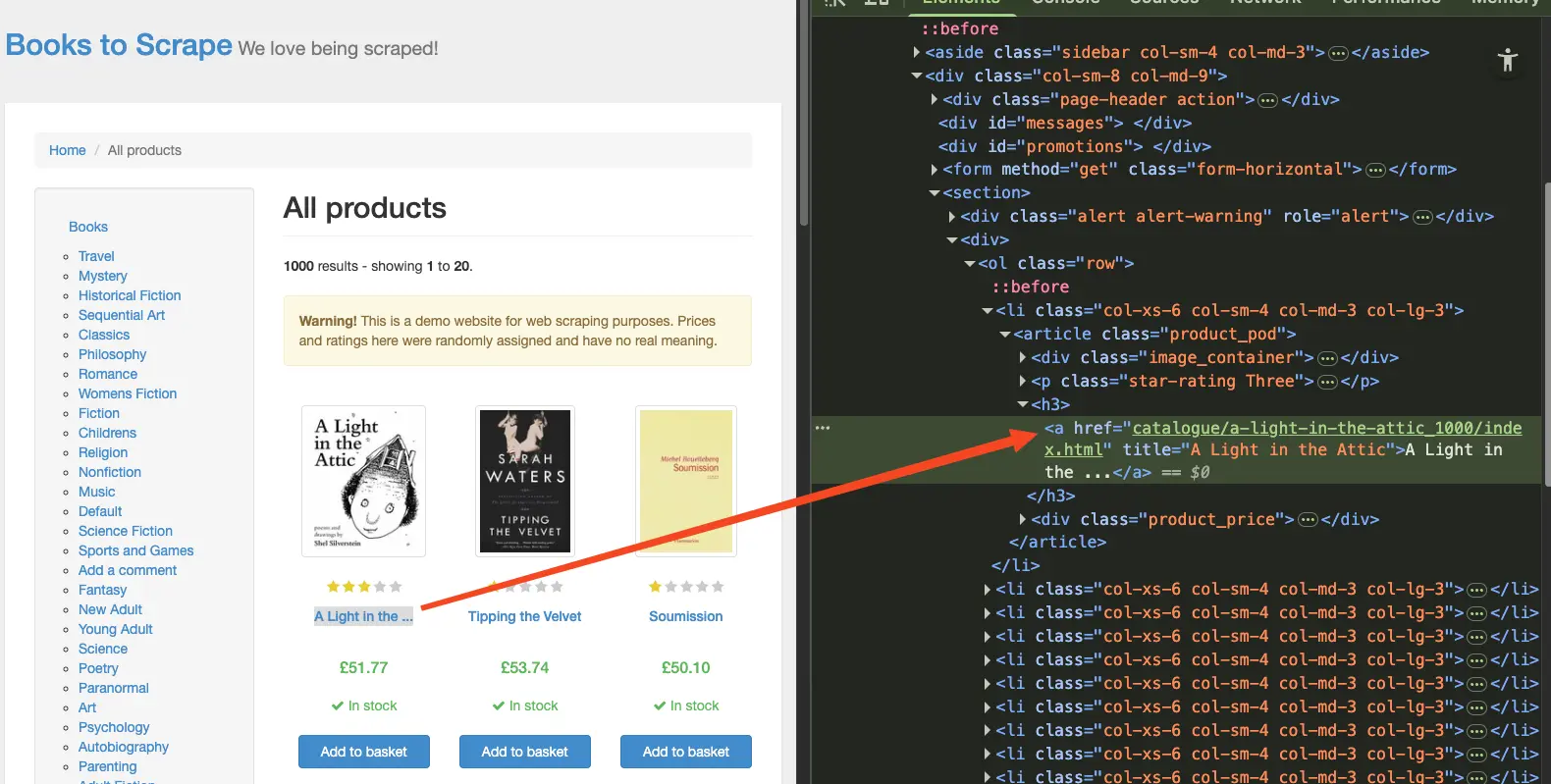
Find the price element the same way. Look for the class attribute. The selectors you will see used in our code were found the same way. What you see in your browser might be different from what's shown in the code as websites might change their structure.
One thing to note: there's a difference between what's in the page source code and what appears on the page. This distinction will become critical when we encounter JavaScript-rendered sites later in the guide.
Your first JavaScript scraping project: Book prices
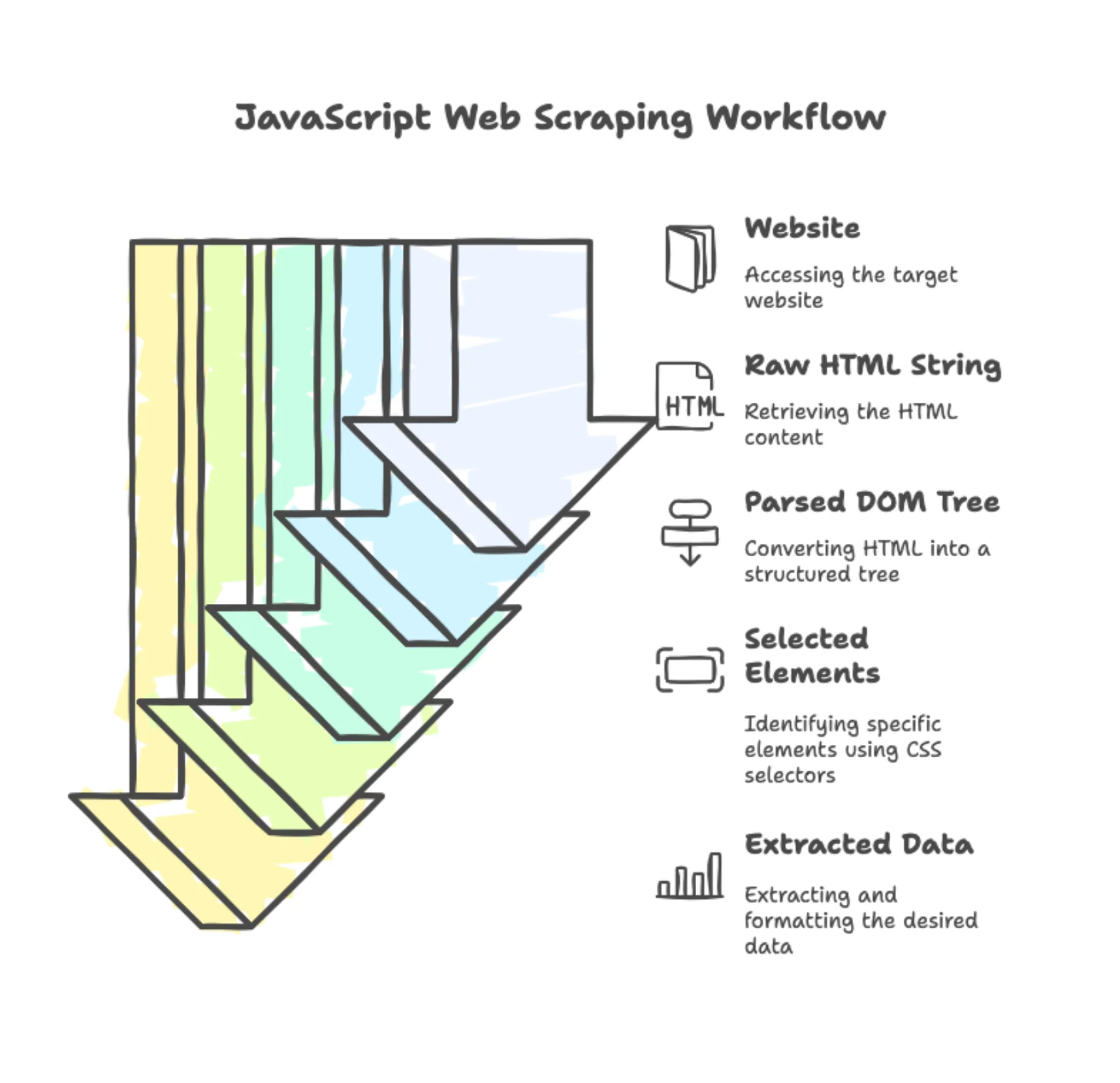
We'll build your first web scraper by extracting book information from books.toscrape.com using two libraries: Axios for fetching HTML and Cheerio for parsing it.
First, create a new directory for this project.
Then, install both packages in this new project directory:
npm install axios cheerioAxios makes HTTP requests to fetch HTML. Cheerio parses that HTML and lets you search it using jQuery-like selectors—it's one of the most popular open source web scraping libraries for JavaScript.
Here's the complete code to scrape a single book's information:
import axios from "axios";
import * as cheerio from "cheerio";

async function scrapeBook() {
  // Fetch the HTML from the page
  const { data } = await axios.get("https://books.toscrape.com/");

  // Load HTML into Cheerio
  const $ = cheerio.load(data);

  // Find the first book and extract its data
  const firstBook = $("article.product_pod").first();

  const title = firstBook.find("h3 a").attr("title");
  const price = firstBook.find(".price_color").text();
  const rating = firstBook.find(".star-rating").attr("class").split(" ")[1];

  console.log({
    title,
    price,
    rating,
  });
}

scrapeBook();
Here's how each part of this code works:
axios.get() fetches the HTML. The response comes back in data, which contains all the page's HTML as a string.
cheerio.load(data) parses that HTML string into a structure you can query. The $ variable now works like jQuery.
$('article.product_pod').first() finds the first book container on the page. Each book is wrapped in an <article> tag with the class product_pod.
.find('h3 a').attr('title') looks inside that book container for the title. The title text lives in an anchor tag's title attribute.
.find('.price_color').text() grabs the price. It's stored in an element with the class price_color.
.find('.star-rating').attr('class') gets the rating. Books.toscrape stores ratings as classes like star-rating Three, so we split the class string and take the second word.
Save this code to a file called scrape_book.js or something similar.
Then, run the code:
node scrape_book.jsAnd you'll see output like:
{ title: 'A Light in the Attic', price: '£51.77', rating: 'Three' }You just created your first web scraper in under 30 lines of code. The same pattern works for any static website: fetch HTML with Axios, parse it with Cheerio, and extract data using CSS selectors.
How do you scrape multiple items from a page?
Scraping one book works, but you probably want all the books on the page. Here's how to modify the previous code to loop through every book and collect them into an array.
Here's the updated code:
import axios from "axios";
import * as cheerio from "cheerio";

async function scrapeAllBooks() {
  const { data } = await axios.get("https://books.toscrape.com/");
  const $ = cheerio.load(data);

  const books = [];

  $("article.product_pod").each((index, element) => {
    const book = $(element);

    const title = book.find("h3 a").attr("title");
    const price = book.find(".price_color").text();
    const rating = book.find(".star-rating").attr("class")?.split(" ")[1];

    // Only add if we found all the data
    if (title && price && rating) {
      books.push({
        title,
        price,
        rating,
      });
    }
  });

  console.log(`Found ${books.length} books`);
  console.log(books.slice(0, 3)); // Show first 3
}

scrapeAllBooks();
The main changes from the single-book version:
We created an empty books array to store results.
.each() loops through every element that matches the selector. Cheerio passes each element to the callback function.
$(element) wraps each book element so we can use Cheerio methods on it.
The optional chaining operator ?. prevents errors if the rating class doesn't exist. This is basic error handling.
The if statement checks that we got all three pieces of data before adding a book to the array. This skips any malformed or incomplete entries.
When you run this, you'll see output like:
Found 20 books
[
  { title: 'A Light in the Attic', price: '£51.77', rating: 'Three' },
  { title: 'Tipping the Velvet', price: '£53.74', rating: 'One' },
  { title: 'Soumission', price: '£50.10', rating: 'One' }
]
The page has 20 books, and we grabbed all of them. This pattern scales to hundreds of items.
Production patterns
Real scrapers need more than just data extraction. Here are three patterns that make your scraper production-ready.
Rate limiting stops you from overwhelming servers and getting blocked very quickly. Add delays between requests:
async function scrapeWithDelay(urls) {
  const results = [];

  for (const url of urls) {
    const { data } = await axios.get(url);
    results.push(data);

    // Wait 2 seconds before next request
    await new Promise((resolve) => setTimeout(resolve, 2000));
  }

  return results;
}
This function processes URLs sequentially rather than in parallel, adding a 2-second delay after each request (you may also want to randomize the delay as most websites are aware of this trick). The setTimeout wrapped in a Promise pauses execution between requests, preventing your scraper from being flagged as abusive traffic.
Error handling with retries makes your scraper resilient:
async function fetchWithRetry(url, maxRetries = 3) {
  for (let i = 0; i < maxRetries; i++) {
    try {
      const { data } = await axios.get(url);
      return data;
    } catch (error) {
      if (i === maxRetries - 1) throw error;

      // Wait before retry (exponential backoff)
      await new Promise((resolve) => setTimeout(resolve, Math.pow(2, i) * 1000));
    }
  }
}
This retry logic attempts the request up to three times with exponential backoff: 1 second after the first failure, 2 seconds after the second, 4 seconds after the third. This pattern handles temporary network issues and server hiccups gracefully without hammering the server.
These patterns work with any scraping method. Add them early and save yourself debugging time later.
Why do traditional scraping tools fail on modern sites?
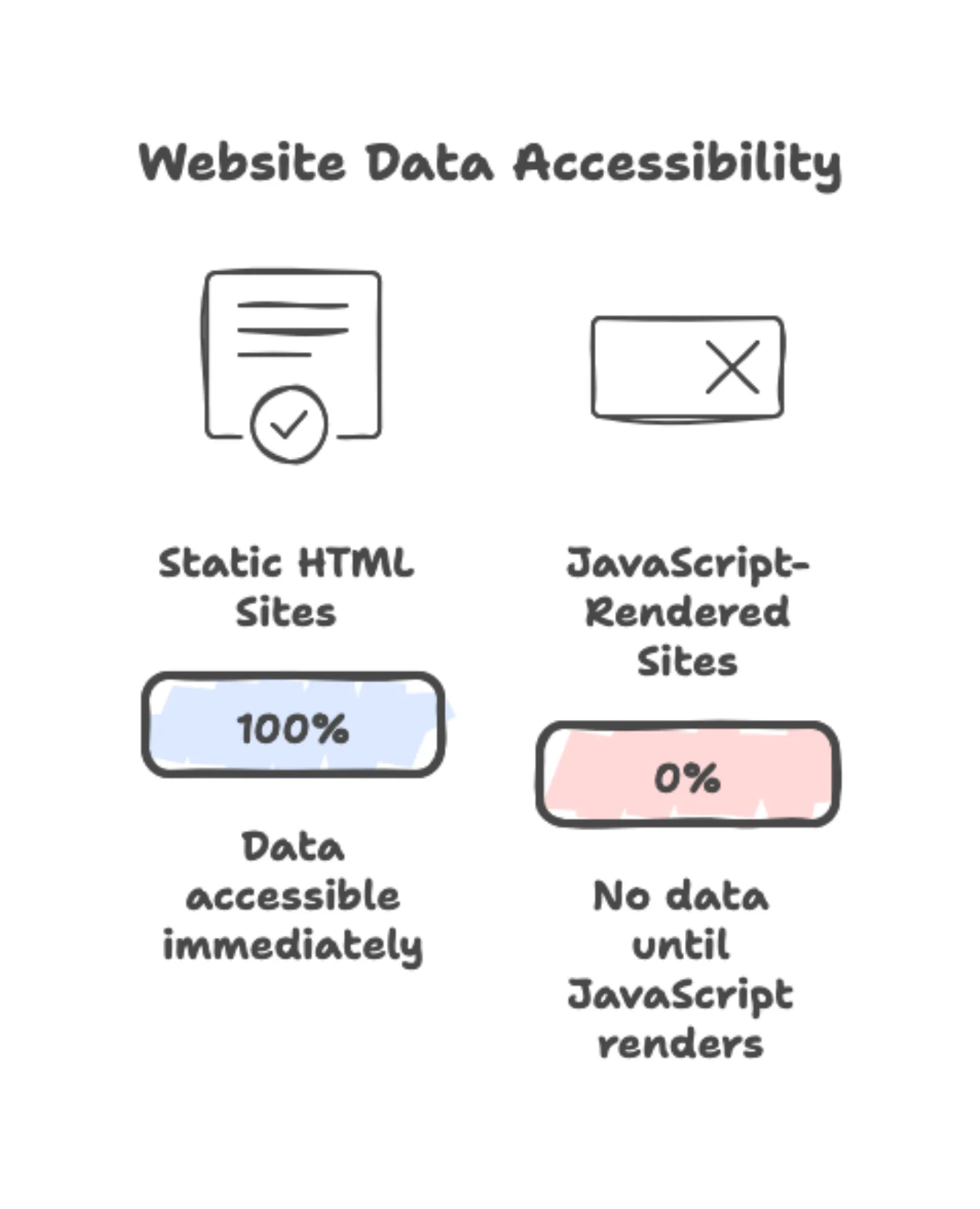
The methods you learned work great on sites like books.toscrape.com. But not all websites work this way. Most modern sites return empty data when you use Cheerio and Axios, even when your code looks perfect.
The problem is JavaScript.
The JavaScript rendering problem
Traditional websites work like this:
- Your code requests a page
- Server sends back complete HTML with all the data
- You parse the HTML and extract what you need
Modern websites work differently:
- Your code requests a page
- Server sends back minimal HTML and JavaScript code
- JavaScript runs in the browser and builds the page content
- You see the final rendered page
When you scrape with Cheerio and Axios, you only get the HTML from step 2. The JavaScript never runs, so you never see the content it would have generated.
Seeing the problem in action
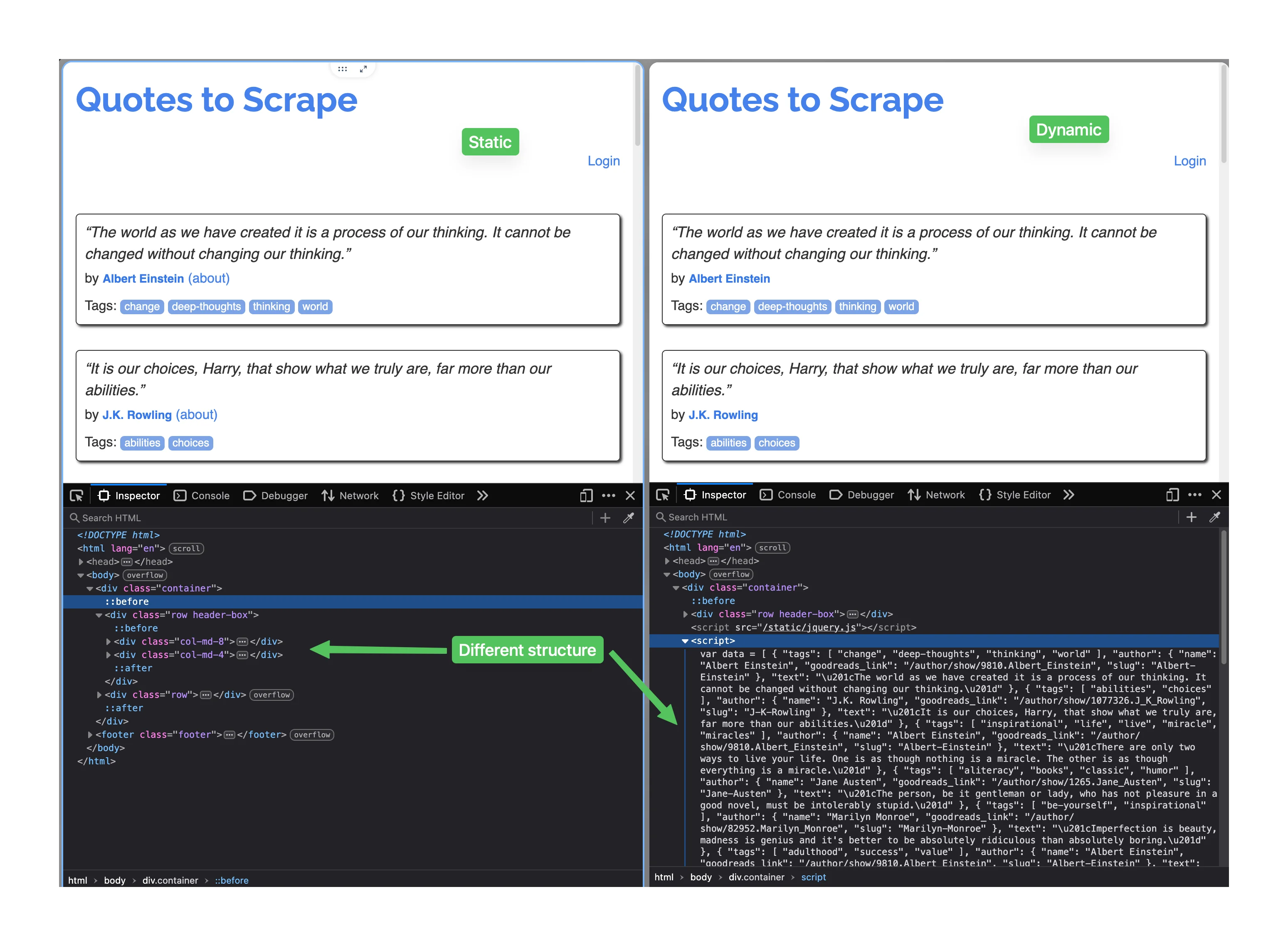
The site quotes.toscrape.com demonstrates this perfectly. It has two versions: one uses static HTML, the other uses JavaScript to load quotes.
The static version works fine with Cheerio. Try this code:
import axios from "axios";
import * as cheerio from "cheerio";

async function scrapeStaticQuotes() {
  const { data } = await axios.get("https://quotes.toscrape.com/");
  const $ = cheerio.load(data);

  const quotes = [];

  $(".quote").each((index, element) => {
    const quote = $(element);
    const text = quote.find(".text").text();
    const author = quote.find(".author").text();

    quotes.push({ text, author });
  });

  console.log(`Found ${quotes.length} quotes`);
  console.log("\nFirst quote:");
  console.log(quotes[0]);
}

scrapeStaticQuotes();
Run it:
node scrape_static.jsOutput:
Found 10 quotes

First quote:
{
  text: '"The world as we have created it is a process of our thinking. It cannot be changed without changing our thinking."',
  author: 'Albert Einstein'
}
That works perfectly. Now try the JavaScript version at https://quotes.toscrape.com/js/. Use the exact same code, just change the URL:
async function scrapeJavaScriptQuotes() {
  const { data } = await axios.get("https://quotes.toscrape.com/js/");
  const $ = cheerio.load(data);

  const quotes = [];

  $(".quote").each((index, element) => {
    const quote = $(element);
    const text = quote.find(".text").text();
    const author = quote.find(".author").text();

    quotes.push({ text, author });
  });

  console.log(`Found ${quotes.length} quotes`);
}

scrapeJavaScriptQuotes();
Run it:
node scrape_javascript.jsOutput:
Found 0 quotesZero quotes. The page looks identical in your browser, but Cheerio sees nothing because it can't execute JavaScript.
Understanding why with DevTools
Want to see the difference? Open https://quotes.toscrape.com/js/ in your browser. Right-click and select "View Page Source" (or press Ctrl+U on Windows, Cmd+Option+U on Mac).
The HTML is mostly empty—just a <div> container and a <script> tag. No quotes.
Now right-click on a quote and select "Inspect Element." The inspector shows full quote HTML with all the data. That's what JavaScript built after the page loaded—and what Cheerio never sees.
Traditional solutions have drawbacks
You can solve this with headless browsers like Puppeteer or Playwright. These tools run a real browser in the background, execute JavaScript, and return the final rendered HTML. If you're weighing Puppeteer vs Selenium for your project, our comparison covers the key differences in setup, speed, and use cases.
Let's see Puppeteer, the most popular browser automation library in JavaScript in action. Or skip the complexity and try Firecrawl for free with 1,000 credits per month to handle JavaScript rendering automatically.
How does Puppeteer handle JavaScript-rendered sites?
Here's how you'd scrape the JavaScript quotes site with Puppeteer. Install Puppeteer first:
npm install puppeteerNow set up the browser and navigate to the page:
import puppeteer from 'puppeteer';

async function scrapeWithPuppeteer() {
  // Launch browser and create new page
  const browser = await puppeteer.launch();
  const page = await browser.newPage();

  // Navigate to the page
  await page.goto('https://quotes.toscrape.com/js/');

  // Wait for quotes to load
  await page.waitForSelector('.quote');
We launch a headless Chrome instance and create a new browser tab. The goto() method navigates to the URL and waits for the page to load. The waitForSelector() ensures the JavaScript has finished rendering the quotes before we try to extract them.
Extract the data from the rendered page:
// Extract data from the rendered page
const quotes = await page.evaluate(() => {
  const quoteElements = document.querySelectorAll(".quote");
  return Array.from(quoteElements).map((quote) => ({
    text: quote.querySelector(".text").textContent,
    author: quote.querySelector(".author").textContent,
  }));
});

await browser.close();
The evaluate() method runs code inside the browser context where the DOM is fully available. We select all quote elements and map them to objects with text and author fields. After extraction, we close the browser to free resources.
Display the results:
  console.log(`Found ${quotes.length} quotes`);
  console.log('\nFirst quote:');
  console.log(quotes[0]);
}

scrapeWithPuppeteer();
Run it:
node puppeteer_scraper.jsOutput:
Found 10 quotes

First quote:
{
  text: '"The world as we have created it is a process of our thinking. It cannot be changed without changing our thinking."',
  author: 'Albert Einstein'
}
It works. But tools like Puppeteer have serious downsides:
- You need to install and maintain Chrome or Firefox
- They use a lot of memory and CPU (200-500MB per browser instance)
- They're slow (3-10 seconds per page)
- They break when browser versions update
- You need more complex code to handle browser automation
- Hosting costs go up because of resource usage
For a small project scraping a few pages, this might work. For production use or scraping at scale, it gets expensive and difficult to maintain.
Modern scraping APIs offer a better approach. They handle JavaScript rendering and infrastructure for you, which is what we'll explore next.
When should you use scraping APIs instead of DIY tools?
Firecrawl is the web data API to search, scrape, and interact with the web at scale, and it runs the whole browser infrastructure for you. You make an API call through a few lines of code and get clean data back.
Setting up Firecrawl
Install the official Node.js SDK:
npm install firecrawlYou can try Firecrawl's endpoints without an API key to start. When you're ready to go further, grab a key from firecrawl.dev for higher rate limits and more credits. Store it in a .env file for security:
FIRECRAWL_API_KEY=fc-your-api-key-hereInstall dotenv to load environment variables:
npm install dotenvAdd .env to your .gitignore so you don't commit your API key:
echo ".env" >> .gitignoreSolving the JavaScript quotes problem
Let's test the quotes site that returned 0 results with Cheerio. Here's the same task with Firecrawl:
import "dotenv/config";
import { Firecrawl } from "firecrawl";

const firecrawl = new Firecrawl({ apiKey: process.env.FIRECRAWL_API_KEY });

async function scrapeJavaScriptQuotes() {
  const result = await firecrawl.scrapeUrl("https://quotes.toscrape.com/js/", {
    formats: ["markdown"],
  });

  console.log(result.markdown);
}

scrapeJavaScriptQuotes();
Run it and you'll see all 10 quotes with full content:
# Quotes to Scrape

"The world as we have created it is a process of our thinking..."
by Albert Einstein
Tags: change deep-thoughts thinking world

"It is our choices, Harry, that show what we truly are..."
by J.K. Rowling
Tags: abilities choices

(... 8 more quotes ...)
Above, we got the entire website's HTML markup into markdown, which includes the quotes along with all other text visible on the page.
So, instead of markdown, Firecrawl lets you define exactly what fields you want and get back clean JSON:
import "dotenv/config";
import { Firecrawl } from "firecrawl";

const firecrawl = new Firecrawl({ apiKey: process.env.FIRECRAWL_API_KEY });

async function extractQuotesData() {
  const schema = {
    type: "object",
    properties: {
      quotes: {
        type: "array",
        items: {
          type: "object",
          properties: {
            text: { type: "string" },
            author: { type: "string" },
            tags: {
              type: "array",
              items: { type: "string" },
            },
          },
        },
      },
    },
  };

  const result = await firecrawl.scrapeUrl("https://quotes.toscrape.com/js/", {
    formats: ["extract"],
    extract: {
      schema: schema,
    },
  });

  const quotes = result.extract.quotes;

  console.log(`Found ${quotes.length} quotes\n`);
  console.log("First quote:");
  console.log(quotes[0]);
}

extractQuotesData();
The JSON Schema describes the structure you want: an object with a quotes array, where each quote has text, author, and tags fields. Firecrawl extracts the data, validates it against the schema, and returns clean JSON. This process is powered by a language model, which is responsible for converting the JSON schema to the exact HTML and CSS attributes on the page.
Output:
Found 10 quotes

First quote:
{
  text: 'The world as we have created it is a process of our thinking. It cannot be changed without changing our thinking.',
  author: 'Albert Einstein',
  tags: [ 'change', 'deep-thoughts', 'thinking', 'world' ]
}
The schema approach eliminates selector logic. You describe what you want, and Firecrawl handles extraction and validation. The clear benefit of this approach is that your scraper never breaks, even when websites change structure.
Learn more about mastering the Firecrawl scrape endpoint and explore the API reference documentation for advanced options.
Comparing the approaches
Here's how the three methods stack up:
| Feature | Cheerio + Axios | Puppeteer | Firecrawl |
|---|---|---|---|
| JavaScript rendering | ❌ No | ✅ Yes | ✅ Yes |
| Setup complexity | Low | High | Very low |
| Memory per page | ~10MB | ~250MB | ~0MB (cloud) |
| Speed per page | <100ms | 3-5s | 1-3s |
| Code to maintain | Selectors | Browser automation | Schemas |
| Infrastructure | None | You manage | Managed |
| Best for | Static sites, learning | Full control needed | Production, dynamic sites |
Use Cheerio when you're scraping static sites, learning the basics, or the target site is simple HTML.
Use Puppeteer when you need complete browser control, handle complex interactions like clicking through multiple pages, or need screenshots and PDFs.
Use Firecrawl when you're building production apps, need to scrape JavaScript-heavy sites, want structured data without selector maintenance, or value reliability over per-request cost.
Building for production? Start with Firecrawl and save weeks of development time handling browser automation and infrastructure management.
How do you store scraped data in JavaScript?
You've scraped the data. Now you need to save it somewhere useful. JavaScript gives you several options depending on what you plan to do with the data.
Saving Cheerio scraping results
Remember the books we scraped earlier? That data lives in memory as an array. To persist it beyond your program's execution, write it to a JSON file:
import axios from "axios";
import * as cheerio from "cheerio";
import fs from "fs";

async function scrapeAndSaveBooks() {
  const { data } = await axios.get("https://books.toscrape.com/");
  const $ = cheerio.load(data);

  const books = [];

  $("article.product_pod").each((index, element) => {
    const book = $(element);

    const title = book.find("h3 a").attr("title");
    const price = book.find(".price_color").text();
    const rating = book.find(".star-rating").attr("class")?.split(" ")[1];

    if (title && price && rating) {
      books.push({
        title,
        price,
        rating,
        scrapedAt: new Date().toISOString(),
      });
    }
  });

  // Save to JSON file
  fs.writeFileSync("books.json", JSON.stringify(books, null, 2));
  console.log(`Saved ${books.length} books to books.json`);
}

scrapeAndSaveBooks();
The fs.writeFileSync() method writes the data to a file. JSON.stringify() converts the JavaScript array to JSON format. The null, 2 arguments add formatting with 2-space indentation so the file is readable.
If your workflow requires CSV instead, use the csv-writer package:
import { createObjectCsvWriter } from "csv-writer";

const csvWriter = createObjectCsvWriter({
  path: "books.csv",
  header: [
    { id: "title", title: "Title" },
    { id: "price", title: "Price" },
    { id: "rating", title: "Rating" },
    { id: "scrapedAt", title: "Scraped At" },
  ],
});

await csvWriter.writeRecords(books);
console.log(`Saved ${books.length} books to books.csv`);
This creates a spreadsheet-compatible file you can open in Excel or Google Sheets.
Saving Firecrawl scraping results
Firecrawl returns structured JSON, which simplifies the storage process. Here's how to save the quotes we extracted earlier:
import "dotenv/config";
import { Firecrawl } from "firecrawl";
import fs from "fs";

const firecrawl = new Firecrawl({ apiKey: process.env.FIRECRAWL_API_KEY });

async function scrapeAndSaveQuotes() {
  const schema = {
    type: "object",
    properties: {
      quotes: {
        type: "array",
        items: {
          type: "object",
          properties: {
            text: { type: "string" },
            author: { type: "string" },
            tags: {
              type: "array",
              items: { type: "string" },
            },
          },
        },
      },
    },
  };

  const result = await firecrawl.scrapeUrl("https://quotes.toscrape.com/js/", {
    formats: ["extract"],
    extract: { schema },
  });

  const quotes = result.extract.quotes;

  // Add timestamp to each quote
  const quotesWithTimestamp = quotes.map((quote) => ({
    ...quote,
    scrapedAt: new Date().toISOString(),
  }));

  // Save to JSON
  fs.writeFileSync("quotes.json", JSON.stringify(quotesWithTimestamp, null, 2));
  console.log(`Saved ${quotes.length} quotes to quotes.json`);
}

scrapeAndSaveQuotes();
Since Firecrawl already returns clean JSON, you skip the parsing step. Just add any metadata you need (like timestamps) and write to a file.
Production storage practices
To make your scrapers reliable in production, follow these three patterns:
-
Add timestamps to everything. The
scrapedAtfield tells you when data was collected. This matters when tracking changes over time or debugging stale data. -
Validate before saving. Check that required fields exist and have expected types. Don't save incomplete records that will cause problems later.
-
Use append mode for ongoing scraping. If you're running a scraper regularly, append new data instead of overwriting. For JSON, read the existing file, add new items, and write back. For CSV, open in append mode.
JSON files work great for small datasets (under 10,000 records). Beyond that, consider a database like SQLite for better performance and querying.
What's next
You can now extract data from static sites with Cheerio and Axios, handle JavaScript-rendered sites with Firecrawl, and structure complex data using JSON schemas. You saw the JavaScript rendering problem firsthand when identical code returned 10 quotes on one site and 0 on another. These skills apply to price tracking, job aggregation, market research, and content monitoring.
More web scraping projects to practice your skills
Build something to cement what you learned:
Hacker News front page tracker
Scrape news.ycombinator.com hourly to track which stories hit the front page and how long they stay. After a week, analyze which topics perform best and when stories get posted. Teaches scheduling, data comparison, and trend analysis.
GitHub trending technology monitor
Build notifications for new trending repositories in your tech stack. Scrape github.com/trending filtered by language, extract repo names and descriptions, compare against yesterday's list. When something new appears, send yourself an email or Slack message. Teaches change detection and automated notifications.
Local event aggregator
Create one feed from multiple event sites in your city. Find 3-5 sites that list tech meetups, conferences, or workshops. Extract event names, dates, locations, and links. Combine them into one calendar sorted by date. Teaches multi-source scraping and deduplication.
Product review sentiment tracker
Monitor what people say about specific products by scraping review sites. Pick a category (headphones, coffee makers, running shoes) and scrape reviews from wirecutter.com or aggregators. Extract ratings, dates, and important phrases. Track how ratings change when new versions launch. Teaches text data handling and sentiment analysis.
Weather pattern documenter
Build a historical weather database for your location. Scrape weather.gov daily for forecasts and conditions. After a month, compare forecast accuracy. Store in SQLite and build charts. Teaches time-series collection and storage.
Start with static sites (Hacker News, weather.gov) before JavaScript-heavy sites (GitHub trending) where you'll need Firecrawl. The best way to learn is building. Choose a project, start simple, add features. You have the foundation. Now go build something.
When you need more than Cheerio can handle, try Firecrawl
Firecrawl offers three endpoints: scrape (which you used), crawl for discovering entire websites automatically, and search for combining Google-scale web search with content extraction. All support the same structured extraction you learned with the GitHub example.
Get started at firecrawl.dev with 1,000 free credits per month. Read the scrape endpoint documentation, crawl endpoint guide, and advanced scraping techniques.
For building automated web scraping workflows that run on schedules, consider exploring N8N integration templates that combine Firecrawl with other services for complete automation pipelines.
Frequently Asked Questions
How do you scrape a web page in JavaScript?
Install Axios and Cheerio, fetch the HTML with axios.get(), load it into Cheerio with cheerio.load(), then use CSS selectors to extract data. For JavaScript-rendered sites, use Puppeteer for browser automation or Firecrawl's API to handle rendering for you.
What's the best JavaScript library for web scraping?
It depends on your target site. Cheerio works great for static HTML sites and is the easiest to learn. Puppeteer gives you full browser control for complex interactions. Firecrawl handles JavaScript rendering automatically. Start with Cheerio, move to others when you need their specific features.
Can JavaScript scrape JavaScript-rendered websites?
Yes, but not with Cheerio alone. Cheerio only parses static HTML. For sites that load content with JavaScript, use Puppeteer to run a real browser or Firecrawl's API which handles the browser execution for you. You can tell if a site needs this by checking if "View Page Source" shows different content than "Inspect Element."
What's the difference between Cheerio and Puppeteer?
Cheerio is a fast HTML parser that works like jQuery. It can't execute JavaScript and uses minimal memory. Puppeteer runs a full Chrome browser, executes JavaScript, and lets you interact with pages. Cheerio is faster and simpler. Puppeteer is more capable but uses 200-500MB of memory per instance. Use Cheerio for static sites, Puppeteer when you need browser features.
Can I scrape multiple pages concurrently in JavaScript?
Yes. Use Promise.all() to run multiple scraping tasks in parallel with Cheerio or Puppeteer. But be careful with rate limiting. Sending 100 concurrent requests will likely get you blocked. A better approach: batch your requests, add delays, or use Firecrawl's batch scraping endpoint which handles concurrency and rate limiting automatically.
How do I handle pagination in JavaScript scraping?
Extract the "next page" link from the current page, follow it, repeat until there are no more pages. Track visited URLs in a Set to avoid loops. Add delays between pages. Or use Firecrawl's crawl endpoint which discovers and follows pagination automatically. Manual pagination is fine for a few pages, gets complex beyond that.
What's the difference between web scraping and web crawling?
Scraping means extracting specific data from pages you already know about. Crawling means discovering pages by following links automatically. You often do both: crawl to find pages, scrape to extract data from them. Cheerio is mainly for scraping. Tools like Firecrawl's crawl endpoint handle both.