Selenium Web Scraping with Python - Setup, Selectors, Waits, and Scaling
 Ninad Pathak
Back in 2016, I spent an entire year building programmatic websites using Selenium.
Quickly scaled to 50,000+ pages, scraping public databases and marketplaces, and the system worked beautifully for eight months. That was until some of the websites were updated, and my scripts broke.
You see, Selenium can be incredibly powerful and quite fragile at the same time and sometimes it may take more time maintaining Selenium than the automation is worth.
So, let’s look at web scraping with Selenium and Python, where Selenium scrapers can fail, and some better, more robust solutions to replace Selenium.
TL;DR:
- Selenium 4.39+ includes automatic driver management, so no manual ChromeDriver downloads
- Use WebDriverWait instead of time.sleep() for reliable dynamic content scraping
- Headless mode (--headless=new) runs browsers without visible windows for production
- CSS selectors and XPath locate elements; find_element() gets one, find_elements() gets all
- Firecrawl offers AI-powered extraction using schemas instead of brittle CSS selectors
- You can Selenium for learning scraping fundamentals and Firecrawl for production at scale
What is Selenium web scraping?
Selenium web scraping is a browser automation technique that extracts data from JavaScript-heavy websites where simple HTTP requests fail. Selenium launches a real browser, waits for dynamic content to load, and even interacts with pages exactly like a human user would.
This makes Selenium an important library for scraping modern single-page applications, infinite-scroll feeds, and sites that load data asynchronously after the initial page load.
3 page rendering methods and libraries that work best for them
Modern websites use one of three rendering approaches:
- Server-side rendering (SSR): The server generates complete HTML on the backend and delivers the ready page to your browser. When you view source (Ctrl+U), you see all the content. For these sites, you can use simpler libraries like requests or BeautifulSoup. If you're just getting started, our Python web scraping tutorial for beginners covers the full setup from HTML parsing to data storage.
- Client-side rendering (CSR): These websites send JavaScript that builds the DOM after the page loads in your browser. Scraping libraries that only capture the initial packet cann**ot see the actual HTML content. CSR is where you need Selenium to "view" the page, allow a few seconds to load, and then pull the source code.
- Hybrid rendering: A mix of both approaches.
How to install Selenium and the Selenium WebDriver
The biggest improvement in recent Selenium releases is automatic driver management. You no longer download ChromeDriver manually or manage PATH variables. Selenium Manager handles everything.
Setting up your Selenium web scraping project
There are two clean approaches for the setup. Pick whichever matches your workflow.
Option A: Classic pip setup
# Create virtual environment
python3.13 -m venv selenium_env

# Activate it
source selenium_env/bin/activate  # macOS/Linux
selenium_env\Scripts\activate     # Windows

# Install Selenium
pip install --upgrade pip
pip install selenium==4.39.0
Option B: Modern uv setup
# Initialize project
uv init selenium-scraper
cd selenium-scraper

# Add Selenium
uv add selenium
Both work perfectly. Create a scraper.py file in your project directory. That's where your code goes.
What about Selenium browsers driver?
Managing browser drivers used to be a struggle in the early days of Selenium. Fortunately, you don't need to download these drivers manually anymore.
Selenium 4.6+ includes Selenium Manager. It automatically detects your Chrome or Firefox version, downloads the matching driver to ~/.cache/selenium, and manages updates as well.
Just download Chrome or Firefox normally from their official sites, as Selenium uses the browser on your device.
Verify everything works
Here’s a simple Selenium test file.
from selenium import webdriver
driver = webdriver.Chrome()
driver.get("https://firecrawl.dev")
print(driver.title)
driver.quit()
Run it:
python3 scraper.py
Firecrawl - The Web Data API for AISelenium basics: Working with the web browser
Now that Selenium's installed, let's actually open a browser and load a page (isn’t that what we’re here for?)
Basic browser launch using Selenium
from selenium import webdriver

driver = webdriver.Chrome()
driver.get("https://firecrawl.dev")
print(driver.title)
driver.quit()
What's happening:
webdriver.Chrome()launches Chrome. A browser window pops up.driver.get()loads the URL. Just like typing it into your address bar.driver.titlereturns the page's<title>tag content.driver.quit()closes the browser completely.
Run this. You'll see Chrome open, load the page, then close immediately. That's your first successful Selenium session.
Headless mode in Selenium
Headless mode runs the browser without a visible window, which makes it perfect for:
- Servers and CI pipelines (no display)
- Background jobs and cron tasks
- Running multiple browsers in parallel
- Avoiding screen clutter during development
Here's how to enable headless mode in Selenium:
from selenium import webdriver
from selenium.webdriver.chrome.options import Options

opts = Options()
opts.add_argument("--headless=new")

driver = webdriver.Chrome(options=opts)
driver.get("https://firecrawl.dev")
print(driver.title)
driver.quit()
The --headless=new flag uses Chrome 109's modern headless mode. It runs the same rendering engine as regular Chrome (just without a window), making scraping simple.
The old implementation had a distinct user agent, inconsistent font rendering, and quirky CSS behavior that caused scraping failures on many modern websites using custom fonts and layouts (which is pretty much all the websites)
Taking screenshots with Selenium
Sometimes you just want proof that the page loaded correctly. One line:
from selenium import webdriver
from selenium.webdriver.chrome.options import Options

opts = Options()
opts.add_argument("--headless=new")
opts.add_argument("--window-size=1920,1080")  # Set viewport dimensions

driver = webdriver.Chrome(options=opts)
driver.get("https://firecrawl.dev")
driver.save_screenshot("firecrawl-homepage.png")  # Creates 1920x1080 screenshot
driver.quit()
Selenium captures exactly what the browser sees: rendered content, applied CSS, and loaded images. This feature can be quite handy for debugging dynamic pages or verifying if the login flows worked.
How to find elements on a page using Selenium
Scraping doesn’t work unless you can locate the data you want. Selenium gives you multiple ways to find elements, including CSS selectors, XPath, by ID, by HTML tag name, and more.
Here’s a simple script that allows you to find elements that match a specific ID or HTML tag.
from selenium import webdriver
from selenium.webdriver.common.by import By

# Configure Chrome options
opts = webdriver.ChromeOptions()
opts.add_argument("--headless=new")
opts.add_argument("--window-size=1920,1080")

driver = webdriver.Chrome(options=opts)
driver.get("https://firecrawl.dev")

# Print the main heading
print(driver.find_element(By.TAG_NAME, "h1").text)

# Print the first 3 navigation links
for link in driver.find_elements(By.CSS_SELECTOR, "nav a")[:3]:
    print(f"{link.text}: {link.get_attribute('href')}")

# Print the CTA button text
print("CTA text:", driver.find_element(By.CSS_SELECTOR, "a[href*='playground']").text)

driver.quit()
Here’s what you’d get:
Turn websites into
LLM-ready data
CTA text: Playground
Key difference:
find_element()returns the first matching element. If nothing matches, it raises an exception (NoSuchElementException).find_elements()returns a list of all matching elements. If nothing matches, it returns an empty list (no exception).
When to use which
- Use
find_element()when the element must exist (for example, a main heading, login button, or search field). - Use
find_elements()for optional or repeating elements (for example, navigation links, product cards, or menu items).
Available locator types in Selenium
| Strategy | Use Case | Example |
|---|---|---|
By.ID | Fast, unique elements | driver.find_element(By.ID, "login-btn") |
By.CSS_SELECTOR | Flexible, readable | driver.find_element(By.CSS_SELECTOR, "nav a[href='/pricing']") |
By.XPATH | Complex queries, text matching | driver.find_element(By.XPATH, "//a[text()='Login']") |
By.CLASS_NAME | Elements with class | driver.find_element(By.CLASS_NAME, "product-card") |
By.TAG_NAME | All elements of type | driver.find_elements(By.TAG_NAME, "a") |
By.NAME | Form fields | driver.find_element(By.NAME, "email") |
Best practices:
- Prefer IDs when available. They’re quick to find and usually unique, so you don’t have to write long nested selectors.
- Use CSS selectors for attributes and structure. They’re readable and widely supported.
- Use XPath when you need text matching or complex DOM traversal.
- Avoid generated class names like
css-19kzrtuor_a1b2c3. These are often dynamic and can change between page loads.
Testing selectors in DevTools
Chrome DevTools lets you test selectors directly in the browser to confirm you’re targeting the right elements.
For CSS:
$$('nav a[href="/pricing"]');For XPath:
$x('//nav//a[text()="Pricing"]');If the selector returns elements in DevTools, it'll work in Selenium. If it's flaky there, it'll break in your scraper.
Using Selenium to extract data from elements
By now, you know the types of element selectors you can use in Selenium. But identifying the selector is just one part. You need to get the content from the selected element.
Getting text content
The .text property returns visible text:
element = driver.find_element(By.CLASS_NAME, "product-name")
print(element.text)
This property gives you exactly what a user sees. Perfect for titles, prices, descriptions.
Getting attributes
Use .get_attribute() for URLs, image sources, or any HTML attribute:
link = driver.find_element(By.TAG_NAME, "a")
print(link.get_attribute("href"))    # URL
print(link.get_attribute("title"))   # Tooltip text
print(link.get_attribute("class"))   # CSS classes
Clicking elements
To trigger interactions like pagination or "Load More" buttons or a “Buy now” button:
button = driver.find_element(By.CLASS_NAME, "load-more")
button.click()
Selenium executes the actual JavaScript click event, and the page responds exactly like it would for a real user.
Filling forms
To interact with forms using Selenium:
from selenium.webdriver.common.by import By

driver.get("https://www.firecrawl.dev/signin")

# Enter credentials
driver.find_element(By.ID, "username").send_keys("your_email")
driver.find_element(By.ID, "password").send_keys("your_password")

# Click the login button
driver.find_element(By.ID, "login-btn").click()

# Verify success (look for logout link)
try:
    driver.find_element(By.LINK_TEXT, "Logout")
    print("Login successful")
except:
    print("Login failed")
After submitting a form, cookies persist throughout the session for subsequent page interactions.
Handling dynamic content and JavaScript
Everything we discussed until now worked best with HTML websites that have server-side rendering. But modern sites load content asynchronously. The page loads first, then JavaScript fills in data in a few milliseconds.
If you try scraping immediately, you'll get empty results. So here’s how to go about scraping dynamic content:
The wrong way: time.sleep()
driver = webdriver.Chrome(options=options)
driver.get("https://firecrawl.dev")
time.sleep(5)  # Hope it loads in 5 seconds
products = driver.find_elements(By.CLASS_NAME, "product")
time.sleep() is unreliable. Sometimes, 5 seconds is too short. Sometimes it's way too long. Network speed, server load, and JavaScript complexity all vary.
The right way: WebDriverWait
Wait dynamically until a specific condition is met:
from selenium.webdriver.common.by import By
from selenium.webdriver.support.ui import WebDriverWait
from selenium.webdriver.support import expected_conditions as EC


driver = webdriver.Chrome(options=options)
driver.get("https://firecrawl.dev")

wait = WebDriverWait(driver, 10)  # Max 10 seconds
products = wait.until(
    EC.presence_of_all_elements_located((By.CLASS_NAME, "product"))
)

for product in products:
    print(product.text)
What happens:
- Selenium checks every 500ms whether products exist.
- Returns immediately when they appear (could be 1 second, could be 9).
- Raises an exception after 10 seconds if they never show up.
This pattern prevents race conditions and keeps your scraper fast.
If you want to be more specific, you can use it with other wait conditions along with the “EC.presence_of_all_elements_located” condition, depending on your use case.
Handling infinite scroll
If you’re scraping social feeds or any website that has infinite scroll, here’s how you handle that.
import time
last_height = driver.execute_script("return document.documentElement.scrollHeight")
while True:
    # Scroll to bottom
    driver.execute_script("window.scrollTo(0, document.documentElement.scrollHeight);")

    # Wait for new content to load
    time.sleep(2)

    # Check if page height changed
    new_height = driver.execute_script("return document.documentElement.scrollHeight")

    if new_height == last_height:
        break  # No more content

    last_height = new_height
This script scrolls down on the page, waits for content to load, loops if the page size increases, and stops when the page height stops increasing (when there’s no new content being loaded).
Configuring Browser Options for Reliability
Advanced websites have complex requirements: specific window dimensions, particular browser headers, and browser features that need to be configured correctly for consistent results.
Misconfigured browser options can lead to incomplete data or failed requests.
opts = Options()
opts.add_argument("--headless=new")
opts.add_argument("--no-sandbox")
opts.add_argument("--disable-dev-shm-usage")
opts.add_argument("--disable-blink-features=AutomationControlled")
Then remove the navigator.webdriver property that screams "I'm a bot":
driver = webdriver.Chrome(options=opts)

driver.execute_cdp_cmd('Page.addScriptToEvaluateOnNewDocument', {
    'source': 'Object.defineProperty(navigator, "webdriver", {get: () => undefined})'
})

driver.get("https://firecrawl.dev")
This Chrome DevTools Protocol command (the driver.execute_cdp_cmd line) runs before page load, configuring the browser environment for more consistent behavior.
Detecting and avoiding honeypots
Honeypots are invisible traps embedded in web pages: hidden form fields, fake links, or off-screen buttons that only bots interact with. If your Selenium scraper clicks a hidden link or fills a hidden field, the site flags you immediately.
The first line of defense is is_displayed(). Before interacting with any element, check whether it's actually visible to a human user:
from selenium.webdriver.common.by import By

def safe_interact(driver, selector):
    elements = driver.find_elements(By.CSS_SELECTOR, selector)
    for el in elements:
        # Skip invisible elements (likely honeypots)
        if not el.is_displayed():
            continue
        # Skip zero-size elements
        if el.size.get("width", 0) == 0 or el.size.get("height", 0) == 0:
            continue
        # Skip hidden inputs
        if el.get_attribute("type") == "hidden":
            continue
        # Skip aria-hidden elements
        if el.get_attribute("aria-hidden") in ("true", "True"):
            continue
        # Safe to interact
        yield el
Rules of thumb for avoiding honeypots:
- Never fill every form field blindly. Only interact with fields a real user would see.
- Check
is_displayed()before every click orsend_keys()call. - Watch for suspicious field names like
qwerty_123ortrap_field. Legitimate fields have descriptive names likeemail,password, orsearch. - Occasionally test in non-headless mode. Some elements that pass DOM checks are hidden via CSS tricks that only show up visually.
Verification prompts
Some sites show verification prompts for automated traffic. For automated pipelines, managed APIs like Firecrawl handle this automatically.
Combining Selenium with BeautifulSoup
Selenium handles JavaScript rendering, but it's slow at parsing HTML. BeautifulSoup is the opposite: it can't render JavaScript, but it parses HTML fast.
The combination is straightforward: let Selenium render the page, then hand the HTML to BeautifulSoup for extraction.
from selenium import webdriver
from selenium.webdriver.chrome.options import Options
from bs4 import BeautifulSoup

opts = Options()
opts.add_argument("--headless=new")

driver = webdriver.Chrome(options=opts)
driver.get("https://news.ycombinator.com/")

# Selenium renders the page, BeautifulSoup parses it
soup = BeautifulSoup(driver.page_source, "html.parser")
driver.quit()

# Fast extraction with BeautifulSoup
stories = soup.find_all("tr", class_="athing")
for story in stories[:5]:
    link = story.find("span", class_="titleline").find("a")
    print(f"{link.get_text()}: {link.get('href')}")
When to use which:
- Use Selenium alone when you need to interact with the page (clicks, form fills, scrolling) during extraction.
- Use BeautifulSoup alone when the page is server-rendered and doesn't require JavaScript.
- Use both together when you need JavaScript rendering but want fast, clean parsing afterward.
The combined approach is particularly useful when scraping lists of items. Selenium loads the page once, and BeautifulSoup can parse hundreds of elements from the rendered HTML in milliseconds. For a full breakdown of scraping paginated lists, infinite scroll, and product grids, see our guide on list crawling with Python.
Exporting scraped data to CSV and JSON
Scraping data is only useful if you can store it. Here's how to export your extracted data to the two most common formats.
Exporting to CSV
import csv

# Assume `scraped_data` is a list of dictionaries
scraped_data = [
    {"title": "Story 1", "url": "https://example.com/1", "score": "142 points"},
    {"title": "Story 2", "url": "https://example.com/2", "score": "89 points"},
]

with open("output.csv", "w", newline="", encoding="utf-8") as f:
    writer = csv.DictWriter(f, fieldnames=["title", "url", "score"])
    writer.writeheader()
    writer.writerows(scraped_data)
Exporting to JSON
import json

with open("output.json", "w", encoding="utf-8") as f:
    json.dump(scraped_data, f, indent=2, ensure_ascii=False)
Cleaning data with pandas
For larger datasets, pandas helps with deduplication and missing values before export:
import pandas as pd

df = pd.DataFrame(scraped_data)

# Remove duplicates
df = df.drop_duplicates(subset=["url"])

# Drop rows with missing titles
df = df.dropna(subset=["title"])

# Export
df.to_csv("clean_output.csv", index=False)
Scraping HTML tables with pagination
Many data-rich websites display information in HTML tables with paginated navigation. Here's a pattern for scraping through all pages of a table:
from selenium import webdriver
from selenium.webdriver.chrome.options import Options
from selenium.webdriver.common.by import By
from selenium.webdriver.support.ui import WebDriverWait
from selenium.webdriver.support import expected_conditions as EC
import csv

opts = Options()
opts.add_argument("--headless=new")
driver = webdriver.Chrome(options=opts)

# Example: a paginated data table
driver.get("https://datatables.net/examples/basic_init/zero_configuration.html")

all_rows = []

while True:
    # Wait for the table to be present
    WebDriverWait(driver, 10).until(
        EC.presence_of_element_located((By.CSS_SELECTOR, "table#example tbody tr"))
    )

    # Extract rows from the current page
    rows = driver.find_elements(By.CSS_SELECTOR, "table#example tbody tr")
    for row in rows:
        cells = row.find_elements(By.TAG_NAME, "td")
        all_rows.append([cell.text for cell in cells])

    # Check if "Next" button is available and not disabled
    next_btn = driver.find_element(By.CSS_SELECTOR, ".dt-paging-button.next")
    if "disabled" in next_btn.get_attribute("class"):
        break  # No more pages

    next_btn.click()

# Export to CSV
with open("table_data.csv", "w", newline="", encoding="utf-8") as f:
    writer = csv.writer(f)
    writer.writerows(all_rows)

driver.quit()
The key pattern here is the while True loop that clicks "Next" until the button becomes disabled. This works with most paginated tables that use a standard next/previous pattern.
Using proxies with Selenium
Once your scraping hits any meaningful volume, proxies become essential. Without them, the target site sees all requests coming from a single IP and blocks you quickly.
Why use proxies?
- Avoid IP bans — Distribute requests across many IPs.
- Access geo-restricted content — Route through IPs in specific countries.
- Increase throughput — Multiple IPs mean more concurrent requests without triggering rate limits.
Setting up a proxy in Selenium
from selenium import webdriver
from selenium.webdriver.chrome.options import Options

opts = Options()
opts.add_argument("--headless=new")
opts.add_argument("--proxy-server=http://your-proxy-address:port")

driver = webdriver.Chrome(options=opts)
driver.get("https://httpbin.org/ip")
print(driver.find_element(By.TAG_NAME, "body").text)  # Should show the proxy IP
driver.quit()
Authenticated proxies with Selenium Wire
Standard Selenium doesn't support authenticated proxies (username/password) natively. For that, use Selenium Wire:
pip install selenium-wirefrom seleniumwire import webdriver
proxy_options = {
"proxy": {
"http": "http://user:pass@proxy-host:port",
"https": "https://user:pass@proxy-host:port",
}
}
driver = webdriver.Chrome(seleniumwire_options=proxy_options)
driver.get("https://httpbin.org/ip")
print(driver.page_source)
driver.quit()For production workloads, rotating proxy services handle IP management automatically. You get a single endpoint that routes each request through a different IP from a pool of residential or datacenter addresses.
Optimizing Selenium scraper performance
A vanilla Selenium setup loads everything: images, fonts, analytics scripts, ads. For scraping, most of that is wasted bandwidth. Here are practical optimizations:
1. Block unnecessary resources
from selenium import webdriver
from selenium.webdriver.chrome.options import Options

opts = Options()
opts.add_argument("--headless=new")

# Block images and optional JavaScript
prefs = {
    "profile.managed_default_content_settings.images": 2,  # Block images
    # "profile.managed_default_content_settings.javascript": 2,  # Block JS (careful!)
}
opts.add_experimental_option("prefs", prefs)

driver = webdriver.Chrome(options=opts)
Blocking images alone can reduce page load times significantly. Only block JavaScript if you're certain the data you need is in the initial HTML — most modern sites require JS to render content.
2. Use faster locators
Not all locator strategies are equal in speed:
By.ID— Fastest. IDs are indexed by the browser.By.CLASS_NAME— Fast. Direct class lookup.By.CSS_SELECTOR— Fast and flexible. Good default choice.By.XPATH— Slowest. The browser has to traverse the DOM tree.
For high-volume scraping, prefer By.ID and By.CSS_SELECTOR over By.XPATH where possible.
3. Disable unnecessary browser features
opts.add_argument("--disable-extensions")
opts.add_argument("--disable-gpu")
opts.add_argument("--disable-popup-blocking")
opts.add_argument("--disable-notifications")
opts.add_argument("--no-sandbox")
opts.add_argument("--disable-dev-shm-usage")  # Important for Docker/CI
4. Reuse browser sessions
Creating and destroying browser instances is expensive. If you're scraping multiple pages from the same site, reuse the same driver instance and navigate between pages with driver.get() instead of creating a new browser each time.
Scaling Selenium with Selenium Grid and Docker
A single Selenium instance scraping pages sequentially can only go so fast. When you need to scrape thousands of pages, you need parallelism.
Selenium Grid
Selenium Grid runs multiple browser sessions across machines. The architecture has two parts:
- Hub — The central coordinator that receives requests and distributes them.
- Nodes — Worker machines that run actual browser instances.
Quick start with Docker
The fastest way to get Selenium Grid running is Docker:
# Standalone Chrome (simplest setup)
docker run -d -p 4444:4444 -p 7900:7900 selenium/standalone-chrome
This gives you a single Chrome instance accessible at http://localhost:4444. Port 7900 provides a VNC viewer at http://localhost:7900 so you can watch the browser in action.
For parallel execution with multiple nodes:
# Start the hub
docker run -d -p 4444:4444 --name selenium-hub selenium/hub

# Start Chrome nodes (run this multiple times for more capacity)
docker run -d --link selenium-hub:hub selenium/node-chrome
Connecting from Python
from selenium import webdriver
from selenium.webdriver.chrome.options import Options

opts = Options()
opts.add_argument("--headless=new")

# Connect to Selenium Grid instead of local Chrome
driver = webdriver.Remote(
    command_executor="http://localhost:4444/wd/hub",
    options=opts
)

driver.get("https://example.com")
print(driver.title)
driver.quit()
Your Python code stays the same. You just swap webdriver.Chrome() for webdriver.Remote() with the Grid URL. This lets you run dozens of browsers in parallel without changing your scraping logic.
When Grid isn't enough
Selenium Grid helps with parallelism but doesn't solve every scaling problem. You still need to manage:
- Proxy rotation across nodes for reliable access.
- Memory and CPU — Each Chrome instance uses 200-500MB of RAM.
- Error handling — Nodes can crash, connections can drop, pages can timeout.
- Centralized logging — Debugging distributed scrapers is harder than debugging a single script.
For production workloads where you're scraping thousands of pages daily, a managed solution like Firecrawl handles the infrastructure, proxy rotation, and JavaScript rendering so you don't have to maintain Selenium Grid clusters. If you're still deciding which approach fits your use case, our dynamic web scraping tools comparison covers the full range from headless browser frameworks to managed APIs and no-code platforms.
Selenium vs. Playwright vs. Puppeteer
If you're choosing a browser automation tool for scraping in 2025+, you'll hear a lot of opinions. Here's a practical comparison based on what matters for scraping specifically.
| Feature | Selenium | Playwright | Puppeteer |
|---|---|---|---|
| Language support | Python, Java, C#, Ruby, JS | Python, JS, .NET, Java | JavaScript/TypeScript only |
| Browser support | Chrome, Firefox, Safari, Edge | Chromium, Firefox, WebKit | Chromium only |
| Auto-waiting | Manual (WebDriverWait) | Built-in | Manual |
| Speed | Slower (WebDriver protocol) | Faster (CDP + custom protocol) | Fast (CDP) |
| Headless mode | --headless=new flag | Headless by default | Headless by default |
| Setup complexity | Low (Selenium Manager) | Low (auto-downloads browsers) | Low (bundled Chromium) |
| Detection risk | Higher by default | Lower | Lower |
| Community size | Largest, most mature | Growing fast | Moderate |
| Best for scraping | Learning, legacy systems | New projects, speed | Chrome-specific automation |
The developer consensus
The community is fairly clear on this. In a Hacker News discussion about Vibium (a project by Selenium's creator), developers noted that Playwright has become the de facto choice for new projects, largely due to simpler setup, better auto-waiting, and faster execution.
On r/selenium, one user put it bluntly: Playwright and Cypress are "pretty much as good as Selenium at this point," while acknowledging that Selenium's ecosystem and language support remain unmatched.
And on r/softwaretesting, a common sentiment was switching to Playwright because "wait times are handled way better."
When Selenium still wins
- Multi-language teams — If your team uses Java, C#, or Ruby, Selenium is the only option with mature bindings for all of them.
- Legacy infrastructure — Existing test suites and CI pipelines built on Selenium are expensive to migrate.
- Safari testing — Selenium has the broadest real-browser support, including Safari via SafariDriver.
- Ecosystem size — More tutorials, Stack Overflow answers, and third-party integrations exist for Selenium than any alternative.
When to choose Playwright instead
- New projects — If you're starting from scratch, Playwright's auto-waiting and faster execution are hard to ignore.
- Python or JavaScript scraping — Playwright's Python and JS APIs are well-documented and actively maintained.
- Multi-browser testing — Playwright installs Chromium, Firefox, and WebKit automatically and can run tests across all three.
If you're deciding between these two specifically, our Playwright vs Puppeteer comparison covers cross-browser support, auto-wait, advanced rendering options, and performance differences in depth.
The bigger picture
Both Selenium and Playwright share the same fundamental limitation for scraping: they rely on CSS selectors and XPath to locate elements. When a website redesigns its HTML, your selectors break regardless of which tool you're using.
This is the core problem that Firecrawl solves. Instead of writing selectors that break, you define a schema describing what data you want, and Firecrawl's AI extracts it regardless of the underlying HTML structure. No selectors to maintain, no scripts to fix when layouts change.
What developers are saying about Selenium scraping
The Selenium scraping landscape has shifted significantly. Here's what real developers are discussing across communities:
On brittleness and maintenance
The most common complaint about Selenium scraping is maintenance overhead. As one Reddit user in r/automation noted: Selenium was easy to start with, but as projects grew, it quickly became slow and painful to maintain.
On Hacker News, the Stagehand team (a Playwright-based AI browser tool) described the core problem well: tools like Playwright and Selenium "are notoriously prone to failure if there are minor UI or DOM changes." One commenter went further, saying that hardcoded CSS and XPath selectors "quickly break when the design changes or things are moved around."
On complex site requirements
For sites with complex access requirements, managed APIs remove the maintenance burden. In a Hacker News thread about web scraping toolsets, developers noted that maintaining browser-based scrapers against sites with advanced rendering requirements adds significant ongoing work.
On r/Python, one developer's advice was direct: "Selenium is painfully slow. Try Playwright, it's faster and handles rendering better."
On cost and resource consumption
Running headless browsers at scale is expensive. A Reddit thread titled "Headless browsers are killing my wallet" highlights the reality: developers processing thousands of pages daily with headless browsers face significant infrastructure costs. The common advice is a hybrid approach — use simple HTTP requests for static pages and save headless browsers for pages that genuinely require JavaScript rendering.
On the shift toward AI-powered scraping
There's a growing sentiment that selector-based scraping is reaching its limits. On Hacker News, one developer predicted: "No one will be writing selector based tests by hand anymore in a couple years."
Another HN commenter proposed a practical middle ground: use AI to generate selectors on the first scrape, then cache and reuse them for subsequent runs. Only when the cached selectors fail would you fall back to the AI — giving you the accuracy of AI extraction with the speed and cost-efficiency of traditional selectors.
This is essentially what Firecrawl does at the infrastructure level. Instead of maintaining selectors yourself, you define what data you want and let the system figure out how to extract it, whether the site changes its HTML or not.
Example Project: Scraping HackerNews with Selenium
Hacker News doesn't block scrapers and has maintained the same HTML structure for years. So, let’s use that for learning purposes.
from selenium import webdriver
from selenium.webdriver.chrome.options import Options
from selenium.webdriver.common.by import By

opts = Options()
opts.add_argument("--headless=new")

driver = webdriver.Chrome(options=opts)
driver.get("https://news.ycombinator.com/")

# Find all story rows (class 'athing')
stories = driver.find_elements(By.CLASS_NAME, "athing")

print(f"Found {len(stories)} stories:\n")

for story in stories[:5]:
    try:
        # Title and link are in a span.titleline > a
        title_link = story.find_element(By.CSS_SELECTOR, "span.titleline > a")
        title = title_link.text
        url = title_link.get_attribute("href")

        # Points and comments are in the next row
        story_id = story.get_attribute("id")
        score_row = driver.find_element(By.ID, story_id).find_element(By.XPATH, "following-sibling::tr")
        score_text = score_row.find_element(By.CLASS_NAME, "score").text

        print(f"{title}")
        print(f"{score_text} - {url}\n")

    except Exception as e:
        # Some stories don't have scores yet
        print(f"{title}\n{url}\n")
        continue

driver.quit()
If your Selenium is set up correctly, you should see your output.
How this works:
I inspected the HackerNews homepage and identified the HTML tags they use to list their stories and posts.
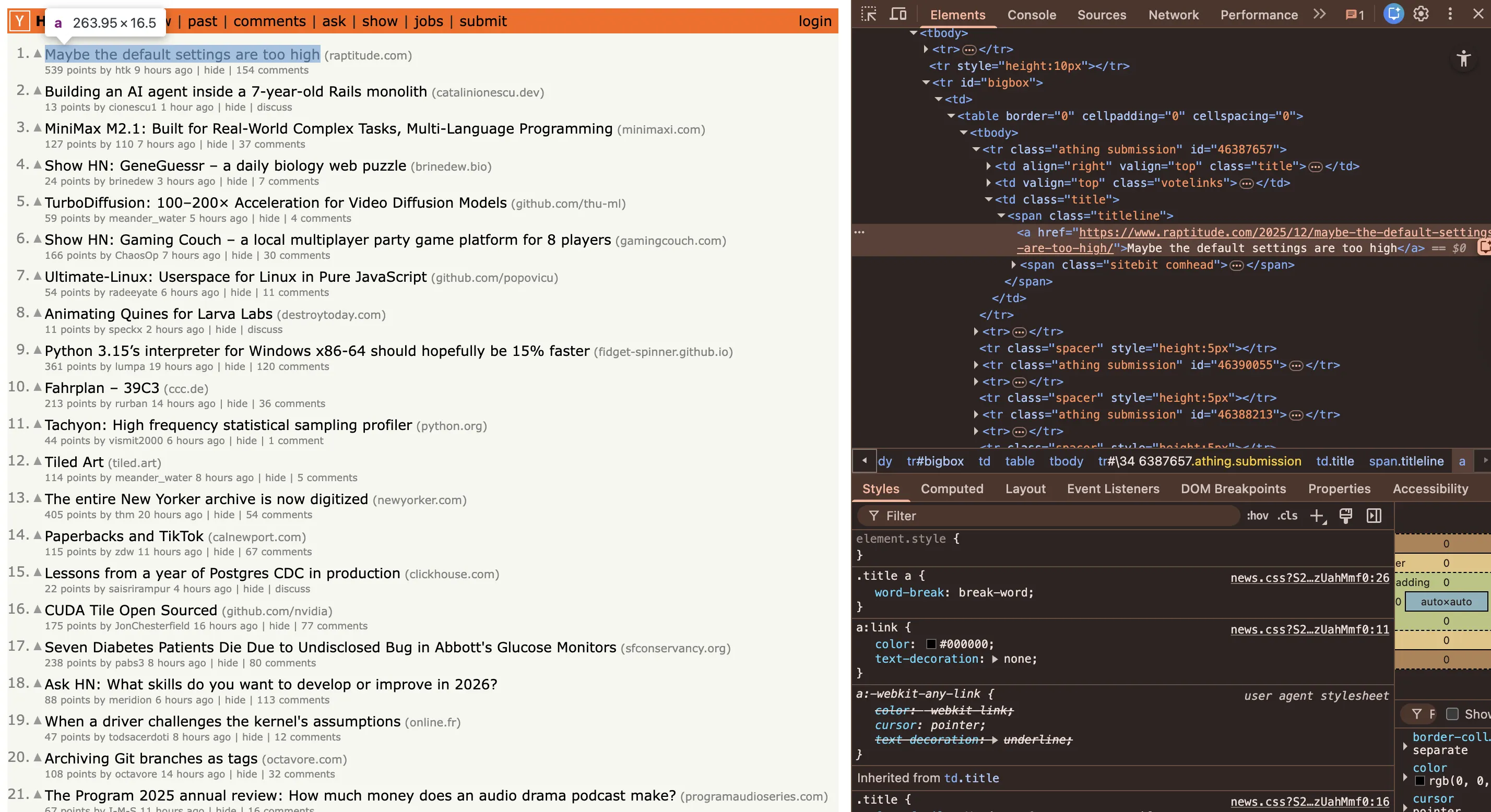
Then, I used the find_element method to fetch individual elements from the homepage and piece them together.
For instance, this line pulls the linked story using the CSS selector span.titleline > a
title_link = story.find_element(By.CSS_SELECTOR, "span.titleline > a")Once I have all the variables populated, then what’s left is formatting and displaying them.
When this might break:
The HTML structur for HackerNews has remained the same for over a decade. But if they decide to revamp their website and the tags change, our Selenium script would need to be edited. That’s the brittleness I was referring to.
Don’t want to maintain selectors? See how Firecrawl simplifies this.
Firecrawl: A simpler, more robust web scraping solution
After eight months of scraping, the maintenance was consuming too much time, and raw Selenium would become a headache for the scale I wanted to achieve.
Back when I was scraping in 2016, I didn’t have Firecrawl, but you do now. So, let me show you how it works, and you decide if it’s a better scraper.
To give you a gist:
- Selenium requires maintaining selectors, wait conditions, and browser infrastructure.
- Firecrawl uses AI to extract data based on schemas you define.
How Firecrawl works (no CSS selectors required)
Firecrawl uses AI to understand and extract page structure using natural language.
So, instead of writing CSS selectors that break when designs change, you describe what data you want to extract in plain English and define a schema for the output format.
Here's what you can do with Firecrawl’s AI:
- Parse complex page layouts without manual selector mapping
- Extract structured data ready for databases, APIs, or ML pipelines
- Adapt automatically when websites redesign their HTML
- Handle dynamic content, infinite scroll, and JavaScript-rendered pages
For even more powerful workflows, Firecrawl’s Agent endpoint can navigate multi-page workflows, fill forms, and extract data across entire user journeys.
Let's scrape HackerNews as we did before, extracting the same elements, but this time using natural language instead of CSS selectors.
- You can try Firecrawl's endpoints without an API key to start. When you're ready to go further, sign up at firecrawl.dev for a key with higher rate limits and more credits (the free tier includes 1,000 credits per month).
- Install the Python SDK:
pip install firecrawl-py python-dotenvStore your API key in a .env file to keep it out of your code:
echo "FIRECRAWL_API_KEY=fc-your-key-here" >> .envThen load it in Python:
from firecrawl import Firecrawl

app = Firecrawl()


print("Extracting structured data from https://news.ycombinator.com/ ...")

try:
    # Use the agent endpoint to get structured data (Title, URL, Score)
    # We ask for only 5 items to save tokens/credits
    data = app.agent(
        urls=['https://news.ycombinator.com/'],
        prompt="Extract the top 5 stories from the page.",
        schema={
            'type': 'object',
            'properties': {
                'items': {
                    'type': 'array',
                    'items': {
                        'type': 'object',
                        'properties': {
                            'title': {'type': 'string'},
                            'url': {'type': 'string'},
                            'score': {'type': 'string'}
                        },
                        'required': ['title', 'url']
                    },
                    'description': 'Top 5 stories from Hacker News'
                }
            },
            'required': ['items']
        }
    )

    # Verify we got data
    if hasattr(data, 'data') and 'items' in data.data:
        print("\n--- Extracted Stories ---\n")
        for item in data.data['items']:
            title = item.get('title', 'No Title')
            score = item.get('score', 'No Score')
            url = item.get('url', 'No URL')
            print(f"{title}")
            print(f"{score} - {url}\n")
    else:
        print("No items found in response:", data)

except Exception as e:
    print(f"Agent request failed: {e}")
Firecrawl's AI looks at the page structure and extracts according to your schema. When sites are redesigned, the schema stays the same and you can run the same script to get the same data, as long as the data exists on the page being scraped.
If HackerNews decides to update its HTML a couple of months from now, I can continue to scrape without any changes to my script because the AI figures out how to get the data I’ve asked for in the schema.
Selenium vs. Firecrawl: How to choose the right package for your web scraping project?
| Category | Selenium | Firecrawl |
|---|---|---|
| Setup Time | 30+ min (drivers, dependencies, testing) | 5 min (API key, one import) |
| Maintenance | Breaks on HTML changes and requires selector updates | Schema-based, adapts to redesigns automatically |
| Dynamic Content | Manual WebDriverWait configurations | Handles JavaScript rendering automatically |
| Scale | Requires infrastructure (proxies, browsers, memory) | Cloud-based, no infrastructure needed |
| Best For | Learning the fundamentals, simple one-time scrapes, UI testing | Production scraping, LLM data pipelines, multi-site scraping |
| Cost | Engineer time × hourly rate | Per-request pricing (predictable) |
When to use Selenium
- Learning web scraping fundamentals
- Sites with simple, stable HTML structures
When to use Firecrawl
- Scraping 10+ websites regularly
- Production data pipelines feeding databases or LLMs
- Sites that frequently redesign or use complex JavaScript
- Complex workflows that require navigating across pages, filling forms, or following links
- Jobs where you need structured data from the web without knowing the exact URLs upfront
Firecrawl's Agent endpoint: scraping without selectors
The biggest limitation with Selenium (and Playwright, and Puppeteer) is that you have to tell the browser exactly what to do. Click this button. Wait for that element. Extract text from this CSS selector. If the site changes, your script breaks.
Firecrawl's Agent endpoint flips this entirely. Instead of writing step-by-step browser instructions, you describe what data you want and the agent figures out how to get it. It maps sites, navigates pages, handles pagination, and extracts structured data — all from a single API call.
Here's what that looks like in practice:
from firecrawl import Firecrawl

app = Firecrawl(api_key="fc-YOUR_API_KEY")

result = app.agent(
    urls=["https://news.ycombinator.com"],
    prompt="Get the top 10 stories with their titles, URLs, scores, and comment counts",
    schema={
        "type": "object",
        "properties": {
            "stories": {
                "type": "array",
                "items": {
                    "type": "object",
                    "properties": {
                        "title": {"type": "string"},
                        "url": {"type": "string"},
                        "score": {"type": "integer"},
                        "comments": {"type": "integer"}
                    }
                }
            }
        }
    }
)

for story in result.data["stories"]:
    print(f"{story['title']} — {story['score']} points")
Compare that to the Selenium version above — no WebDriverWait, no find_elements, no CSS selectors, no pagination logic. The agent handles all of it. And when HackerNews eventually changes its HTML, this code keeps working because it doesn't depend on any specific DOM structure.
The agent is especially useful for research-style scraping where you don't know the exact pages you need. Give it a starting URL and a prompt like "find all pricing information across this site" and it will map the site, identify the relevant pages, navigate to them, and return structured results.
Parallel scraping at scale
Selenium Grid lets you run browsers in parallel, but you're still managing Docker containers, allocating memory, handling crashes, and rotating proxies yourself. Firecrawl handles parallelism at the infrastructure level.
With the batch scrape endpoint, you can send hundreds of URLs in a single request and Firecrawl processes them concurrently:
import requests

response = requests.post(
    "https://api.firecrawl.dev/v1/batch/scrape",
    headers={
        "Authorization": "Bearer fc-YOUR_API_KEY",
        "Content-Type": "application/json",
    },
    json={
        "urls": [
            "https://example.com/page-1",
            "https://example.com/page-2",
            "https://example.com/page-3",
            # ... hundreds more
        ],
        "formats": ["markdown"],
    }
)

batch_id = response.json()["id"]
# Poll for results or use webhooks
No Selenium Grid setup. No Docker. No memory management. No proxy rotation config. Firecrawl handles the browser instances, retries failed requests, rotates IPs, and returns clean results. For teams scraping thousands of pages daily, this eliminates the entire infrastructure layer that makes Selenium Grid painful to maintain.
Pick the tool that's cheapest on your resources, and if the costs are close, factor in what engineers could build instead of maintaining scrapers.
Ready to scale beyond Selenium? Try Firecrawl for free.
Frequently Asked Questions
What is Selenium used for in web scraping projects?
Selenium automates browser interactions to scrape data from JavaScript-heavy websites where basic HTML fetching fails. It launches a real browser, waits for dynamic content to load, and interacts with pages like a normal user would.
What's the difference between headless and regular browser mode?
Headless mode runs Chrome without a visible window, making it perfect for servers, CI pipelines, and background jobs. It uses identical rendering to regular Chrome but consumes less memory and allows running multiple browsers in parallel.
Can Selenium handle websites with infinite scrolling?
Yes. With the driver.execute_script() method, Selenium lets you scroll to the bottom of the page, wait for new content, check if page height increased, and loop until no more content loads. This works for social media feeds, product catalogs, and search results.
What's the best locator strategy for Selenium web scraping?
Prefer IDs when available since they're unique and fast. Use CSS selectors for readable, attribute-based targeting. Use XPath for complex text matching or DOM traversal. Avoid dynamically generated class names that change between page loads.
Is Selenium or Playwright better for web scraping?
Playwright is generally faster and has better auto-waiting, but Selenium has broader language support and a larger ecosystem. For new scraping projects, Playwright offers a smoother developer experience. For legacy systems or teams already using Selenium, it remains a solid choice.
How can I configure Selenium for more reliable web scraping?
Remove the navigator.webdriver property, use realistic user-agent strings, add random delays between actions, rotate proxies, and reuse sessions. The --disable-blink-features=AutomationControlled flag also helps configure consistent browser behavior.
How do I combine Selenium with BeautifulSoup?
Use Selenium to render the page and handle JavaScript, then pass driver.page_source to BeautifulSoup for fast HTML parsing. This hybrid approach gives you the best of both: Selenium handles dynamic rendering while BeautifulSoup handles efficient data extraction.
How do I export Selenium scraped data to CSV or JSON?
Use Python's built-in csv module or json module. Collect your scraped data into a list of dictionaries, then write it out with csv.DictWriter for CSV or json.dump for JSON. For larger datasets, pandas DataFrames offer additional cleaning and export options.
How do I scale Selenium scraping with Selenium Grid?
Selenium Grid lets you run multiple browser sessions in parallel across machines. Use Docker with selenium/standalone-chrome for quick setups, or the hub/node pattern for distributed workloads. Each node runs in isolation, preventing memory leaks and browser conflicts.
How does Firecrawl differ from Selenium for web scraping?
Firecrawl uses AI to extract data based on schemas you define in natural language, eliminating brittle CSS selectors. When sites redesign, Firecrawl adapts automatically while Selenium requires manual selector updates. Firecrawl is better for production and multi-site scraping at scale.