TL;DR: Best Codex Plugins
| Plugin | What it does |
|---|---|
| Matt Pocock's Skills | Engineering skill pack: grill-me, handoff, tdd, diagnose, caveman |
| Firecrawl | Live web context for Codex: search, scrape, crawl, browser interaction |
| Composio | Connects Codex to 1,000+ SaaS apps with managed OAuth |
| Context7 | Injects live, version-accurate library docs into Codex |
| Figma | Generates code directly from real Figma design files |
| Linear | Pull tickets, update state, manage issues without leaving Codex |
| GitNexus | Client-side knowledge graph and Graph RAG over any codebase |
| Superpowers | Cross-harness agent workflow framework with Codex-native support |
| Caveman | Cuts Codex's response verbosity by ~75% to save tokens |
| RTK | Rust proxy that compresses command output before it hits Codex's context |
Codex Plugins officially landed in early 2026, and the directory has been filling out fast. OpenAI ships a growing set of curated plugins (GitHub, Gmail, Drive, Slack, Sites, Security), and the community is publishing skill packs, MCP servers, and integration layers that snap into the same /plugins install flow.
The reason plugins matter more than any single Codex feature this year is reach. A plugin can ship a workflow, an app connector, and an MCP server in one install. You stop pasting setup instructions into AGENTS.md and start sharing a single command from the Plugin Directory. The right combination of plugins turns Codex from a capable agent into one that knows your APIs, your designs, your tickets, and the live web. If you are still picking between Codex and Claude Code, the Claude Code vs Codex comparison covers harness depth and sandboxing side by side.
These are the ten plugins I would install first on a fresh Codex setup.
What are Codex plugins?
Codex plugins are reusable packages that bundle three kinds of capabilities into a single install:
- Skills — markdown instructions Codex follows when a task matches. The best Codex skills roundup covers the skill format in detail.
- Apps — connectors to external services like GitHub, Gmail, Slack, or Google Drive.
- MCP servers — live tool surfaces that let Codex call out to APIs.
One plugin can ship all three. The Firecrawl plugin, for example, registers an MCP server with search, scrape, crawl, and interact tools, plus skills that teach Codex when to reach for each one.
The official Codex plugins documentation covers the full spec, the Plugin Directory, and the ~/.codex/config.toml configuration surface. For the non-engineering angle on the same concepts — when to reach for a plugin versus a skill, with examples drawn from sales, ops, and marketing workflows — OpenAI Academy's Plugins and skills guide is the friendlier read.
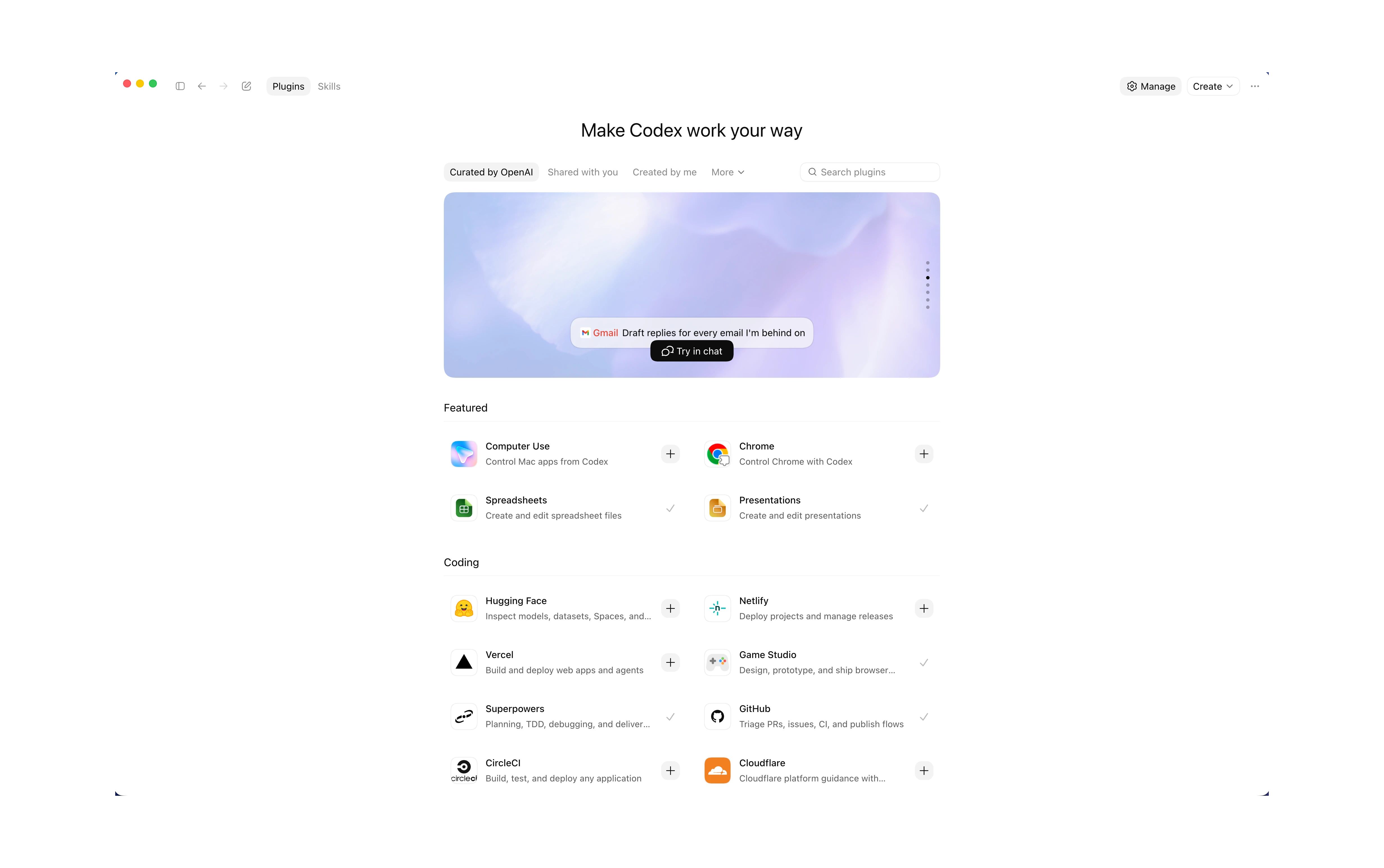 The Codex Plugin Directory groups plugins into Curated by OpenAI, Shared with you, and Created by you.
How to install Codex plugins
Plugins install through the Plugin Directory, which is available in both the Codex App (desktop) and the Codex CLI. The directory itself is the same — same curated set, same shared plugins, same custom plugins you have built — but the install flow looks a little different in each.
Installing plugins in the Codex App
The Codex App ships with a visual Plugin Directory. Open the app, head to the Plugins panel in the sidebar, and you will see the same three groups: Curated by OpenAI, Shared with you, and Created by you.
The Plugin Directory inside the Codex App groups plugins into Curated by OpenAI, Shared with you, and Created by you.
1. Browse or search. Pick a plugin from the curated list, or use the search bar to find a specific one (Firecrawl, GitHub, Linear, Figma, and so on).
2. Install. Click Install on the plugin card. The app downloads the plugin, registers its skills and MCP tools, and prompts for any required credentials (API keys, OAuth) on first use.
3. Invoke it. Inside any Codex session in the app, type @ to bring up the plugin picker and select the plugin you want to call. Most plugins also activate implicitly when your prompt matches a skill's trigger.
4. Toggle or remove. Each plugin card has an enable/disable switch and a remove option. No config file editing required.
Installing plugins in the Codex CLI
The Codex CLI uses the same Plugin Directory, exposed through the /plugins slash command.
1. Open the Plugin Directory. Start codex and run /plugins. You get the same three groups (curated, shared, created by you) in a TUI.
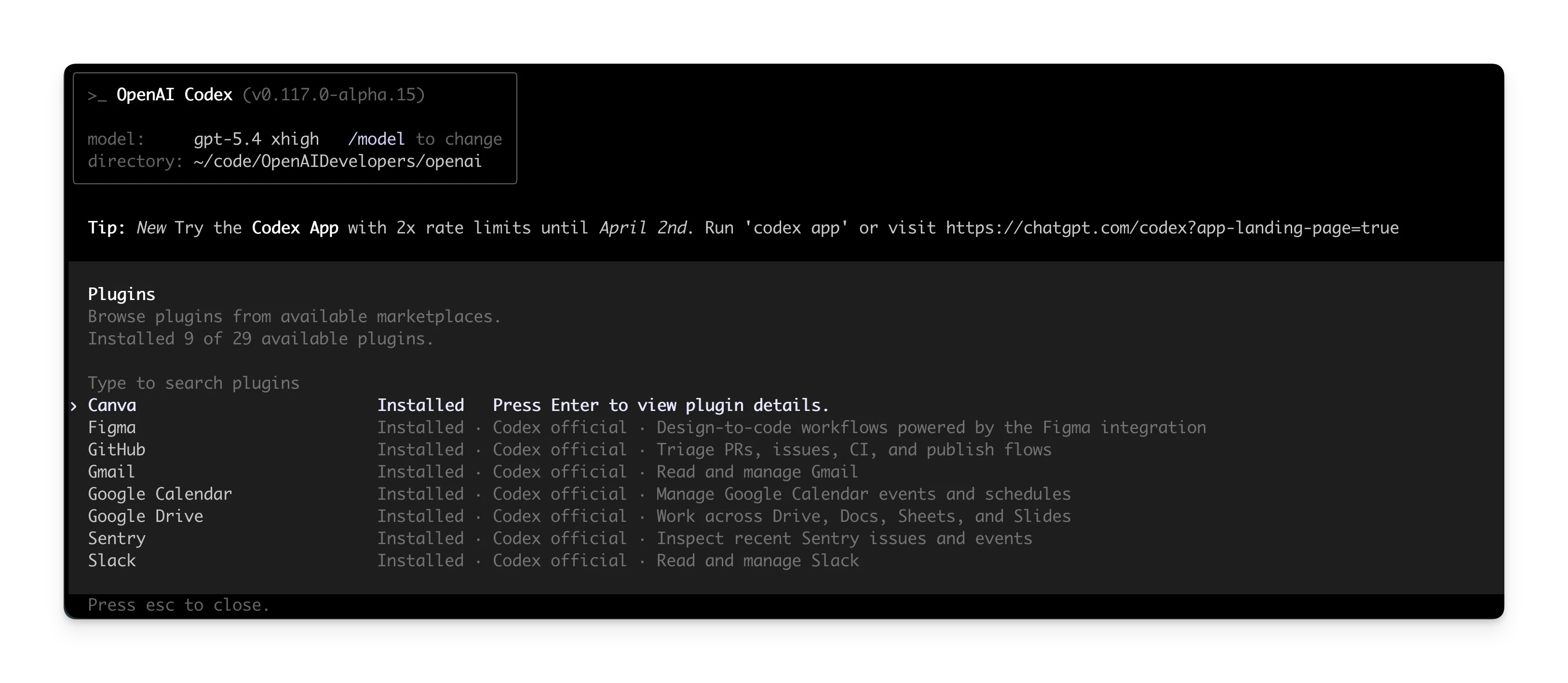 Run
Run /plugins inside the Codex CLI to browse and install from the directory.
2. Install the plugin. Select a plugin and Codex writes it to ~/.codex/plugins/, then registers its skills, apps, and MCP tools. Plugins that need a credential (like Firecrawl's API key) will prompt you on first run.
3. Invoke it. Use @ in a prompt to call a plugin or skill explicitly. Implicit activation works the same way it does in the app.
4. Manage it. Edit ~/.codex/config.toml to disable a plugin without uninstalling it:
[plugins."gmail@openai-curated"]
enabled = false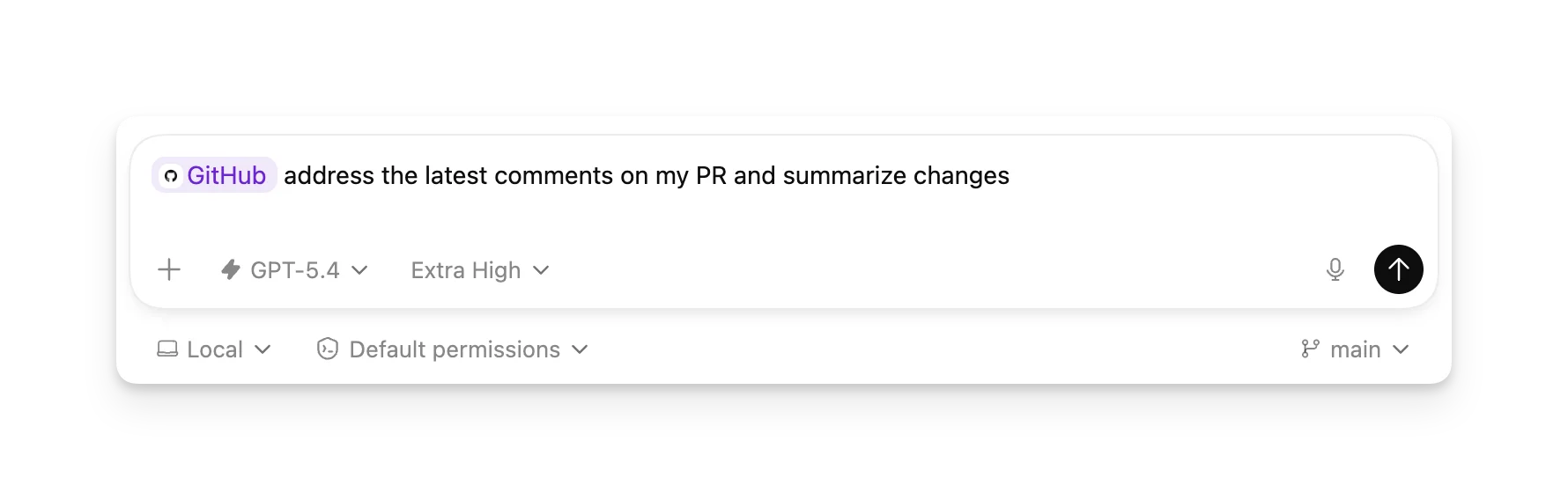 Use
Use @plugin-name in any prompt to invoke a plugin explicitly.
Installing community plugins
Not every plugin lives in the curated directory yet. Community plugins (Matt Pocock's skills, Superpowers, Caveman, RTK, GitNexus) usually install via a one-line npx or shell command from the repo's README. Once installed, they show up under Created by you in the directory and behave like any other plugin — same @ invocation, same config file. Each plugin section below lists the exact install command.
Codex skills vs Codex plugins
A skill is one thing; a plugin can be many. Both ship instructions Codex follows, but they sit at different levels.
| Codex Skills | Codex Plugins | |
|---|---|---|
| What it is | A single SKILL.md file with one task focus | A package that bundles skills, apps, and MCP servers |
| How you install | npx skills add <repo> --skill <name> or copy to ~/.agents/skills/ | /plugins inside the Codex CLI |
| How it activates | Implicit (task match) or explicit ($skill-name) | Same, but the plugin can register multiple skills and tools |
| Token cost | Very low — only name and description load at startup | Sum of the bundled components |
| Best for | One specific workflow or behavior | Multi-component setups you want to share or reuse |
| Example | grill-me (one skill) | firecrawl (MCP server + skills + commands) |
In practice, skills are the atomic unit. Plugins are how you ship them in groups, with app connectors and MCP tools wired in alongside. Most of the entries below are plugins, but a few — like Matt Pocock's collection and Caveman — are skill packs that fit naturally into a Codex workflow even though they predate the plugin spec. For a deeper look at the skill format itself, the best Codex skills post covers the eleven I install first.
What are the top Codex plugins to try out?
A quick note on what counts as a "plugin" in this list. A few of these are official Codex plugins straight from OpenAI's curated directory. The rest are a mix — MCP servers, skill collections, and plugin-style tools that drop into a Codex workflow even though they live outside the Plugin Directory. Inside a real session, you stop noticing the difference, which is exactly how it should feel.
1. Matt Pocock's Skills
The most-used third-party skill collection for AI coding agents, now Codex-ready.
125k GitHub stars (as of June 2026)
Matt Pocock's skill repo started as a Claude Code companion and grew into the most-installed engineering skill pack across every major coding agent. The pitch on the repo: skills built to fix the four recurring failure modes of AI coding agents — misalignment, verbosity, broken code, and ball-of-mud architecture. Each skill targets one of those directly.
The headliners: grill-me interviews you about every decision in a plan until you reach shared understanding before any code is written. handoff compresses a session into a markdown document so you can continue in a fresh worktree or hand off to a different agent. tdd runs a strict test-first loop. diagnose stress-tests a hypothesis before committing to a fix. caveman strips response verbosity to the bone (covered separately below).
Install:
npx skills@latest add mattpocock/skillsThen run /setup-matt-pocock-skills inside Codex to configure your issue tracker (GitHub, Linear, or local), triage labels, and documentation locations.
Example:
"Grill me on the auth refactor plan before I touch any code"
"Run handoff — I want to continue this in a new Codex worktree"
"Use the tdd skill to add validation to the signup endpoint"
Pros: Cross-agent — the same SKILL.md files work in Codex, Claude Code, Cursor, Gemini CLI, and Copilot. The collection is built around a strong opinion about how to ship code with an agent, drawn from Pragmatic Programmer, DDD, and Ousterhout's A Philosophy of Software Design.
Cons: Some skills (especially grill-me) are deliberately slow by design. They surface assumptions you would otherwise skip past, which means the agent moves more carefully. That is the point, but it adds friction on small tasks.
Full reference at github.com/mattpocock/skills and the deeper guide at aihero.dev.
2. Firecrawl
An agent is only as smart as the context it has. The Firecrawl plugin gives Codex live web context.
Codex's built-in web search queries a cached index by default and silently fabricates results when network access is restricted. That is the failure mode the Codex web search guide covers in detail. The Firecrawl plugin replaces it with real-time search, full-page scraping, recursive crawling, URL mapping, and live browser interaction — all returning clean markdown or structured JSON instead of snippets.
The plugin works through MCP, so Codex can chain commands naturally: search to find sources, scrape to read them in full, crawl to index an entire documentation site, interact to drive a live browser session for pages that need clicks or logins. JavaScript rendering is automatic. Results write to files when output is large, so the context window stays clean.
Firecrawl is also built to be token-efficient — the CLI returns clean markdown instead of raw HTML, strips boilerplate before output, and writes large results to files rather than streaming them into Codex's context. On long research sessions or full-site crawls, the difference compounds: more headroom for actual reasoning, fewer tokens burned on noise.
Firecrawl Alexandria: the knowledge library for superintelligence
The plugin also includes Firecrawl Alexandria, which makes finding data much easier than searching the web and hoping a page quoted it. It covers 100+ official data providers plus Firecrawl's own indexes, including the Developer Index, built over public repositories, GitHub issues, merged pull requests, READMEs, and code documentation. When the answer to "how does this library actually behave" sits in an issue thread or a merged fix, Codex reads that passage directly. Looking up a source is free, and a provider tool costs its listed price only when it runs. See Firecrawl Alexandria in ChatGPT and Codex for a walkthrough.
"Search the Developer Index for how people fix hydration errors with Next.js 16 server components, and link the issues"
"Check PyPI download stats and GitHub activity for httpx and requests before I pick one"
"Find recent research papers on speculative decoding and summarize the techniques I could implement"
Install:
ChatGPT and Codex share one plugin directory, so a single install covers both. Open Plugins in Codex and search for Firecrawl, or install it from the plugin directory, then connect your Firecrawl account when prompted. No API key or MCP config needed.
Prefer the CLI? This installs Firecrawl across every detected AI coding agent on your machine, and --browser opens authentication so Codex picks up your API key:
npx -y firecrawl-cli@latest init --all --browserGrab a free key at firecrawl.dev/app/api-keys.
Commands Codex gets access to:
firecrawl search: Live web search with full-page content, not a cached snippet indexfirecrawl scrape: Clean markdown from any URL, including JavaScript-heavy pagesfirecrawl crawl: Recursive crawl across an entire sitefirecrawl map: Discover every URL on a domainfirecrawl interact: Scrape a page, then act on it via natural language or Playwright codefirecrawl find-tools: Browse Firecrawl Alexandria providers and read a tool's inputs and price;firecrawl searchsurfaces matching tools, andfirecrawl scraperuns one
Example:
"Check the Next.js 16 migration guide and list every breaking change for App Router"
"Crawl the Stripe API docs and find every endpoint that supports idempotency keys"
"Research our top three competitors and extract their pricing pages as structured JSON"
Pros: Live results replace Codex's stale cache for documentation lookups, research, and competitor analysis. File-based output keeps context efficient on big crawls. Used by 1.25M+ developers and 150,000+ companies, with 5B+ requests served. Builders who need reliable web context keep coming back — Peter Steinberger, founder of OpenClaw, put it plainly:
Cons: You can try the endpoints without an API key, but ongoing use needs one and consumes credits on heavy usage. The free tier is 1,000 credits a month and takes no card, which covers substantial testing. If you are comparing options, the best web search MCP servers guide covers how Firecrawl stacks up against Tavily and Exa.
3. Composio
Composio connects Codex to 1,000+ SaaS apps with managed OAuth in a single tool surface.
The reason Composio matters for Codex is the auth tax. Connecting an agent to Gmail, HubSpot, Salesforce, Notion, Linear, Stripe, or Slack means handling OAuth flows, refresh tokens, scopes, and rate limits for every service separately. Composio handles all of that as a hosted service: you authorize once per app, Codex gets a unified tool surface, and per-user credentials are managed for you. Composio is SOC2 and ISO 27001:2022 certified, with customers including Zoom, Letta, Glean, and HubSpot.
The integration pattern is the same regardless of the app: Codex sees a tool like gmail_send or hubspot_create_contact, calls it, and Composio routes the request through the right OAuth session. Sandboxed execution and parallel calls across apps work out of the box.
Install:
Composio ships as an MCP server. Add it to your Codex config:
npx composio-mcp@latest initThen sign in at composio.dev and authorize the apps you want Codex to act on.
Example:
"Pull the last 10 unanswered emails from my inbox and draft replies"
"Create a HubSpot deal for every Stripe invoice over $5,000 in the last week"
"Find the Notion page about Q3 planning and add today's standup notes"
Pros: One install, hundreds of integrations. Managed OAuth means you stop building one-off connectors. Per-user credentials work cleanly for multi-tenant agent products. If you are building an agent that needs to act on third-party services rather than just answer questions about them, Composio collapses weeks of integration work.
Cons: Hosted service, so you depend on Composio's uptime and rate limits. The free tier is enough for development but production usage moves to paid plans. Some niche apps still expose only a subset of their full API surface through Composio.
Full reference at composio.dev.
4. Context7
Context7 injects live, version-accurate library documentation into Codex's context on demand.
57.1k GitHub stars, 107,609 libraries indexed (as of June 2026)
Codex's model knowledge has a training cutoff. That cutoff is fine for stable libraries and a problem for fast-moving ones. Recommending React 18 patterns on a React 19 project, suggesting deprecated Next.js APIs, or generating code against a Tailwind version that no longer exists is the everyday failure mode Context7 solves. The MCP server fetches current documentation from the source the moment Codex asks for it, with trust scores and freshness indicators on every snippet.
The official Context7 page lists Codex alongside Cursor, Claude Code, Devin Desktop, and Antigravity as first-class supported agents. Top indexed libraries include Next.js, Better Auth, Supabase, React, Expo, Tailwind, Claude Code, OpenCode, and Pandas.
Install:
npx -y @upstash/context7-mcp@latest install --client codexExample:
"Show me Server Actions in Next.js 16"
"How do I configure Better Auth with Drizzle in the current version?"
"Generate a Tailwind 4 config that matches our existing tokens"
Pros: Dramatically reduces hallucinations on fast-moving libraries. The index is huge — over 100k libraries with snippet counts, trust scores, and update freshness shown per library. Pairs naturally with Firecrawl: Context7 for canonical library docs, Firecrawl for everything else on the live web.
Cons: Can over-inject context on well-known libraries where Codex's built-in knowledge is already correct. Burns tokens if you leave it on for every prompt. Be selective with which projects enable it.
Full reference at context7.com and the repo at github.com/upstash/context7. If you're weighing it against other developer retrieval tools, the best Context7 alternatives roundup benchmarks it against Firecrawl Developer Index, Parallel, Mintlify, Exa, and DeepWiki.
5. Figma
The Figma plugin connects Codex to real design files and generates code grounded in actual frames and components.
Designs are the input most coding agents handle worst. Screenshots lose layout precision, descriptions lose component structure, and copy-paste from the inspector strips half the context. The Figma plugin solves this by giving Codex direct access to the Figma MCP server. Codex reads frames, components, and layout data from a real Figma URL, then generates code that matches the source.
The output quality depends on how the design file is structured. Files with named layers, defined variants, and proper auto-layout produce code that needs minimal cleanup. Loose unnamed frames produce something closer to a first pass.
Install:
Add the Figma MCP server through the Plugin Directory:
/plugins
Search "Figma" and install. You will be prompted to authenticate with your Figma account on first use.
Example:
"Generate a React component from the Hero Section frame: [Figma link]"
"Convert this dashboard layout to Tailwind, matching all spacing and colors from the design"
"Build a settings page that mirrors the design at figma.com/file/..."
Pros: Output is grounded in actual Figma data, so structure and styling are closer to the design than hand-written first passes. Strong starting baseline for new components or pages. Reduces back-and-forth with designers on small handoff details.
Cons: Updating existing components often triggers full regeneration rather than incremental changes. Multi-state designs (hover, focus, error) require explicit coordination. Files with sloppy layer naming produce sloppy code.
Full reference at Figma's MCP docs.
6. Linear
The Linear plugin makes your issue tracker a shared memory layer between you and Codex.
The mechanical part of working from tickets — open Linear, find the issue, copy the description, paste it into Codex, mark the ticket in progress, come back and update the status — collapses into one or two prompts. Codex pulls the ticket, plans the work, implements it, opens the PR, and updates the issue state without you switching tabs.
The deeper benefit is continuity. Tickets stay current automatically. When you come back to a project after a week, Codex can summarize what shipped, what is in progress, and what is blocked, all grounded in real Linear state rather than guesswork.
Install:
Install through the Plugin Directory:
/plugins
Search "Linear" and install. Authenticate with Linear OAuth on first use.
Example:
"Pull LIN-214 and summarize what needs to be done"
"Start work on the next high-priority issue in the current cycle"
"Break LIN-318 into subtasks and assign them to me"
"Mark LIN-214 in review and link the PR I just opened"
Pros: Keeps tickets and code tightly connected. Multi-step prompts work cleanly across pull, implement, update, and PR steps. Plays well with other plugins — pull a ticket with Linear, fetch docs with Context7, scrape competitor research with Firecrawl, all in one session. If you want to run Linear alongside other MCP tools without keeping a local machine on, Claude managed agents covers the cloud setup pattern that also works for Codex.
Cons: Output quality depends on ticket quality. Vague Linear tickets produce vague implementations. Be explicit about boundaries when letting Codex update ticket state automatically.
Full reference at linear.app/docs/mcp.
7. GitNexus
GitNexus builds an interactive knowledge graph of any codebase entirely in the browser, then lets Codex query it with Graph RAG.
41.9k GitHub stars (as of June 2026)
The pain GitNexus targets is unfamiliar codebases. Codex can read individual files fine but loses the shape of a large repo — how modules depend on each other, where a type is used across the project, which functions are dead code. GitNexus solves this by building a complete knowledge graph client-side (no server, no API key) and exposing a Graph RAG agent that Codex can query for code exploration.
You drop in a GitHub repo URL or a ZIP file, and the browser runs static analysis, builds the graph, and lets you (or Codex via MCP) ask questions like "where is this function called from" or "which files depend on this module." Recent commits add data-dependence and control-flow graph layers on top of the structural graph.
Install:
Clone and run locally:
git clone https://github.com/abhigyanpatwari/GitNexus
cd GitNexus && npm install && npm run dev
Open the resulting URL and upload a repo or ZIP. The MCP bridge for Codex is wired up through the running app.
Example:
"Build a knowledge graph of this repo and tell me which files import the auth module"
"Trace every caller of the createSession function across the codebase"
"Find dead exports — functions defined but never imported anywhere"
Pros: Runs 100% client-side, so private repos stay private. Combines static analysis with Graph RAG, which is a stronger pattern than pure embedding-based code search for structural questions. Useful for onboarding to large codebases or dependency audits.
Cons: Not packaged as a curated Codex plugin yet — you run the app yourself and wire it in. The browser-only approach has memory limits on very large monorepos.
Full reference at github.com/abhigyanpatwari/GitNexus.
8. Superpowers
Obra's Superpowers is a cross-harness agent workflow framework with first-class Codex support.
224.4k GitHub stars (as of June 2026)
Superpowers is the most-starred agent workflow framework on GitHub. It started in the Claude Code ecosystem and now ships explicit Codex CLI and Codex App support, complete with sandbox-aware worktree workflows and graceful degradation when running in a single-agent harness. The framework bundles a curated skill collection, subagent dispatch patterns (spawn_agent, wait_agent), code-review loops, and worktree management primitives.
If Matt Pocock's skills are about engineering judgment, Superpowers is about agent orchestration. It is the layer that turns Codex from one agent doing one thing into a coordinated set of subagents handling planning, implementation, review, and verification in parallel — the same pattern covered in Codex multi-agent orchestration.
Install:
Superpowers ships as a Codex plugin via .codex-plugin/plugin.json:
npx skills add https://github.com/obra/superpowersFollow the Codex section of the README for the full setup, which configures worktree paths, subagent dispatch, and the bundled skills.
Example:
"Use subagent-driven-development to ship the new pricing page across plan, implement, review, and verify"
"Run executing-plans on the migration spec I wrote in spec.md"
"Spawn three parallel worktrees to refactor the auth, billing, and notifications modules"
Pros: The most complete agent workflow framework that works across Codex CLI, Codex App, Claude Code, Gemini, Cursor, Copilot, and OpenCode. Codex-specific tool mappings in codex-tools.md mean you are not running the Claude version with a wrapper. Heavy active development from the maintainer.
Cons: Steep learning curve. Worktree-based parallel agents need disk space and discipline. The full framework is more than most projects need — start with the finishing-a-development-branch skill (covered in the Codex skills roundup) and add more as the use case becomes clear.
Full reference at github.com/obra/superpowers.
9. Caveman
Caveman strips Codex's response verbosity to the bone, reportedly cutting token usage by ~75% on routine sessions.
Caveman is a single skill from Matt Pocock's collection that changes how Codex talks back. Pleasantries, restated context, transition phrases, and over-explained reasoning all get cut. The output reads like a developer talking to a coworker, not a chatbot performing helpfulness. Across a long coding session, that compression adds up: less context burned on the agent's own output means more room for actual work.
This is a behavioral skill, not a tool integration. It does not change what Codex can do, only how it responds. Pair it with RTK (next entry) and you compress both input (command output) and output (Codex's responses) on the same session.
Install:
Caveman ships as part of the Matt Pocock skill collection:
npx skills@latest add mattpocock/skills --skill cavemanExample:
"Caveman mode — explain why this test is failing"
"@caveman summarize the changes in this PR"
Pros: Real token savings across long sessions. Lower verbosity also means Codex's actual reasoning stays in view rather than buried under preamble. Best for repeat tasks where you do not need the agent to re-explain its approach.
Cons: Aggressive enough that some prompts come back too terse for the situation. Not the right default for collaborative planning sessions where you actually want Codex's reasoning visible.
Full reference at github.com/mattpocock/skills.
10. RTK
RTK is a Rust CLI proxy that compresses command output before it ever reaches Codex's context window.
61.3k GitHub stars (as of June 2026)
The single biggest token sink in any Codex session is verbose command output. A git diff on a large change, a kubectl describe, a failed npm install log — all of these can flood the context with thousands of tokens of mostly noise. RTK sits between Codex and your shell as a transparent proxy. It intercepts the output of more than 100 common dev commands (git, npm, docker, kubectl, ls, grep, find, and more), filters or compresses it, and hands Codex the signal. Reported token savings: 60 to 90 percent on routine command output, with less than 10 milliseconds of overhead per call.
RTK is a single Rust binary with zero runtime dependencies. It works with any AI coding agent that runs shell commands — Codex, Claude Code, Cursor, OpenCode — because it hooks at the shell layer, not the agent layer.
Install:
brew install rtkOr via the install script:
curl -fsSL https://raw.githubusercontent.com/rtk-ai/rtk/master/install.sh | shThen wire it into Codex specifically:
rtk init -g --codexThe -g flag installs RTK globally for your user, and --codex registers the proxy with the Codex CLI so command output gets compressed before it reaches the context window. After this, RTK rewrites command output transparently — no further agent-side configuration needed.
Example:
# Codex runs commands normally; RTK compresses the output before it gets back
git diff main..HEAD
kubectl describe pod my-app
docker compose logs api
Pros: Pure infrastructure — no skill, no MCP server, no agent-side config. Works across every AI coding tool you use. Token savings compound over long sessions. The Rust implementation means overhead is invisible in practice.
Cons: Some compressed outputs lose context that you specifically wanted to see. RTK exposes flags to disable compression on a per-command basis, but you have to know when to reach for them. Less useful if your sessions are dominated by code reading rather than command execution.
Full reference at github.com/rtk-ai/rtk.
Building your own Codex plugins
The ten above are a starting point. Every team has workflows that repeat, tickets that follow the same shape, and reviews that ask the same questions. Plugins are how you encode that once and reuse it indefinitely.
The fastest path to a custom plugin is $skill-creator, the built-in system skill in every Codex session. It walks you through a Q&A and generates the SKILL.md and supporting structure. From there, plugin-creator (also built-in) scaffolds the full plugin package — plugin.json, bundled skills, app connectors, and MCP tool registrations. The Codex plugins documentation covers the spec in detail, and the openai/skills repo has working examples to crib from.
For discovery beyond the curated directory, skills.sh (maintained by Vercel) indexes published skills across Codex, Claude Code, Gemini CLI, and Cursor, searchable by category and author. Matt Pocock's repo and obra/superpowers are the two third-party collections I check first for new entries.
The right combination of curated, community, and custom plugins is what turns Codex from a capable agent into one that knows your codebase, your stack, and your team's workflow. If you are evaluating where to invest first, start with Firecrawl for live web context, Context7 for current docs, and a handful of Matt Pocock skills for engineering judgment. Add the rest as the use cases come up. For a broader view of the best MCP servers for developers across coding agents, that guide covers the wider ecosystem. And if you use ChatGPT itself alongside Codex, the best ChatGPT plugins roundup covers the equivalent apps and MCP connectors on the consumer surface.
Frequently Asked Questions
What are Codex plugins?
Codex plugins are reusable packages that bundle skills, app connectors, and MCP servers into one installable unit. A single plugin can teach Codex a workflow, connect it to an external API like GitHub or Slack, and ship custom skills that activate when the task matches. Plugins are installed from the Plugin Directory inside the Codex CLI using the /plugins command.
How do I install a Codex plugin?
Open the Codex CLI and run /plugins to browse the Plugin Directory. Pick a plugin from the curated list, shared list, or your own creations, and it installs into ~/.codex/. To invoke a plugin in a prompt, use the @ symbol followed by the plugin or skill name. To disable a plugin without uninstalling, set enabled = false under its section in ~/.codex/config.toml.
What is the difference between a Codex plugin and a Codex skill?
A skill is a single instruction file (SKILL.md) that teaches Codex how to handle one type of task. A plugin is a package that can bundle multiple skills together with app connectors and MCP servers. Skills are atomic, plugins are composable. A plugin like Firecrawl can ship an MCP server plus several skills under one install, while a standalone skill like grill-me handles exactly one workflow.
Are Codex plugins free?
Most community plugins and the curated plugins from OpenAI are free and open source. Plugins that connect to paid services (Firecrawl, Composio, Linear, Context7 Pro) require an account or API key for the underlying service, but the plugin itself is free to install. Free tiers on most of these services cover meaningful usage before any paid plan is needed.
What is the Firecrawl Codex plugin used for?
The Firecrawl Codex plugin gives Codex live web context. It bundles search, scraping, crawling, URL mapping, and live browser interaction into one install, with JavaScript rendering handled automatically. Codex's built-in web search queries a cached index by default. Firecrawl replaces that with real-time results and clean markdown output, so Codex stops hallucinating answers about current documentation, pricing, or APIs. It also includes Firecrawl Alexandria, the knowledge library for superintelligence, with 100+ official data providers and the Developer Index for code-level answers from issues, pull requests, and docs.
What is Composio for Codex?
Composio is a managed integration layer that lets Codex call out to over 1,000 SaaS apps (Gmail, HubSpot, Salesforce, Notion, Slack, Stripe, and more) without writing OAuth flows or maintaining tokens. It handles authentication, rate limits, and per-user credentials behind a single tool surface. Use Composio when Codex needs to act on third-party services rather than just answer questions about them.
How is Context7 different from Codex's built-in knowledge?
Codex's model knowledge has a training cutoff, so it can recommend deprecated APIs for fast-moving libraries like Next.js, React, or Tailwind. Context7 fetches live, version-accurate documentation from the source on demand, so Codex generates code that matches the exact version you are using. The index covers more than 100,000 libraries with trust scores and snippet counts.
Is Superpowers a Codex plugin or a Claude Code plugin?
Both. Superpowers started as a Claude Code skill collection and now ships first-class support for Codex CLI and the Codex desktop app. It includes Codex-aware tool mappings, sandbox-friendly worktree workflows, and graceful degradation when running in a single-agent harness. With 224k+ GitHub stars, it is the most comprehensive agent workflow framework available as a plugin.
What does Caveman do?
Caveman is a skill from Matt Pocock's collection that strips Codex's responses down to the essentials, cutting token usage by roughly 75% on routine interactions. It is a behavioral skill rather than a tool integration: it changes how Codex talks back, not what it can do. Useful when you want fewer pleasantries and more signal across long sessions.
How does RTK reduce Codex token usage?
RTK is a Rust CLI proxy that sits between Codex and your shell. It intercepts the output of common dev commands (git, npm, docker, kubectl, and 100+ others) and compresses or filters that output before it reaches Codex's context window. Reported token reductions are 60 to 90 percent on routine command output, with less than 10 milliseconds of overhead per call.
What is the Figma plugin for Codex?
The Figma plugin connects Codex to your Figma design files via the official Figma MCP server. Codex can read frames, components, and layout data directly from a Figma URL instead of working from screenshots, then generate React, Vue, or HTML/CSS that matches the design. This makes the design-to-code handoff far more accurate for components grounded in real Figma data.
Why use a Linear plugin in Codex?
The Linear plugin lets Codex pull tickets, update issue state, add comments, and break tasks into subtasks without leaving the CLI. You can ask Codex to summarize the next ticket in your queue, start implementation, then mark the ticket in review when the PR opens. It turns Linear into a shared memory layer between you and the agent across a development cycle.
What problem does GitNexus solve for Codex?
GitNexus builds an interactive knowledge graph of any codebase entirely in the browser, with no server or API key required. Drop in a repo or ZIP, and you get a visual graph plus a built-in Graph RAG agent that Codex can query for code exploration. It is most useful for onboarding to large unfamiliar codebases or auditing dependencies across files.
Where do I find more Codex plugins?
The Plugin Directory inside the Codex CLI is the official source — run /plugins to browse curated, shared, and self-created plugins. For community plugins, check the openai/skills repository, github.com/topics/codex-plugin, and the skills.sh directory maintained by Vercel. Matt Pocock's skills repo and obra/superpowers are two of the most actively maintained third-party collections.