TL;DR:
- Claude Managed Agents lets you run cloud-based AI agents with MCP tools like Firecrawl and Linear, no local setup required.
- The four core concepts are agents (model + tools + prompt), environments (cloud containers), sessions (running agent instances), and events (messages in and out).
- Skipping the quick-start wizard and doing manual setup gives you a clear mental model, making it much easier to debug and extend your agent.
Claude's cloud console now includes Managed Agents: a way to run AI agents entirely in the cloud, connected to external tools via MCP. In this post I'll walk through the full manual setup, connecting Firecrawl for web search and Linear for task creation, so you end up with an agent that automatically fetches AI news and logs it as issues in your Linear project.
What are Claude Managed Agents
Claude Managed Agents is a feature inside the Claude cloud console (currently in beta) that lets you deploy and run AI agents without managing any local infrastructure. Instead of running Claude Desktop on your machine, you configure agents that live in the cloud, call MCP tools, and operate inside isolated compute environments called sessions.
The system is built around four core concepts: agents, environments, sessions, and events. Understanding what each one does before touching any configuration makes the whole setup significantly easier to reason about.
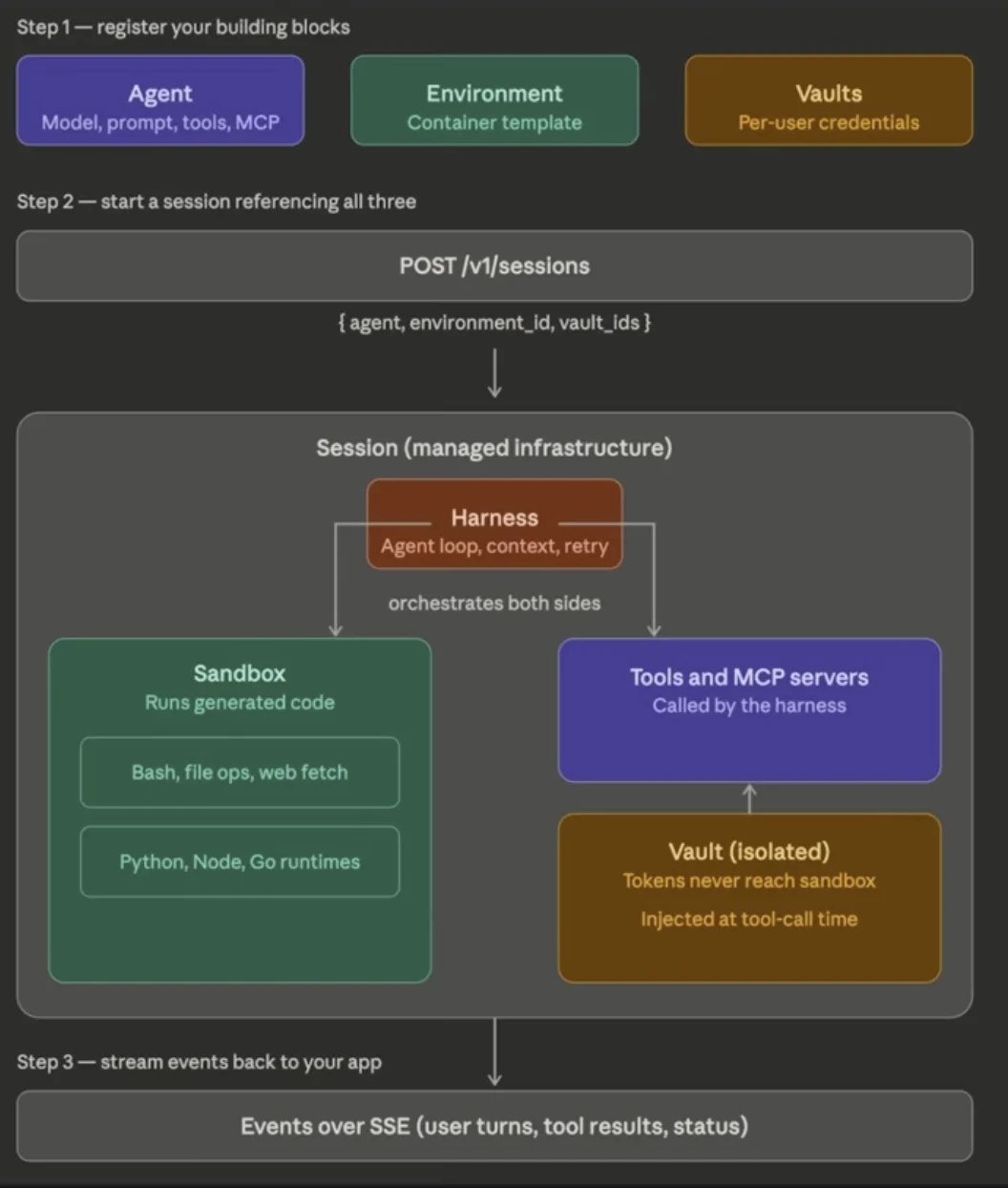
The four building blocks of Claude Managed Agents
Before touching any configuration, it helps to have a clear model of how the pieces relate.
Agents define what Claude does: the model, system prompt, tools, MCP servers, and skills. You create an agent once and reference it by ID across as many sessions as you like.
Environments are configured container templates: pre-installed packages (Python, Node.js, Go, etc.), network access rules, and mounted files. Think of an environment as the compute context your sessions run inside. By default, outbound connections to external MCP server URLs are blocked, which is something you will need to change.
Sessions are running agent instances. A session references an agent and an environment, performs a specific task, and generates outputs. Multiple sessions can run inside the same environment independently.
Events are the messages exchanged between your application and the agent: user turns, tool results, and status updates. When you send a message to a session, you are sending an event. The agent streams responses back as server-sent events, and the full event history is persisted server-side.
Credential vaults are a separate UI concept specific to the console. They store API keys and OAuth tokens independently of any agent or environment, so the same vault can be reused across projects. Crucially, the LLM never sees your credentials directly: it only calls MCP tools that execute using those credentials behind the scenes.
Also read: MCP vs. A2A Protocols: What Developers Need to Know About AI's New Plumbing
What is Firecrawl MCP
Firecrawl MCP is a remote MCP server that exposes Firecrawl's web scraping and search capabilities as tools any MCP-compatible agent can call. Instead of writing code to hit the Firecrawl API, your agent calls tools like firecrawl_search and gets back clean markdown that it can immediately reason over.
The remote MCP URL for Firecrawl is:
https://mcp.firecrawl.dev/v2/mcp
This is the URL you will use when configuring the credential vault and the agent JSON.
What is Linear MCP
Linear is a project management tool built for software teams. The Linear MCP server exposes Linear's API as callable tools, letting an agent create issues, update task statuses, and interact with your Linear workspace without writing any integration code.
Authentication for Linear uses OAuth rather than a bearer token, so the setup flow is slightly different: you select Linear from the credential vault options and follow the OAuth prompt to connect your account.
Setting up credential vaults
Start here, even though vaults appear last in the sidebar. Having credentials ready before you configure your agent and environment keeps the setup linear (no pun intended).
- In the Claude cloud console, go to Credential Vaults and click New Vault.
- Give it a name. In the video the vault is called
MCP vault, grouping all MCP credentials for this project in one place. - Click Create, then click Add Credential inside the new vault.
- For Firecrawl: select Bearer Token, choose Custom Server, and enter
https://mcp.firecrawl.dev/v2/mcpas the server URL. Then paste your Firecrawl API key. You can create a key from the Firecrawl dashboard under API Keys. - Check the acknowledgment box and click Add Credential. Status should show as Active.
- Click Add Credential again, this time select Linear. Follow the OAuth flow to connect your Linear workspace.
Both credentials should now show as active inside your vault.
Setting up the environment
- Go to Environments and click Add Environment.
- Give it a name (for example
my environment). The only available hosting type is cloud. - Click Create.
At this point the environment is created with default settings. You can leave everything as-is for now, but you will need to come back to toggle one network setting before your session can reach external MCP servers. See the troubleshooting section below.
Configuring the agent
Go to Agents and click New Agent. A guided builder opens that tries to configure your agent using an LLM, but during beta it does not always handle custom MCP servers correctly. If you describe your agent and hit Generate, you may get a config that is missing the Firecrawl MCP server and its tools entirely. The more reliable path is to work directly in JSON.
You can use the Templates section as a starting point. The JSON structure consists of two key arrays:
mcp_servers: one object per MCP you want to use, with aname,url, andtypeof"url"tools: one object per tool you want available, with anameand apolicy
The policy field controls execution behavior. Set it to "auto" to let the agent call the tool without asking, or "confirmation" if you want it to pause and check with you first. For an automated pipeline, use "auto".
A practical shortcut: grab the JSON from an existing template in the console, paste it into Claude, and ask it to add the specific MCP server you need with the correct structure. This avoids writing it from scratch and catches formatting mistakes before you try to save.
After clicking Create Agent, you should see Firecrawl and Linear listed under the agent's connected tools, alongside your system prompt and model. If anything looks wrong, you can go back into the JSON at any time to fix it.
Creating a session
- Go to Sessions and click Create Session.
- Select your agent (for example
AI news to Linear agent). - Select your environment.
- Under Credential Vaults, add the vault you created. Once added, you will see the MCP servers identified from the agent config. They will show a Connected via MCP Vaults label once credentials are matched.
- Check the I own or am authorized to use this vault box.
- Give the session a name (optional) and click Create Session.
Troubleshooting: MCP server host blocked
If you see a console error about the MCP server host being blocked, it means the environment's network policy is preventing outbound connections to your MCP server URLs.
To fix it:
- Cancel the session creation.
- Go back to Environments, click into your environment, and click Edit.
- Toggle on Allow MCP server network access.
- Click Save Changes.
- Create the session again.
This is the most common blocker when setting up custom MCP servers and is easy to miss because the default is locked down.
Testing the agent
Once your session is created, send it a message:
Fetch recent AI news for me and create tasks based on the three most important stories in Linear.
You can monitor execution two ways:
- Transcript: shows what the agent is communicating to the user, higher level and readable
- Debug: shows each individual tool call, the parameters sent, and the responses received
In the debug view you will see firecrawl_search trigger with a limit of 10, searching for recent AI news. After results come back, the agent uses the Linear MCP to create issues for the top stories. Each issue includes the title and key details from the article.
Note: If the agent searches for "latest AI news in 2025" instead of the current year, update your system prompt to include the current date. Building agents is iterative: check the debug output, refine the prompt, and run again.
Editing an agent after creation
If you need to change the agent's MCP servers or system prompt after creating it, do not use the Ask Claude input at the top of the console. Instead:
- Go to the Agents tab.
- Select your agent.
- Click the three-dot menu (not the Edit button) and select Guided Edit.
This opens the same JSON editor alongside a help panel, giving you full control over the configuration without losing your existing setup.
Sending events to an idle session
If a session has been idle and you want to resume it:
- Go to the session view.
- Click Actions in the top right.
- Select Send Event.
- Type your message in the input field that appears.
This is the way to interact with a session that is paused or waiting for input without creating a new session from scratch.
What else can you build
The Firecrawl plus Linear combination is just one example. The same architecture works for any workflow that chains data retrieval with structured output:
- Pull competitor product updates from the web and log them as issues in your backlog
- Monitor a set of URLs for content changes and create tasks when something new appears
- Aggregate job postings from multiple sources and triage them into a Linear project
- Fetch research papers on a topic and create a summary issue for each
- Track mentions of your product across the web and surface them to your team
Also read: Context Layer for AI Agents: Can You Automate Context Feeding into Your Agents?
The managed agent architecture is especially well-suited to pipelines that need to pull from one service and push structured output to another. Credential vaults keep your keys secure, environments isolate your compute, and the session model makes it easy to run multiple independent workflows side by side.
Check out How to Schedule Recurring Web Tasks with Claude Desktop and Firecrawl for a similar automation pattern running locally on Claude Desktop. If you want to go deeper on the MCP protocol itself, read our MCP vs. A2A explainer. For a cost and reliability benchmark comparing MCP vs. CLI for Firecrawl integrations, see our in-depth analysis.
Frequently Asked Questions
What are Claude Managed Agents?
Claude Managed Agents is a feature in the Claude cloud console (currently in beta) that lets you run AI agents in the cloud. You define an agent with a system prompt, a model, and a set of MCP tools, then create sessions that run that agent inside a cloud environment. The agent can call those tools autonomously to complete tasks.
What is the difference between an environment and a session in Claude Managed Agents?
An environment is a configured container template: it defines the pre-installed packages and network access rules that sessions run inside. A session is a running agent instance within that environment, tied to a specific task. You can run many sessions inside the same environment.
Why use credential vaults instead of pasting API keys directly?
Credential vaults keep your API keys isolated from the agent and the underlying LLM. The agent never sees your key directly; it only calls MCP tools that execute using those credentials. This means no API key is exposed to any LLM provider, keeping your credentials secure.
How do I add Firecrawl as an MCP tool in a Claude Managed Agent?
Create a credential vault entry for Firecrawl using the bearer token type, set the server URL to https://mcp.firecrawl.dev/v2/mcp, and paste your Firecrawl API key. Then reference that vault credential in your agent's JSON config under the mcp_servers array. When you create a session, attach the vault and the Firecrawl credential will be available.
What causes the 'MCP server host blocked' error?
By default, the cloud environment does not allow outbound connections to MCP servers. To fix this, go to your environment settings, click Edit, and toggle on 'Allow MCP server network access'. After saving, your session will be able to reach external MCP server URLs.
Do I need to use the quick-start wizard to set up a Claude Managed Agent?
No. The quick-start wizard can auto-configure simple setups, but it does not always handle custom MCP servers like Firecrawl correctly. Setting up credential vaults, environments, and agents manually gives you full control and a clear understanding of what is configured and why.
What other automation workflows can I build with Claude Managed Agents?
Any workflow that chains data fetching with structured output works well here: monitoring competitor websites and logging changes, pulling research from the web and creating reports, ingesting news and triaging it into a project management tool, or summarizing content and pushing it to a CMS. The architecture is especially well-suited to pipelines that need to pull from one service and push to another.