TL;DR:
- Claude Desktop's Cowork tab now has a Schedule feature that runs AI agents on a recurring basis: hourly, daily, weekday, or weekly.
- Connect Firecrawl as an MCP connector to give Claude access to real-time web search with time and location filtering.
- Write a prompt, pick a frequency, and Claude handles the rest: searching, summarizing, and delivering results to wherever you want (like Google Calendar).
Claude Desktop just shipped a feature that when combined with Firecrawl lets you automate basically any web research task on a schedule. In this post I'll walk through how to set it up, using daily AI news as the example. This works for anything you can imagine.
What is Claude Desktop
Claude Desktop is Anthropic's native app for Mac and Windows. It brings the full Claude experience to your local machine: chat, projects, file attachments, artifacts, and (most importantly for this post) deep integration with tools running on your computer.
What sets Claude Desktop apart from the web version is the Cowork tab. Cowork is where Claude runs as an agent: it can read and write local files, execute tasks step by step, and connect to external services through MCP-based connectors. Think of it as Claude operating on your behalf inside your own environment, not just responding in a chat window.
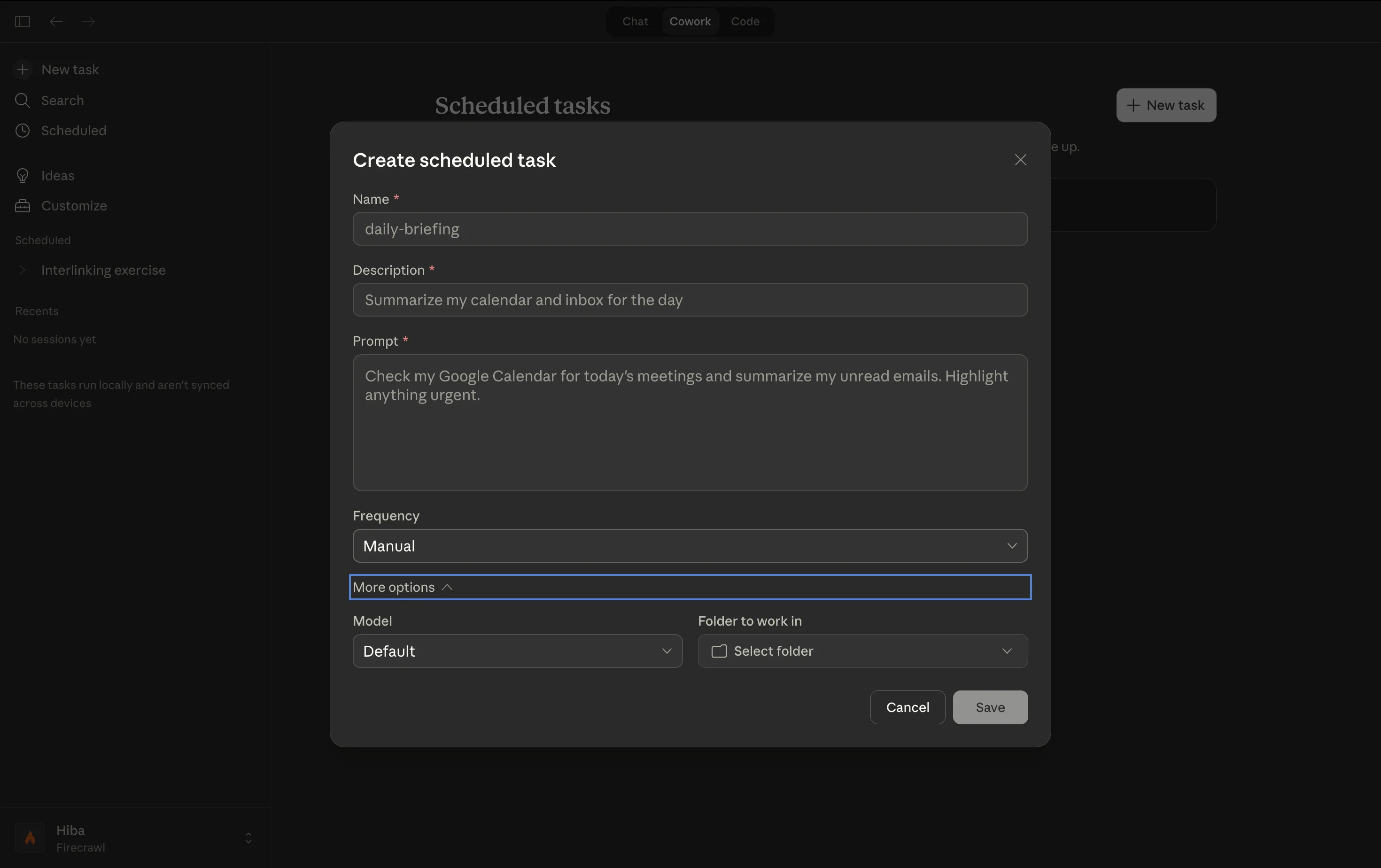
What are Claude Desktop's scheduled tasks
Anthropic recently added a Schedule tab inside Cowork. This is where you define tasks that Claude runs automatically on a recurring basis. You can read the official docs on scheduling recurring tasks in Cowork.
Each scheduled task has:
- A prompt: the instructions Claude follows every time the task runs
- A frequency: manual, hourly, daily, weekday, or weekly
- An optional folder: scope the task to a specific directory on your machine
- A model: choose which Claude model handles the task (Opus 4.6, Sonnet, etc.)
- Connectors: any MCP servers you've added, like Firecrawl or Google Calendar
What makes this different from a simple cron job is that Claude is running a full agentic loop each time: reading context, calling tools, reasoning over results, and writing outputs. You're not just triggering a script. You're running a capable AI agent on a schedule.
The use case: daily AI news, delivered to your calendar
Here's what I set up: every day, Claude uses Firecrawl to search for the latest AI news from the past 24 hours, summarizes the key stories, and creates a Google Calendar event with a digest of everything relevant.
When I first saw this running, it looked like this in the Cowork execution log:
- Claude reads the skill for this scheduled task
- Claude calls Firecrawl's search endpoint for AI news
- Firecrawl returns clean markdown with results
- Claude updates its to-do list and reasons over the content
- Claude creates a Google Calendar event with the summary
The whole thing runs in parallel where it can and finishes in a few minutes. No manual work on my end.
Why Use Firecrawl Instead of Claude's Built-in Search
Claude has a built-in search mechanism, and a lot of people ask why not just use that. The answer is parameters.
Firecrawl's search endpoint gives you control that general search doesn't:
- Time-based filtering: limit results to the past 24 hours, past week, or any window you need
- Location filtering: scope results to a specific country, useful for regional news or market research
- Clean markdown output: Firecrawl returns results already formatted as markdown, so Claude gets structured, readable context immediately
You can explore these options in the Firecrawl search playground. Type in a query, open the configuration panel, and you'll see the time and location controls. For a daily news task, the 24-hour filter is exactly what makes the difference between getting stale results and getting actually fresh ones.
Also read: Top 10 Claude Code Plugins to Try in 2026
Setting up Firecrawl as a connector
- Open Claude Desktop and go to Customize > Connectors
- Click the plus button and select Add Custom Connector
- Type
firecrawlin the name field - Add the remote MCP server URL (available in the Firecrawl MCP documentation)
- Go to your Firecrawl dashboard, open API Keys, and create a new key
- Paste the key into the connector setup and hit Add
Firecrawl's MCP should now appear in your connectors list and be available to all tasks you create.
Note: Firecrawl is also an official Claude plugin if you prefer the plugin-based setup. You can also use the Firecrawl CLI to interact with Firecrawl directly from your terminal.
Setting up Google Calendar as a connector
- In Customize > Connectors, look for Google Calendar in the list
- If it's not there, hit Browse Connectors to find it
- Click Connect and select your Google account
- Allow Claude to access your calendar
- You'll be redirected back to Cowork once it's set
With both connectors set up, you're ready to create a task.
Creating your first scheduled task
Go to the Schedule tab in Cowork and click New Task.
Here's a minimal prompt that works:
Use Firecrawl to search for AI news from the last 24 hours focused on agentic coding, vibe coding, workflows, and AI advancements.
Filter out gossip, opinion pieces, and speculative blog posts. I need only factual, verified news that will help me write technical articles about advancements in the AI field.
Focus specifically on practical applications and things that have actually been built, not theoretical possibilities.
Once the research is complete, create a task in Google Calendar with a summary of the findings.
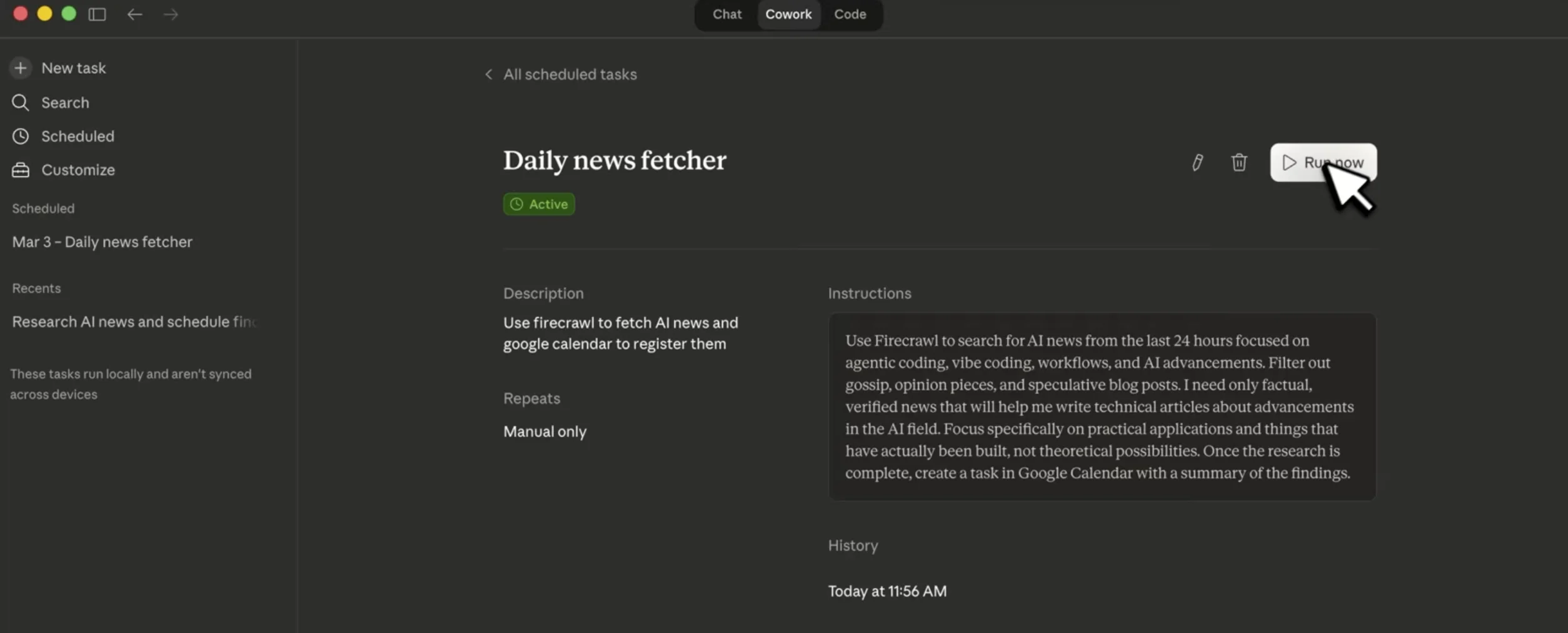
Fill in the name (e.g. Daily news fetcher) and a short description. Select a model: Claude Opus 4.6 is the most capable option for reasoning over search results. Leave the folder blank unless you're working with local files. Set the frequency to Daily.
Hit Create, then click into the task and hit Run Now to test it.
Note: Scheduled tasks only run while your computer is awake. If your machine is asleep at the scheduled time, the task will be skipped until the next trigger.
Iterating to get better results
The first run will likely work, but you may notice Claude isn't always taking full advantage of Firecrawl's time filter. This is easy to fix: update the prompt to be explicit.
Add something like:
Firecrawl's search endpoint supports a specific parameter for fetching only results
from the past 24 hours. Always use this parameter when searching.
After one iteration, Claude starts passing the correct date parameter and you get noticeably fresher results. That's the iteration loop: run the task, check what it did in the execution log, tighten the prompt, run again.
You can also inspect how your connectors are being used by clicking on the Context tab in the execution view. It shows every tool call Claude made, the parameters it sent, and the responses it got back. Useful for debugging when results aren't what you expected.
What else can you build with this?
Daily AI news is just one example. The real value is that any recurring web research task becomes automatable:
- Monitor competitor landing pages for copy changes
- Track new job postings in a specific niche
- Surface new GitHub releases for tools you depend on
- Aggregate pricing data across a set of URLs
- Weekly digest of papers in a research area
Firecrawl's location filter also makes regional use cases possible. If you're covering a specific market, you can scope searches to that country and filter out the noise.
The combination of Claude's scheduling, Firecrawl's search capabilities, and calendar or notification connectors is essentially a no-code research automation stack. The only limit is what you put in the prompt.
For change detection specifically, Firecrawl's /monitor can notify your AI agent via signed webhook the moment a page or site changes. You describe what to track in plain English, choose a cadence like 5 minutes, hourly, daily, or a custom cron schedule, and /monitor filters out unchanged pages and noisy diffs.
If you'd rather run this automation entirely in the cloud without your computer needing to stay on, Claude Managed Agents covers connecting Firecrawl and Linear as MCP tools in Claude's cloud console—no local setup required.
Check out our guide on Building a Claude Skills Generator with Firecrawl's Agent Endpoint if you want to extend Claude further with custom skills. Also read: Claude Code for Marketing.
Frequently Asked Questions
What is Claude Desktop's Cowork scheduled tasks feature?
Cowork is a tab inside Claude Desktop for running agentic tasks on your local machine. The Schedule tab lets you create recurring tasks that run automatically at a frequency you choose: manual, hourly, daily, weekday, or weekly. Each task runs with the connectors and prompt you define, with no extra code required.
Why use Firecrawl instead of Claude's built-in search?
Claude's built-in search is general-purpose. Firecrawl's search endpoint is optimized for scale and precision: you can filter by time window (e.g. past 24 hours only), filter by country or location, and get results back as clean markdown that Claude can immediately reason over. For recurring research tasks that need fresh, targeted data, Firecrawl gives you far more control.
How do I add Firecrawl as a connector in Claude Desktop?
Go to Customize > Connectors in Claude Desktop, click the plus button, and choose Add Custom Connector. Type 'Firecrawl', enter the remote MCP server URL (available in Firecrawl's documentation), and paste your Firecrawl API key. Once saved, Firecrawl tools will be available to all your scheduled tasks.
What scheduling frequencies does Claude Desktop support?
Claude Desktop supports five frequencies for scheduled tasks: manual (run on demand), hourly, daily, weekday (Monday through Friday), and weekly. You can also optionally scope a task to a specific folder on your machine.
How do I get only the past 24 hours of results with Firecrawl search?
Firecrawl's search endpoint has a time-based filter. In the Firecrawl playground, you can set it to 'past 24 hours' to see it in action. In your Claude task prompt, explicitly tell Claude to use Firecrawl's tbs parameter to filter for the last 24 hours. Claude will then pass the right parameter and only return fresh results.
Will my scheduled tasks run if my computer is asleep or offline?
No. Scheduled tasks in Claude Desktop only run while your computer is awake and online. If your machine is asleep or offline at the scheduled time, the task will be skipped and will not run until the next scheduled trigger.
What other use cases can I build with Claude scheduled tasks and Firecrawl?
Any recurring research workflow works well here: monitoring competitor websites, tracking price changes, summarizing industry news by niche or region, aggregating job postings, checking for new product releases, or surfacing relevant academic papers. The combination of scheduling, Firecrawl's filtering, and Claude's reasoning means you can automate almost any web research task.