

TL;DR
| Plugin | What it does |
|---|---|
| Firecrawl | Gives AI agents fast, reliable web context |
| Ralph Loop | Autonomous AI agent loop |
| Context7 | Injects real-time docs into Claude |
| Playwright | Automates browsers with plain English |
| Security Guidance | Keeps your code and secrets safe |
| Figma MCP | Turns designs into code |
| Frontend Design | Makes AI-generated UI look professional |
| Linear | Manages issues without leaving Claude |
| Code Review | Reviews PRs before you merge |
| Chrome DevTools | Debugs your browser from Claude |
| TypeScript LSP | IDE-grade code intelligence for TS/JS |
P.S: Check out how we built a Claude Skills generator with Firecrawl's Agent endpoint.
Since Claude Code launched on February 24, 2025, it's quietly become the breakthrough that actually delivered on AI's promise for developers. A year later, it's not just a tool I use; it's fundamentally changed how I build software and what's possible in a single day.
With the launch of Claude skills and its evolution into plugins, it has unlocked a new dimension in how I build and streamline my tasks.
P.S: Firecrawl just launched the Firecrawl Skill and CLI
I have been building Claude Code plugins to automate a lot of my tedious tasks, but open source plugins which are available for free has been a game changer.
Claude Code plugins like Firecrawl for giving AI agents fast, reliable web context, Ralph loop for autonomous coding, Context 7 for up-to-date and accurate API documentations and Playwright for browser testing are plugins that have deeply embedded into some of my workflows today. In this post I will introduce you to my top 10 plugins that I use in my day to day to save time, boost my productivity and ship faster.
What are Claude Code plugins?
Claude Code plugins are packages that extend what Claude Code can do. They let Claude connect to other tools and handle specific tasks automatically.
Think of it like installing apps on your phone - you add Maps when you need directions, Spotify for music, or Slack to chat with your team.
Similarly, you can install Claude Code plugins for specific development tasks.
Need help with code reviews? There's a plugin for that.
Want to generate documentation or migrate your codebase to a new framework? Plugins can handle those too.
You pick and install what you need based on the work you're doing.
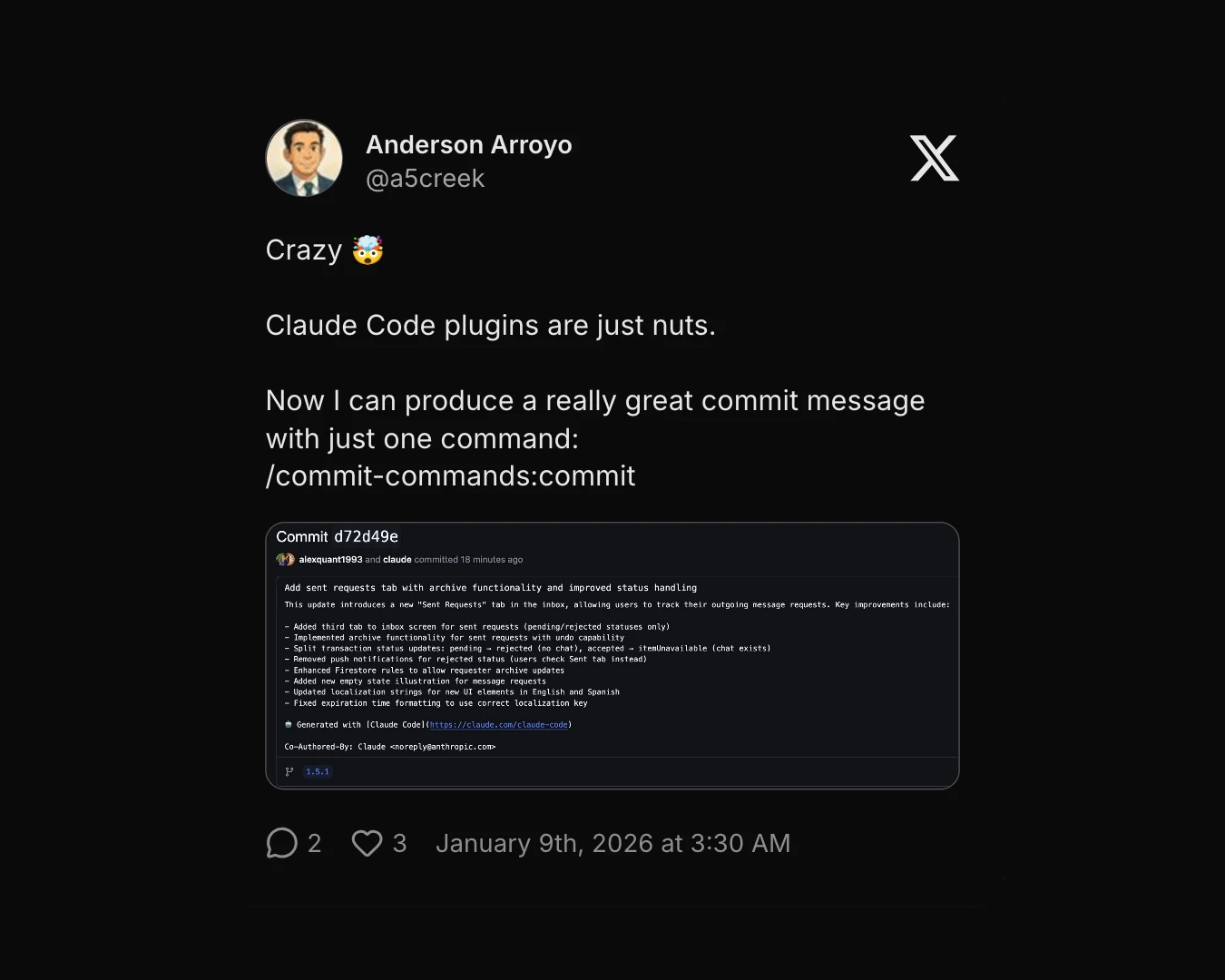
Unlike traditional apps or plugins, Claude Code plugins are not a single type of add-on; rather they are a packaging mechanism that bundles various types of extensions into a single, installable unit. This allows users to share and install custom configurations, workflows, and integrations across different projects and teams.
Components of Claude Code plugins:
- Skills - Features that Claude automatically uses when needed. For example, if you mention testing a login flow, Claude might fire up
Playwrightto automate the browser. Read our guide on building Claude Code Skills to get you started, or browse the best Claude Code skills worth installing. - Subagents - Specialized AI agents designed for specific development tasks, such as a security-auditor for checking vulnerabilities or a frontend-developer for UI work.
- MCP Servers - Connect Claude to external services and apps. For example,
linear MCP Serverto connect Claude to your linear workspace so you can create and manage existing linear tickets. - Commands - Custom shortcuts that activate for specific tasks, such as
/pushto push the current git branch to remote repository or/code-reviewto review your code. - Hooks - Automation that triggers on events which you can be used for things like enforcing code quality or adding security warnings. These event can be triggered at various points in Claude Code’s lifecycle, such as before or after a tool being executed.
Claude skills vs Claude plugins
The short version: a plugin is a package, and a skill is one of the things that package can contain.
| Claude Skills | Claude Plugins | |
|---|---|---|
| What it is | A single capability or prompt | A bundle of extensions (skills, MCPs, commands, hooks) |
| How you install | /skill install | /plugin install |
| How it activates | Contextually, or via /skill-name | Depends on components inside |
| Token cost | Very low — loads only when needed | Varies by component type |
| Best for | One specific task or workflow | Multi-component setups you want to share or reuse |
| Example | frontend-design (one skill) | firecrawl (MCP server + skills + commands) |
Claude MCPs vs Claude plugins
The short version: an MCP server is a live connection to an external tool; a plugin can bundle one or more MCP servers together with skills, hooks, and commands into a single installable package.
| MCP servers | Claude plugins | |
|---|---|---|
| What it is | Live connection to an external API or service | A bundle of extensions (skills, MCPs, commands, hooks) |
| How you configure | settings.json or .mcp.json | /plugin install |
| How it activates | Tools are available as long as the server is running | Depends on components inside |
| Token cost | Varies — can reach 50k+ tokens loaded upfront | Sum of the bundled components |
| Best for | External data access and live actions (GitHub, databases, APIs) | Sharing a complete multi-component workflow as one install |
| Example | firecrawl-mcp (web scraping and search tools) | firecrawl (MCP server + skills + commands) |
The two are not alternatives — they often overlap. A plugin commonly bundles an MCP server as one of its components. The Firecrawl plugin, for instance, wires up the Firecrawl MCP server alongside skills and commands so everything installs in one step. Configure an MCP server directly when you need only the external connection; reach for a plugin when you want the full workflow packaged and shareable. The same MCP ecosystem shows up in other IDEs too, and our roundup of the best MCP servers for Cursor is a useful cross-reference for the Cursor side.
Over 9,000 plugins exist across ClaudePluginHub, Claude-Plugins.dev, and Anthropic's Marketplace. The community is building and open-sourcing plugins at a crazy pace, making it easier than ever to extend Claude Code's capabilities without writing a single line of code.
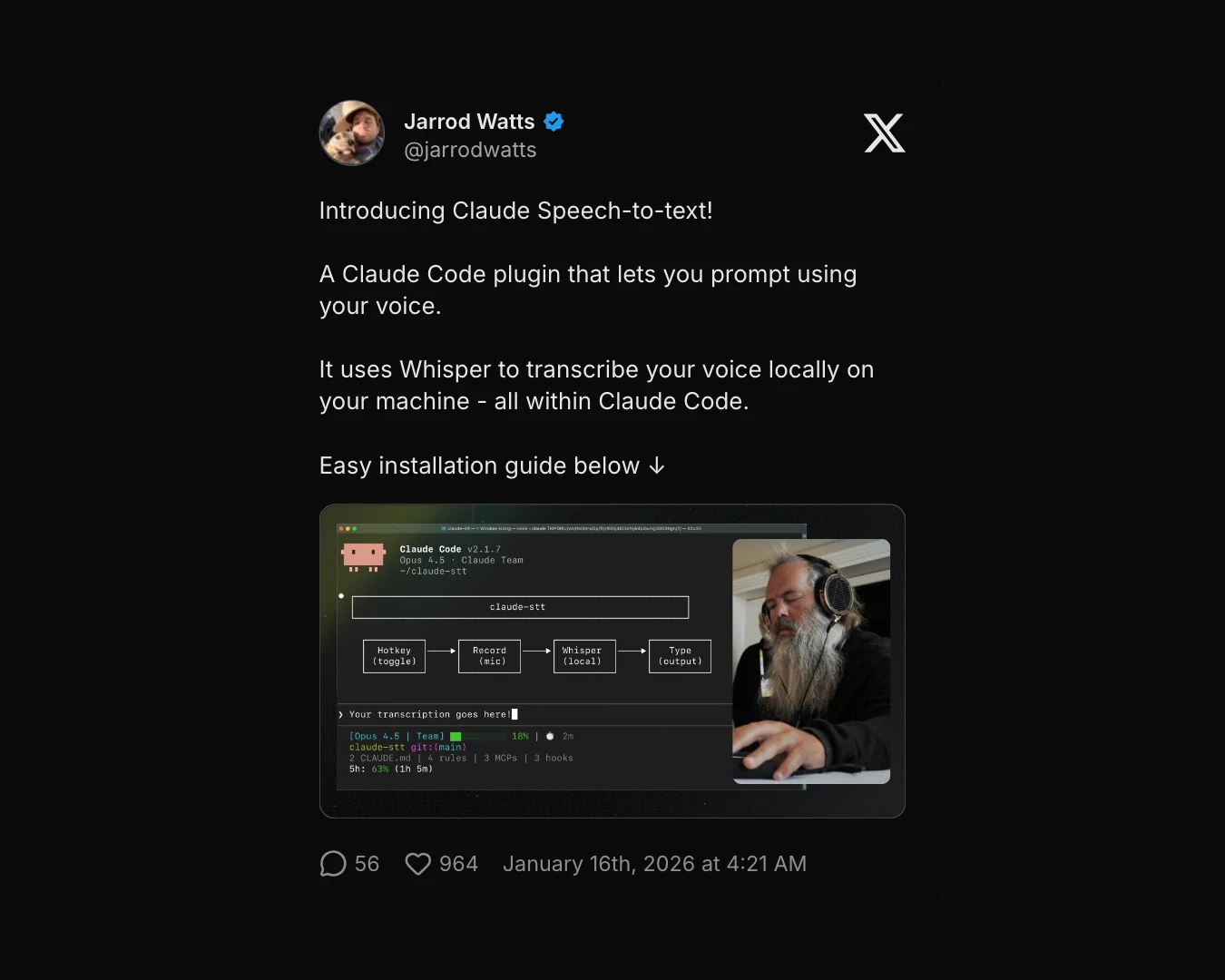
P.S: If you want to build your own custom plugins, you can refer to the comprehensive plugin development documentation provided by Claude Code, which covers everything from creating basic slash commands to building complex plugins with Skills, MCP servers, and hooks.
A plugin can also carry a mod: TypeScript or JavaScript that runs inside Claude Code's own process and can draw in its interface. Our guide to Claude Mods and how to build one covers the three files a mod needs and why it can't import npm packages.
What are the top Claude Code plugins to try out?
With so many plugins out there, it's hard to know which ones are actually worth it. I've tested dozens over the past few months, from coding assistants to browser automation to design tools. Some were incredible, others just got in the way. I've narrowed it down to 10 plugins I actually use every day. These have saved me real time and caught real bugs. Let me show you what made the cut.
1. Firecrawl
Firecrawl gives AI agents and apps fast, reliable web context — the perfect tool to search, interact with, and extract data from any website.
Getting usable web data into Claude is harder than it sounds. JavaScript renders inconsistently, and raw HTML is too noisy to reason about. I kept running into this when building features that needed real-time web data — documentation updates, market research, competitive analysis, anything requiring current information from the web at scale.
The Firecrawl Claude Code plugin handles all of that automatically: JavaScript rendering and converting everything into clean markdown or structured JSON. Read the Firecrawl official Claude plugin launch post for a full walkthrough of available commands and what changed in the Claude integration.
I just tell Claude what I need and Firecrawl handles the rest. It works seamlessly through MCP, so Claude can scrape single pages, crawl entire sites, search the web, interact with dynamic content, or map out site structures — all without me writing extraction code. Under the hood these are the same web scraping API and web search API that power Firecrawl's production SDKs.
Install:
/plugin install firecrawl@claude-plugins-officialSetup:
After installing, run /firecrawl:setup to configure your API key.
Get your free API key at firecrawl.dev/app/api-keys.
Using Claude on the web or desktop as well? Add the official Firecrawl connector there too, and connect your Firecrawl account. No API key or config needed.
Firecrawl Tools overview:
/firecrawl:scrape— Retrieves and converts a single web page into formatted markdown text/firecrawl:interact- Scrape a page to get clean data, then take actions in that page — click buttons, fill forms, extract dynamic content, or navigate deeper. See the interact docs for full details./firecrawl:crawl— Navigates through and extracts information from all pages of a website/firecrawl:search— Performs web searches and returns extracted content from results/firecrawl:map— Identifies and lists all available URLs within a website
These Firecrawl capabilities can be used naturally during your chat with Claude. Simply request that Claude extract data from a specific URL, conduct web research, or compile information from various websites for comparison. For the specific token-cutting techniques when Claude Code searches the web mid-session, see Claude Code web research token optimization. The system also accommodates privately hosted Firecrawl installations through customizable API endpoint settings.
Firecrawl Alexandria: the knowledge library for superintelligence
Firecrawl also gives Claude Firecrawl Alexandria, which makes finding data much easier than searching the web and hoping a page quoted it. It covers 100+ official data providers plus Firecrawl's own indexes, including the Developer Index (public repositories, GitHub issues, merged pull requests, READMEs, and code documentation) and the Research Index for papers. Claude finds the provider that has the data, checks what the call costs, and pulls the records. Looking up a source is free, and a provider tool costs its listed price only when it runs.
"Search the Developer Index for how people handle Prisma connection pooling on serverless, and link the issues"
"Check PyPI download stats and GitHub activity for httpx and requests before I pick one"
"Find recent research papers on retrieval-augmented generation evaluation and summarize the methods"
Example:
"Browse Stripe documentation at https://docs.stripe.com. Look into how to implement receiving Stripe events in my webhook endpoint. Using this info, implement it in my app."Pros: Firecrawl gives Claude reliable, grounded web context without the usual extraction headaches. It handles JavaScript rendering automatically, so you focus on what to do with the data rather than fighting to get it. The clean markdown output means Claude can reason about web content directly. The interaction tools let Claude go beyond passive reading — it can fill forms, click through flows, and extract dynamic content, which opens up serious possibilities for competitive research, documentation aggregation, and agent workflows that actually work on real websites.
Cons: It's an external service that requires API credits, so heavy scraping can add up if you're not careful about scope. The usage dashboard breaks the burn down per API key and per endpoint, which makes the expensive step obvious.
If you're deciding between native Claude web fetch and Firecrawl, our Claude web fetch vs Firecrawl breakdown covers where each fits for web extraction. For detailed documentation, configuration options, and self-hosting instructions, check out the Firecrawl documentation and the plugin repository.
Anthropic has been killing it with their shipping velocity lately. On February 5, 2026, Anthropic released Claude Opus 4.6, a major upgrade to their smartest model. The major update was Agent teams (research preview) using which one can spin up multiple Claude Code agents that work in parallel. We wrote a detailed guide on Building Apps with Claude Opus 4.6 Agent Teams & Firecrawl Agent.
2. Ralph Wiggum Plugin (Ralph Loop)
Ralph Wiggum turns Claude into a self-driving development agent capable of autonomous, multi-hour coding sessions.
57.0k installs (As of January 19, 2026)
Named after the iconic Simpsons character, this official Anthropic plugin implements a stop-hook pattern that enables long-running multi-task execution loops by resetting Claude's context between tasks.
I set up a PRD with my requirements, run the loop, and Claude picks tasks one at a time - implementing, committing, then starting fresh. Progress stays in my git history while context pollution gets wiped clean each iteration. I can go AFK and come back to working code without Claude going in circles.
Install:
/plugin install ralph-loop@claude-plugins-officialUse it:
/ralph-loop:ralph-loop "Migrate all v1 endpoints to v2, update tests, commit each change"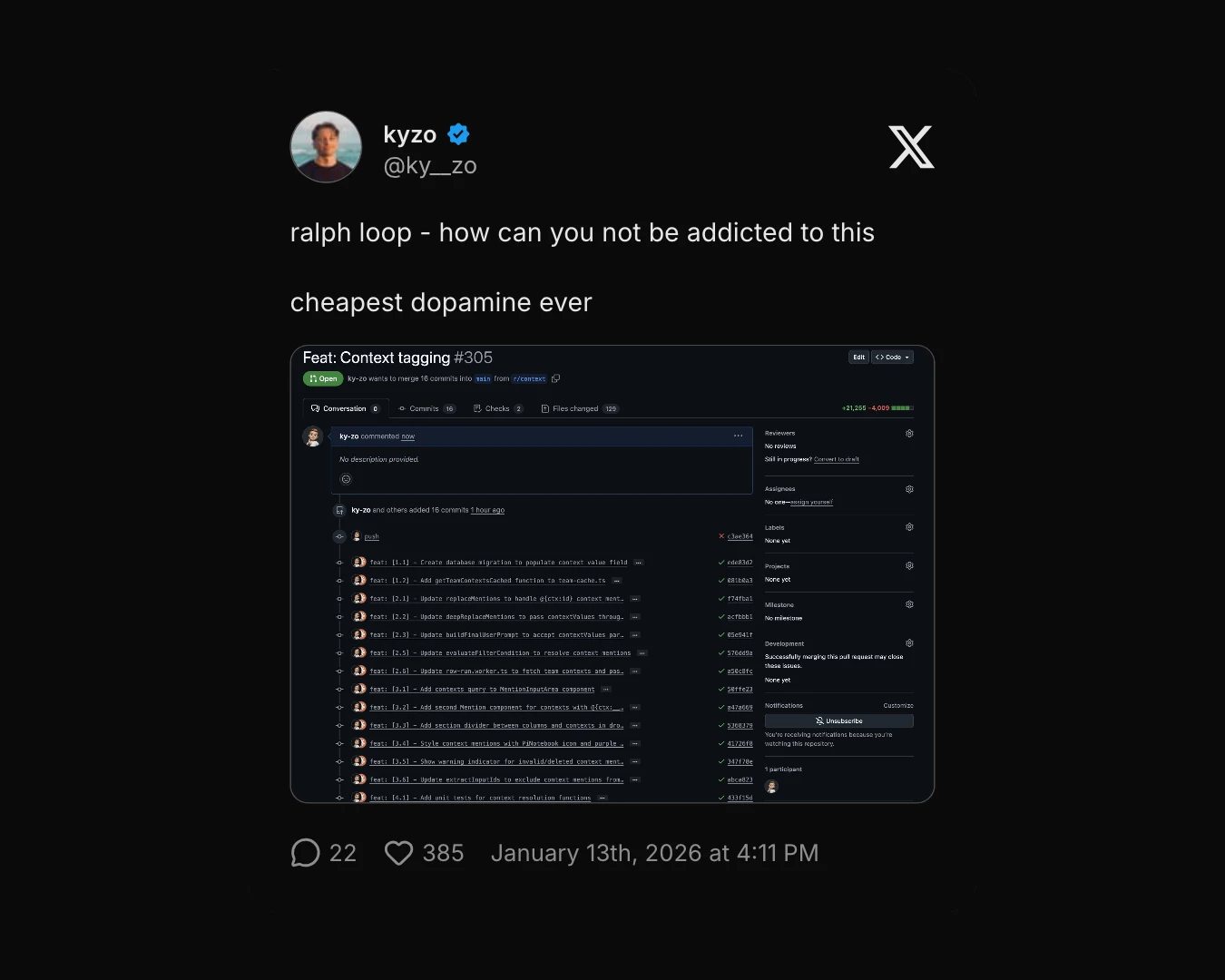
Pros: I can go AFK and come back to working code. Claude doesn't spiral into circular reasoning because each iteration starts fresh. Perfect for grunt work like CRUD, migrations, or test coverage where I know what I want but don't want to type it all. Mistakes get documented as guardrails so they don't repeat. I stay in control through PRD definition and git review.
Cons: Requires setup with PRD files - not as simple as chatting. Only works when I have crystal-clear specs; vague ideas just thrash. Creates lots of small commits that need cleanup. Still burns tokens and requires me to review everything. Takes practice to write good PRDs and know when to loop versus when to intervene manually.
For a complete walkthrough on setting up your first RALPH loop, understanding when to use it, and tips for writing effective PRDs, check out Matt Pocock's guide: Getting Started with RALPH
3. Context7
Context7 injects real and upto-date documentation into Claude's context.
71.8k installs (As of January 19, 2026)
Whenever I'm working with libraries, I use Context7 to give Claude Code access to live, version-accurate documentation instead of relying on potentially outdated model knowledge. Claude can query Context7 MCP Servers on demand to fetch the latest APIs for Next.js 15, React 19, Tailwind CSS 4, or any other framework I'm using.
This significantly reduces hallucinations and ensures the code follows current best practices rather than deprecated patterns. It's especially valuable when working with rapidly evolving frameworks where the difference between versions can be substantial. For a fuller walkthrough of the retrieval pipeline behind this pattern, see our guide on up-to-date documentation for AI coding agents.
Install:
/plugin install context7@claude-plugins-officialExample:
"Show me Server Actions in Next.js 15"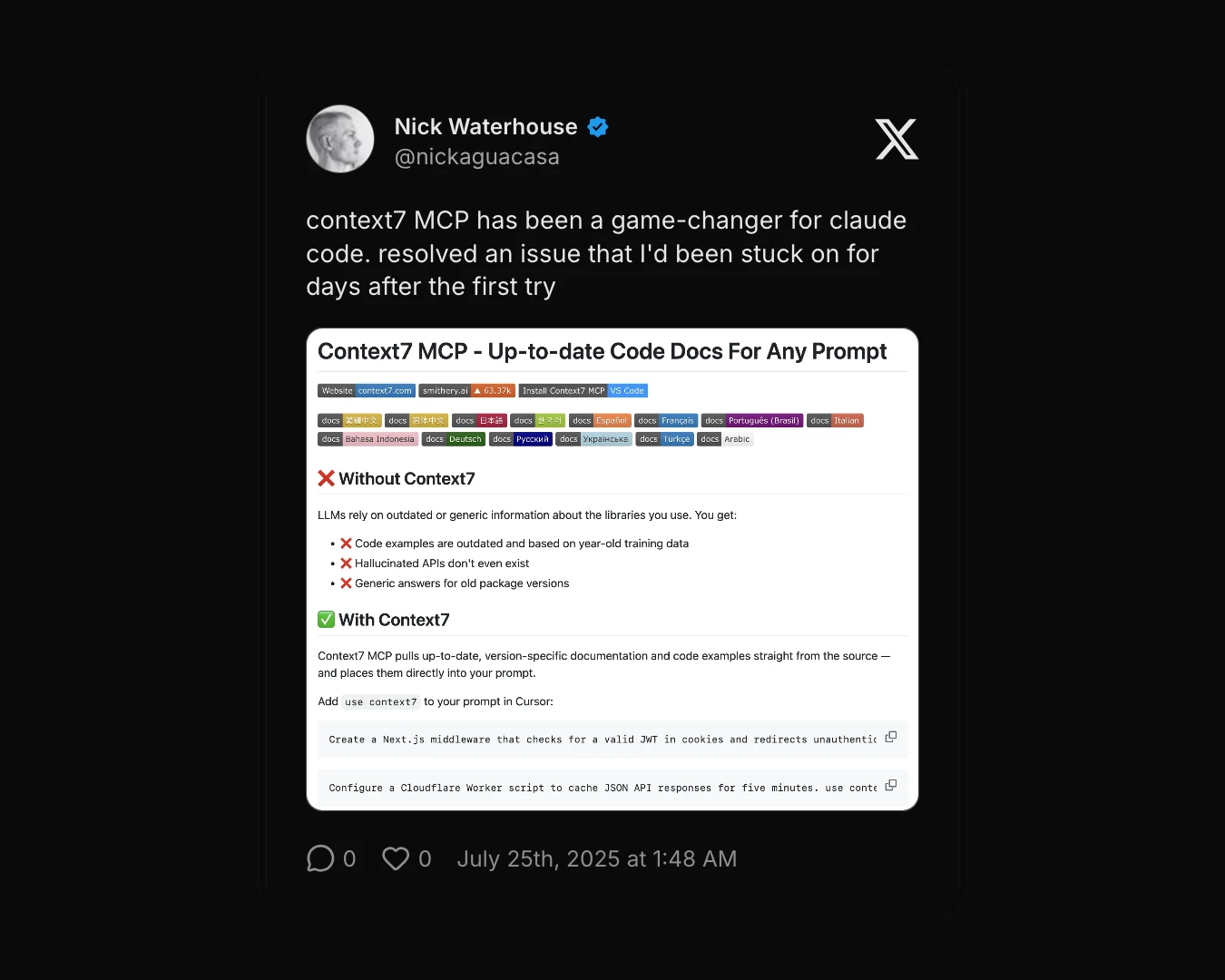
Pros: Genuinely useful for libraries where Claude's knowledge falls behind. Pulls current docs and real examples for newer, fast-moving, or niche SDKs instead of outdated guesses. Plugs cleanly into Claude Code via MCP and works well combined with other MCP servers to improve context quality during serious coding sessions.
Cons: Feels like overkill for well-known libraries. Sometimes injects too much context and burns tokens without adding value, in their latest update Context7 has fixed this issue upto some point. Relevance can be hit-or-miss - examples aren't always what I need, and at that point a quick web fetch is faster. Powerful but requires being selective about when to enable it.
For installation instructions, configuration options, and the full list of supported libraries, check out the official repository: Context7 on GitHub. If you want to compare it against other developer retrieval tools, the best Context7 alternatives post benchmarks it against Firecrawl Developer Index, Parallel, Mintlify, Exa, and DeepWiki.
4. Playwright
Playwright MCP opens a Chrome window Claude controls.
28.1k installs (As of January 19, 2026)
When working on my frontend projects, I use Playwright MCP to test my web apps through natural language instead of writing test scripts. I just tell Claude things like "test the checkout flow" or "fill out the contact form and submit it," and it happens.
The visible browser window is a game-changer for debugging, I can watch Claude interact with my UI in real-time and catch issues immediately. When I need to test authenticated features, I just log in manually while the browser is open, and Claude takes over from there.
Install:
/plugin install playwright@claude-plugins-officialExample:
"Test the checkout flow at http://localhost:3000: browse the products, add to cart, fill in the test card details, pay and verify confirmation"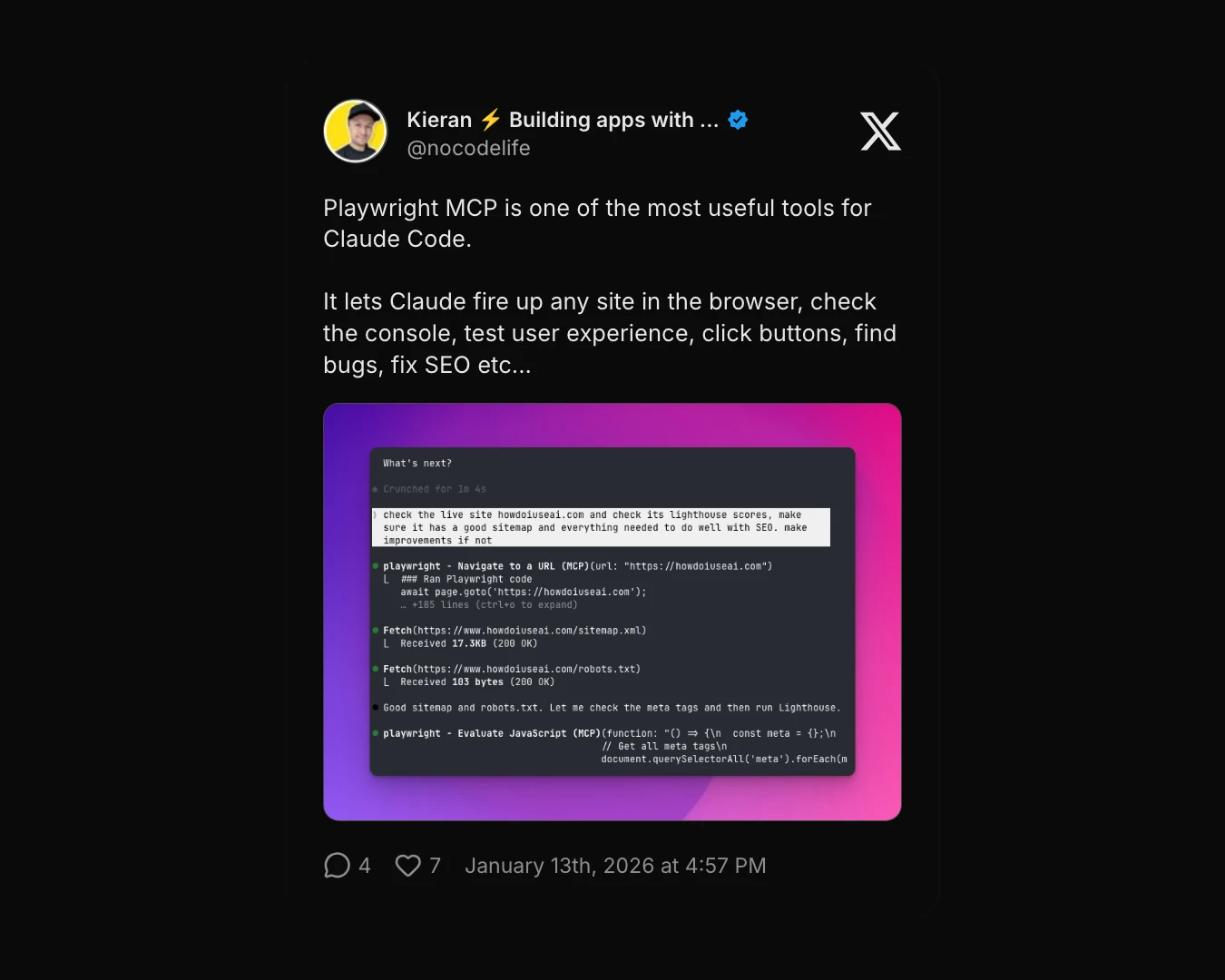
Pros: As a frontend developer, I love Playwright plugin because it allows Claude to interact with a live browser and real UI state, which is critical for modern, client-rendered applications. It’s particularly valuable when dealing with complex user flows, asynchronous UI behavior, or pages that depend heavily on JavaScript, where static reasoning falls short. Having the model observe and act on real DOM changes makes its feedback feel grounded in how the app actually behaves.
Cons: On the downside, the integration consumes considerably large number of tokens, and I’ve seen cases where browser sessions or cached state behave in unexpected ways. This can interrupt fast feedback cycles when I’m focused on refining UI details or debugging subtle issues.
If you are planning to use Playwright in Claude Code, it helps to be familiar with the official Playwright documentation, since Claude interacts with the browser using the same APIs, locators, and execution model you’d use manually. For a broader look at browser automation tools and how Playwright stacks up against alternatives, our comparison guide covers the top options. For a direct head-to-head, our Playwright vs Puppeteer breakdown covers performance, API design, and which fits different testing and scraping use cases.
For deeper understanding of real-world behavior, limitations, and edge cases that may surface during MCP-driven automation, the Playwright GitHub repository and their official docs are useful references.
5. Security Guidance
This plugin scans Claude Code's file edits for security vulnerabilities and blocks risky changes before they happen.
25.5k+ installs (As of January 19, 2026)
This hook acts like a safety net when Claude Code is editing my files. Before any file gets changed, it quickly scans for common security mistakes - things like command injection vulnerabilities, XSS risks, or unsafe ways of handling user input. If it spots something risky, it blocks the edit and shows me a warning with an explanation of what's wrong and how to fix it safely. It's saved me from accidentally merging dangerous code that I might've missed in the moment.
The nice part is it's smart about not being annoying. It only shows each warning once per session, so I'm not getting nagged repeatedly about the same thing. If I know what I'm doing and want to push through anyway, I can disable it. But honestly, most of the time when it fires, I'm glad it did, it catches stuff like putting untrusted input directly into shell commands or GitHub Actions workflows, which are easy mistakes to make when you're moving fast and letting Claude handle the details.
Install:
/plugin install security-guidance@claude-plugins-officialThis plugin automatically taps into the PreToolUse hook to monitor 9 security patterns including command injection, XSS, eval usage, dangerous HTML, pickle deserialization, and os.system calls.
If you want to read more about security best practices around Claude Code, read from Anthropic's blog: Claude Code: Best practices for agentic coding
6. Figma MCP
Figma MCP reads your design files directly and writes functional code for the components.
18.1k installs (As of January 19, 2026)
When building interfaces the most mechanical part of my job is translating figma designs into code. With the Figma MCP server, Claude Code now connects directly to real Figma design files, allowing it to read frames, components, and layout data instead of relying on screenshots or descriptions.
This lets me generate front-end code straight from the source design, making the design-to-code handoff more concrete and less error-prone. It essentially turns Figma into a live context provider for Claude during code generation.
Install:
/plugin install figma@claude-plugins-officialExample:
"Generate a React component from the Hero Section frame: [Figma link to frame]"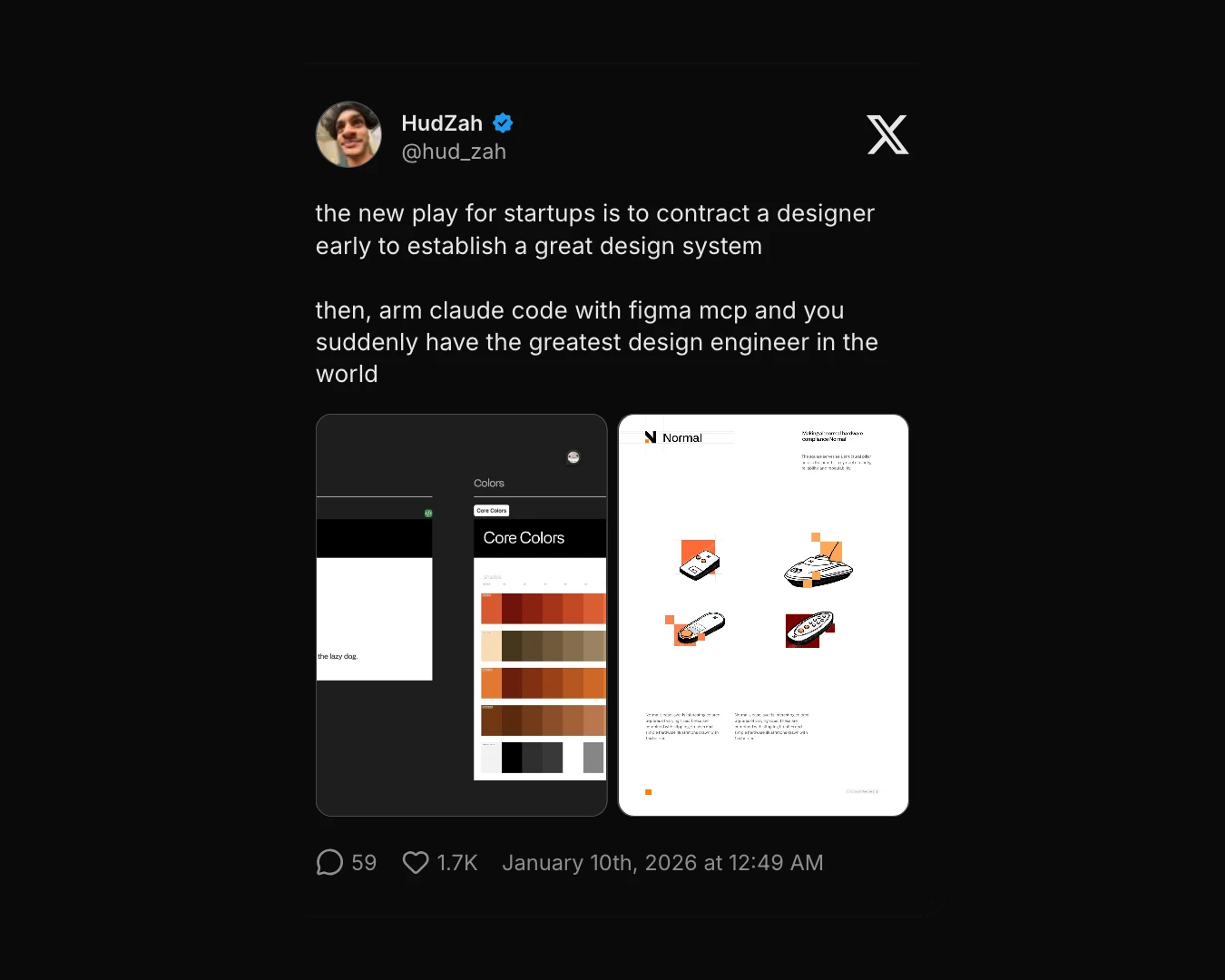
Pros: It helps me eliminate a lot of repetitive, manual work when starting new components or pages by producing a strong initial code baseline that closely matches the design. Because the output is grounded in actual Figma data, the structure and styling are usually more accurate than hand-written first passes, which reduces back-and-forth with designers and speeds up early development.
Cons: The workflow struggles once I move past initial generation: updating existing components often leads to full regeneration rather than incremental changes, and multi-state designs require extra coordination. Since everything happens through the command line, I still become the bottleneck for design tweaks and experimentation, which limits how collaborative the process can be in day-to-day product work.
For setup instructions, OAuth configuration, and detailed information on how Claude Code accesses Figma files through the MCP server, check out the official documentation: Figma MCP Server Docs
7. Frontend Design
The Frontend Design skill fixes generic AI-generated UI.
96.4k installs (As of January 19, 2026)
AI-generated UI often looks generic and repetitive. Same fonts, safe color choices, shallow hierarchy, and components that feel more like placeholders than real product UI. Using the frontend-design plugin in Claude Code helps me move past that by automatically applying stronger design judgment when I work on frontend components or pages. It nudges Claude toward more intentional typography, spacing, layout, and interaction patterns, giving me a much more usable and production-ready starting point instead of the usual AI-looking output.
This plugin packs skills that helps claude get past the generic AI slop by nudging it to
- Avoid overused defaults (Inter, Roboto, purple gradients)
- Commit to bold, cohesive aesthetics
- Use distinctive typography, strong color palettes, motion, asymmetry, and atmospheric backgrounds
- Think in terms of visual identity, not just components
Install:
/plugin install frontend-design@claude-plugins-officialExample:
"Use the frontend design skill. Create a music player interface"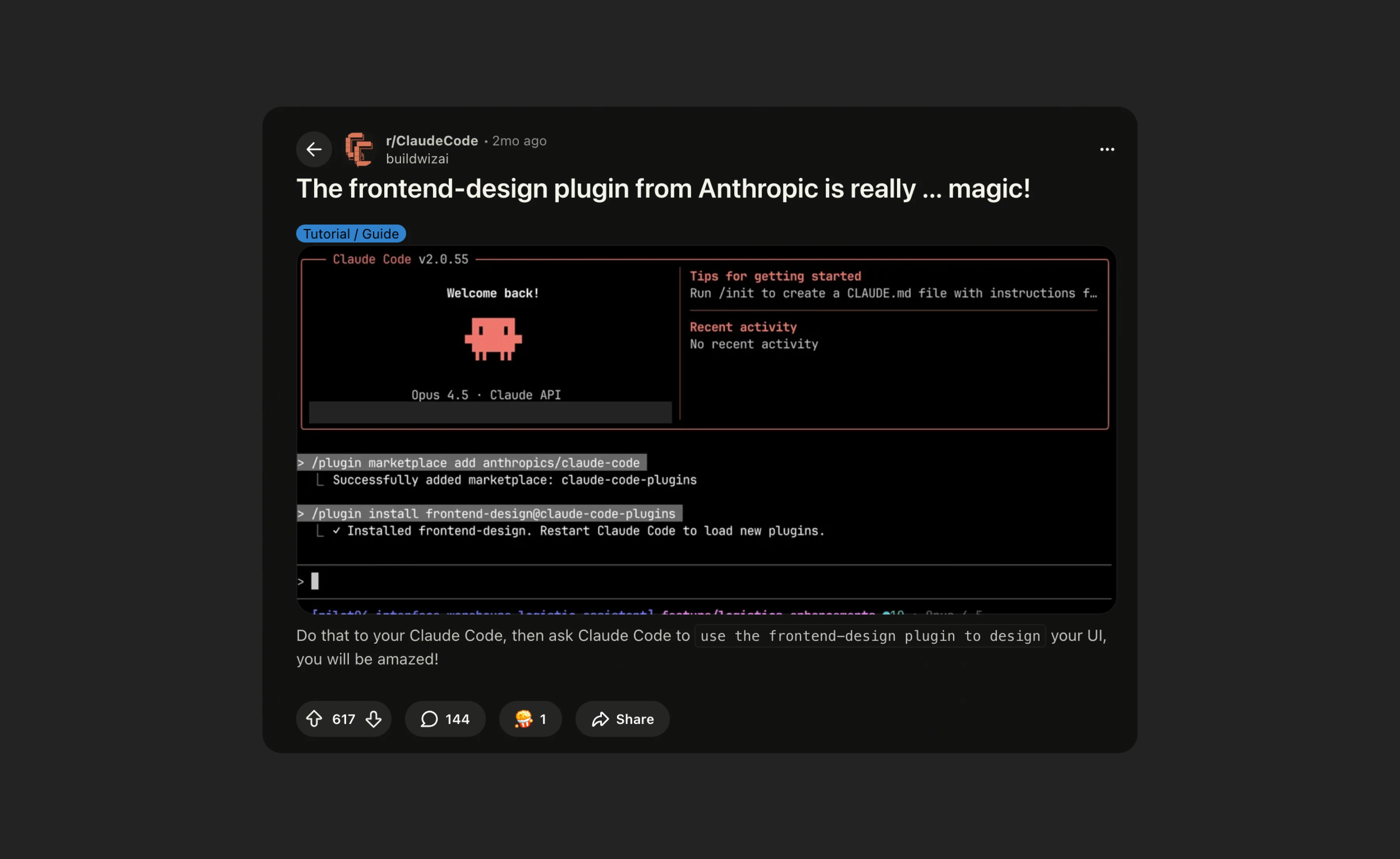
Pros: This makes Claude’s frontend output feel intentional instead of generic. The skill pushes it away from safe defaults and toward stronger typography, color, and layout choices without permanently bloating context. For creative or exploratory UI work, the results are more distinctive and less AI-slop.
Cons: It still needs clear direction and vague prompts stay vague. The bias toward bold aesthetics does not fit every use case, and it does not solve consistency across larger apps. The benefit also depends on Claude correctly recognizing the task as frontend work.
Read on for Claude Code Plugins: Breaking the AI Slop Aesthetic by Paddo, a hands-on breakdown of how the frontend-design skill changes Claude’s UI output, what it gets right, and where it still needs guidance.
8. Linear
The Linear plugin connects Claude to your issue tracker.
9.5k installs (As of January 19, 2026)
I've been using the Linear MCP plugin in Claude Code, and it's changed how I work with tickets day to day. Being able to pull real issues directly into my coding flow and act on them without jumping tools makes the whole process feel tighter and more focused.
Linear ends up acting like shared memory for the project. I can plan work, implement changes, and update ticket state in one place, which makes it much easier to keep context and momentum as I move through tasks.
Install:
/plugin install linear@claude-plugins-officialExamples:
"Pull LINEAR-214 and summarize what needs to be done"

"Show high-priority issues in the current sprint"

"Start working on LINEAR-214 and mark it in progress"

"Break this Linear ticket into smaller subtasks"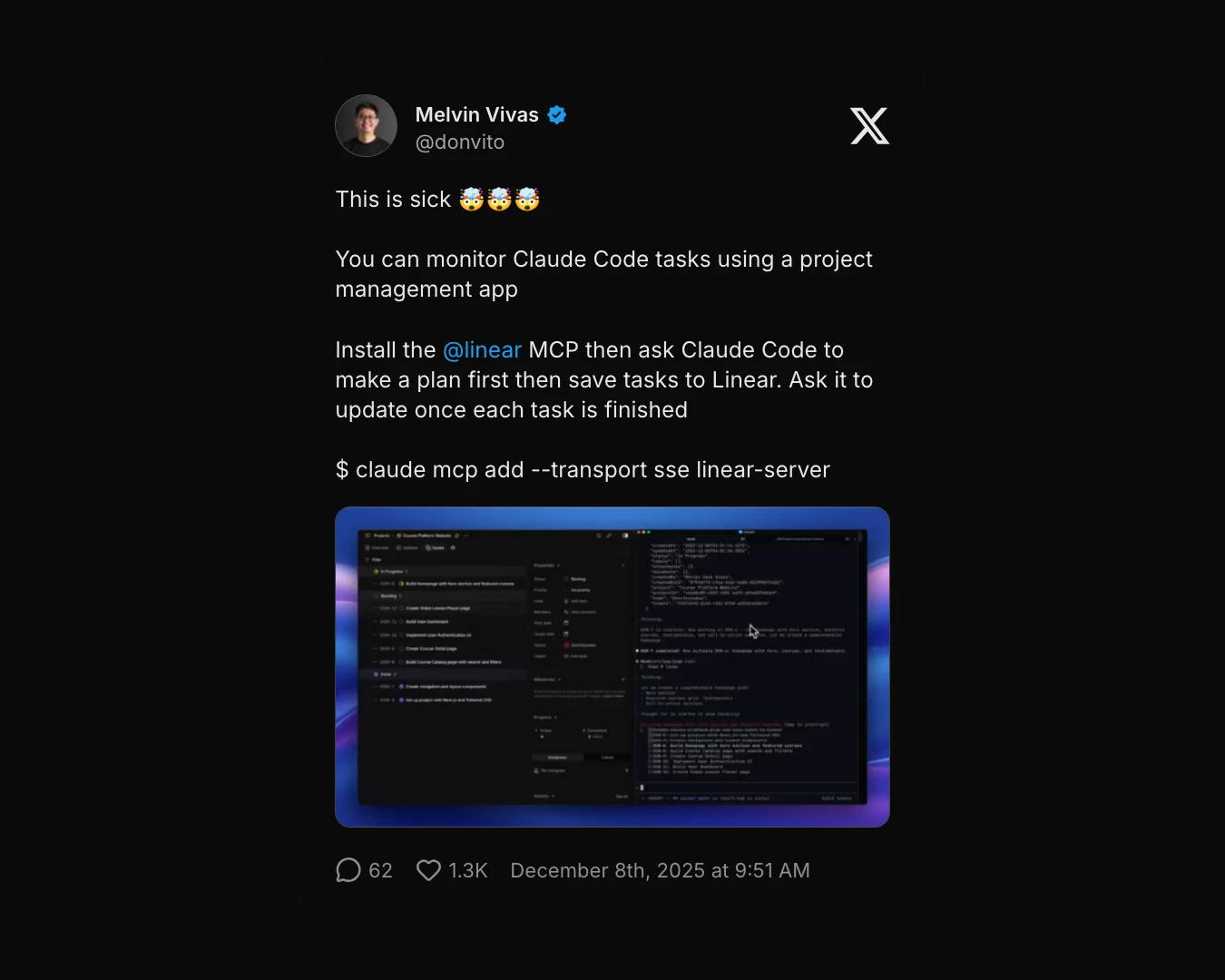
Pros: Using the Linear MCP plugin has made my day-to-day workflow noticeably smoother by keeping tickets and code tightly connected. I can pull an issue in, plan the work, implement changes, and update Linear without breaking focus, which makes everything feel faster and more intentional.
Cons: There honestly aren’t many downsides so far, but it does rely on having reasonably well-written tickets to get the best results. For more complex projects, I still need to be explicit about boundaries and expectations, especially when letting Claude update issue state or add notes automatically.
To learn more and get started, check out the official Linear MCP documentation, which walks through setup, authentication, and supported workflows in Claude Code. It’s the best reference for understanding what the MCP server exposes and how to integrate it cleanly into your day-to-day development flow. If you want to run Linear alongside Firecrawl as cloud-hosted MCP tools without keeping a local machine on, Claude Managed Agents shows the full setup using Claude’s MCP credential vault.
9. Code Review
The Code Review plugin uses multiple AI agents to review your code.
50k installs (As of January 19, 2026)
I use the Code Review plugin as a first-pass reviewer on every PR to catch obvious issues around tests, types, and error handling before a human ever looks at it. The confidence scoring helps me quickly decide what to fix immediately versus what’s just a suggestion, which keeps reviews fast and focused.
Under the hood, it runs multiple specialized review agents across the diff and aggregates their findings with confidence scores so I can prioritize real issues over noise. Instead of a single generic review, I get targeted feedback on tests, types, error handling, code quality, and simplification in one pass. Here's what this plugin does based on it's command description:
- Reviews pull requests using multiple specialized agents instead of a single generic pass
- Analyzes code quality, tests, error handling, and type design in parallel
- Assigns confidence scores to each finding to help prioritize fixes
- Flags potential bugs, edge cases, and missing validations early
- Suggests concrete improvements and simplifications, not just warnings
- Produces a structured review summary that’s easy to scan
- Works directly inside Claude Code, avoiding external review tools
- Acts as a fast first-pass reviewer before human review
Install:
/plugin install code-review@claude-plugins-officialExample Usage:
# On a PR branch, run:
/code-review

# Claude will:
# - Launch 4 review agents in parallel
# - Score each issue for confidence
# - Post comment with issues ≥80 confidence
# - Skip posting if no high-confidence issues found
Output:
High Confidence:
- Missing error handling in api/users.ts:45

Medium Confidence:
- Consider extracting duplicate logic in utils/format.ts
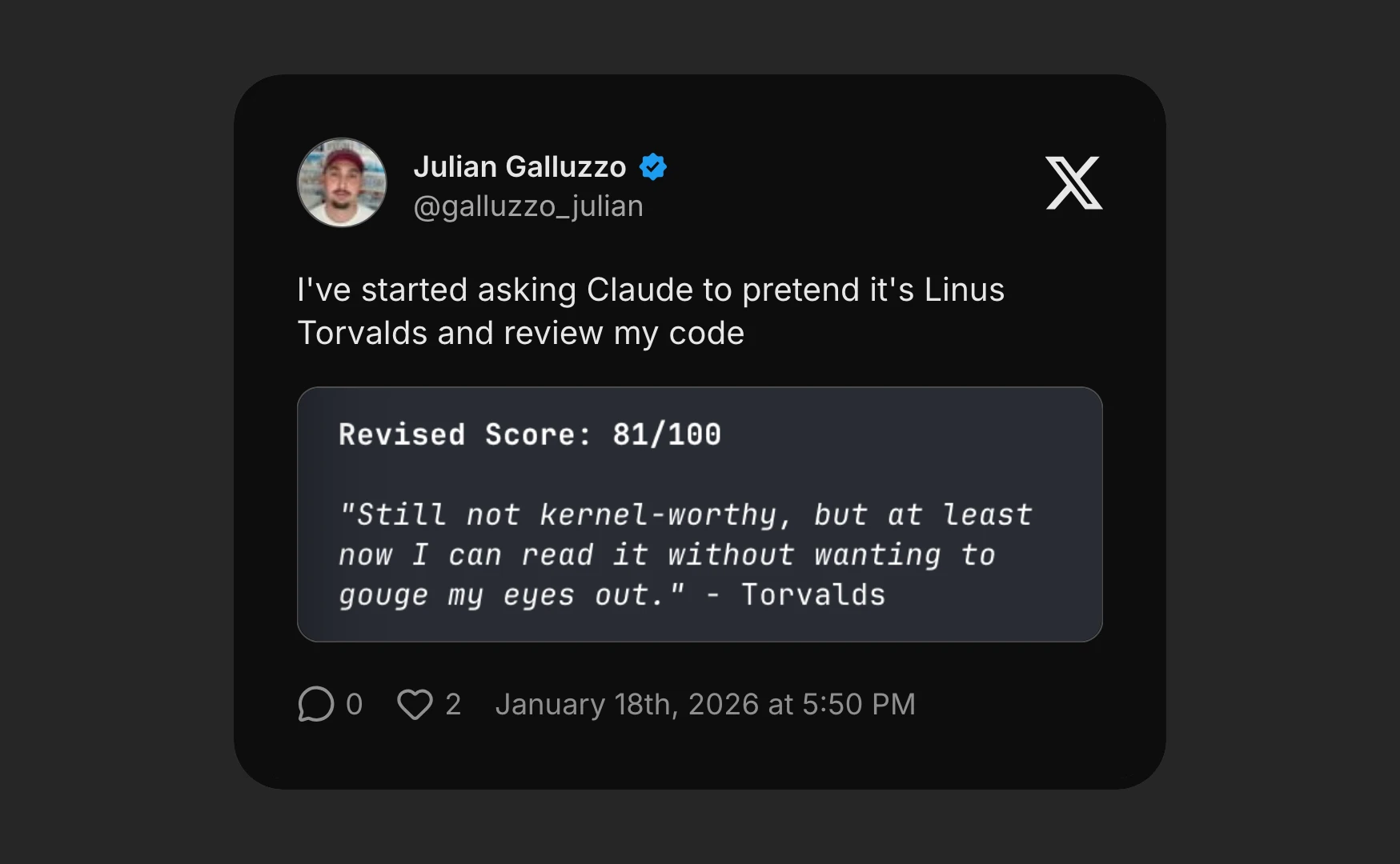
If you don't want to use the plugin directly, you can always ask Calude Code to review like Linus Torvalds.
Pros: Using the Claude Code review plugin feels like having a smart teammate quickly skim every PR. It catches small but important things like missing tests, weak error handling, or unclear types that are easy to miss when you are moving fast. The confidence scores help you focus on what actually matters, and the feedback shows up directly on the PR without interrupting your workflow.
Cons: It can get a bit chatty on larger PRs and sometimes flags things that are intentional or specific to your codebase. A few suggestions feel more like ideal clean code than practical improvements. It works best as a second opinion rather than something you blindly follow, since human judgment is still important.
10. Chrome DevTools MCP
Chrome DevTools MCP gives Claude full debugging access.
20k+ installs (As of January 19, 2026)
Debugging real web apps is painful when tools can't see what's actually happening in your browser, especially once auth, sessions, and complex frontend state are involved. I kept running into situations where screenshots or logs weren’t enough, and I wanted the assistant to look at the same DevTools I was looking at.
That’s why Chrome DevTools MCP is an underrated Claude Code plugin. I’ve been using it extensively to inspect network requests, check console errors, and debug live pages using my existing logged-in Chrome session. Once it’s set up, it feels very natural to ask things like “why did this request fail” or “what’s blocking LCP” and get answers based on the real DevTools state. Setup takes a bit of effort and it can be heavy on resources, but for serious frontend debugging, it’s been genuinely useful.
Install:
# Install the chrome dev tools marketplace
/plugin marketplace add ChromeDevTools/chrome-devtools-mcp

# Install the plugin
/plugin install chrome-devtools-mcp@chrome-devtools-plugins
Once you have installed the plugin, run the /chrome command to setup the extensions in your chrome browser to help claude control the chrome browser. Set the Enabled by default option to Yes for a seamless experience.
Examples:
"Show failed network requests on this page"

"Run a performance audit"

"Check console for JavaScript errors"

"Look at the network requests and find which assets takes the most time to load"
Pros: Using Chrome DevTools MCP has been genuinely useful because it lets the assistant work with the same browser state I’m looking at. I can debug real pages, inspect network requests, check console errors, and analyze performance using my existing logged-in Chrome session, which saves a lot of time. It feels natural for frontend debugging since the answers are based on actual DevTools data, not guesses.
Cons: The initial setup can be a bit annoying since Chrome needs to be started with specific flags and it can clash with other running instances. It’s also Chrome-only and can be resource-heavy when DevTools panels are open. Once it’s working it’s great.
Learn more about Chrome DevTools MCP through the official GitHub repository, the Chrome Developers blog for an overview and real examples, a guide on debugging live authenticated browser sessions, and the MCP documentation for deeper details on debugging workflows.
11. TypeScript LSP
TypeScript LSP gives Claude Code real IDE-grade intelligence for TypeScript and JavaScript projects.
177,136 installs (As of June 5, 2026)
When building TypeScript projects, I kept switching between Claude Code and my editor just to check what a function does or trace where a variable is defined. The TypeScript LSP plugin fixes that by bringing full language server capabilities directly into Claude Code. It's Anthropic-built, verified, and one of the most-installed plugins on the platform.
The plugin gives Claude the same code intelligence you'd expect from a mature IDE: go-to-definition lets Claude navigate directly to where a function or type is declared, find references surfaces every place a symbol is used across the project, and real-time error checking catches type mismatches and missing imports before anything gets committed. It supports all TypeScript and JavaScript file types: .ts, .tsx, .js, .jsx, .mts, .cts, .mjs, and .cjs.
Install:
/plugin install typescript-lsp@claude-plugins-officialOnce installed, the plugin activates automatically when you're working with TypeScript or JavaScript files. You can ask Claude to "go to the definition of this function," "find all references to this variable," or "check for type errors in this file" and it responds with grounded, project-aware answers.
Example:
"Find all references to the useAuth hook and check if the return type is used consistently across the codebase"Pros: Having the language server in context makes Claude's suggestions dramatically more accurate for large TypeScript codebases. It can trace types through imports, catch inconsistencies across files, and navigate the codebase the way a human engineer would. The automatic activation means no friction: it just works when you open a TypeScript file. For teams working on strict TypeScript projects, the real-time error detection alone justifies the install.
Cons: The language server runs in the background, which can add startup overhead on cold launches in larger monorepos. On very large projects the initial type-checking pass takes a moment before results are ready. For small scripts or one-off files the added intelligence is overkill, but the install cost is zero.
Choosing the right Claude Code plugin type
Not every plugin does the same thing under the hood, and picking the wrong component type is the fastest way to burn tokens on overhead you didn't need.
Use a Skill when you want Claude to decide when and how to act. Skills use progressive disclosure: Claude loads only a name and one-line description at startup, then pulls in the full instructions when the task calls for it. This makes them cheap to have installed and ideal for anything that benefits from Claude's judgment, like code reviews, workflow automations, or prompts you'd otherwise repeat manually.
Use an MCP Server when you need a live connection to an external service. Firecrawl, Linear, Figma — these work as MCP servers because Claude needs to call out to a real API and get back real data. The tradeoff is context: MCP tool definitions load upfront by default, so be intentional about how many you have active at once. (See our roundup of the top web search MCP servers for a sense of what's available.) If you are deciding when to use an MCP server versus a CLI-based integration, our MCP vs CLI comparison covers the tradeoffs for AI agent workflows.
Use a Hook when something must always happen, no exceptions. Hooks are deterministic shell scripts that fire on specific events (like PreToolUse or PostToolUse) and run completely outside Claude's context window. Zero token cost, zero LLM judgment — perfect for things like linting before a commit or blocking writes to sensitive files.
Use a Command for shortcuts to actions you trigger manually. Think /push, /code-review, or /firecrawl:scrape — these are explicit, one-shot invocations rather than behaviors Claude infers from context.
In practice, the best plugins combine types: a Skill tells Claude when and how to do something, while an MCP server handles the actual API call it needs to pull it off.
Exciting time ahead
After testing dozens of plugins, these 11 Claude Code plugins have genuinely changed how I work day-to-day. The best part is they work together: I can pull a Linear ticket, use Context7 for accurate docs, use Firecrawl to search and extract data from the web, test with Playwright, let Security Guidance catch vulnerabilities, and rely on TypeScript LSP to keep Claude's suggestions grounded in real type information, all in one flow without switching tools.
What's really interesting is where this is all heading.
People are now spinning up multiple Claude Code instances in the cloud, each configured with different plugin combinations for specialized tasks. One for frontend work with Figma and Frontend Design, another for backend migrations with Ralph Loop, maybe a third dedicated to web research — searching, interacting with, and extracting data from the web using Firecrawl, or a fourth just for security auditing and code reviews.
This modular approach mirrors the broader shift toward agentic AI, where specialized agents collaborate intelligently rather than one tool trying to do everything, and with over 9,000 plugins already available, it feels less like "AI that helps me code" and more like we're building an ecosystem of development environments that adapt to exactly how we work. If you want a curated view of the best MCP servers for developers across Claude Code and other AI coding tools, that guide covers the top picks including Firecrawl, Figma, E2B, and Composio. If you're evaluating whether to stick with Claude Code or move to an open-source model-agnostic alternative, the Claude Code vs OpenCode comparison covers the tradeoffs.
You can find more plugins at ClaudePluginHub which has over 9,000+ plugins, Claude-Plugins.dev, and GitHub.
Frequently Asked Questions
What are Claude Code plugins?
Claude Code plugins are packages that extend Claude Code's capabilities by connecting it to other tools and automating specific tasks. They work like apps on your phone - you install what you need for your development work. Plugins can include skills, MCP servers, commands, subagents, and hooks that enhance Claude's functionality.
How do I install a Claude Code plugin?
You can install plugins using simple command-line instructions directly in Claude Code. Most plugins use the format `/plugin install [plugin-name]@[source]`, for example `/plugin install ralph-loop@claude-plugins-official`. After installation, you can start using the plugin's features immediately through commands or by letting Claude automatically detect when to use them.
What is the Firecrawl plugin used for?
The Firecrawl plugin gives AI agents and apps fast, reliable web context through strong search, scraping, and interaction tools. It handles JavaScript rendering automatically, returning clean markdown or structured JSON that Claude can reason about directly. It also gives Claude Firecrawl Alexandria, the knowledge library for superintelligence, with 100+ official data providers plus Firecrawl's Developer and Research indexes.
Are Claude Code plugins free?
Yes, most Claude Code plugins available through community marketplaces and official sources are free and open-source. Over 9,000 plugins exist across platforms like ClaudePluginHub, Claude-Plugins.dev, and Anthropic's Marketplace. The community actively builds and shares these plugins without cost.
What is the Ralph Loop plugin used for?
Ralph Loop runs autonomous coding sessions where Claude works through tasks one at a time, implementing changes and committing them to git. It's perfect for repetitive work like CRUD operations, migrations, or test coverage where you have clear specifications. You can leave it running and come back to completed, working code with a clean git history.
Why would I need the Context7 plugin?
Context7 gives Claude access to real, up-to-date library documentation instead of relying on potentially outdated training data. It pulls current APIs and usage patterns for libraries, which significantly reduces hallucinations and incorrect suggestions. This is especially useful when working with newer, fast-moving, or niche libraries.
What does the Playwright plugin do?
Playwright opens a Chrome window that Claude can control through natural language commands. Instead of writing test scripts, you can tell Claude to "test the checkout flow" or "fill out the contact form," and it happens in a visible browser window. It's great for testing web apps and watching Claude interact with your UI in real-time.
How does the Security Guidance plugin protect my code?
This plugin scans Claude Code's file edits before they happen, looking for security vulnerabilities like command injection, XSS risks, or unsafe input handling. If it detects something risky, it blocks the change and shows you a warning with an explanation and fix suggestions. It acts as an automated safety net that catches dangerous code before it gets committed.
Can Claude Code work with Figma designs?
Yes, through the Figma MCP plugin, Claude Code can read your Figma design files directly and generate functional code from them. It connects to real Figma files to access frames, components, and layout data, eliminating the need for screenshots or descriptions. This makes the design-to-code handoff more accurate and less error-prone.
What is the Frontend Design plugin?
The Frontend Design plugin helps Claude generate better-looking, more professional UI instead of generic AI-generated interfaces. It automatically applies stronger design judgment, pushing Claude toward more intentional typography, spacing, color choices, and layout patterns. This gives you production-ready starting points that don't look like typical AI output.
How do I choose between a Skill, MCP server, Hook, and Command in Claude Code?
Use a Skill when you want Claude to decide when and how to act based on context. Skills load instructions only when relevant, so they are cheap on tokens and great for judgment-driven workflows like code reviews or recurring prompts. Use an MCP server when you need a live connection to an external API or service, such as Firecrawl for web data, Linear for issue tracking, or Figma for design files. Use a Hook when something must always happen deterministically on a specific event, like linting before a commit or blocking writes to protected files. Hooks run outside Claude's context window entirely, so they add zero token overhead. Use a Command for manual shortcuts you invoke explicitly, like /push or /code-review. In practice, the best plugins combine types: a Skill handles the when and how while an MCP server makes the actual API call.
How does the Linear plugin help with project management?
The Linear plugin connects Claude Code directly to your Linear issue tracker, letting you pull tickets, update status, and manage issues without leaving your coding environment. You can ask Claude to summarize tickets, start work on specific issues, or break tasks into subtasks. It keeps your code and project management tightly integrated in one workflow.
What does the TypeScript LSP plugin do?
The TypeScript LSP plugin brings full language server capabilities to Claude Code for TypeScript and JavaScript projects. It enables go-to-definition, find references, and real-time error checking across your entire codebase — the same code intelligence you would expect from a mature IDE. It works with .ts, .tsx, .js, .jsx, .mts, .cts, .mjs, and .cjs files, and activates automatically whenever you are working in one of those file types.
