Mastering Firecrawl's Crawl Endpoint: A Complete Web Scraping Guide
 Bex Tuychiev
TL;DR
- Firecrawl's
/v2/crawlendpoint discovers every page on a site, scrapes them, and returns clean markdown in a single job. - The parameters you'll reach for most often are
limit,include_paths/exclude_paths,crawl_entire_domain,sitemap, andscrape_options. - Call
crawl()for small jobs and wait for the result. For larger jobs, callstart_crawl()and pick a delivery mode: pollget_crawl_status(), stream pages over WebSocket withwatcher(), or have Firecrawl push events to a webhook URL. - Available via REST API, Python and Node SDKs, MCP server, and CLI.
- Cost: 1 credit per crawled page, plus extras for JSON extraction (4 credits/page) or PDF parsing (1 credit per PDF page).
Firecrawl returns clean markdown for any web page, but most real workloads need more than one page at a time. Docs sites, product catalogs, blog archives — and when the goal is scraping thousands of pages to clean markdown for a training dataset or knowledge base, a single crawl job handles all of it. Those jobs are what the /v2/crawl endpoint is for: it takes a starting URL and returns scraped markdown for every page worth keeping.
This guide walks through crawl end to end. You'll learn how to:
- Discover and traverse every page on a site without writing recursion or pagination logic
- Handle JavaScript-rendered content, redirects, and complex page requirements
- Filter what gets scraped with path patterns, sitemap modes, and depth controls
- Get pages back as they finish, through async polling, WebSocket streaming, or webhooks
- Drop the output straight into a RAG pipeline with LangChain
Web scraping vs web crawling: understanding the differences
The two terms get used interchangeably, so, before we dive into the details of crawl, let's clarify the differences.
What's the difference?
Web scraping refers to extracting specific data from individual web pages, such as a Wikipedia article or technical tutorial. It's primarily used when you need specific information from pages with known URLs.
Web crawling walks a site by following links, discovering pages as it goes. The focus is on navigation and URL discovery, not on any single page.
For example, to build a chatbot that answers questions about Stripe's documentation, you would need:
- Web crawling to discover and traverse all pages in Stripe's documentation site
- Web scraping to extract the actual content from each discovered page
The web scraping vs web crawling distinction matters when choosing which Firecrawl endpoint fits your task. If you're new to web crawling — how the crawl loop works, what a URL frontier is, and how crawlers handle politeness — see the foundational guide before diving into the endpoint.
How Firecrawl combines both
Firecrawl's crawl method combines both capabilities:
- URL analysis: Identifies links through sitemap or page traversal
- Recursive traversal: Follows links to discover sub-pages
- Content scraping: Extracts clean content from each page
- Results compilation: Converts everything to structured data
When you pass the URL https://docs.stripe.com/api to the method, it automatically discovers and crawls all documentation sub-pages. The method returns the content in your preferred format, whether that's markdown, HTML, screenshots, links, or metadata.
Step-by-step guide to web crawling with Firecrawl's API
Firecrawl gives AI agents and apps fast, reliable web context, with search, scraping, and interaction tools that all return clean markdown. The crawl endpoint is the part of that toolkit you reach for when one page isn't enough. You can call it from the REST API directly, from one of the SDKs (Python, Node, Go, Rust), through the MCP server, or from the CLI. This tutorial uses the Python SDK.
To get started:
- Sign up at firecrawl.dev and copy your API key
- Save the key as an environment variable:
export FIRECRAWL_API_KEY='fc-YOUR-KEY-HERE'Or use a dot-env file:
touch .env
echo "FIRECRAWL_API_KEY='fc-YOUR-KEY-HERE'" >> .env
Then use the Python SDK:
from firecrawl import Firecrawl  # pip install firecrawl-py
from dotenv import load_dotenv
import os

load_dotenv()
app = Firecrawl()
Once your API key is loaded, the Firecrawl class uses it to establish a connection to the Firecrawl API engine.
First, we'll crawl the https://books.toscrape.com/ website, which is designed for web scraping practice:
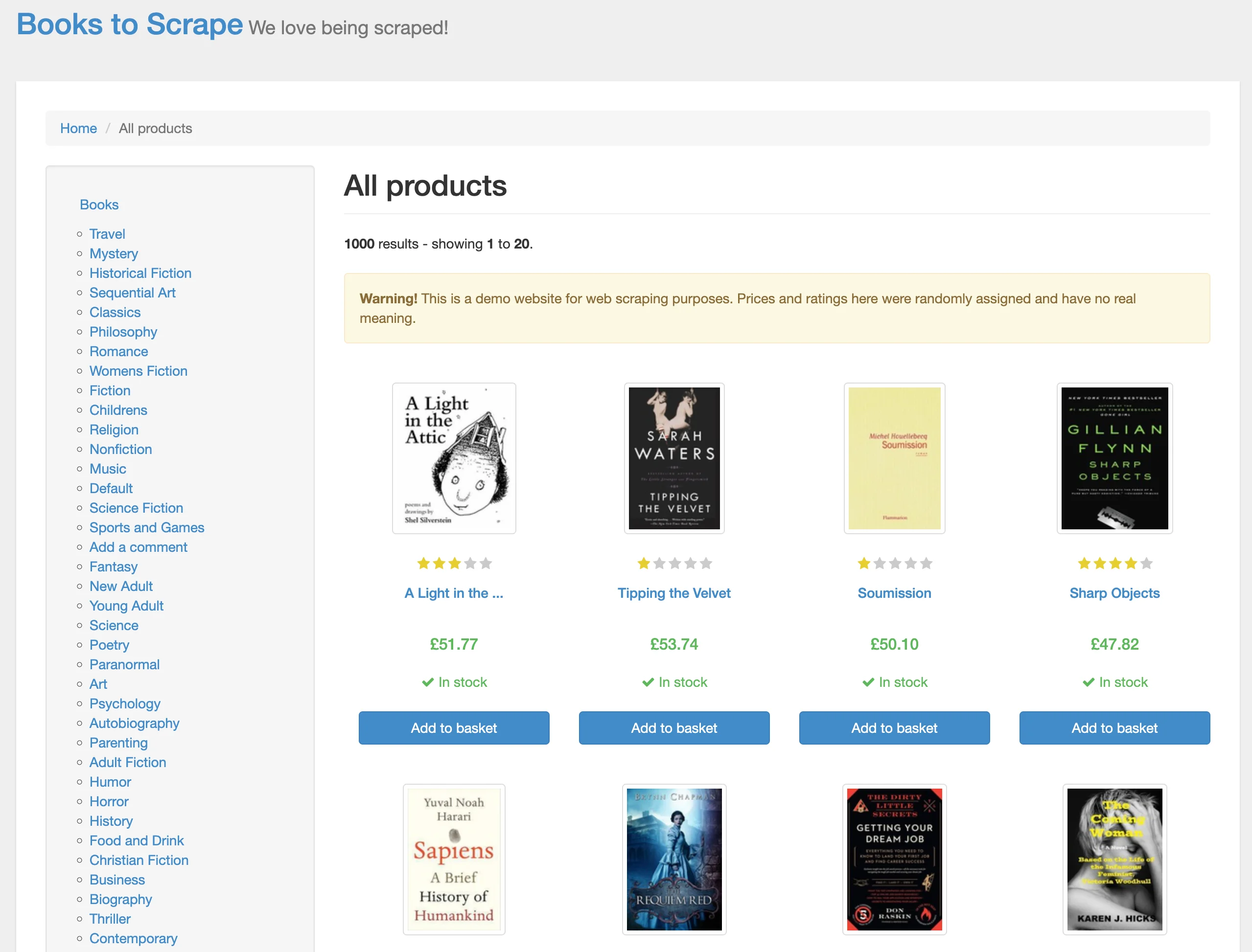
A traditional approach with beautifulsoup4 or lxml would mean dozens of lines for HTML parsing and pagination. Firecrawl's crawl method does it in one line:
base_url = "https://books.toscrape.com/"
crawl_result = app.crawl(url=base_url, limit=20)
The result is a dictionary with the following keys:
print(f"Status: {crawl_result.status}")
print(f"Total pages: {crawl_result.total}")
print(f"Credits used: {crawl_result.credits_used}")
print(f"Completed: {crawl_result.completed}")
Status: completed
Total pages: 3
Credits used: 3
Completed: 3First, we are interested in the status of the crawl job:
crawl_result.status'completed'If it is completed, let's see how many pages were scraped:
crawl_result.total33 pages (this took about 8 seconds on my machine, though speed varies based on your connection and the target site). Let's examine one of the elements in the data list:
sample_page = crawl_result.data[0]
markdown_content = sample_page.markdown

print(markdown_content[:500])
- [Home](https://books.toscrape.com/index.html)
- All products
# All products
**1000** results - showing **1** to **20**.
**Warning!** This is a demo website for web scraping purposes. Prices and ratings here were randomly assigned and have no real meaning.
01. [](https://books.toscrape.com/catalogue/a-light-in-the-attic_1000/index.html)The page corresponds to Women's Fiction page:
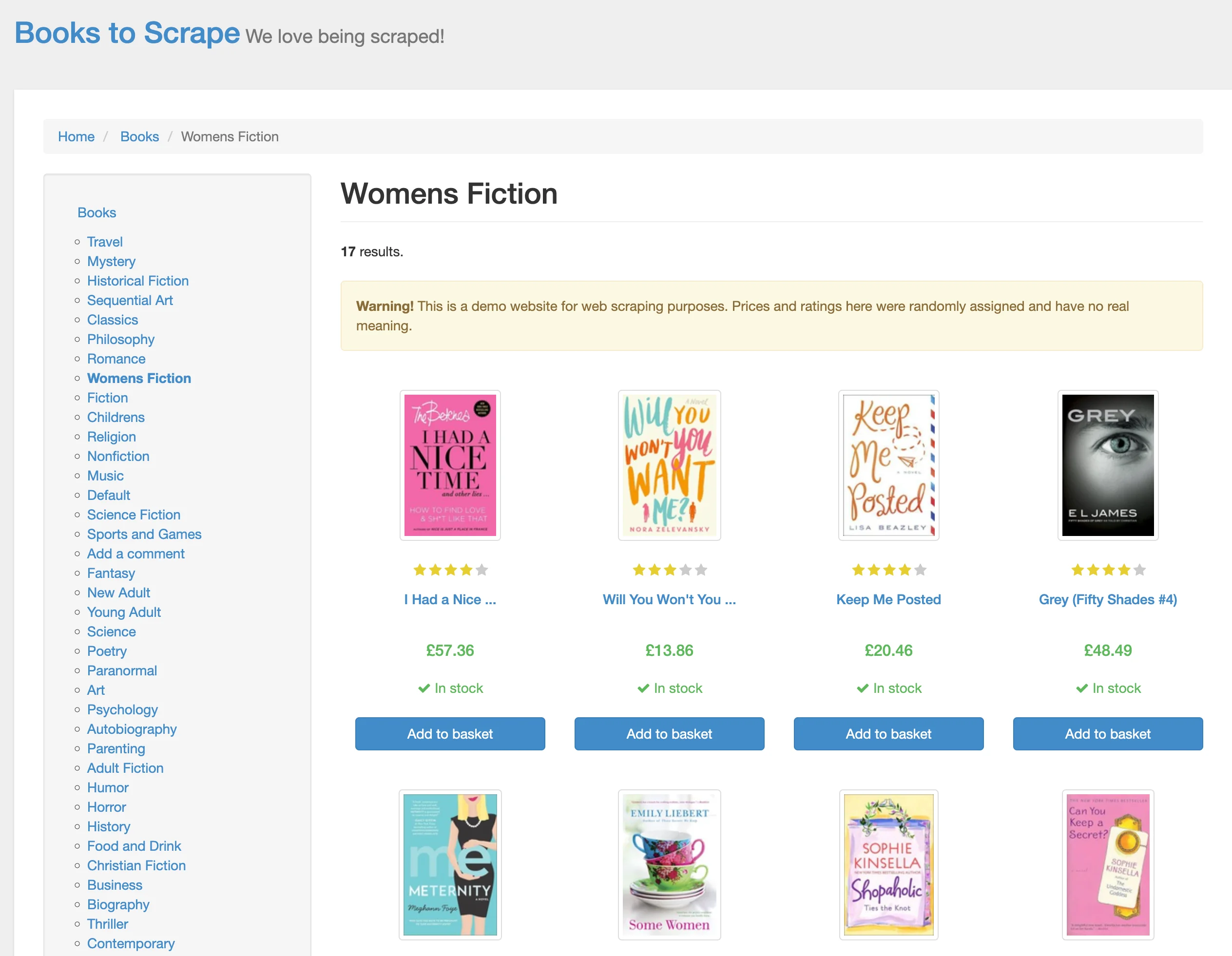
Firecrawl also includes page metadata in each element's dictionary:
sample_page.metadata.model_dump(){
'title': '\n All products | Books to Scrape - Sandbox\n',
'description': '',
'url': 'https://books.toscrape.com/',
'language': 'en-us',
'keywords': None,
'robots': 'NOARCHIVE,NOCACHE',
...
}One thing we haven't mentioned is how Firecrawl handles pagination. If you scroll to the bottom of Books-to-Scrape, you'll see that it has a "next" button.
Before moving to sub-pages like books.toscrape.com/category, Firecrawl first scrapes all sub-pages from the homepage. If a sub-page includes links to already scraped pages, those links are ignored.
For paginated sites where pages are URL-addressable (like ?page=2, ?page=3), you can also walk every page with the Firecrawl SDK in a simple loop — a lighter-weight approach than a full crawl when you need structured JSON from each page and the stop condition is just an empty results array.
Advanced web scraping configuration and best practices
Firecrawl offers several types of parameters to configure how the crawl method works with websites. We will outline them here with their use-cases.
Scrape options
scrape_options is the parameter you'll use most often. It exposes the same options as Firecrawl's scrape endpoint and applies them to every page in the job. The supported formats are:
- Markdown (default)
- HTML
- Raw HTML (complete webpage copy)
- Links
- Screenshot
Here's an example request to crawl the Stripe API in multiple formats:
from firecrawl.types import ScrapeOptions

# Crawl the first 2 pages of the stripe API documentation
stripe_crawl_result = app.crawl(
    url="https://docs.stripe.com/api",
    limit=2,  # Only scrape the first 2 pages including the base-url
    scrape_options=ScrapeOptions(
        formats=["markdown", "html", "links", "screenshot"]  # Multiple formats for testing
    )
)
When you specify multiple formats, each webpage's data contains separate keys for each format's content:
# Check available attributes in the first result
sample = stripe_crawl_result.data[0]

print(f"Has markdown: {hasattr(sample, 'markdown')}")
print(f"Has html: {hasattr(sample, 'html')}")
print(f"Has links: {hasattr(sample, 'links')}")
print(f"Has screenshot: {hasattr(sample, 'screenshot')}")

if hasattr(sample, 'links') and sample.links:
    print(f"Number of links found: {len(sample.links)}")
    print(f"First few links: {sample.links[:3]}")
Has markdown: True
Has html: True
Has links: True
Has screenshot: True
Number of links found: 55
First few links: ['https://www.hcaptcha.com/what-is-hcaptcha-about?ref=b.stripecdn.com&utm_campaign=5034f7f0-a742-48aa-89e2-062ece60f0d6&utm_medium=challenge&hl=en', 'https://docs.stripe.com/api-v2-overview#main-content', 'https://dashboard.stripe.com/register']The screenshot value is a temporary URL to a PNG hosted by Firecrawl. It expires after 24 hours. Here's what it looks like for Stripe's API homepage:
from IPython.display import Image

Image(stripe_crawl_result.data[0].screenshot)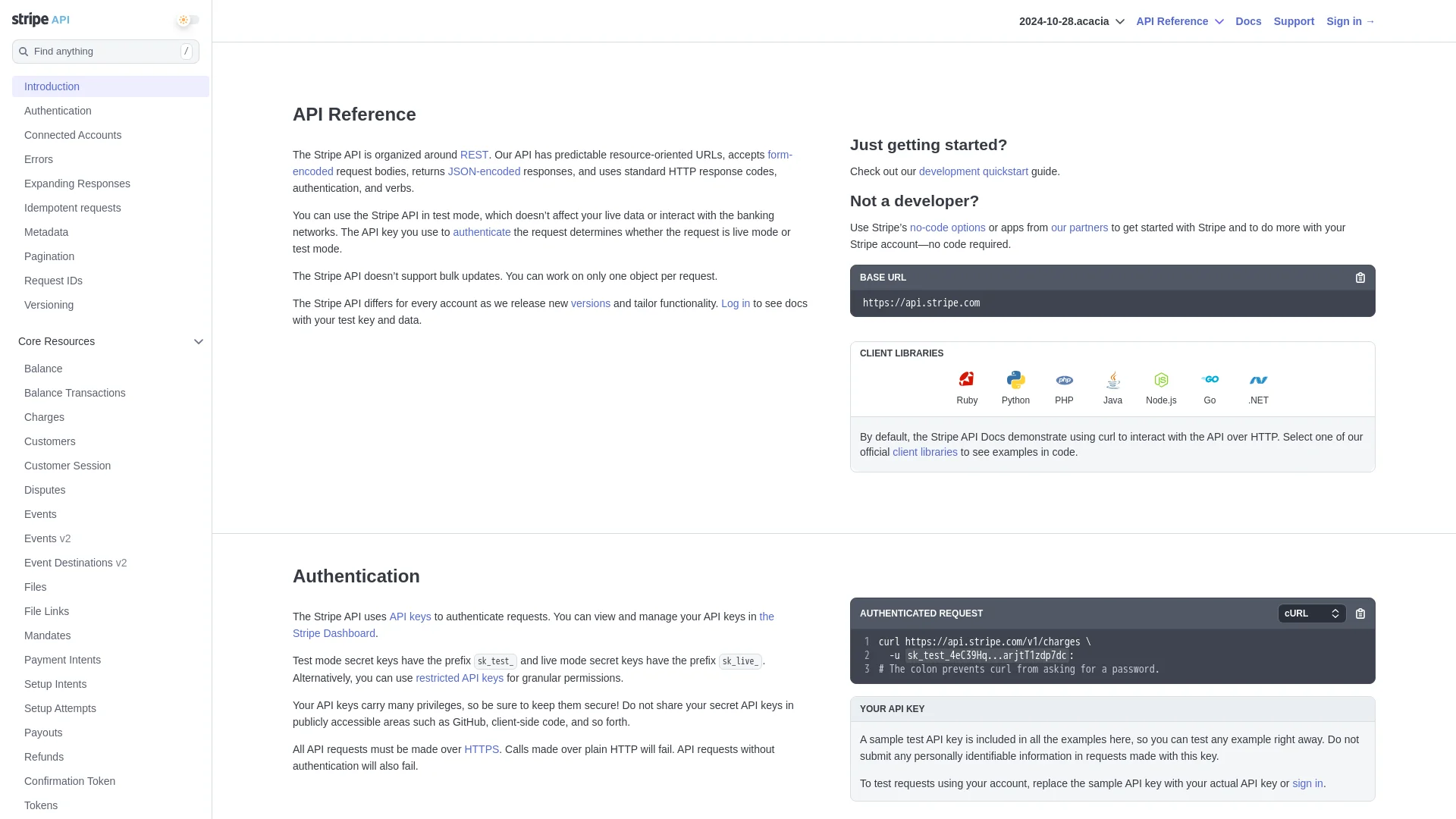
Note that specifying more formats for page content transformation can considerably slow down the process.
Another time-consuming operation is scraping entire page contents instead of just the elements you need. For such scenarios, Firecrawl lets you control which webpage elements are scraped using the only_main_content, include_tags, and exclude_tags parameters.
Enabling the only_main_content parameter (disabled by default) excludes navigation, headers, and footers:
stripe_crawl_result = app.crawl(
    url="https://docs.stripe.com/api",
    limit=5,
    scrape_options=ScrapeOptions(
        formats=["markdown", "html"],
        only_main_content=True,
    )
)
include_tags and exclude_tags accept lists of whitelisted/blacklisted HTML tags, classes, and IDs:
# Crawl the first 5 pages of the stripe API documentation
stripe_crawl_result = app.crawl(
    url="https://docs.stripe.com/api",
    limit=5,
    scrape_options=ScrapeOptions(
        formats=["markdown", "html"],
        include_tags=["code", "#page-header"],
        exclude_tags=["h1", "h2", ".main-content"],
    )
)
Crawling large websites can take considerable time, and when appropriate, these small tweaks can greatly impact runtime.
URL control
Beyond scraping configurations, the crawl method exposes a set of parameters that decide which URLs end up in the job. The simplest three control inclusion and exclusion against URL patterns:
include_paths: pathname regex patterns to keepexclude_paths: pathname regex patterns to dropallow_external_links: whether to follow links to other domains
Here's a sample request that uses these parameters:
# Example of URL control parameters
url_control_result = app.crawl(
    url="https://docs.stripe.com/",
    # Only crawl pages under the /payments path
    include_paths=["/payments/*"],
    # Skip the terminal and financial-connections sections
    exclude_paths=["/terminal/*", "/financial-connections/*"],
    # Don't follow links to external domains
    allow_external_links=False,
    scrape_options=ScrapeOptions(
        formats=["html"]
    )
)

# Print the total number of pages crawled
print(f"Total pages crawled: {url_control_result.total}")
Total pages crawled: 5In this example, we're crawling the Stripe documentation website with specific URL control parameters:
- The crawler starts at https://docs.stripe.com/ and only crawls pages under the
"/payments/*"path - It explicitly excludes the
"/terminal/*"and"/financial-connections/*"sections - External links are ignored (
allowExternalLinks: false) - The scraping is configured to only capture HTML content
Another parameter is max_discovery_depth. It caps how many link hops the crawler takes from the starting URL. The root page starts at depth 0, its direct links are depth 1, and so on. Pages at the max depth are still scraped, but their links are not followed. A value of 1 means the seed page and its direct links, nothing deeper:
# Example of URL control parameters
url_control_result = app.crawl(
    url="https://docs.stripe.com/",
    limit=100,
    max_discovery_depth=1,
    allow_external_links=False,
    scrape_options=ScrapeOptions(
        formats=["html"]
    )
)

# Print the total number of pages crawled
print(f"Total pages crawled: {url_control_result.total}")
Total pages crawled: 10Note: paginated sub-pages (page 2, 3, 4 of the same listing) don't count as additional depth levels under max_discovery_depth.
A second group of URL control parameters changes which links the crawler is willing to follow at all. The defaults are conservative. That's good for predictable jobs, but it surprises people who expect a single starting URL to reach the whole site:
crawl_entire_domain(defaultFalse) tells the crawler to follow internal links to sibling and parent URLs, not just child paths. Without it, a crawl that starts atsite.com/docs/will only descend into/docs/.... Turn it on when you need to discover pages outside the starting path, like a/blog/linked from inside/docs/.allow_subdomains(defaultFalse) extends discovery to subdomains of the main domain. Crawlingstripe.comwith this on will pull in pages fromblog.stripe.comorsupport.stripe.comif they're linked.sitemap(default"include") controls how Firecrawl finds URLs."include"uses the sitemap alongside HTML link discovery."skip"drops the sitemap and only follows HTML links."only"reverses that: pages come from the sitemap, no HTML discovery. Use"only"when you want repeatable URL sets across runs.ignore_query_parameters(defaultFalse) collapses URLs that differ only by query string.?ref=abcand?ref=xyzwon't both be scraped. Turn it on for sites that decorate links with tracking parameters.
Here's an example that uses all three of the new scope parameters together against the Stripe docs:
# Crawl Stripe docs across subdomains using only the sitemap
result = app.crawl(
    url="https://docs.stripe.com/",
    limit=20,
    crawl_entire_domain=True,
    allow_subdomains=True,
    sitemap="only",
)

print(f"Total pages: {result.total}")
One last URL parameter handles a narrower case: filtering by query string. By default, include_paths and exclude_paths only see the path part of a URL, so a regex like product\?id=\d+ won't match anything because the ?id=... chunk is invisible to the matcher. Set regexOnFullURL: true and the regex runs against the entire URL, query string included. Reach for it when the pages you want are distinguished by query parameters rather than paths, like example.com/product?id=42 versus example.com/cart.
You can set it via the REST API or the Python SDK using regex_on_full_url:
curl -X POST "https://api.firecrawl.dev/v2/crawl" \
  -H "Authorization: Bearer fc-YOUR-KEY-HERE" \
  -H "Content-Type: application/json" \
  -d '{
    "url": "https://example.com/",
    "limit": 50,
    "includePaths": ["product\\?id=\\d+"],
    "regexOnFullURL": true
  }'
Describing the scope in plain English
That's a lot of parameters to keep in your head. Crawl v2 adds a shortcut: pass a prompt describing what you want, and Firecrawl translates it into the same parameter set you've just been writing by hand. The two calls below produce equivalent jobs:
# Configured by hand
crawl_result = app.crawl(
    url="https://docs.stripe.com",
    include_paths=["/api/*", "/docs/*", "/reference/*"],
    exclude_paths=["/blog/*"],
    max_discovery_depth=5,
)

# Configured by prompt
crawl_result = app.crawl(
    url="https://docs.stripe.com",
    prompt="Extract API documentation and reference guides",
)
Before committing to a full crawl, you can ask Firecrawl what parameters it derived from your prompt. The /v2/crawl/params-preview endpoint runs the translation step alone and returns the JSON it would have used:
import requests

headers = {
    "Content-Type": "application/json",
    "Authorization": "Bearer fc-YOUR-KEY-HERE",
}

data = {
    "url": "https://docs.stripe.com/api",
    "prompt": "Extract API documentation and reference guides",
}

response = requests.post(
    "https://api.firecrawl.dev/v2/crawl/params-preview",
    headers=headers,
    json=data,
)
The response shows the derived configuration:
{
  "success": true,
  "data": {
    "url": "https://docs.stripe.com/api",
    "includePaths": ["api/.*", "docs/.*", "reference/.*"],
    "maxDepth": 5,
    "crawlEntireDomain": false,
    "allowExternalLinks": false,
    "allowSubdomains": false,
    "sitemap": "include",
    "ignoreQueryParameters": true,
    "deduplicateSimilarURLs": true
  }
}
Different prompts produce different parameter sets. A prompt like "Get payment processing guides and examples" derives includePaths: ["payment-processing/guides/.*", "payment-processing/examples/.*"]. "Crawl authentication and webhook documentation" derives ["authentication/.*", "webhook/.*"]. The workflow is to refine the prompt, check the preview, then run the actual crawl when the derived parameters look right.
This doesn't replace the by-hand parameters. The prompt is convenient for first-pass scoping. The explicit parameters are what you'll want once a crawl is going into production and needs to be reproducible. The two interfaces compose, so you can pass a prompt and override individual parameters in the same call.
Performance and limits
The limit parameter, which we've used in previous examples, caps the scope of a crawl.
It sets the maximum number of pages scraped. Without it, the crawler could traverse an endless chain of links and burn credits along the way. The cap matters most for large sites or when external links are enabled.
limit also interacts with billing.
Each crawled page costs 1 credit by default. JSON extraction adds 4 credits per page, and PDF parsing adds 1 credit per PDF page.
Before a crawl starts, Firecrawl checks that your credits can cover the limit.
If they can't, the API returns 402 Payment Required and the job never runs. Set limit to match the actual crawl size, not a round placeholder like 10000.
While limit controls breadth, the next concern is making sure each page renders fully before it's captured. Sites that use JavaScript for dynamic content, iframes for embeds, or heavy media elements often need a small wait window:
stripe_crawl_result = app.crawl(
    url="https://docs.stripe.com/api",
    limit=5,
    scrape_options=ScrapeOptions(
        formats=["markdown", "html"],
        wait_for=1000,  # wait 1 second per page for content to load
        timeout=10000,  # quit the page after 10 seconds
    )
)
The timeout parameter is the safety net. If a page takes longer than 10 seconds, the crawler skips it and moves on. Both wait_for and timeout apply to every page in the job.
Two more parameters live at the top level of the crawl call, not inside scrape_options. They get confused with wait_for:
delay(seconds) is the pause Firecrawl waits between page requests, so you can stay under a target site's rate limit. Setting it forces concurrency down to 1.max_concurrencycaps how many pages this single crawl job scrapes in parallel. Without it, the job runs at your Firecrawl plan's full concurrency limit.
The distinction is worth memorizing. wait_for is per-page render time in milliseconds. delay is between-page pacing in seconds. max_concurrency controls parallelism for the whole job.
crawl_result = app.crawl(
    url="https://docs.stripe.com/api",
    limit=20,
    delay=2,             # 2 seconds between page requests
    max_concurrency=4,   # at most 4 pages scraped in parallel
)
One gotcha about crawl results: they aren't deterministic. Pages are scraped concurrently and finish in whatever order the network allows. If you re-run a crawl whose limit is lower than the total discoverable pages, expect two different page sets. To make a crawl repeatable:
- Set
max_concurrency=1so pages are scraped one at a time in discovery order. - Use
sitemap="only"if the target site has a complete sitemap. The page list is fixed up front and link discovery is skipped.
Debugging incomplete crawls with get_crawl_errors
The data array on a CrawlJob only contains pages that Firecrawl finished scraping. Pages that failed (network errors, timeouts, robots.txt blocks) live on a separate endpoint. When a job ends with fewer pages than you expected, this is the place to look.
Start a crawl and wait for it to finish:
import time
from firecrawl import Firecrawl

app = Firecrawl()

started = app.start_crawl("https://docs.stripe.com/", limit=20)

while True:
    status = app.get_crawl_status(started.id)
    if status.status in ("completed", "failed"):
        break
    time.sleep(2)
Then ask Firecrawl what went wrong:
errors = app.get_crawl_errors(started.id)

print(f"Failures: {len(errors.errors)}")
for failure in errors.errors:
    print(f"  {failure.url}: {failure.error}")

print(f"Robots-blocked: {len(errors.robots_blocked)}")
for url in errors.robots_blocked:
    print(f"  {url}")
The Python SDK wraps the endpoint as app.get_crawl_errors(crawl_id), which returns a CrawlErrorsResponse with two fields. errors is a list of failures, each with an id, timestamp, url, and error description. robots_blocked is a list of URLs Firecrawl skipped because the site's robots.txt disallowed them.
A clean run prints zeros and empty lists. When totals fall short of what you expected, this view tells you whether the gap is real failures or robots.txt blocks.
Asynchronous web crawling with Firecrawl
Crawls of large sites can take minutes. Firecrawl's async API lets you start a job and check on it later. Your code doesn't block while every page is fetched. This matters most for web apps and services that need to stay responsive.
Asynchronous programming in a nutshell
Async lets a single program manage many waiting operations at once. While one page is loading, the runtime can start another, then come back to the first when it's ready. Crawling is mostly waiting on network responses, so this is the natural shape. The code processes pages as they finish, instead of freezing on each one.
Using start_crawl method
Firecrawl offers an intuitive asynchronous crawling method via start_crawl:
app = Firecrawl(api_key=os.getenv('FIRECRAWL_API_KEY'))

crawl_status = app.start_crawl(url="https://docs.stripe.com")

print(crawl_status)CrawlResponse(id='177e4b5c-5739-4b20-b3f7-435065a4e207', url='https://api.firecrawl.dev/v2/crawl/177e4b5c-5739-4b20-b3f7-435065a4e207')It accepts the same parameters as crawl, but returns a CrawlResponse object holding the job ID and monitoring URL.
The crawl job id is what we need. Pass it to get_crawl_status as a positional argument (not a keyword) to check progress:
checkpoint = app.get_crawl_status(crawl_status.id)

print(len(checkpoint.data))5get_crawl_status returns the same CrawlJob object as crawl but only includes the pages scraped so far. You can run it multiple times and see the number of scraped pages increasing.
If you want to cancel the job, you can use cancel_crawl passing the job id (it returns True if successful):
final_result = app.cancel_crawl(crawl_status.id)

print(final_result)TrueStreaming pages with watcher()
Polling get_crawl_status works, but it's request-driven.
Every check round-trips an HTTP call, and the loop is yours to manage. For longer crawls or live UIs, the SDK offers a third delivery mode. The watcher() method on AsyncFirecrawl returns an async iterator.
It streams snapshots over a WebSocket as pages land, with HTTP polling as the fallback.
This sits between sync crawl() and webhooks. Sync crawl() blocks until done. Webhooks push events to a public URL. watcher() is the in-process option: stay inside one Python script and react to pages on arrival.
Good fit for live dashboards, notebooks, and pipelines.
import asyncio
from firecrawl import AsyncFirecrawl

async def main():
    fc = AsyncFirecrawl()
    started = await fc.start_crawl("https://books.toscrape.com/", limit=10)

    seen = 0
    async for snapshot in fc.watcher(
        started.id, kind="crawl", poll_interval=2, timeout=120
    ):
        new_count = len(snapshot.data) if snapshot.data else 0
        if new_count > seen:
            for doc in snapshot.data[seen:]:
                print(f"[{snapshot.status}] {doc.metadata.url}")
            seen = new_count
        if snapshot.status in ("completed", "failed"):
            break

asyncio.run(main())
Running it against the books-to-scrape demo site prints one line per finished page:
[scraping] https://books.toscrape.com/
[scraping] https://books.toscrape.com/catalogue/more-than-music-chasing-the-dream-1_716/index.html
[scraping] https://books.toscrape.com/catalogue/hollow-city-miss-peregrines-peculiar-children-2_813/index.html
[scraping] https://books.toscrape.com/catalogue/page-14.html
[scraping] https://books.toscrape.com/catalogue/my-kind-of-crazy_718/index.html
[scraping] https://books.toscrape.com/catalogue/cell_674/index.html
[scraping] https://books.toscrape.com/catalogue/a-series-of-catastrophes-and-miracles-a-true-story-of-love-science-and-cancer_655/index.html
[scraping] https://books.toscrape.com/catalogue/doing-it-over-most-likely-to-1_802/index.html
[scraping] https://books.toscrape.com/catalogue/the-songs-of-the-gods_763/index.html
[scraping] https://books.toscrape.com/catalogue/twenty-yawns_773/index.html
Each snapshot exposes two fields. .status is "scraping" while in flight, then "completed" or "failed" once the job ends. .data is the list of pages scraped so far. The example tracks how many pages have already been seen and only prints the new ones on each iteration, so you don't reprint the whole list every tick.
poll_interval and timeout are fallback knobs that only matter when the WebSocket can't be used. The first sets how often the SDK polls for status. The second is how long it waits for the job to finish before giving up.
Picking a delivery mode
Four ways to receive crawl results, each with a different shape:
| Mode | Call | Blocks? | Transport | Best for |
|---|---|---|---|---|
| Sync | crawl() | Yes, until done | Single HTTP response | One-off scripts and small jobs you can wait on |
| Polling | start_crawl() + get_crawl_status() | No, your loop checks back | Repeated HTTP calls | Background jobs in code you control |
| Streaming | AsyncFirecrawl.watcher() | No, async iterator yields snapshots | WebSocket (HTTP polling fallback) | Live dashboards, notebooks, in-process pipelines |
| Webhooks | start_crawl(webhook=...) | No, Firecrawl POSTs you | HTTP POST to your URL | Production services where pages land in a queue or database |
Sync and polling come out of the box. Streaming needs AsyncFirecrawl and an event loop. Webhooks need a public HTTPS endpoint, covered next.
Webhooks for live crawl events
A webhook is just a URL you own that another service calls when something happens. You expose an HTTPS endpoint, hand the URL to Firecrawl, and Firecrawl makes an HTTP POST request to that endpoint every time a crawl event fires (a page finishes, the job ends, an error occurs). Your endpoint reads the JSON body and does whatever it needs to with it.
Polling and watcher() both keep your code in the loop. Webhooks flip the relationship. Your code doesn't ask for updates. Firecrawl pushes them to you. That fits production services where each finished page should land in a queue or a database, without a long-running script holding state.
Configuring a webhook in a crawl request
To set up a webhook, pass a webhook parameter when starting a crawl. The simplest form is a dict with the URL of your endpoint. The snippet below kicks off a crawl on Stripe's docs and tells Firecrawl where to send events.
The webhook parameter on crawl() and start_crawl() accepts a plain dict. Only url is required. events filters which event types you receive (so you don't have to handle every kind). metadata is arbitrary data that Firecrawl echoes back in every payload, so your handler can identify the job:
from firecrawl import Firecrawl

app = Firecrawl()

response = app.start_crawl(
    url="https://docs.stripe.com",
    limit=50,
    webhook={
        "url": "https://your-app.example.com/firecrawl-webhook",
        "metadata": {"job_name": "stripe-docs-refresh"},
        "events": ["started", "page", "completed", "failed"],
    },
)

print(f"Crawl started: {response.id}")
If you'd rather get IDE autocomplete and type checking on the webhook config, pass a WebhookConfig instance instead of a raw dict. Unlike ScrapeOptions, this class isn't re-exported at the top-level firecrawl.types, so import it from firecrawl.v2.types:
from firecrawl.v2.types import WebhookConfig

response = app.start_crawl(
    url="https://docs.stripe.com",
    limit=50,
    webhook=WebhookConfig(
        url="https://your-app.example.com/firecrawl-webhook",
        metadata={"job_name": "stripe-docs-refresh"},
        events=["started", "page", "completed", "failed"],
    ),
)
The two forms send the same JSON to Firecrawl. Pick whichever is easier to maintain in your codebase.
Event types
The events list takes any subset of four short names. Each one corresponds to a namespaced event your handler will see in the payload's type field:
"started"fires once when the crawl begins. Payloadtypeiscrawl.started."page"fires for each page that finished scraping. Payloadtypeiscrawl.pageand includes the page's markdown and metadata."completed"fires once when the entire job ends cleanly. Payloadtypeiscrawl.completed."failed"fires if the crawl hits an unrecoverable error. Payloadtypeiscrawl.failed.
If you omit the events field, you receive all four. Most live processing pipelines only care about "page" and "completed", since "started" is implicit and "failed" is rare.
Verifying webhook signatures
Anyone who knows your endpoint URL can POST to it, so the receiving handler needs a way to confirm a request really came from Firecrawl. Firecrawl handles this by signing every request with a shared secret. You re-compute the same signature on your end and compare. If they don't match, the request didn't come from Firecrawl and you reject it.
The signing scheme is HMAC-SHA256: a one-way hash that mixes the secret with the request body to produce a fixed-length fingerprint. Firecrawl computes that fingerprint and sends it in an X-Firecrawl-Signature header, prefixed with sha256=. The shared secret lives in your Firecrawl account settings under the Advanced tab.
import hmac
import hashlib
from flask import Flask, request, abort

WEBHOOK_SECRET = b"your-secret-from-firecrawl-account-settings"
app = Flask(__name__)

@app.post("/firecrawl-webhook")
def handle_webhook():
    signature_header = request.headers.get("X-Firecrawl-Signature", "")
    if not signature_header.startswith("sha256="):
        abort(400)

    received = signature_header.removeprefix("sha256=")
    expected = hmac.new(
        WEBHOOK_SECRET,
        request.get_data(),
        hashlib.sha256,
    ).hexdigest()

    if not hmac.compare_digest(received, expected):
        abort(401)

    payload = request.get_json()
    print(f"Received {payload['type']} for crawl {payload['id']}")
    return "", 204
Two details in that handler are worth calling out. The signature comparison uses hmac.compare_digest instead of ==. A normal string equality check returns false as soon as it hits the first different byte, and the time it takes to do that is measurable over the network. Attackers can use that timing leak to guess the correct signature one byte at a time. compare_digest always takes the same amount of time regardless of where the difference is, so the timing reveals nothing. The handler also rejects unsigned or mismatched requests before parsing the JSON body, so a malicious payload never gets near your business logic.
Building a RAG agent on a crawled site with LangChain
Once pages are flowing in over your chosen delivery mode, the question becomes what to do with them. Persisting raw markdown to disk or a database is one option, but the more common follow-up is feeding the content into a retrieval pipeline. Crawled pages arrive as clean markdown with no HTML cleanup step before they hit the embedding model, which makes Firecrawl a natural front end for retrieval-augmented generation: one crawl produces the entire corpus an agent can answer questions over. This is exactly the workflow behind ingesting a documentation site for RAG — a pattern that works just as well for Docusaurus and GitBook sites as for any other structured documentation.
The rest of this section walks through a small RAG agent end to end. It crawls a site, indexes the pages, and answers questions about them. The target is the LangChain Python documentation itself.
Start by installing the libraries we'll use:
pip install langchain langchain-community langchain-anthropic \
            langchain-openai langchain-chroma langchain-text-splitters \
            firecrawl-py
Then add FIRECRAWL_API_KEY, OPENAI_API_KEY, and ANTHROPIC_API_KEY to your .env file.
The FireCrawlLoader from langchain-community wraps the crawl endpoint and converts each scraped page into a LangChain Document. We set crawl_entire_domain=True so the crawler follows sibling links across the docs site instead of staying inside a single section:
from dotenv import load_dotenv
from langchain_community.document_loaders.firecrawl import FireCrawlLoader

load_dotenv()

loader = FireCrawlLoader(
    url="https://docs.langchain.com/oss/python/langchain/",
    mode="crawl",
    params={
        "limit": 10,
        "crawl_entire_domain": True,
        "scrape_options": {"only_main_content": True},
    },
)
docs = loader.load()
Next, split the documents into smaller chunks. A 1,000-character chunk size with 100-character overlap keeps enough context per chunk for retrieval while keeping each embedding cheap. Different document types call for different RAG chunking strategies; recursive character splitting is a reliable default for documentation sites:
from langchain_text_splitters import RecursiveCharacterTextSplitter

splitter = RecursiveCharacterTextSplitter(chunk_size=1000, chunk_overlap=100)
splits = splitter.split_documents(docs)
Then index the chunks in Chroma using OpenAI's text-embedding-3-small. The filter_complex_metadata helper drops nested metadata fields that Chroma can't store:
from langchain_chroma import Chroma
from langchain_openai import OpenAIEmbeddings
from langchain_community.vectorstores.utils import filter_complex_metadata

splits = filter_complex_metadata(splits)
embeddings = OpenAIEmbeddings(model="text-embedding-3-small")
vector_store = Chroma.from_documents(splits, embeddings)
LangChain v1 replaced the old RetrievalQA chain with agent-based retrieval. You wrap the vector store in a tool and give the tool to an agent. The agent decides when to call it and how to phrase the search query. Define the retrieval tool first:
from langchain.tools import tool

@tool(response_format="content_and_artifact")
def retrieve_context(query: str):
    """Search the LangChain documentation for relevant context."""
    docs = vector_store.similarity_search(query, k=3)
    serialized = "\n\n".join(
        f"Source: {d.metadata.get('source', 'unknown')}\n{d.page_content}"
        for d in docs
    )
    return serialized, docs
Then build the agent with create_react_agent. We use Claude Sonnet 4.6 as the model and pass the retrieval tool in:
from langchain.agents import create_react_agent
from langchain_anthropic import ChatAnthropic

model = ChatAnthropic(model="claude-sonnet-4-6")

agent = create_react_agent(
    model=model,
    tools=[retrieve_context],
    prompt=(
        "Use the retrieve_context tool to answer questions about LangChain documentation."
    ),
)
Now ask a question. The agent picks up the tool, runs the search, and writes an answer grounded in the retrieved chunks:
result = agent.invoke({
    "messages": [
        {"role": "user", "content": "What is LangGraph and how does it relate to LangChain?"}
    ]
})

print(result["messages"][-1].content)
LangGraph is a framework for building stateful, graph-based workflows
and agents powered by LLMs. It provides primitives for persistence,
durable execution, streaming, human-in-the-loop interrupts, and memory.
LangChain is built on top of LangGraph: LangChain's high-level agent
implementations use LangGraph primitives under the hood, which means
agents you build with LangChain inherit LangGraph's production features
(checkpointing, fault tolerance, time travel) for free.To take this further, swap Chroma.from_documents for a persistent store (persist_directory, Pinecone, Weaviate). Our vector database comparison covers the trade-offs between ChromaDB, Pinecone, Qdrant, and others for RAG workloads.
Conclusion
The /v2/crawl endpoint takes one starting URL and returns a clean markdown copy of every page worth scraping. The shape of the call matters more than its complexity. URL control parameters set the scope. Performance knobs balance speed against rate limits. Async delivery (polling, watcher(), webhooks) decides how the pages get back to you.
The same primitives drive everything from a quick docs scrape to a production RAG pipeline. Pick the delivery mode that matches your runtime, set the scope parameters honestly, and let crawl do the rest. If you build something interesting on top, drop a note in the Firecrawl Discord.
Frequently Asked Questions
How many credits does a crawl use?
One credit per page that Firecrawl scrapes, plus extras for some scrape options. JSON extraction adds four credits per page, and PDF parsing costs one credit per PDF page on top of the base. Before a job starts, Firecrawl checks that your remaining credits can cover the `limit` value. If they can't, the API returns a `402 Payment Required` and the job never runs. Set `limit` to the number of pages you actually want, not a round placeholder like 10000, so the precheck doesn't reject jobs you could otherwise afford.
What's the difference between crawl() and start_crawl()?
`crawl()` is synchronous: it submits the job and blocks until every page finishes, then returns the full result. `start_crawl()` is asynchronous: it returns a job ID immediately so your code can poll `get_crawl_status()`, stream pages with `watcher()`, or wait for webhook events. Use `crawl()` for small jobs you can wait on, and `start_crawl()` for anything that takes more than a minute or runs inside a long-lived service.
Why did my crawl miss some pages?
Three common causes. First, the crawler stayed inside the starting path: by default it only follows child URLs, so a job that starts at `site.com/docs/` won't pick up `/blog/` unless you set `crawl_entire_domain=True`. Second, links to other subdomains are skipped unless `allow_subdomains=True`. Third, the missing pages may have failed during scraping (timeouts, network errors, robots.txt blocks). The `data` array only contains pages Firecrawl finished, so failures don't appear there. Call `app.get_crawl_errors(crawl_id)` to see the failures and any robots-blocked URLs separately.
What's the difference between wait_for and delay?
`wait_for` is per-page render time, in milliseconds: how long Firecrawl waits for a single page to finish loading before grabbing its content. It lives inside `scrape_options`. `delay` is between-page pacing, in seconds: how long Firecrawl pauses between requests so you stay under a target site's rate limit. It's a top-level crawl parameter and forces concurrency to one when set. They solve different problems and can be combined.
Can I crawl subdomains?
Yes. Set `allow_subdomains=True` on the crawl call. Firecrawl will then follow links from `stripe.com` into `blog.stripe.com` or `support.stripe.com` if they appear in the page HTML or sitemap. This is off by default, so a single-domain seed URL stays inside that domain unless you opt in.
Why do I get different results each time I run the same crawl?
Crawls are not deterministic by default. Pages are scraped concurrently, and the order in which they finish depends on network conditions on the target site. If your `limit` is lower than the total number of discoverable pages, two runs can produce two different sets. Two ways to make a crawl repeatable. Set `max_concurrency=1` so pages are scraped one at a time in discovery order, accepting the speed cost. Or use `sitemap="only"` if the target site has a complete sitemap, which fixes the URL set up front and skips link discovery entirely.
How do I stop a crawl in progress?
Call `app.cancel_crawl(crawl_id)` with the job ID returned by `start_crawl()`. It returns `True` on success. The crawl stops accepting new pages immediately, and the pages already scraped remain available through `get_crawl_status()` and `get_crawl_errors()`.
How do I receive pages as they're crawled instead of waiting for the whole job?
Two options. The first is `watcher()` on `AsyncFirecrawl`: it returns an async iterator that streams page snapshots over a WebSocket as each page lands, with HTTP polling as a fallback. Stay inside one Python process and react to pages on arrival. Good for live dashboards and notebooks. The second option is webhooks. Pass a `webhook` parameter to `crawl()` or `start_crawl()` with a public URL, and Firecrawl POSTs an event to that URL every time a page is scraped or the job changes state. Webhooks fit production services where pages should land in a queue or a database the moment they finish, decoupled from any long-running crawl script.
How do I verify webhook signatures from Firecrawl?
Every webhook request includes an `X-Firecrawl-Signature` header containing an HMAC-SHA256 of the raw request body, prefixed with `sha256=`. To verify, retrieve your webhook secret from Firecrawl account settings under the Advanced tab, compute `hmac.new(secret, raw_body, hashlib.sha256).hexdigest()`, and compare it against the value after `sha256=` in the header using `hmac.compare_digest`. Constant-time comparison avoids leaking bytes of the secret through timing differences. Reject any request whose signature doesn't match before reading the JSON body.
How do I see which pages failed in a crawl?
Call `app.get_crawl_errors(crawl_id)`. It returns a `CrawlErrorsResponse` with two fields: `errors` is a list of failures (each with `id`, `timestamp`, `url`, and an `error` description), and `robots_blocked` is a list of URLs Firecrawl skipped because the site's `robots.txt` disallowed them. The successful `data` array on the crawl response and these two error lists together describe every URL Firecrawl considered.