Firecrawl MCP in ChatGPT: Web Scraping and Search Inside Your Conversations
 Ninad Pathak
On September 10, 2025, OpenAI shipped full Model Context Protocol support in ChatGPT and called it Developer Mode. I was thrilled because ChatGPT's built-in browsing has been buggy for as long as I've used it.
It struggles with JavaScript-rendered content, can't handle authentication, returns summaries when you need raw data, and formats results inconsistently. The model excels at reasoning and analysis, but getting clean web data into it has always been the bottleneck.
Firecrawl MCP solves this by connecting ChatGPT directly to Firecrawl's web scraping and search tools. Instead of relying on ChatGPT's basic browsing, you get an agent-ready toolkit that handles complex site requirements, renders dynamic content, and extracts structured data on demand.
Let me walk you through what this actually looks like in practice.
What is the Model Context Protocol (quick refresher)
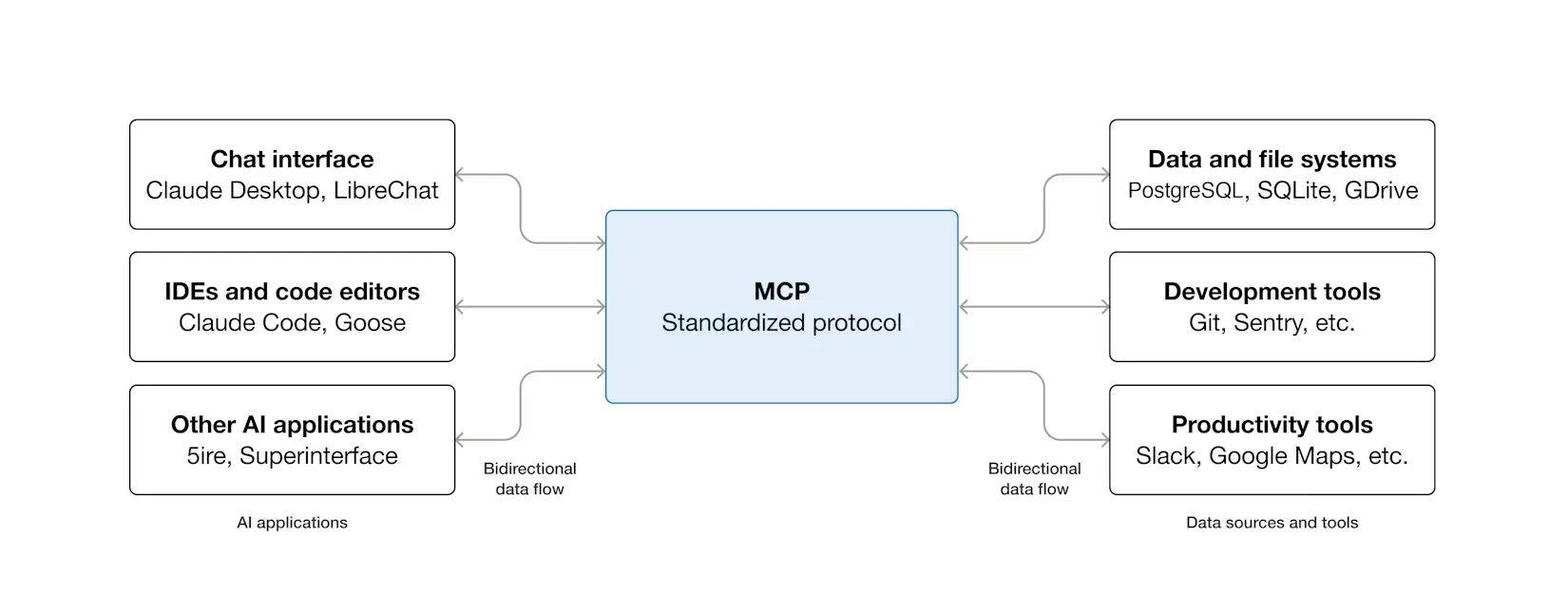
If you’re unfamiliar, the Model Context Protocol (MCP) is a standardized method for AI models to interact with external tools and data, introduced by Anthropic in late 2024.
MCP uses lightweight JSON-RPC 2.0 for message exchange and defines standard formats for requests, responses, and errors.
The clever part is that it solves the m×n integration problem. Instead of every AI client needing custom integrations with every tool, each side only needs to implement the protocol once. Think of it as a universal adapter that lets different systems communicate using a common language.
ChatGPT's Developer Mode turns the desktop into a full MCP client. Once enabled, you can connect to any compatible MCP server and use its tools directly in your conversations. This includes both read operations (fetching data) and write operations (creating, updating, or deleting data in connected systems).
What is Firecrawl MCP?
Firecrawl is a web scraping and search API for AI agents that handles the messy parts of using live websites: JavaScript rendering, pagination, rate limiting, and converting pages to clean markdown. The Firecrawl MCP server exposes this functionality through MCP, making it available to any compatible AI client.
The server currently has over 6,500 stars on GitHub, which tells you something about how useful developers have found it.
Here's what the Firecrawl MCP server can do:
| Tool | Best for | Returns |
|---|---|---|
| scrape | Scraping individual pages and returning clean markdown or HTML | markdown/html |
| batch_scrape | Batch scraping multiple URLs efficiently with automatic rate limiting | markdown/html |
| map | Mapping websites to discover all indexed URLs | URL |
| crawl | Crawling entire sites or sections (with limits) with configurable depth limits | markdown/html |
| search | Searching the web and optionally extracting content from results | results |
| extract | Extracting structured data using LLM-powered parsing with JSON schemas | JSON |
Each of these capabilities maps to a specific tool that ChatGPT can invoke.
For instance, if you ask ChatGPT to "scrape the React documentation for edge functions and summarize it," it'll call firecrawl_scrape, retrieve the content, and then process it for you.
Why use Firecrawl MCP in ChatGPT?
The obvious answer is convenience. You don't have to leave your conversation to research something on the web and then paste the info as part of your prompt.
But apart from convenience, Firecrawl offers:
- Structured extraction: Define a JSON schema like
{product_name, price, features[], limitations[]}and Firecrawl parses that structure out of pages with completely different layouts without any custom selectors. - Batch operations at scale: Map 50 URLs across a documentation site, then scrape them all. Rate limiting is handled server-side.
- Access to content ChatGPT can't reach: JavaScript-rendered pages, content behind access controls, and sites that block OpenAI's crawler.
What are the different ways you can use Firecrawl MCP in ChatGPT
Let me break down the different tools available and when to use each one:
- Single-page scraping (firecrawl_scrape): When you know exactly which URL contains the information you need. Ask ChatGPT to "scrape [URL] and summarize the main points."
- Batch scraping (firecrawl_batch_scrape): When you have a list of URLs to process. Useful for pulling content from multiple blog posts, product pages, or documentation sections.
- Web search (firecrawl_search): When you don't know which website has the information. This searches the web and can optionally scrape the top results to give you the actual content, not just snippets.
- Site mapping (firecrawl_map): When you want to discover what URLs exist on a site before deciding what to scrape. Great for exploring a new documentation site or finding all blog posts.
- Crawling (firecrawl_crawl): When you need to extract content from multiple related pages on a site. Use this sparingly with reasonable depth limits to avoid overwhelming responses.
- Structured extraction (firecrawl_agent): When you need specific structured data. Just describe what you need and let the AI agent find and extract the data for you.
Setting up Firecrawl MCP in ChatGPT
I’d have suggested you use the ChatGPT desktop app if we were discussing this topic a couple of months ago. But after Developer Mode was released to all paid users, you can skip the step and just set up the MCP server in the web app.
It took me no more than 2 minutes to set this whole thing up and if you follow through, I’m sure you’ll get it in the same time.
If you’d rather skip Developer Mode entirely, Firecrawl is now available as an official ChatGPT plugin that installs in one click and gives you the same web toolkit inside ChatGPT and Codex.
The plugin also includes Firecrawl Alexandria, which makes finding data much easier. Instead of searching and hoping a page quoted the number, ChatGPT picks the right source from 100+ official data providers and Firecrawl's own indexes, shows what it costs, and pulls the records. Try "find sources in Alexandria for US inflation data and pull the latest figures" or "find engineering leaders at Stripe and enrich their profiles."
Prerequisites
- A ChatGPT account with a paid subscription (Pro, Plus, Business, Enterprise, or Education)
- A Firecrawl API key from firecrawl.dev/app/api-keys
Note that Developer Mode with MCP connectors isn't available on the free tier. The official documentation has the current details on availability.
Step 1: Get your Firecrawl API key
Sign up at firecrawl.dev if you haven't already. You can connect and try Firecrawl without a key first; when you're ready for higher rate limits, go to the API keys section and create a new key.
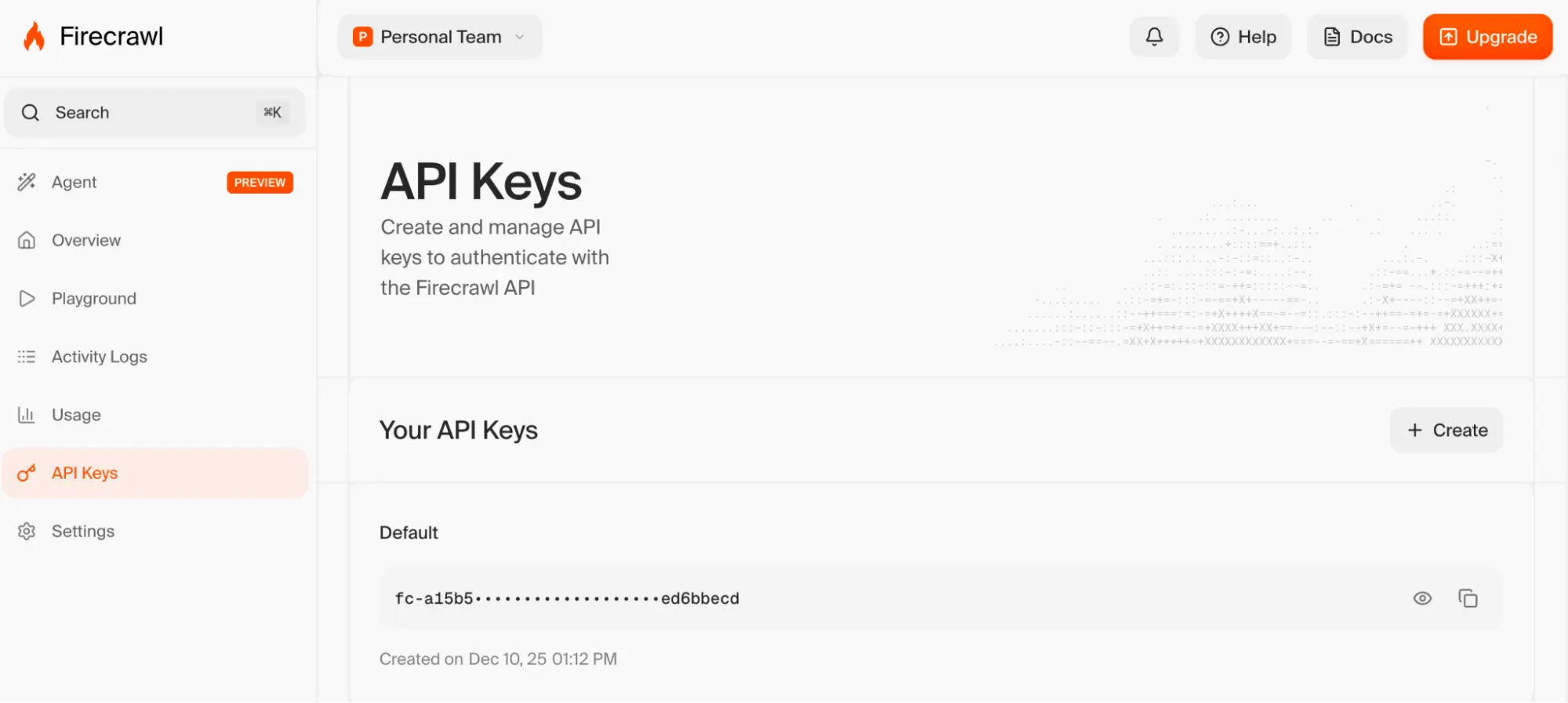
Copy this key somewhere safe as you'll need it in a moment.
Step 2: Enable Developer Mode in ChatGPT
Open ChatGPT and click your username in the bottom left corner to access settings. You can also navigate directly to chatgpt.com/#settings.
In the settings modal, scroll to the bottom and select Advanced Settings.
Toggle Developer mode to ON.
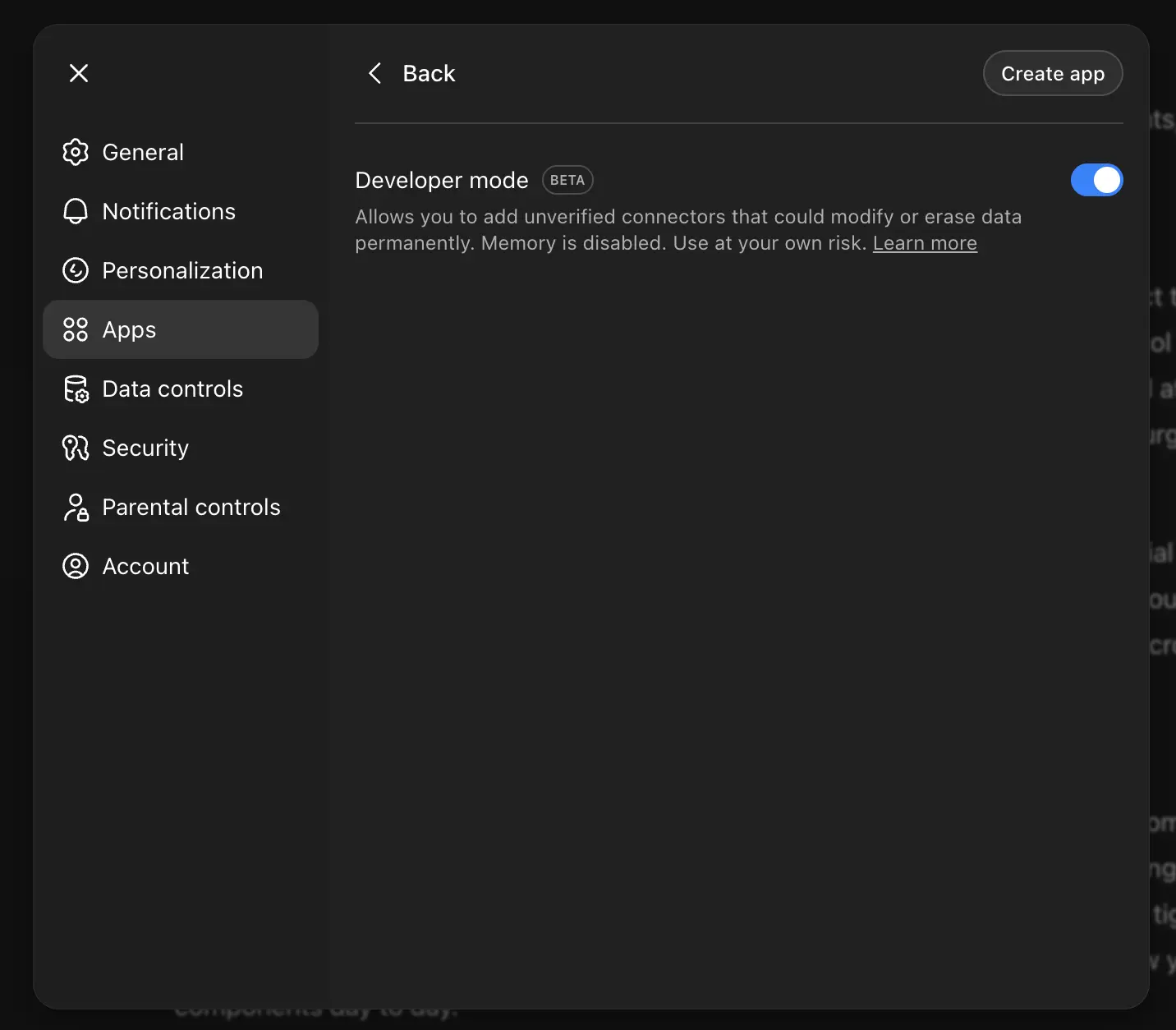
This step enables the ability to create custom MCP connectors. Without it, you won't see the options we need in the next step.
Step 3: Create the Firecrawl connector
With Developer Mode enabled, go to the Apps & Connectors tab in settings. Click the Create button in the top right corner.
Fill in these details:
- Name: Firecrawl MCP
- Description: Web scraping, crawling, search, and content extraction
- MCP Server URL: https://mcp.firecrawl.dev/YOUR_API_KEY_HERE/v2/mcp
- Authentication: None
Replace YOUR_API_KEY_HERE with your actual Firecrawl API key from Step 1.
Check the confirmation checkbox and click Create.
Step 4: Verify everything works
Go back to the main ChatGPT interface. You should see Developer mode displayed, indicating that MCP connectors are active.
If you don't see it, reload the page. If it still doesn't appear, check that Developer Mode is toggled on in Advanced Settings.
Step 5: Use Firecrawl in conversations
To use Firecrawl in a conversation:
- Click the + button in the chat input
- Hover over More
- Choose Firecrawl MCP
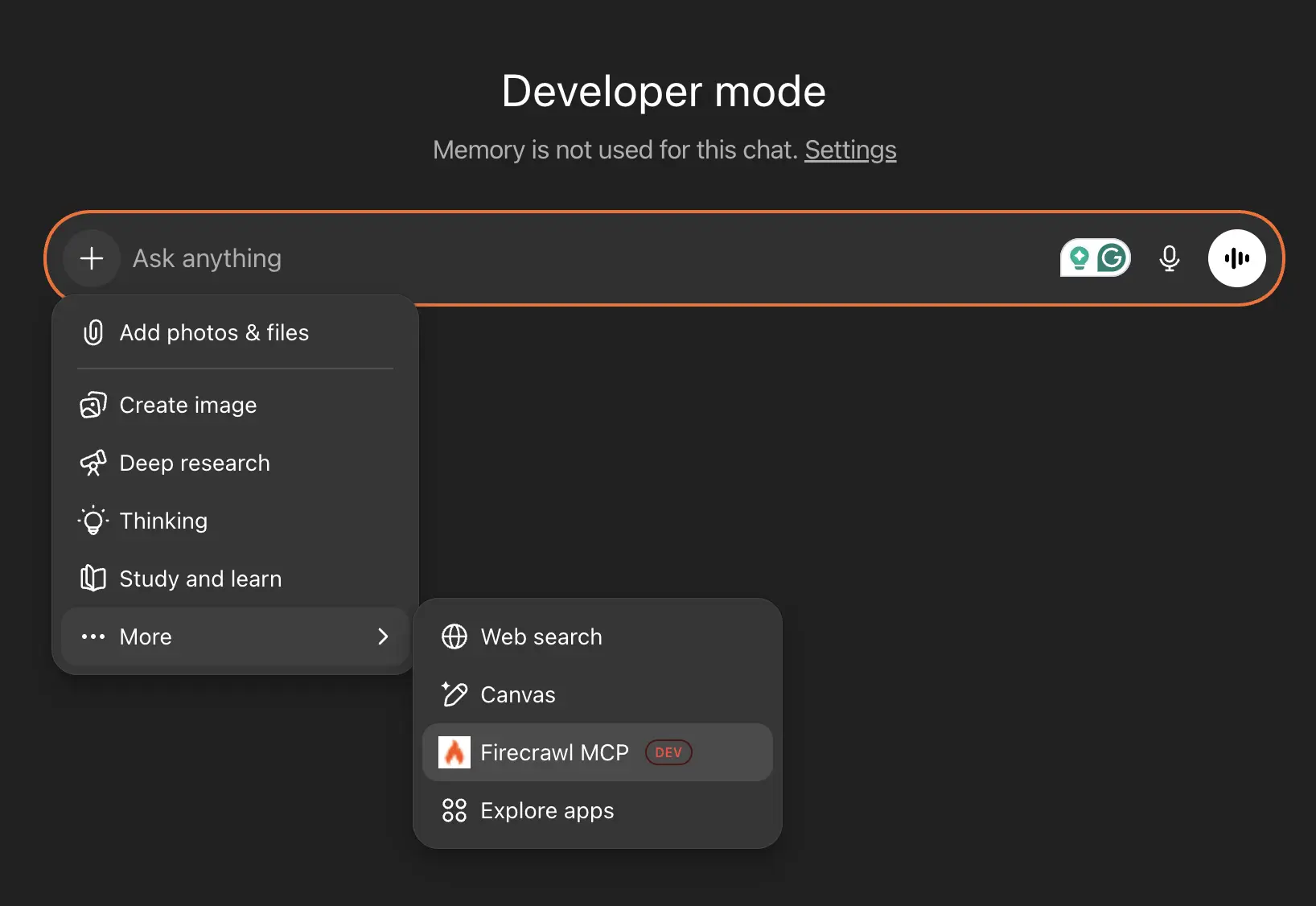
The official OpenAI developer mode documentation notes that you may need to use explicit prompting techniques to call correct tools. For example, being specific ("Use the Firecrawl MCP...") or disallowing alternatives ("Do not use built-in browsing...") helps avoid ambiguity.
Now you can ask ChatGPT to use Firecrawl for something like:
Search for the latest React Server Components updates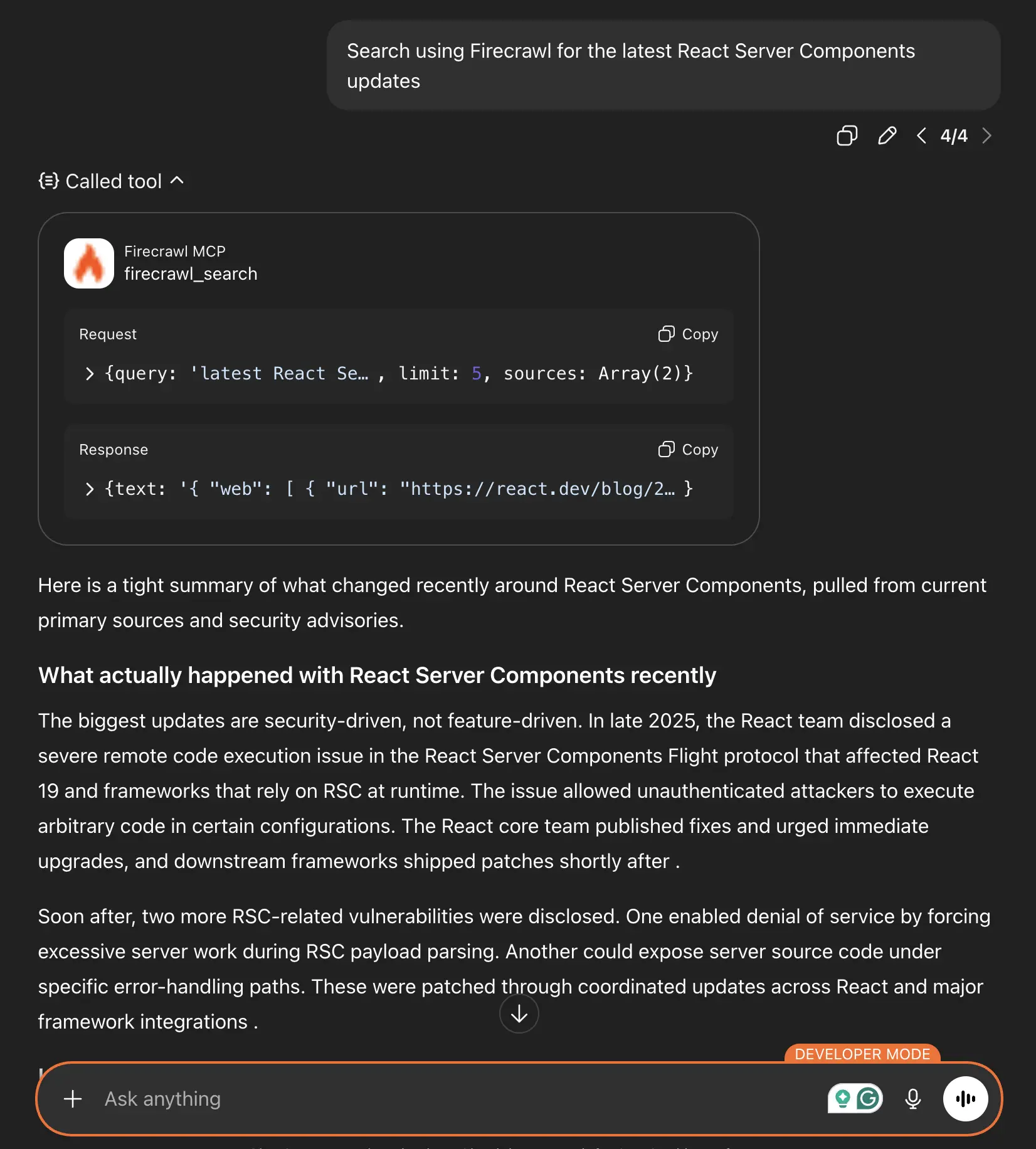
or
Scrape firecrawl.dev and tell me what it does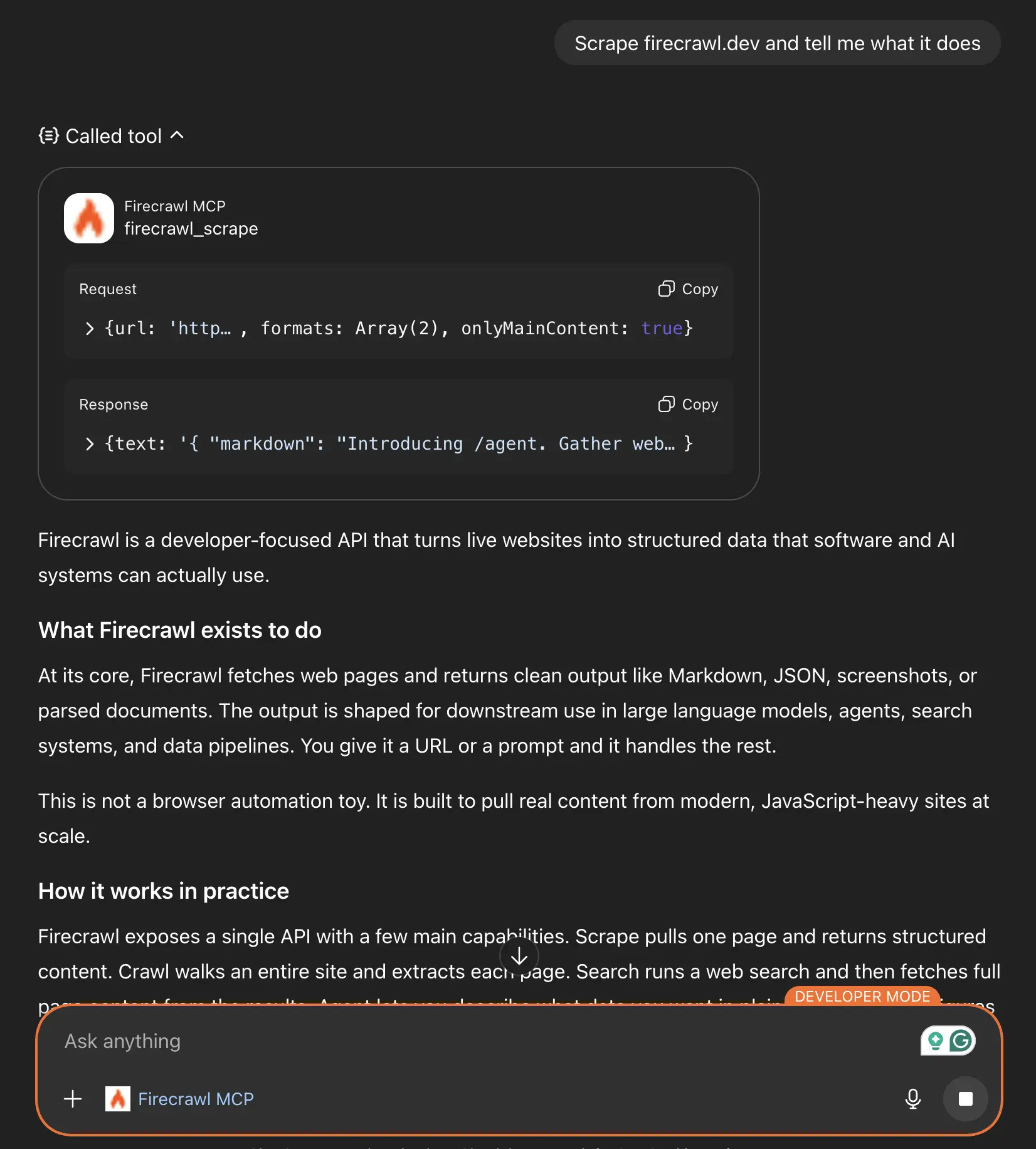
When ChatGPT uses Firecrawl tools, you'll see a “Calling tool” line right before the chat response. You can expand it, as I’ve done, to see what query was sent to the Firecrawl servers and what Firecrawl sent back to ChatGPT.
Performing competitor analysis with ChatGPT and Firecrawl MCP
Let me walk through a simple use case showing how the MCP works in practice.
Say you're researching web scraping tools and want to compare what different services offer. Here's how you might approach this with Firecrawl MCP in ChatGPT:
Step 1: Identify top competitors using web search
Start by asking ChatGPT to search for competitors:
Using Firecrawl, search for "web scraping API services" and give me a list of the top players in this space with their URLs.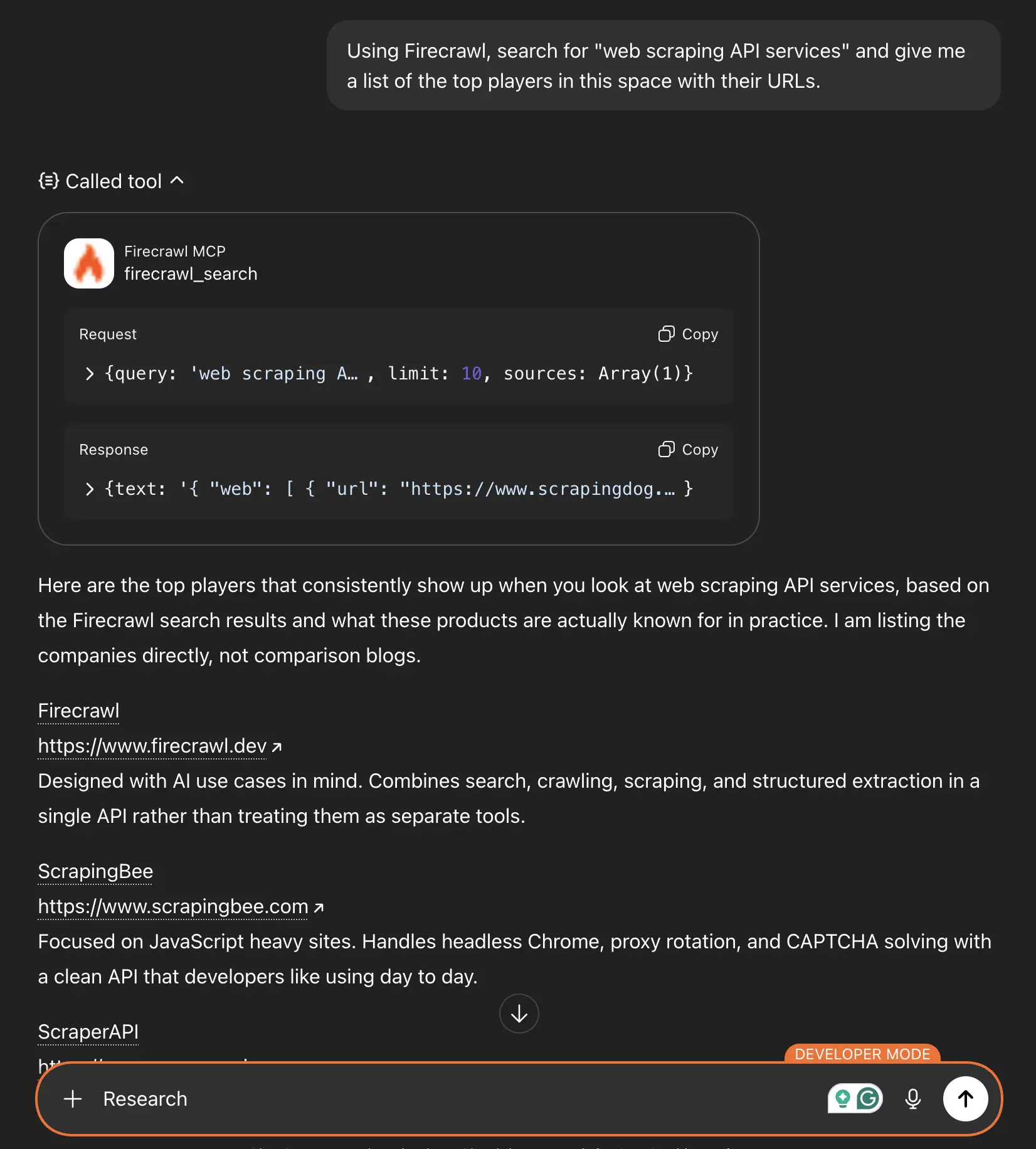
ChatGPT will use firecrawl_search to find relevant results and compile a list for you.
Step 2: Batch scrape pricing pages to gather raw data
Next, let's look at batch scraping. Grab a couple of links from the previous response and ask ChatGPT to batch scrape the pricing pages from those.
Batch scrape the pricing pages from these three services: [url1], [url2], [url3]. Summarize the key differences in their offerings.The batch scrape tool handles rate limiting automatically, so you won't hit any provider limits.
Step 3: Convert page content into a comparison table
If you want to compare specific features systematically:
Using Firecrawl's extract tool, pull the following data from each pricing page:

- Plan names

- Monthly prices

- API rate limits

- Number of pages included

Return this as a comparison table.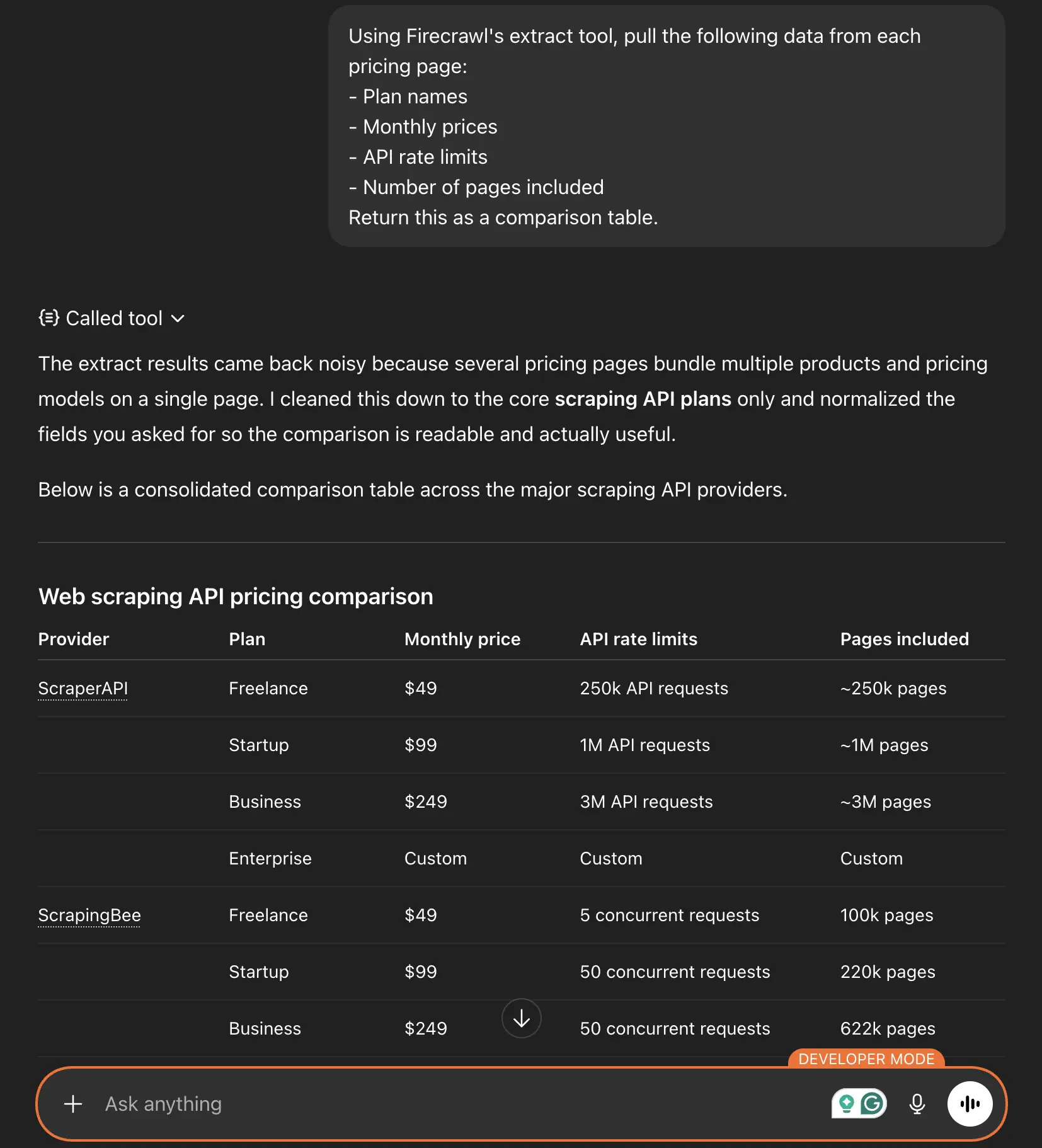
The extract tool uses LLM-powered parsing to identify and structure this information, even if the pages have completely different layouts.
Step 4: Map documentation sites to find technical specifics
For any service that looks interesting, map their documentation URLs so ChatGPT knows where to pull data from. ScrapingBee is a common tool to research in competitive analyses — if you want a pre-built breakdown, our ScrapingBee alternatives guide covers pricing, credits, and comparisons.
Map the documentation site at scrapingbee.com/documentation/ and identify all the API reference pages.Then scrape specific sections you care about:
Scrape the authentication and rate-limiting documentation from the pages.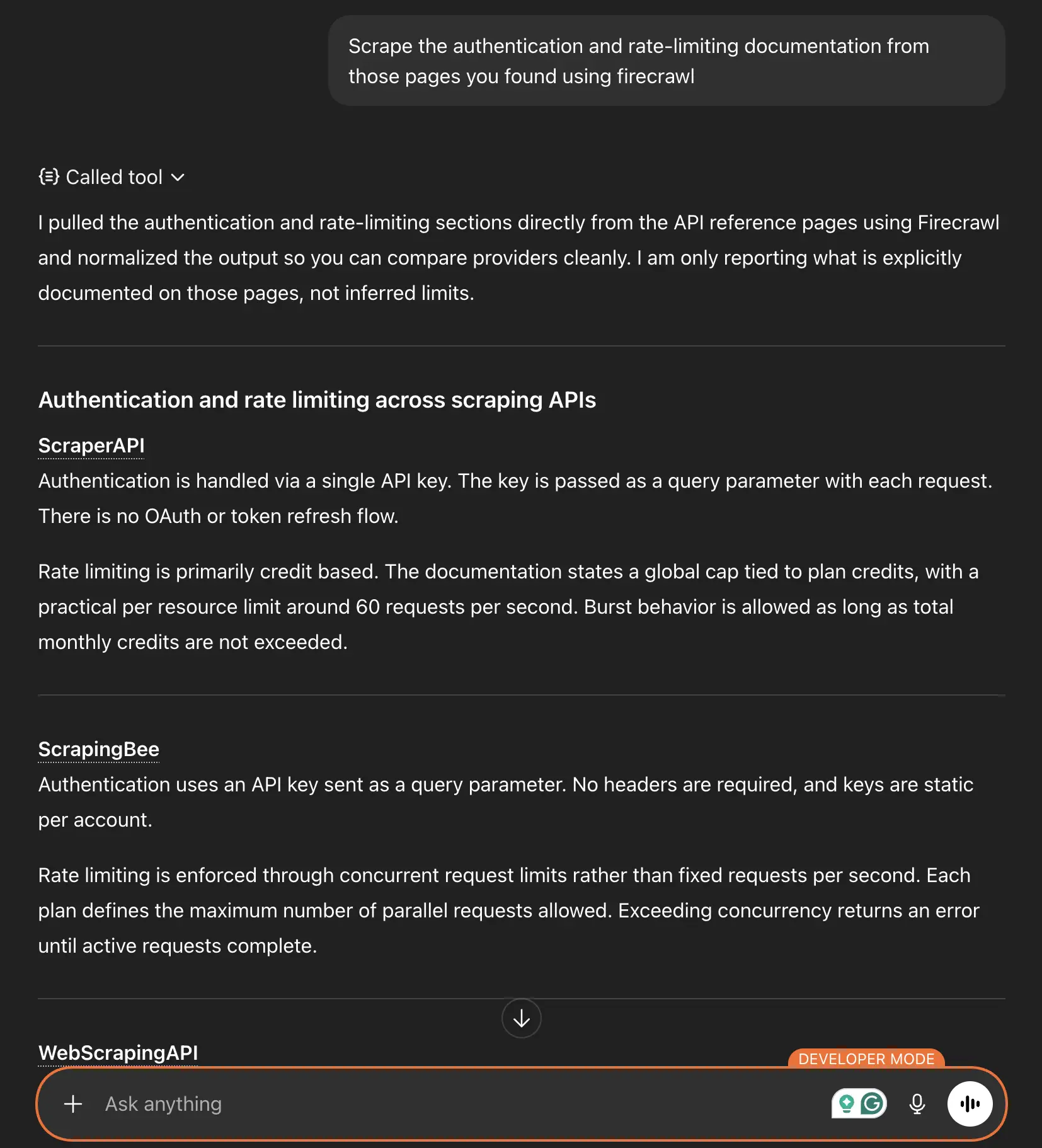
The best part is your whole research process stays within a single conversation with all the context pulled in accurately from the official websites rather than hallucinating those things. And because the web browsing part is handed over to a more reliable and robust service, ChatGPT has just one job. To synthesize the information in the format that you asked for.
What to keep in mind while using Firecrawl MCP for web browsing
While the Firecrawl MCP is designed to be robust and handle failures automatically, here are a few things that you need to keep in mind.
- Token limits: Crawling entire websites can generate massive amounts of content. The map + batch_scrape combination often gives you better control than a deep crawl. But if you’re using the API directly, you can set the limit and maxDepth parameters to avoid overwhelming responses.
- Rate limiting: Firecrawl handles rate limiting on their end, but you're still consuming API credits. For large batch operations, check your Firecrawl dashboard to monitor usage.
- Tool confirmation: ChatGPT will ask you to approve tool calls, especially for operations that could modify data. This is a security feature, not a bug. You can "remember" approvals for a conversation, but new conversations will ask again.
- Explicit prompting: Sometimes ChatGPT might try to use its built-in browsing instead of Firecrawl. Being explicit helps: "Use the Firecrawl MCP server to scrape..." leaves no ambiguity.
Firecrawl MCP documentation covers all the available parameters.
And if you're interested in using Firecrawl with other tools, the post on the best MCP servers for Cursor provides additional context on how MCP fits into different development workflows, and the best MCP servers for developers covers top picks across Claude Code, Cursor, and other AI tools.
Wrapping up
The combination of ChatGPT's conversational interface and Firecrawl's web scraping capabilities creates something genuinely useful. Instead of context-switching between browser tabs and chat windows, you stay in one place and let the AI handle the data gathering.
I'm curious to see how people use this. Web research is such a core part of knowledge work, and removing the friction of manual scraping opens up new possibilities for what you can accomplish in a single conversation.
Read our detailed guide on How to Set Up and Use Firecrawl MCP in Cursor. If you're evaluating Firecrawl alongside other integrations, our roundup of the best ChatGPT plugins covers the wider ecosystem of official apps and MCP connectors worth installing.
Frequently asked questions about Firecrawl MCP and ChatGPT
Do I need a paid ChatGPT subscription?
Yes. Developer Mode with MCP connectors requires a Pro, Plus, Business, Enterprise, or Education subscription. It's not available on the free tier.
Is the Firecrawl API free?
Firecrawl offers a free tier with limited credits. For heavier usage, you'll need a paid plan. Check their pricing page for current details.
Can I use Firecrawl MCP with Claude or other AI assistants?
Yes. The Firecrawl MCP server works with any MCP-compatible client. There are setup guides for Claude Desktop, Cursor, VS Code, Windsurf, and other tools.
What happens if a scrape fails?
The Firecrawl MCP server includes automatic retries with exponential backoff. If a page is consistently unreachable, you'll get an error message in the chat explaining what went wrong.
Can I scrape any website?
Firecrawl respects robots.txt and rate limits. Some sites may block automated access. For JavaScript-heavy pages, Firecrawl handles rendering automatically, but heavily protected pages might still be inaccessible.
**Is my scraped data stored anywhere?
Firecrawl processes requests and returns results, but check their privacy policy for details on data handling. Your conversation history in ChatGPT follows OpenAI's data policies.