How to Build a Real-Time Voice Assistant with Gemini Live API and Firecrawl
 Bex Tuychiev
TL;DR
- Gemini Live handles audio natively in the model, so the stream stays open even during tool calls like web search
- We build a voice assistant with three tools: Firecrawl search for live web data, Gmail read, and Gmail send
- LiveKit Agents handles WebRTC transport and deployment to the cloud
- The entire agent fits in a single
agent.pyfile with about 150 lines of Python
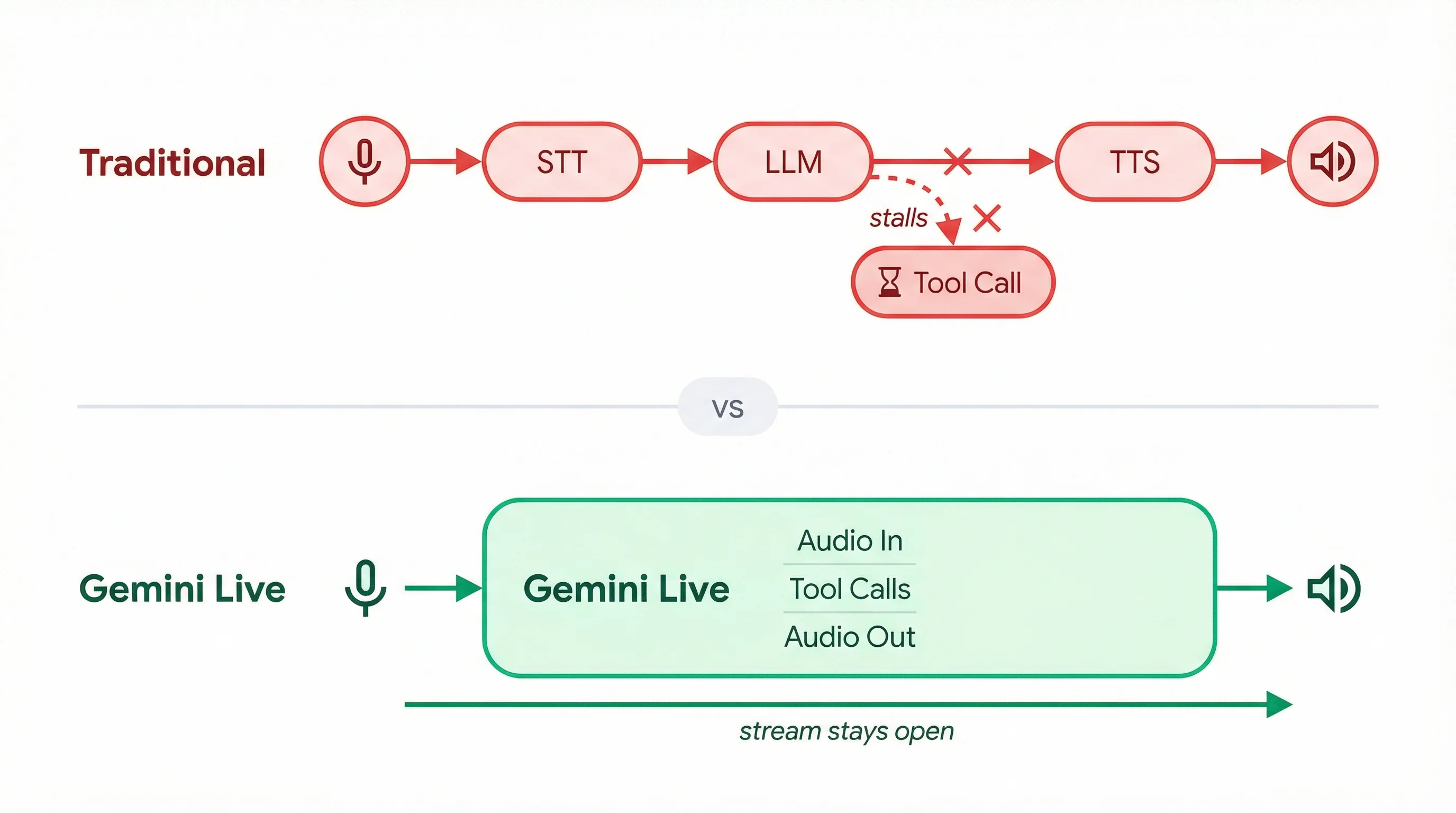
Most voice assistant pipelines force a rigid loop. They transcribe speech to text, send it to an LLM, and convert the response back to audio. Adding tool calls like web search makes this worse because the connection stalls while waiting for results, and the conversation feels like talking to a hold queue.
With the voice AI agents market projected to reach $47.5 billion by 2034, solving this architecture problem is what makes voice assistants worth building.
Gemini Live takes a different approach by handling audio natively in the model itself, so the stream stays open even when the model calls external tools mid-conversation.
We'll use this to build a voice assistant that searches the web through Firecrawl and manages your Gmail inbox, all in spoken conversation. The stack is Gemini Live API, LiveKit Agents for WebRTC transport, Firecrawl for search, and Gmail SMTP/IMAP for email, packed into a single agent.py deployed to LiveKit Cloud.
Setup and prerequisites
You need Python 3.10+ and accounts on four services (all with free tiers):
- Google AI Studio for a Gemini API key
- LiveKit Cloud for WebRTC transport
- Firecrawl for the web search API (free tier available)
- A Gmail account with 2-Step Verification for email tools (Optional)
Create your project directory and install dependencies:
mkdir voice-assistant && cd voice-assistant
uv init
uv add "livekit-agents[google]>=1.4" "firecrawl-py>=1.0" "python-dotenv>=1.0" "imap-tools>=1.0"
The livekit-agents[google] package includes LiveKit's Gemini plugin. Version 1.4 or higher is required because earlier versions don't support the latest native audio models.
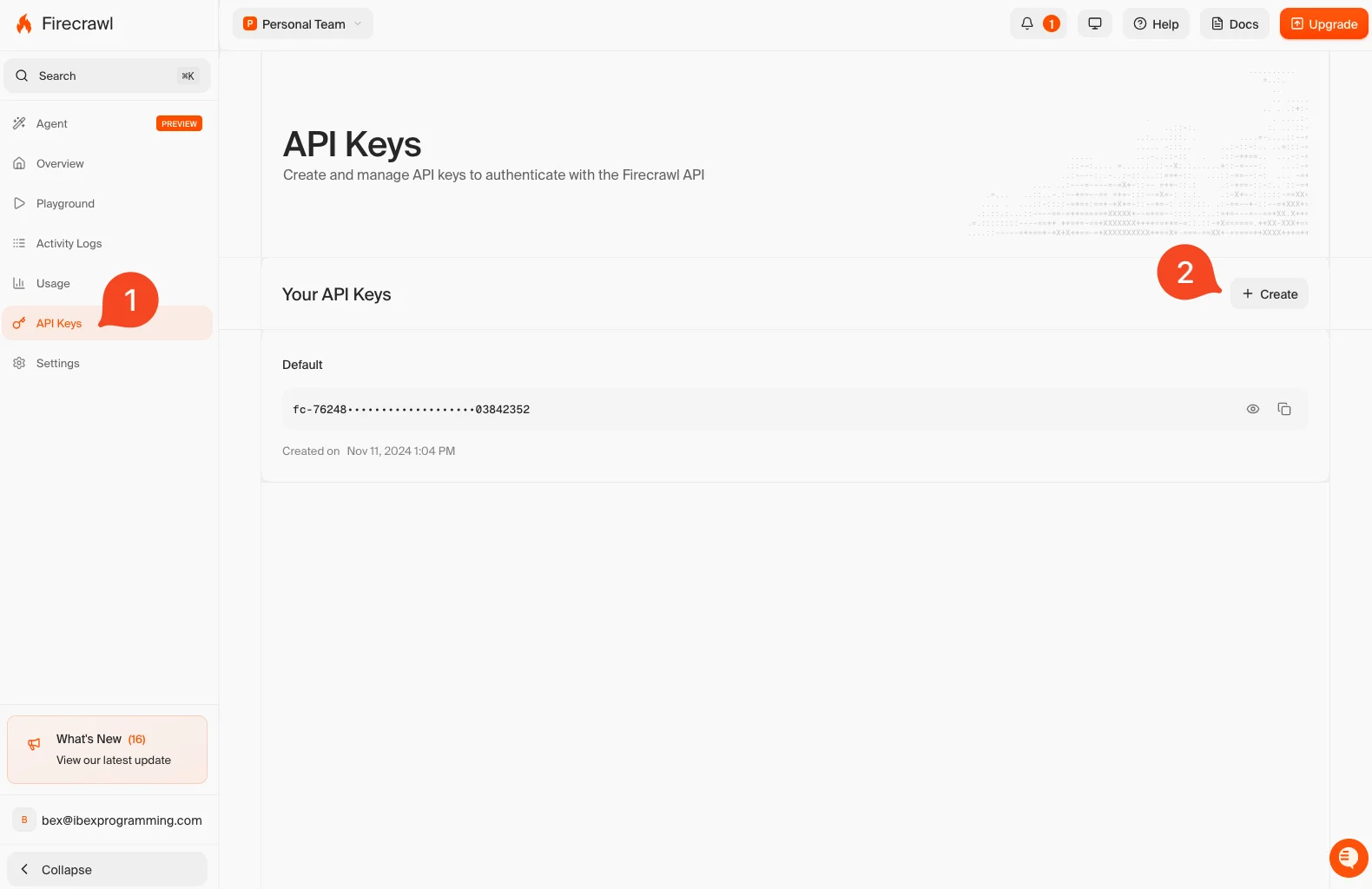
Grab your API keys from each service. You can try Firecrawl without a key to start, and when you're ready to go further, sign up at firecrawl.dev for higher rate limits and more credits (the free tier includes 1,000 credits per month):
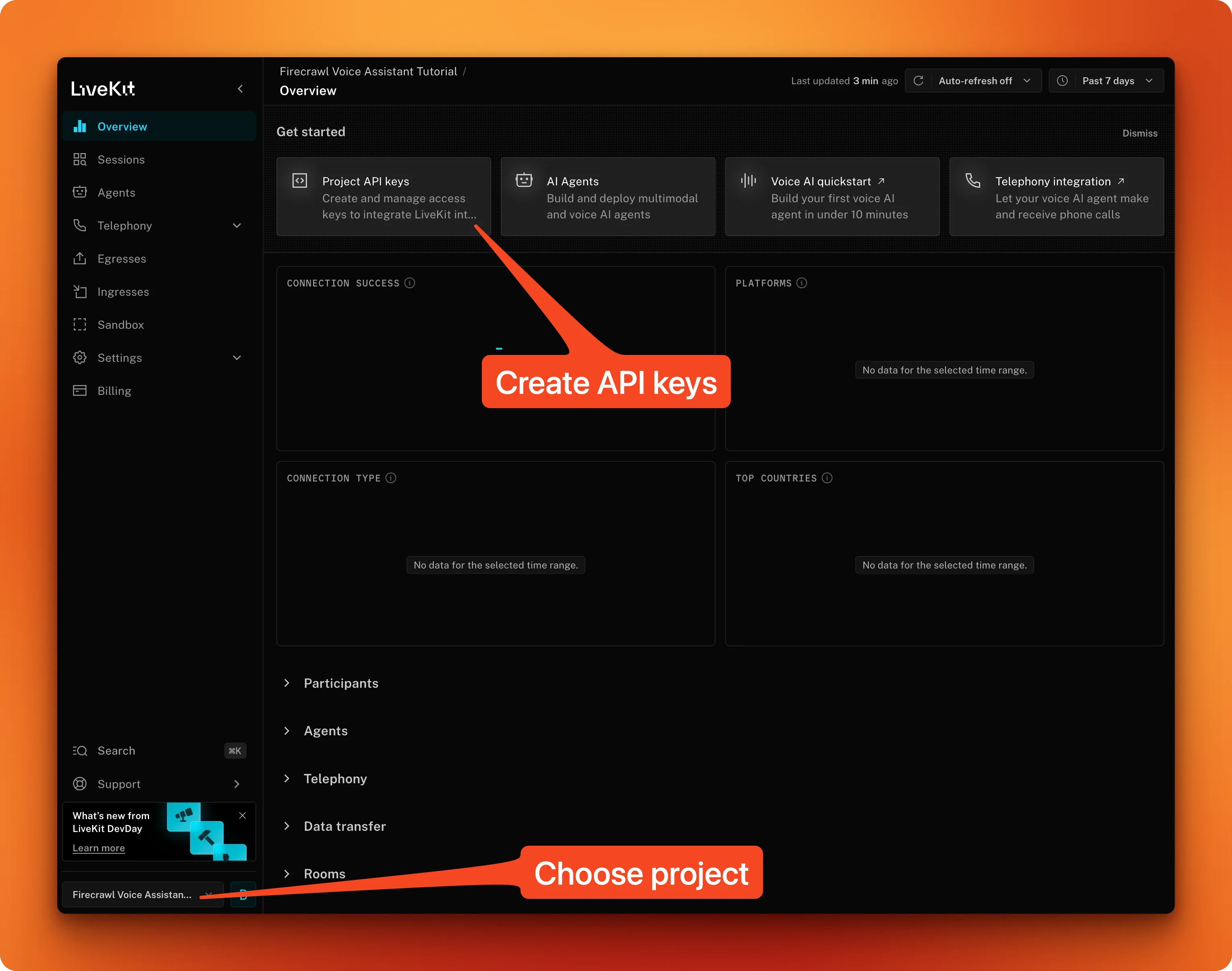
For LiveKit, create a new Cloud project and note the URL, API key, and secret:
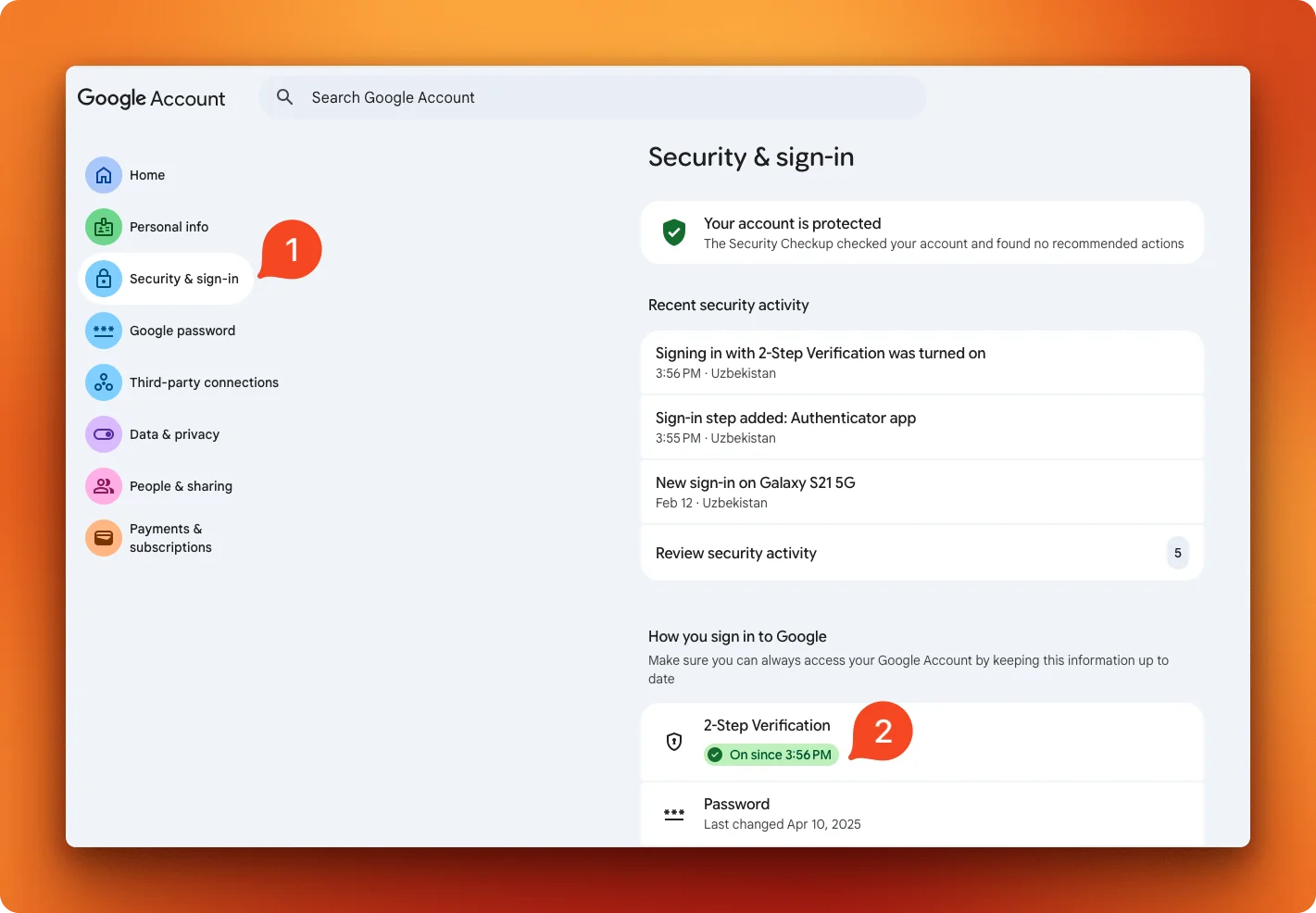
If you want to use the email feature, consider creating a new test gmail account for this tutorial. To connect, Gmail needs an App Password instead of your regular password. Go to your Google Account security settings and turn on 2-Step Verification first:
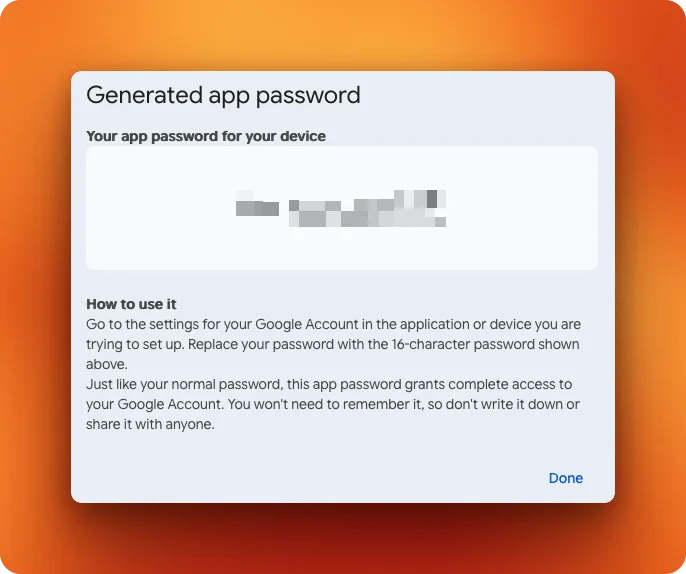
Then visit myaccount.google.com/apppasswords, name your app password, and save the generated 16-character code:
Then, create a .env file with all your credentials:
GOOGLE_API_KEY=your_google_api_key
FIRECRAWL_API_KEY=your_firecrawl_api_key
LIVEKIT_URL=wss://your-project.livekit.cloud
LIVEKIT_API_KEY=your_livekit_api_key
LIVEKIT_API_SECRET=your_livekit_api_secret
GMAIL_ADDRESS=your_email@gmail.com
GMAIL_APP_PASSWORD=your_app_password
Note: If you run into issues with the email read tool, confirm IMAP access is on in Gmail (although this should be active by default). Go to Settings > Forwarding and POP/IMAP and turn on IMAP access if it's off. Without this, the email read tool won't connect.
The voice agent core
Create agent.py in your project directory. Here's the complete file as a GitHub Gist so you can reference the full picture in a separate tab while we break it down piece by piece.
- The voice conversation core (this section)
- Web search (next section)
- Email tools (the section after)
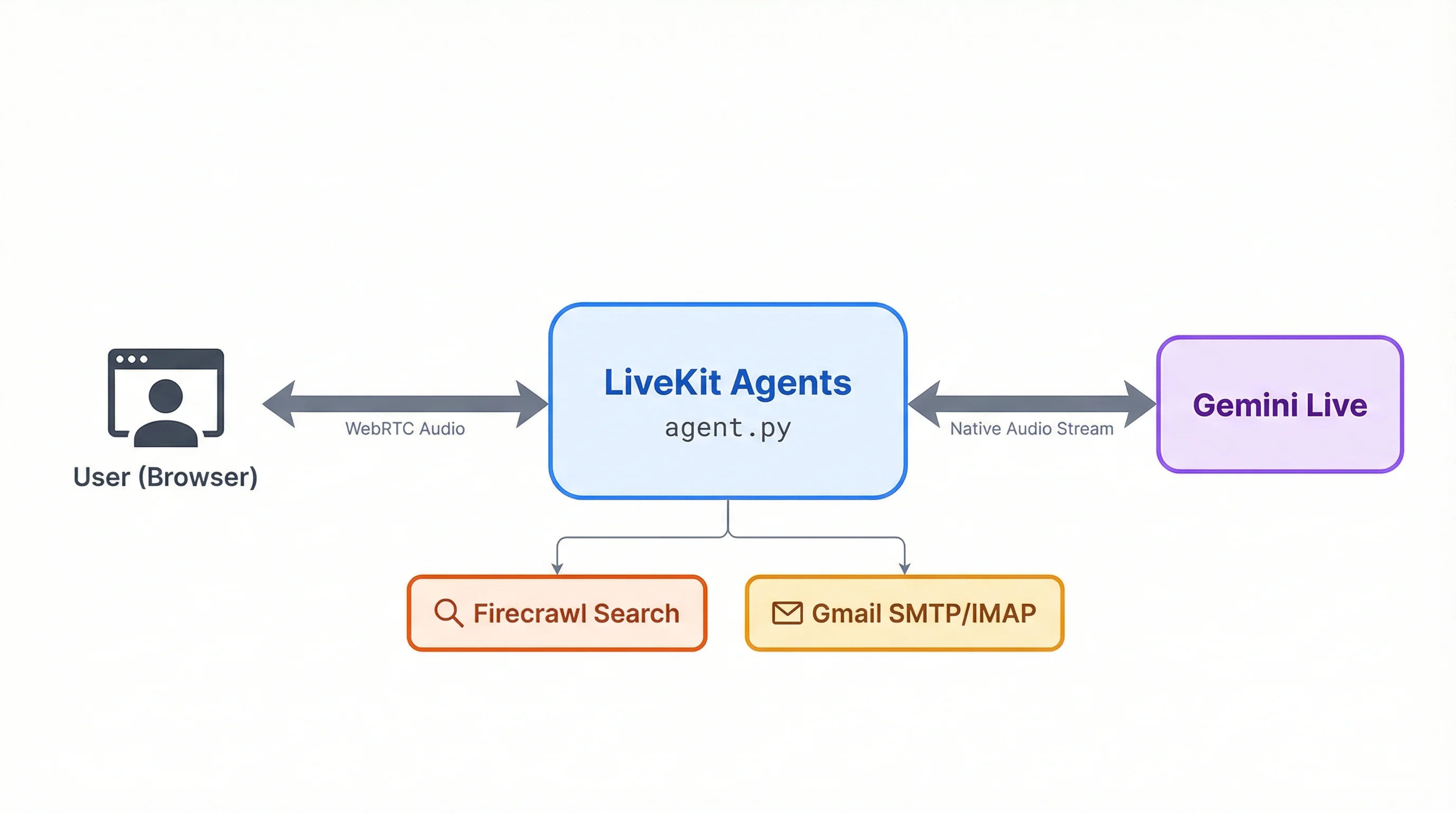
Start with the imports and setup:
import asyncio
import os

from livekit.agents import (
    Agent,
    AgentSession,
    AgentServer,
    JobContext,
    cli,
    function_tool,
)
from livekit.plugins import google
from dotenv import load_dotenv

load_dotenv()
Three classes from livekit.agents do the heavy lifting. AgentServer handles incoming WebRTC connections from LiveKit Cloud. AgentSession manages a single live conversation. Agent defines the assistant's behavior. We'll also need function_tool later to expose Python functions as callable tools for the model.
Next, define the agent by subclassing Agent:
class ResearchAssistant(Agent):
    def __init__(self):
        super().__init__(
            instructions="You are a helpful assistant. "
            "Keep responses conversational and concise. "
            "Speak naturally, as if having a conversation.",
        )
The instructions parameter is the system prompt. We'll expand it later when we add tools, but a simple prompt is enough to test the voice connection.
Now the entrypoint that ties everything together:
server = AgentServer()


@server.rtc_session()
async def entrypoint(ctx: JobContext):
    await ctx.connect()

    session = AgentSession(
        llm=google.realtime.RealtimeModel(
            model="gemini-2.5-flash-native-audio-preview-12-2025",
            voice="Puck",
        ),
    )

    await session.start(
        room=ctx.room,
        agent=ResearchAssistant(),
    )


if __name__ == "__main__":
    cli.run_app(server)
The @server.rtc_session() decorator registers entrypoint as the handler for each new voice session. When someone connects, LiveKit calls this function with a JobContext representing the room.
RealtimeModel configures the Gemini connection. The model name gemini-2.5-flash-native-audio-preview-12-2025 is worth paying attention to because it uses native audio mode, meaning audio goes directly into and out of the model without intermediate speech-to-text or text-to-speech steps.
This gives lower latency and more natural responses compared to the cascaded approach, where a separate STT model transcribes your voice, an LLM generates text, and a TTS model reads it back.
The voice parameter picks from Gemini's built-in voices. "Puck" is a solid default, though you can also try "Charon", "Kore", or "Aoede".
Test it:
uv run python agent.py devThis starts the agent in development mode and connects it to your LiveKit Cloud project. Open the LiveKit Agent Playground and select your project:
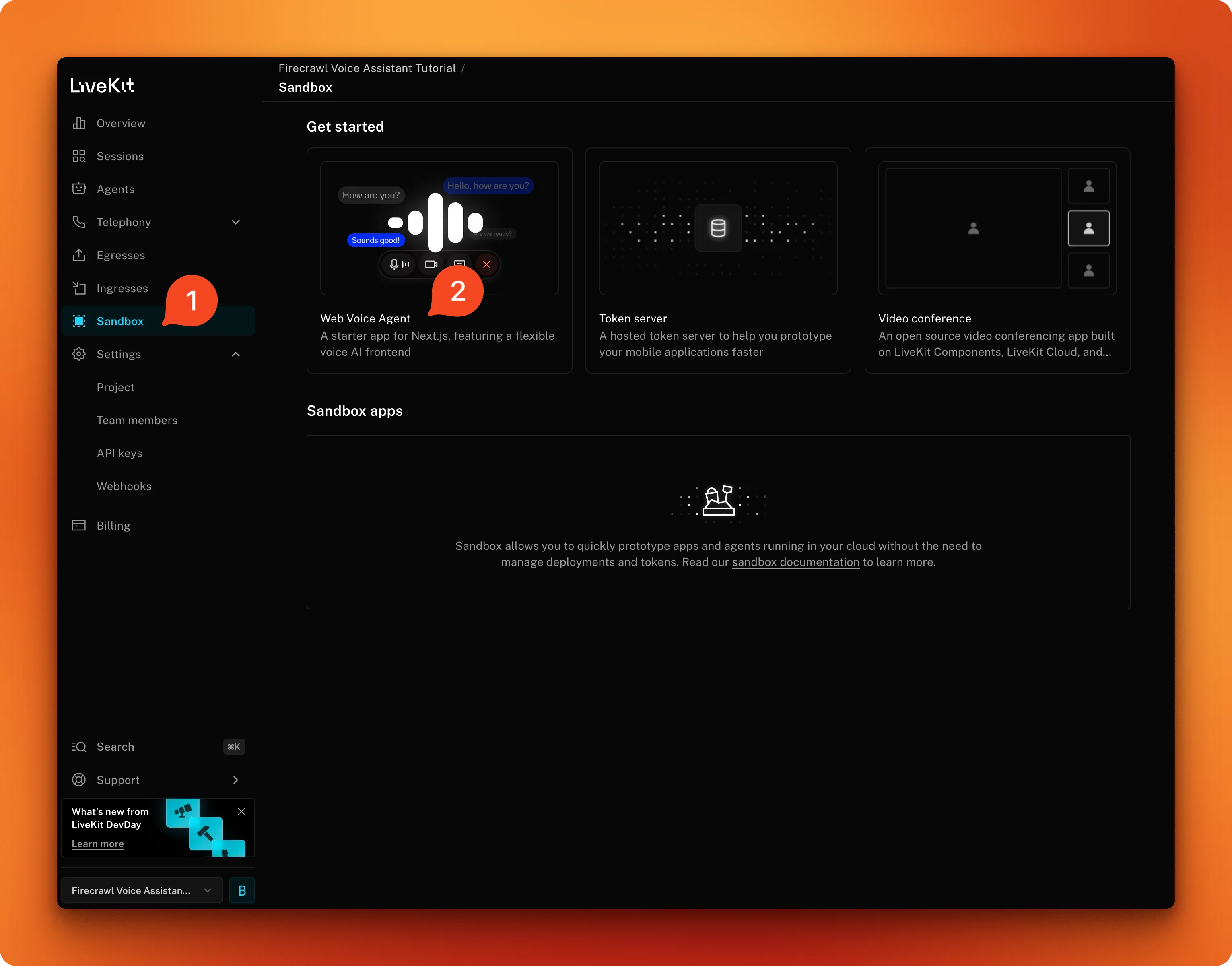
Once connected, click "start call" from the web UI. The first connection takes a moment, but as soon as you see "Started reading stream" in the logs, you're good to go. All responses should be sub 1-second if your network connection is solid.
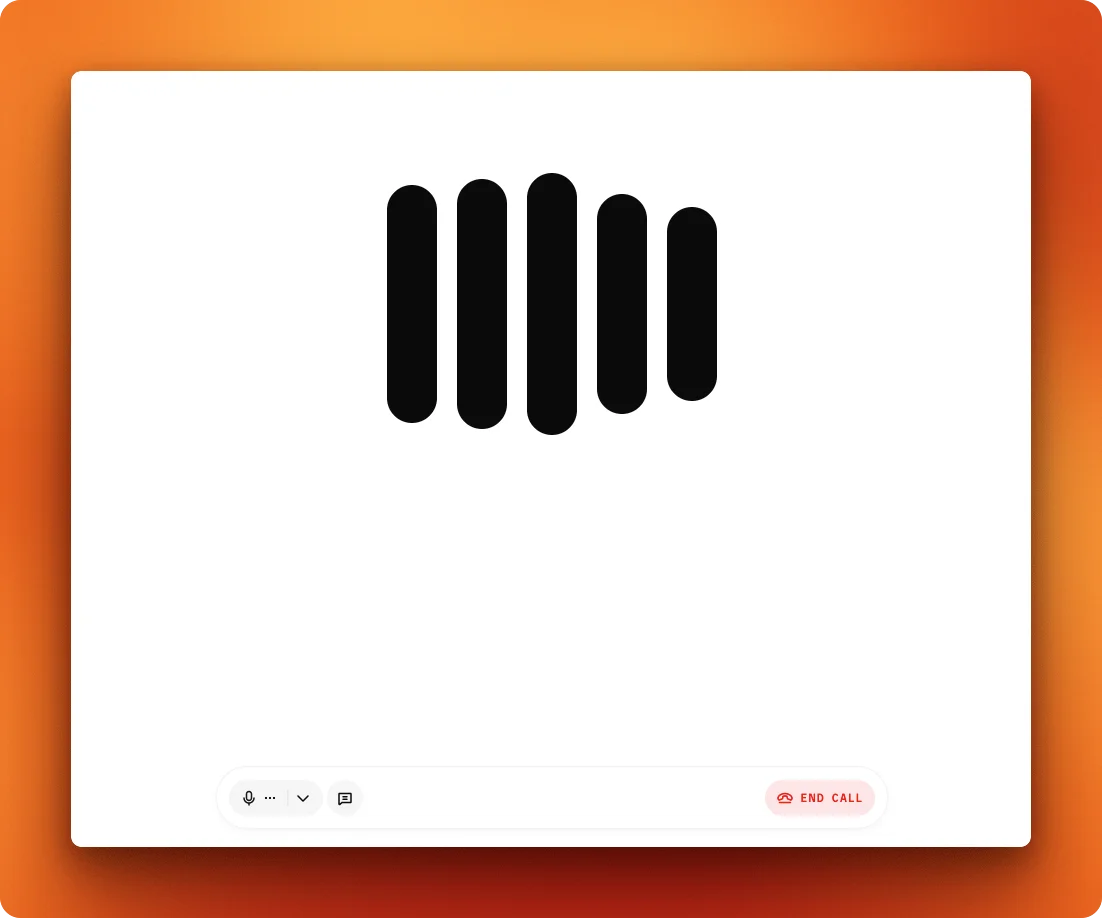
At this point, the assistant can only chat using Gemini's built-in knowledge, with no access to current information or external tools.
Adding live web search with Firecrawl
The assistant needs access to live web data to be useful beyond general conversation. Firecrawl's search endpoint combines web search and content extraction in a single API call, which is exactly what a voice agent needs. For a deeper look at the search endpoint's options, there's a full walkthrough on the Firecrawl blog.
Most search APIs scrape the general web and pass whatever they find straight to the model. As AI-generated content fills the web, that includes a lot of noise: stale articles, thin rewrites, and results with no real signal.
Firecrawl uses a curated index of authoritative sources across news, research, finance, and government, with freshness monitoring that tracks how often each source updates. Results come back as full content rather than previews, so the model has real substance to reason on. At scale, that also cuts inference costs since the agent isn't processing pages of low-signal fragments.
Add the Firecrawl import to the top of agent.py:
from firecrawl import FirecrawlThen create the search tool:
@function_tool
async def web_search(query: str) -> str:
    """Search the web for current information on any topic.

    Args:
        query: The search query to look up

    Returns:
        Search results with titles and descriptions
    """
    firecrawl = Firecrawl(
        api_key=os.getenv("FIRECRAWL_API_KEY")
    )

    try:
        results = firecrawl.search(query=query, limit=5)
    except Exception as e:
        return f"Search failed: {str(e)}"
The @function_tool decorator from LiveKit exposes this function to Gemini as a callable tool. The docstring and type hints are sent to the model as the tool's schema, which is how Gemini knows when and how to call the function during a conversation.
Firecrawl.search() sends the query to Firecrawl's API through the Python SDK and returns structured results. The limit=5 caps the number of results so the model doesn't get overwhelmed with data to read aloud.
The SDK (v2) returns results as Pydantic models, with web results living on the .web attribute. Since the response structure can vary across SDK versions, we add fallbacks:
    web_results = (
        getattr(results, "web", None)
        or getattr(results, "data", None)
        or []
    )

    if not web_results:
        return "No results found for that query."
Then format each result. The isinstance check handles both Pydantic model and dict responses for compatibility:
    formatted = []
    for item in web_results:
        title = (
            getattr(item, "title", "Untitled")
            if not isinstance(item, dict)
            else item.get("title", "Untitled")
        )
        description = (
            getattr(item, "description", "")
            if not isinstance(item, dict)
            else item.get("description", "")
        )
        url = (
            getattr(item, "url", "")
            if not isinstance(item, dict)
            else item.get("url", "")
        )
        formatted.append(
            f"- {title}: {description} (Source: {url})"
        )

    return "\n".join(formatted)
The model reads these results conversationally, pulling out what's relevant to your question and citing the sources.
Register the tool in AgentSession:
session = AgentSession(
    llm=google.realtime.RealtimeModel(
        model="gemini-2.5-flash-native-audio-preview-12-2025",
        voice="Puck",
    ),
    tools=[web_search],
)
What makes the Gemini Live integration stand out here is how tool calls work in the audio stream. When you ask something like "What's the weather in Tokyo?", the model calls web_search while keeping the audio connection open. You might hear a brief pause, but the conversation doesn't disconnect. The model receives the search results and speaks the answer without re-establishing anything.
This full-duplex behavior is the main advantage over traditional voice pipelines that stop listening, process, and start speaking again as separate steps. If you want to see how a similar pattern works with OpenAI's realtime API, Firecrawl's team wrote a tutorial on building conversational agents that talk with any website.
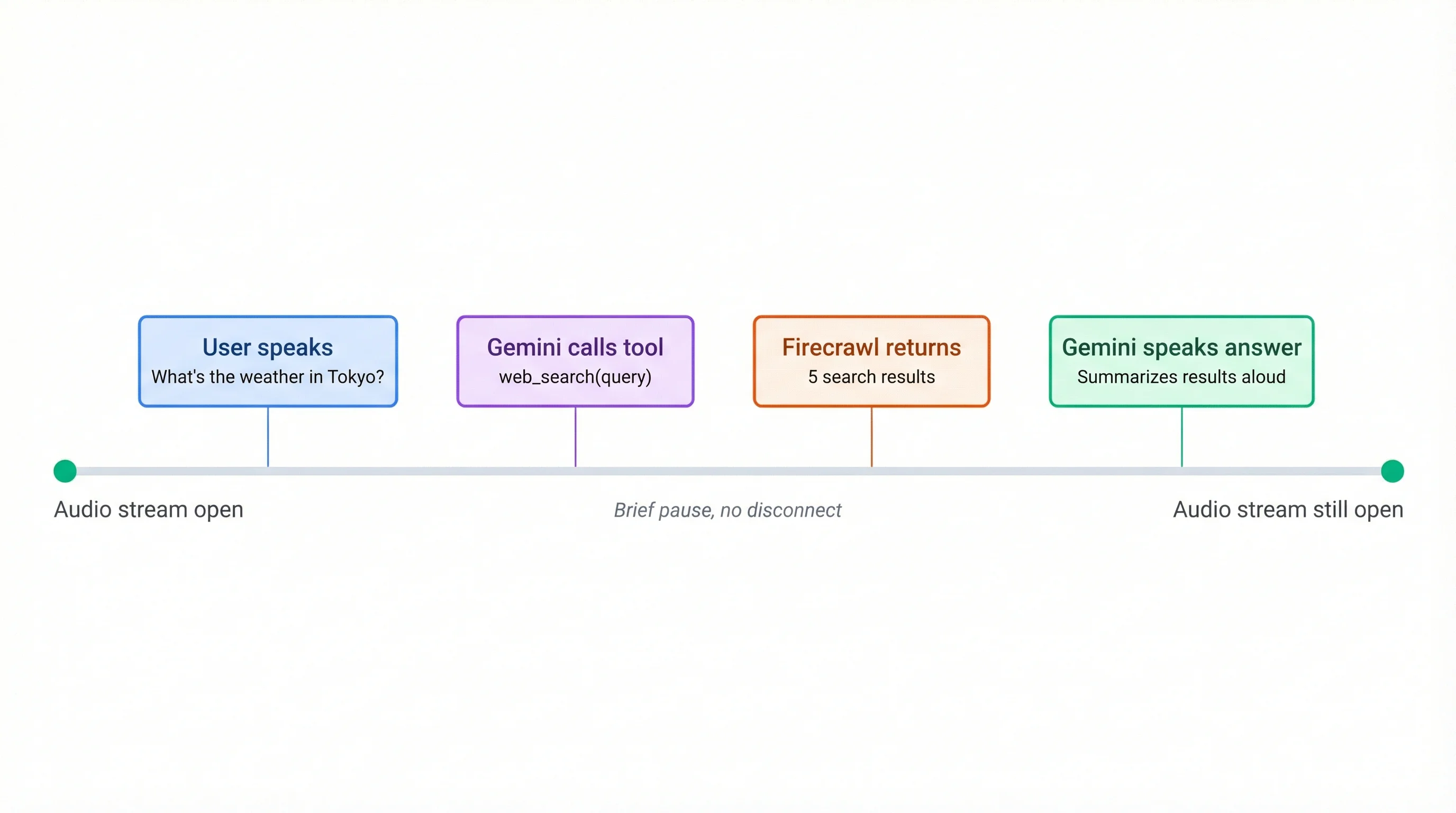
Restart the agent with uv run python agent.py dev and try asking about something current through the playground.
Adding email with Gmail
Web search covers information retrieval. Email adds something more practical: the assistant can read your inbox aloud and send messages on your behalf, just by you asking.
⚠ Security Warning: Prompt Injection Risk
Agents with access to external data sources are vulnerable to prompt injection, where malicious content embedded in a webpage or email manipulates the agent into taking unintended actions. This agent is exposed to both web content (via Firecrawl) and raw email data, and it has the power to send emails on your behalf.
A hijacked agent could be tricked into forwarding sensitive emails to an attacker or sending crafted messages without your knowledge. The risk is low in a personal, single-user setup like this tutorial, but it is real.
*Mitigations to consider: use a dedicated test Gmail account (not your primary inbox), avoid granting access to emails containing passwords or financial data, add an explicit confirmation step before any email is sent, and never expose this agent publicly without proper sandboxing and output filtering.*
Gmail's full API requires OAuth with a Google Cloud Console project, which would add a lot of setup to this tutorial. The simpler path: SMTP for sending and IMAP for reading, authenticated with the App Password from the setup section.
Add the remaining imports to the top of agent.py:
import smtplib
from email.mime.text import MIMEText
from imap_tools import MailBox
Here's the first part of the read tool:
@function_tool
async def read_emails(count: int = 5) -> str:
    """Read recent emails from the inbox.

    Args:
        count: Number of recent emails to fetch (default 5, max 10)

    Returns:
        A summary of recent emails with sender, subject, and preview
    """
    count = min(count, 10)
    gmail_user = os.getenv("GMAIL_ADDRESS")
    gmail_password = os.getenv("GMAIL_APP_PASSWORD")
The count parameter has a hard cap at 10 to keep responses manageable for voice output. Gemini sees the docstring and can tell users about the default and limits.
Both imap_tools and smtplib are synchronous libraries. To avoid blocking the async event loop, every blocking call gets wrapped in asyncio.to_thread():
    def _fetch():
        with MailBox("imap.gmail.com").login(
            gmail_user, gmail_password
        ) as mailbox:
            emails = []
            for msg in mailbox.fetch(
                limit=count, reverse=True
            ):
                body_preview = (
                    (msg.text or "")[:150]
                    .replace("\n", " ").strip()
                )
                emails.append(
                    f"- From: {msg.from_}\n"
                    f"  Subject: {msg.subject}\n"
                    f"  Preview: {body_preview}"
                )
            return emails

    try:
        emails = await asyncio.to_thread(_fetch)
    except Exception as e:
        return f"Failed to read emails: {str(e)}"

    if not emails:
        return "No emails found in inbox."

    return (
        f"Here are your {len(emails)} most recent emails:\n\n"
        + "\n\n".join(emails)
    )
MailBox("imap.gmail.com") connects to Gmail's IMAP server. The reverse=True flag fetches newest messages first. Body previews are truncated to 150 characters since long email bodies don't translate well to spoken responses.
The send tool follows the same asyncio.to_thread() pattern:
@function_tool
async def send_email(to: str, subject: str, body: str) -> str:
    """Send an email to someone.

    Args:
        to: Recipient email address
        subject: Email subject line
        body: Email body text

    Returns:
        Confirmation that the email was sent
    """
    gmail_user = os.getenv("GMAIL_ADDRESS")
    gmail_password = os.getenv("GMAIL_APP_PASSWORD")

    msg = MIMEText(body)
    msg["Subject"] = subject
    msg["From"] = gmail_user
    msg["To"] = to
def _send():
with smtplib.SMTP_SSL("smtp.gmail.com", 465) as server:
server.login(gmail_user, gmail_password)
server.send_message(msg)
try:
await asyncio.to_thread(_send)
except Exception as e:
return f"Failed to send email: {str(e)}"
return f"Email sent to {to} with subject '{subject}'."SMTP_SSL connects directly over TLS on port 465. Same wrapping pattern as the read tool.
Now register all three tools and update the agent's system instructions to handle email behavior:
session = AgentSession(
    llm=google.realtime.RealtimeModel(
        model="gemini-2.5-flash-native-audio-preview-12-2025",
        voice="Puck",
    ),
    tools=[web_search, read_emails, send_email],
)
Replace the minimal ResearchAssistant class with the full version that covers all three tools:
class ResearchAssistant(Agent):
    def __init__(self):
        super().__init__(
            instructions="""You are a helpful research assistant with access to web search and email.

Your role:
- Help users find information on any topic using web search
- Read and summarize their recent emails when asked
- Send emails on their behalf when they provide a recipient, subject, and message
- Keep responses conversational and concise since this is a voice interaction
- When you use search results, mention where the information came from
- If you don't know something and search doesn't help, say so honestly

For email:
- Before sending an email, always confirm the recipient, subject, and message with the user
- When reading emails, give a brief spoken summary rather than reading every detail
- Never send an email without the user explicitly asking you to

Style guidelines:
- Speak naturally, as if having a conversation
- Avoid long lists or complex formatting that doesn't work well in speech
- Break up information into digestible pieces
- Ask clarifying questions if a request is ambiguous""",
        )
The confirmation step before sending is the most important instruction here. You don't want the model firing off emails based on a misheard word.
One thing to note: imap_tools reads individual messages, not Gmail threads. If a back-and-forth email chain has five messages, you'll see each one separately rather than as a grouped conversation. Full thread support would require the Gmail API with OAuth, which is a natural next step if you want to extend this project.
Restart the agent with uv run python agent.py dev and test all three tools through the playground. Try asking it to search for something, read your recent emails, and send a test email.
Production deployment
LiveKit Cloud hosts the agent persistently, so it's always available without keeping a terminal open on your machine.
Start with a Dockerfile. LiveKit recommends using uv for faster dependency installation:
FROM ghcr.io/astral-sh/uv:python3.12-bookworm-slim

ENV PYTHONUNBUFFERED=1

ARG UID=10001
RUN adduser \
    --disabled-password \
    --gecos "" \
    --home "/app" \
    --shell "/sbin/nologin" \
    --uid "${UID}" \
    appuser

RUN apt-get update && apt-get install -y --no-install-recommends \
    gcc python3-dev \
    && rm -rf /var/lib/apt/lists/*

WORKDIR /app

COPY requirements.txt .
RUN uv pip install --system --no-cache -r requirements.txt

COPY . .

RUN chown -R appuser:appuser /app
USER appuser

CMD ["python", "agent.py", "start"]
The uv base image includes Python 3.12 and the uv package manager. uv pip install --system installs dependencies into the container's system Python, which is faster than pip and doesn't need a virtual environment inside a container. The non-privileged appuser follows LiveKit Cloud's security requirements. Requirements are copied before the application code so dependency installation gets cached across builds.
Next, create livekit.toml:
[project]
name = "gemini-voice-assistant"

[agent]
entrypoint = "agent.py"
The CLI reads this file to identify your project and entrypoint during deployment.
Install the LiveKit CLI:
# macOS
brew install livekit-cli

# Linux
curl -sSL https://get.livekit.io/cli | bash
Authenticate with your LiveKit Cloud account:
lk cloud authThis opens a browser window to link the CLI to your project. Once authenticated, deploy the agent:
lk agent initThis command registers your agent, uploads your code, builds the container from your Dockerfile, and deploys it to LiveKit Cloud. The CLI detects your .env file and prompts you to upload the values as encrypted secrets that get injected as environment variables at runtime. Note that LIVEKIT_URL, LIVEKIT_API_KEY, and LIVEKIT_API_SECRET are auto-provided by LiveKit Cloud, so you can skip those during the secrets prompt.
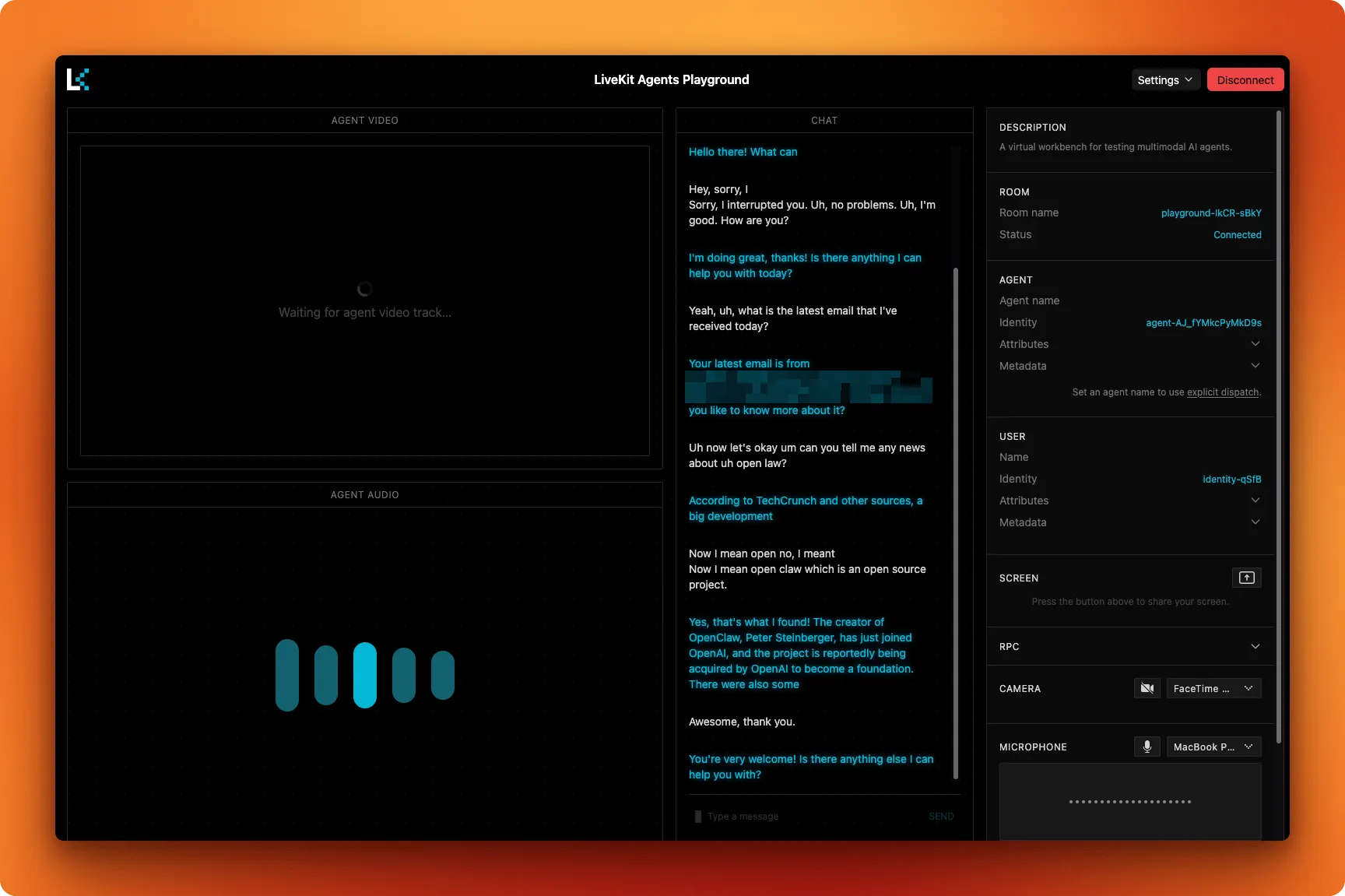
Once deployed, open the Agent Playground, select your project, and start a call to test the cloud-hosted agent:
For subsequent code changes:
lk agent deployThis builds and deploys a new version using a rolling strategy: new sessions route to the updated agent while active sessions finish on the old one.
Monitor your deployed agent with:
lk agent status   # Replica count and health
lk agent logs     # Tail live logs
And if a deployment goes wrong:
lk agent rollbackThis reverts to the previous version without rebuilding.
Conclusion
We started with an empty directory and built a voice assistant that carries on a natural conversation, searches the web through Firecrawl's search API, and reads and sends email through Gmail. The full-duplex nature of Gemini Live means tool calls happen without breaking the audio stream, and LiveKit Cloud handles the deployment and scaling.
A few directions to take this further:
- Swap
imap_toolsfor the Gmail API to get full thread support - Add more tools like calendar access, Slack messaging, or database queries — for a complete walkthrough of building a Slack AI agent with Firecrawl web search, see the Eve tutorial
- Try different Gemini voices ("Charon", "Kore", "Aoede") through the
voiceparameter - Build a custom frontend with LiveKit's React SDK instead of using the playground
- Add a scrape tool alongside search so the agent can read full pages when search snippets aren't enough
Frequently Asked Questions
What is native audio mode in Gemini Live and how does it differ from cascaded mode?
Native audio mode sends raw audio directly into and out of the model. Cascaded mode uses a separate speech-to-text model to transcribe your voice, sends the text to the LLM, then runs the response through a text-to-speech model. Native mode has lower latency and produces more natural-sounding responses because the model processes audio as a first-class input rather than a text conversion.
Does the audio stream disconnect when the agent calls a tool like web search?
No. Gemini Live keeps the WebSocket connection open during tool execution. The model fires the function call, waits for the result, and speaks the answer over the same stream. You might hear a short pause while the search runs, but the session never drops.
How much does the Firecrawl search API cost for a voice assistant?
Firecrawl's free tier includes 1,000 credits per month, and each search call costs 2 credits. For a personal voice assistant, that covers up to 500 searches per month. Paid plans start at $19/month with 5,000 credits. Check the pricing page for current rates.
Can I use a different LLM instead of Gemini for the voice agent?
LiveKit Agents supports multiple model providers, including OpenAI's realtime API. The agent architecture stays the same; you swap the RealtimeModel configuration for a different plugin. Gemini's native audio mode and Firecrawl tool calling work the same way regardless of the transport layer.
Is the Gmail App Password approach secure enough for production?
App Passwords bypass 2FA for SMTP/IMAP access, which is fine for a personal assistant running on your own machine or server. For a multi-user production app, you'd want OAuth 2.0 through the Gmail API instead. The App Password approach in this tutorial is scoped to a single account and doesn't expose your main Google password.