TL;DR
- Cursor Automations let teams deploy AI agents to the cloud with the click of a button.
- Cursor Automations comes with a large variety of plugins and MCP tools.
- All Automations run on Cursor's cloud infrastructure by default. Deploy with a toggle button.
- Automations are expensive to test and run. They always run in Max Mode for larger context windows and increased performance.
- The Firecrawl MCP gives Cursor Automations access to reliable data pipelines.
What are Cursor Automations?
Cursor Automations are one of the newest tools available from Cursor. Using Cursor Automations, users can build, schedule, and deploy agentic tasks.
What makes this especially powerful: because automations run on Cursor's cloud, you can kick them off (and check their results) from your phone via Cursor Web. That turns workflow management into something you can do from a coffee shop, an airport, or in line at the grocery store. No laptop required.
A few Cursor Automations from the Firecrawl team
At Firecrawl, we're huge fans of Cursor Automations. They've quietly become part of how the team ships, markets, and monitors the product day to day.
Hiba Fathima, Growth Marketing Lead at Firecrawl, has several Cursor Automations running today:
- Blog refresh on every product changelog: Each time Firecrawl ships a product changelog, an Automation scans existing blog posts for outdated references (deprecated features, old API limits, renamed endpoints) and queues up edits. Readers stop landing on posts with stale info.
- Competitor intel to Slack: Using the Firecrawl Monitor feature, an Automation watches competitor pricing pages, changelogs, and landing pages. When something shifts, a summary lands in the team's Slack channel before sales asks about it.
- Internal interlinking: Whenever a new post goes live, an Automation scans the rest of the blog for natural linking opportunities and opens a PR with suggested interlinks. The site's SEO graph stays dense without a manual link audit each week.
- And plenty more: SEO keyword tracking, social drafts pulled from changelog entries, customer story scaffolding generated from sales call transcripts.
Wait, how does this differ from regular AI agents?
The selling point from Cursor Automations comes from the deployment architecture. Rather than running an agent on your own infrastructure, you deploy your agents to Cursor's cloud.
What models do Cursor Automations support?
Teams can choose from a variety of mainstream model providers. Below are some notable model families.
- GPT: OpenAI's GPT series, including GPT-5.5 and GPT-5.3 Codex.
- Claude: Anthropic's Claude family, including Claude 4.6 Sonnet, and Claude Opus 4.8.
- Gemini: Google's Gemini family, including Gemini 3.1 Pro and Gemini 3.5 Flash.
- Grok: xAI's Grok Build 0.1.
- Composer: Cursor's in-house model, currently Composer 2.5.
Context windows can vary drastically between models. With Automations, models have optimized context windows for long-running tasks and modularity. When you swap between models, regardless of provider, stored memories allow new models to understand context and state. When a tool fails, or a context limit is triggered, AI agents can rebuild state using context from memory.
What are Triggers?
Triggers control when an automation runs. An automation can have more than one trigger, and it runs whenever any of them fire.
Cursor Automations offers a variety of triggers.
- Schedule: Schedule your Automation to run hourly, daily, or weekly at a predetermined time.
- GitHub/GitLab: Launch the workflow after pull requests, comments, pushes, workflow completions, and more.
- Slack: Trigger your Automation with messages, reactions, and channel creations in Slack.
- Sentry: Trigger on issue created, updated, or any issue event in your Sentry project.
- Linear: Trigger on issue created, status changed, or end of cycle.
- Webhooks: Listen for webhooks and run your Automation when your system receives them.
- PagerDuty: When an incident arises, run your Cursor Automation.
What are the primary uses for Cursor Automations?
Most Cursor Automations fall into one of two patterns: reactive runs that fire on an event (a PR, a Slack message, an incident) and scheduled runs that fire on a clock. The next two sections cover each.
How do reactive Automations work?
Reactive Automations fire on an event from one of your tools: a pull request opens, a Slack message lands, a Sentry alert triggers. The agent picks up that context and runs without anyone kicking it off manually. The two highest-leverage use cases are reviewing submissions and triaging bug reports, which are also the patterns Jack Pertschuk and Jon Kaplan lead with in their Automations introduction video.
- Reviewing submissions: When someone submits a pull request, your phone goes off. You need to run integration tests. You need to look at merge conflicts. This is a real pain point for developers. With Cursor Automations, you go back to sleep and let your AI agent handle it.
- Bug reports and triage: When something breaks, AI agents can read messages to assist in bug tracking. In some cases, AI agents running on Automations can solve them entirely.
According to Cursor Engineer, Lee Robinson, Cursor's own Slack channel now has bots solving customer issues as well as bots reproducing and confirming fixes. Many X users commented wishing to do the same with their own projects. Robinson reports that Cursor used their SDK to implement this. However, with Cursor Automations, it's now possible to do this without code.
And this isn't just for engineers. Cursor Automations are surprisingly accessible to non-technical folks too. Mark Mercer, Chief of Staff at Firecrawl, recently started using Cursor and had his first Automation up and running in under 30 minutes, no prior coding experience required.
What can scheduled Automations do?
The other big selling point from Cursor Automations is the scheduling trigger. Instead of learning how to write CRON jobs, your team can just build an AI agent and tell it to run at 9:00 a.m. daily. It costs more per run than a plain cron job, but it removes the DevOps bottleneck for teams without a backend engineer to spare. The same pattern shows up across other low-code AI workflow automation tools: the scheduler is a UI toggle, not a config file.
- Data pipelines: Pipelines run regularly to refresh application data. Traditionally, teams need to write a scraper. They deploy it to a server, and a Linux expert schedules a CRON job. When a selector breaks, it's an emergency. It breaks the entire pipeline schedule. With Cursor Automations, an intelligent model is looking at the data when the task fires. If a selector breaks, it doesn't matter.
- DevOps: Teams no longer need a DevOps expert to deploy. Nobody needs Linux or the command line. Cursor Automations run in the cloud by default. To "deploy", you just need to toggle the Automation from the Cursor UI.
Getting started with Cursor Automations
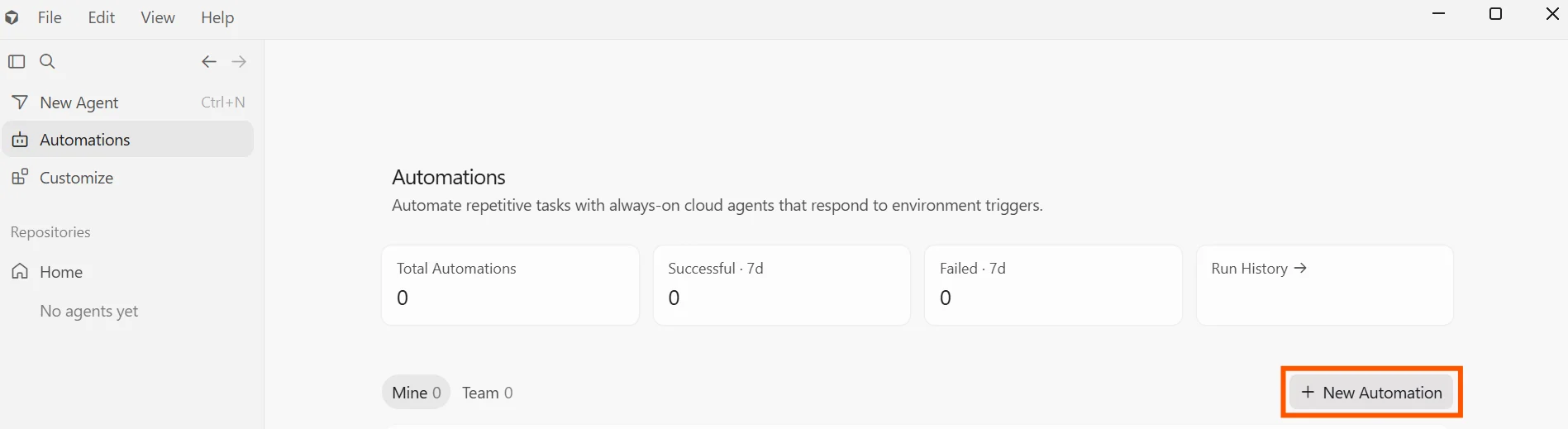
This section walks through how to use Cursor's Automations interface to build your first Cursor Automation. You can build one using either the Cursor Desktop App or the web version at cursor.com/automations, which works from a laptop, iPad, or mobile phone. To get started, select "Automations" on the sidebar and click the "New Automation" button.
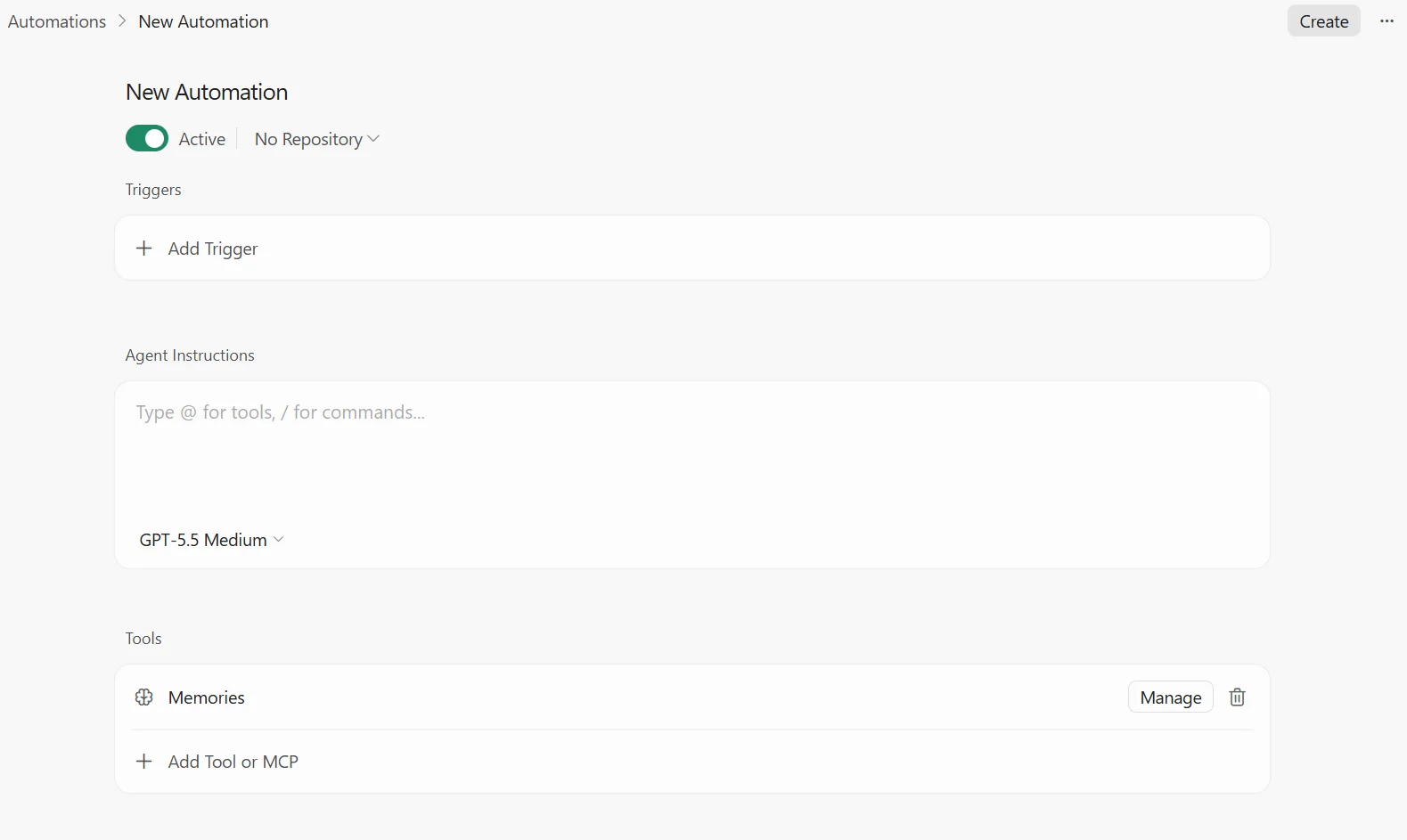
From here, you can begin work on your Cursor Automation. From the UI, you should be able to see a toggle to set the Automation's status to "Active" and a dropdown for optionally connecting a GitHub repository.
In the middle of the page, we have a text box to input instructions to the agent in natural language. We also have a model selector. Automations always run in Max Mode, which extends the context window to the maximum a model supports. There is no toggle to turn Max Mode off, so the model you pick directly drives both quality and cost.
Before testing anything, I strongly recommend looking at the models and pricing page. Because Automations always run in Max Mode, the model you pick is the biggest cost lever, not the tools it calls. My first two or three test runs on GPT-5.5 racked up well over $0.40 in Cursor credits before I switched to a cheaper model. The good news: the Firecrawl MCP actually cuts input tokens by ~94% compared to feeding raw HTML to the same model, so the web-data side of the bill stays small even when the model itself is expensive.
For this demo, Cursor's Composer 2.5 works just fine at much lower cost.
Connecting Cursor Automations to GitHub and Slack
GitHub and Slack are the two most common triggers and destinations for an Automation: GitHub fires the agent on a PR or push, and Slack is where the result lands. This section wires both up end to end.
Connecting to GitHub
If your GitHub account isn't already connected to Cursor, you'll need to connect it before adding a repository to your Automation.
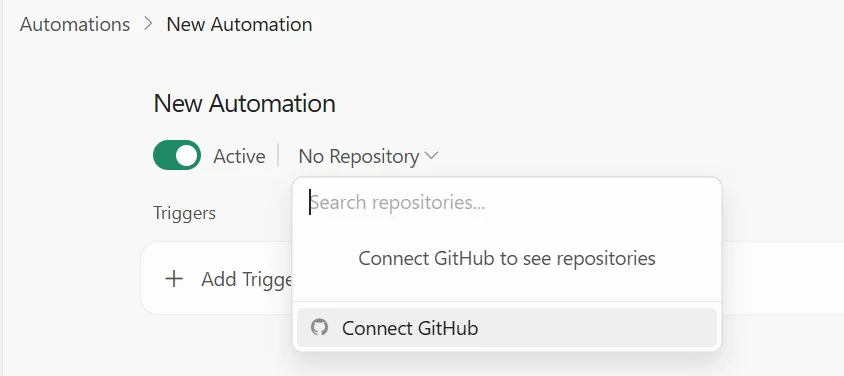
When connecting, you can choose to let the model access your entire GitHub or a specific repository.
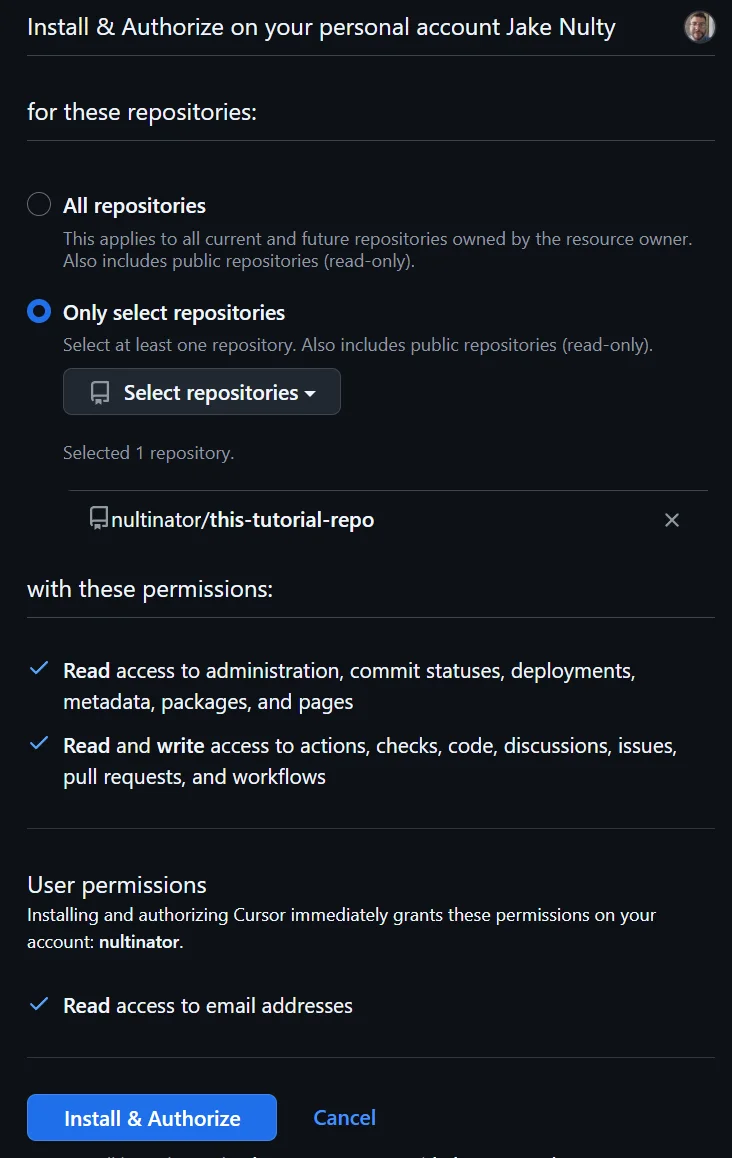
Once GitHub is connected, you can add a trigger to your Automation. In this example, I create a trigger that fires whenever somebody opens a pull request.
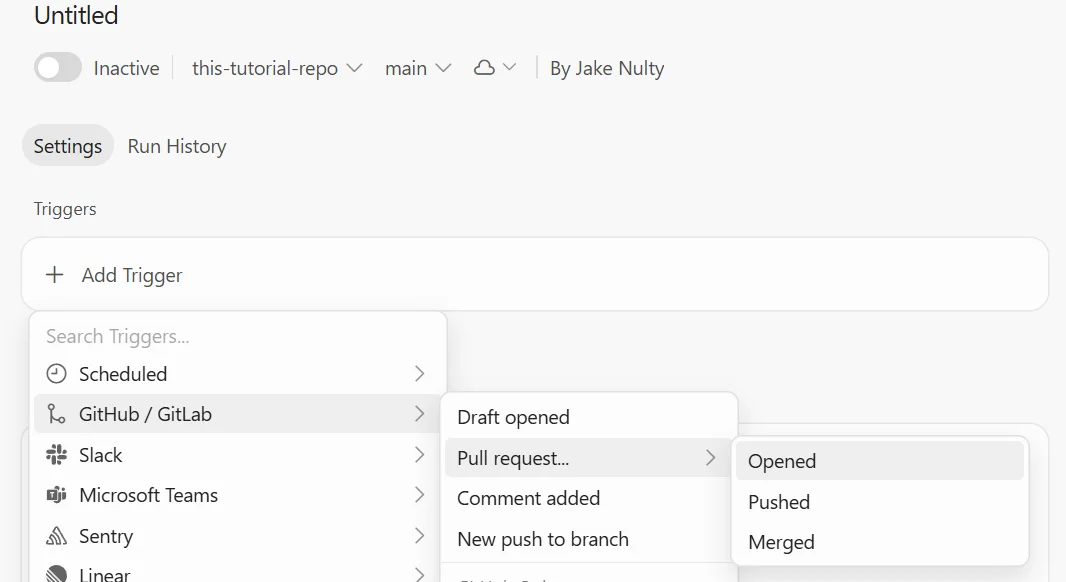
Connecting to Slack
Connecting your Cursor Automation to Slack is a similar process. Add the "Send to Slack" tool. A browser window should open, prompting you to give Cursor access to your Slack Organization. Follow the prompts and finish setting up the connection.
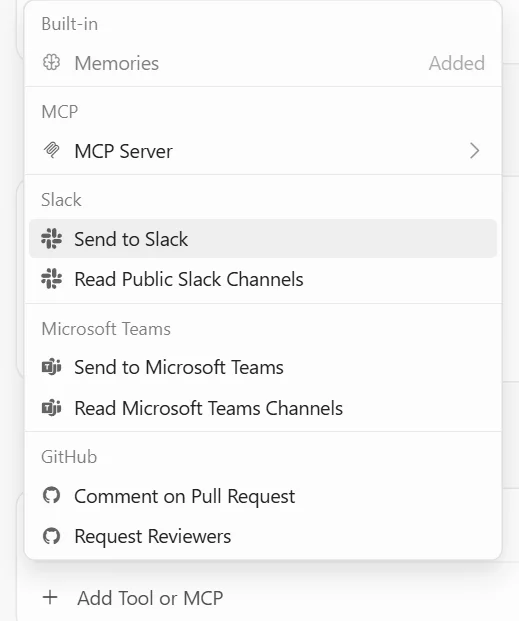
Cursor then prompts you to allow on-demand usage for Triggers.
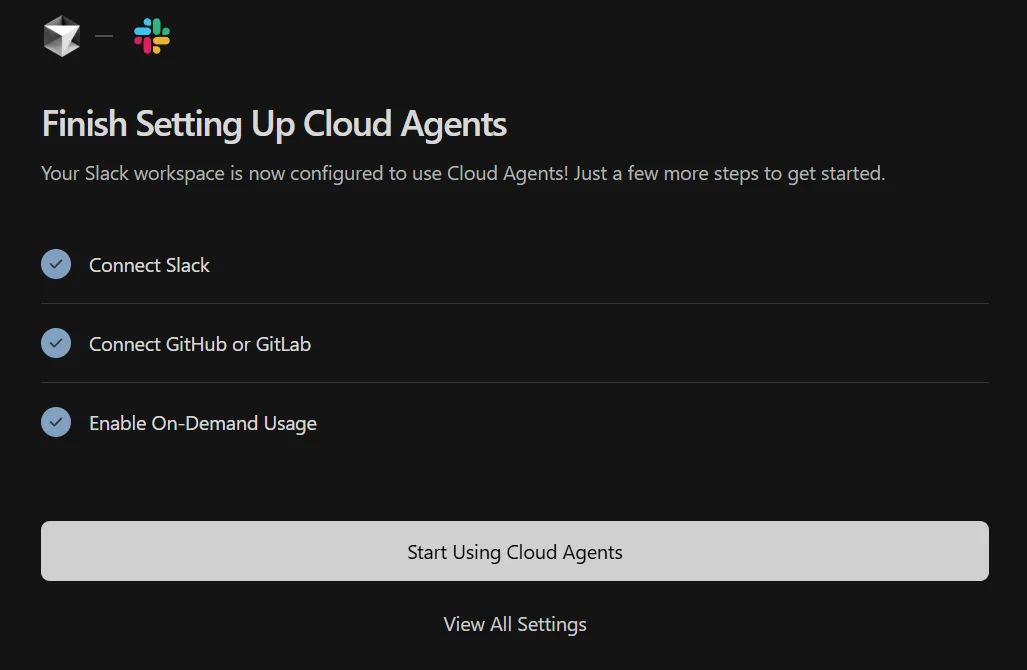
Choose any public channel within your organization. Then, tag @Cursor to bring the bot into the channel.
Creating the workflow
Write a description of the task and paste it into the "Agent Instructions" box.
/explain the pull request and what's changing in the code. Send a summary in the #cursor-alerts Slack channel
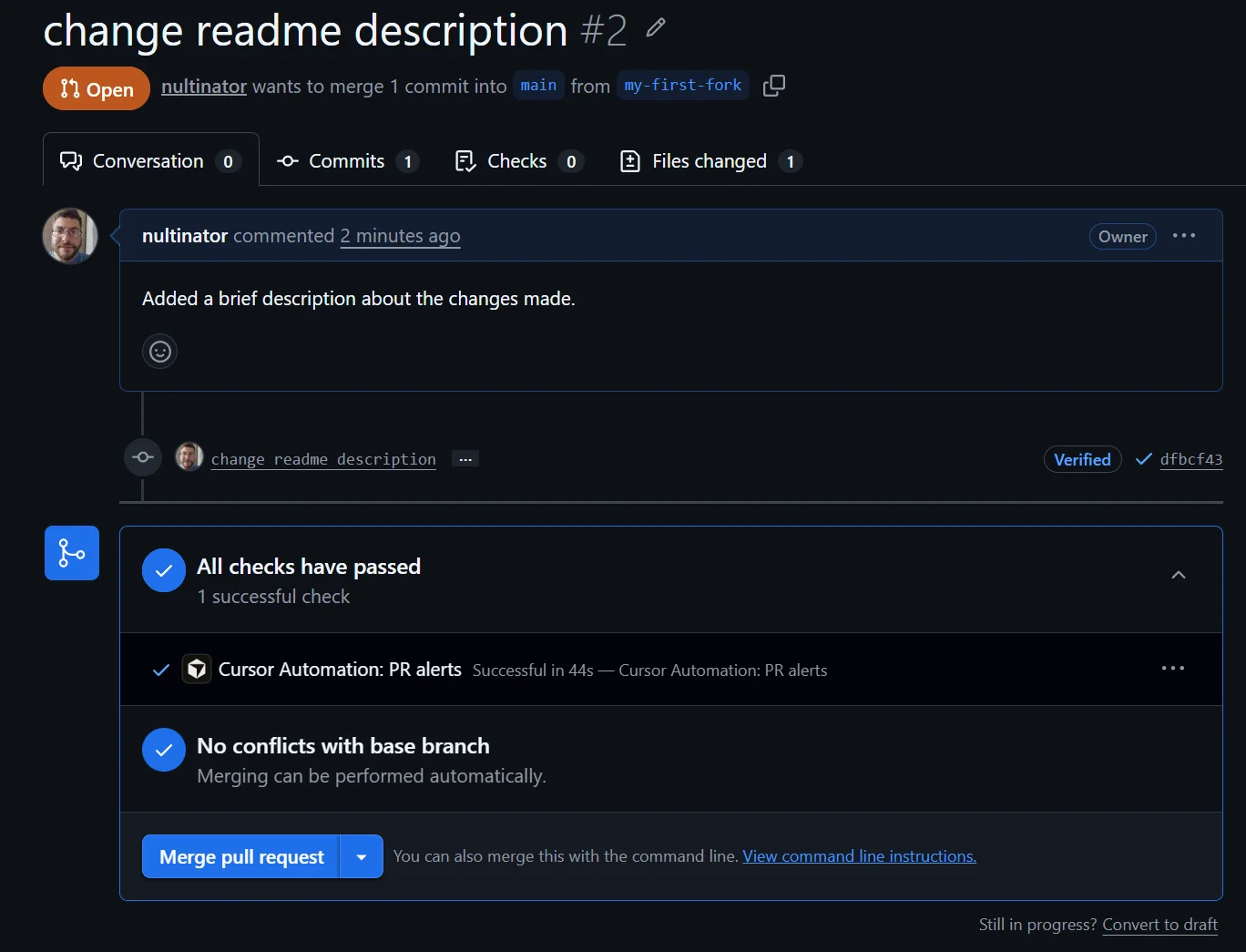
Click the "Save" button. Here, I open a pull request to the repo. If everything is working correctly, this should trigger the Cursor Automation.
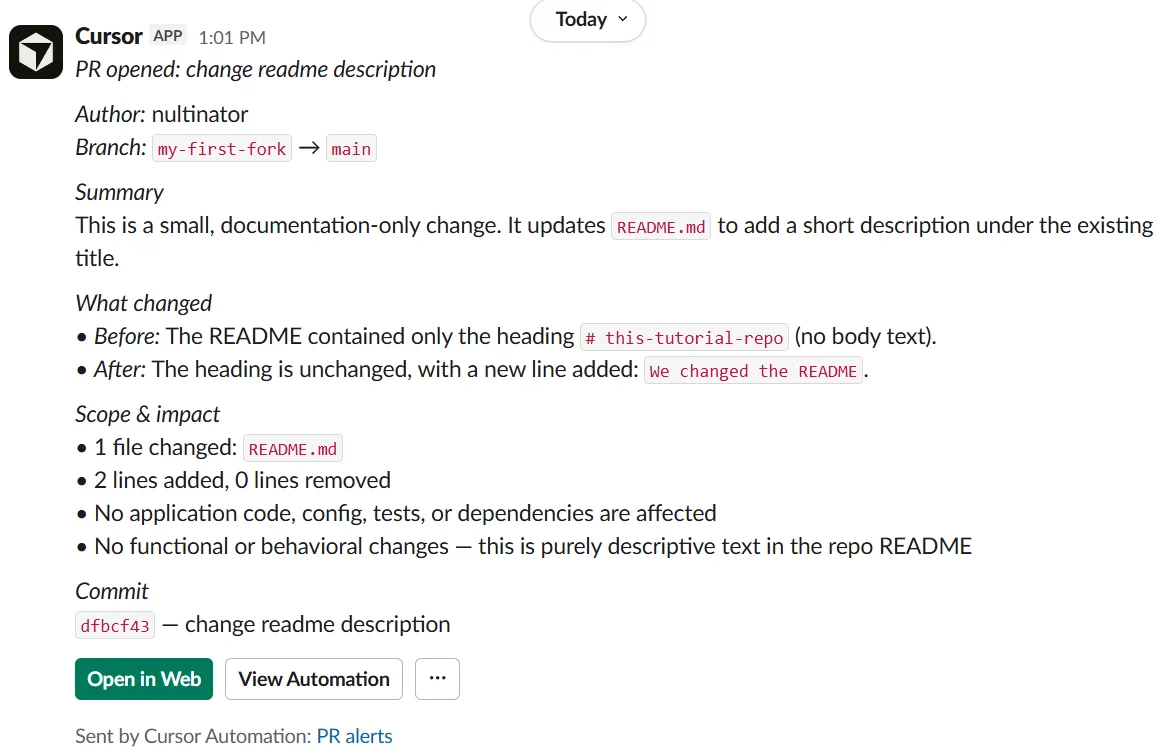
Immediately, I've got a Slack alert summarizing the PR. The "Open in Web" button will open specific details of this run in the browser. The "View Automation" button will open the Automation settings.
Using Firecrawl with your Cursor Automations
If you want to use Cursor with Firecrawl, this is the section to follow. Not everyone needs GitHub or Slack integrations. Sometimes, live web access is the most important tool for an AI agent. With stale data, many AI agents are useless. Firecrawl agents — Cursor Automations equipped with the Firecrawl MCP — solve that by pulling fresh pages, search results, and structured extractions on every run. For a wider picture of what else you might wire up, see our roundup of the best MCP servers for developers.
Firecrawl provides access to a variety of web access tools for web search, scraping, browser interactions, crawling, and site monitoring. Below, I wire up Firecrawl's MCP server so the agent can pull fresh data from the live web instead of relying on its training cutoff.
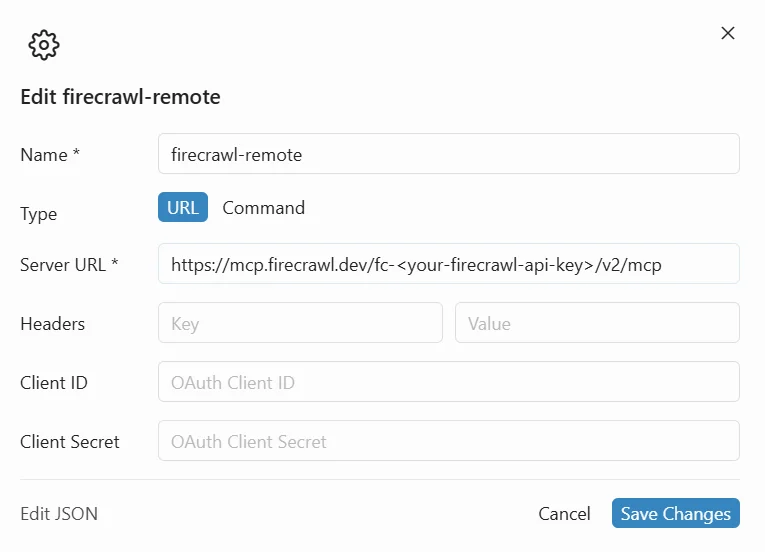
At the bottom of the page, click "Add Tool or MCP" to add the Firecrawl MCP server. The name and server URL are required. You can copy the server URL in the snippet below. Replace the API key with your Firecrawl API key. If you plan to add several MCPs to one Automation, our list of the best MCP servers for Cursor is a good place to shop.
https://mcp.firecrawl.dev/<your-firecrawl-api-key>/v2/mcpIn the instructions box, I add the following prompt. It tells the AI model to find the top 10 SaaS keywords and return the information as JSON. I also tell it specifically to use Firecrawl for web access.
Extract the top 10 technical marketing keywords specifically for the SaaS industry. Return the information as JSON. Use firecrawl for web access.
After that, you can test your Automation. When you run the process, Cursor first launches an environment for the AI agent. Then, it interprets your prompt and attempts to complete the task.
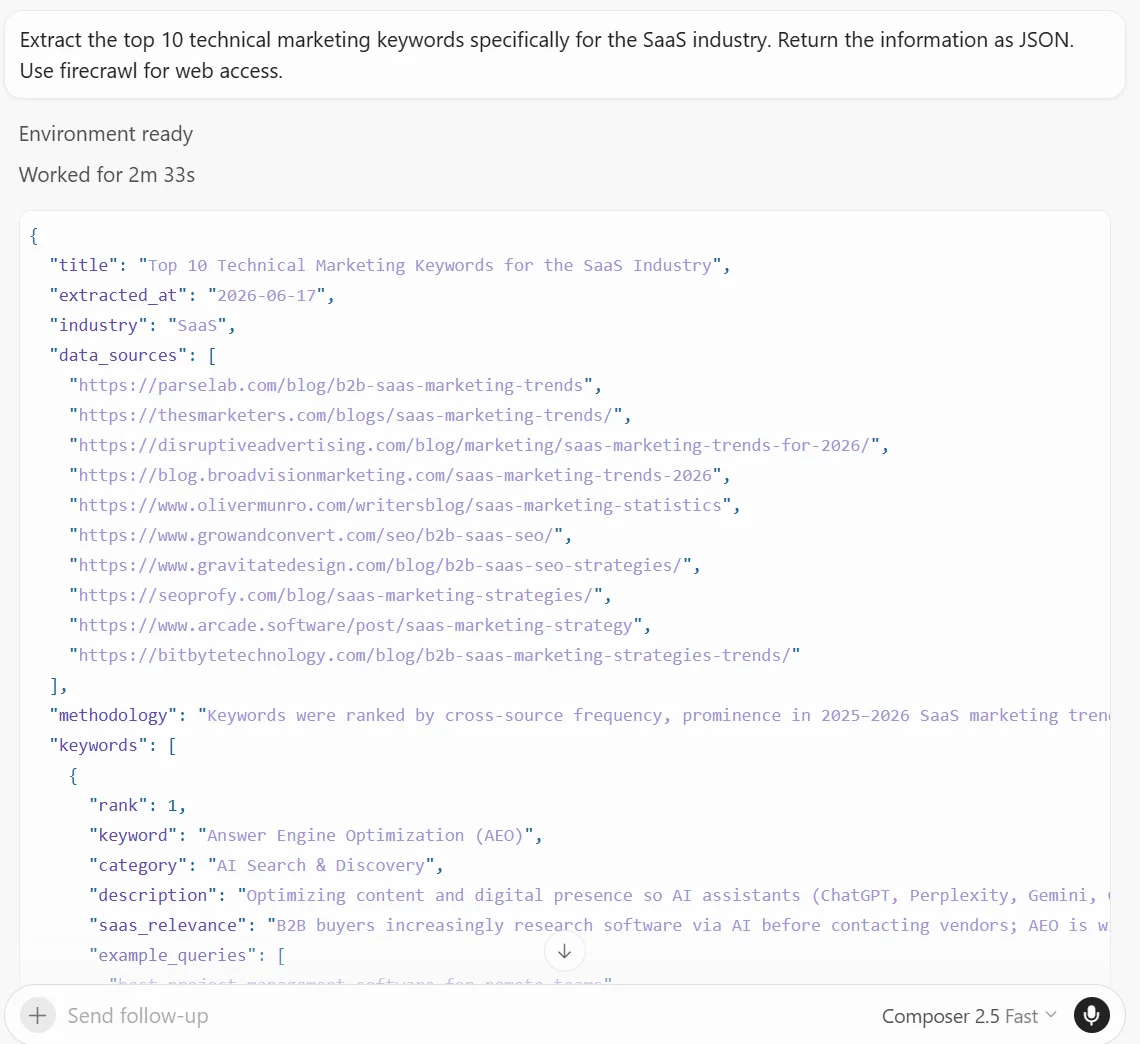
In total, our Cursor Automation took just over two minutes to run. The AI model returned a JSON object with fields including keyword, category, description, saas_relevance, and example_queries.
{
      "rank": 1,
      "keyword": "Answer Engine Optimization (AEO)",
      "category": "AI Search & Discovery",
      "description": "Optimizing content and digital presence so AI assistants (ChatGPT, Perplexity, Gemini, Google AI Overviews) can find, understand, and cite your SaaS product when buyers ask solution questions.",
      "saas_relevance": "B2B buyers increasingly research software via AI before contacting vendors; AEO is widely cited as the evolution beyond traditional SEO for SaaS visibility in 2026.",
      "example_queries": [
        "best project management software for remote teams",
        "CRM alternatives for small business",
        "how to reduce SaaS churn"
      ]
    },
Connecting an email tool
Next, I'll add email support. You'll need a Resend account. Once you've got an account, create an API key. Make sure the API key is set to "Full Access". Without it, the AI agent won't be able to read contacts stored in Resend.
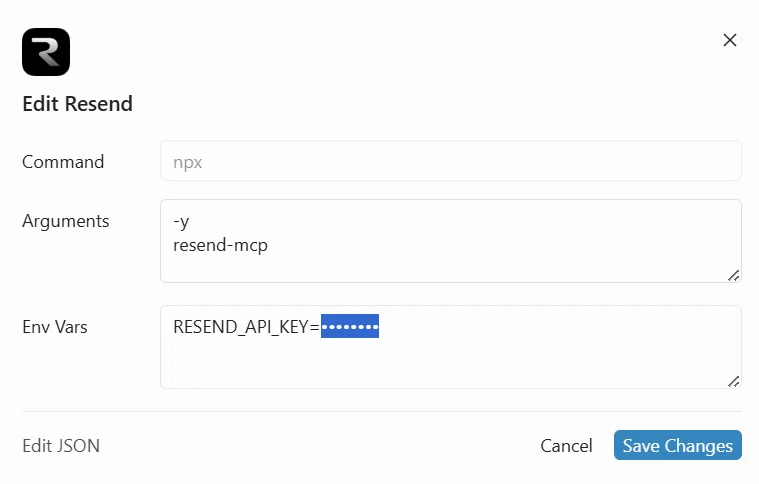
Now, I'll tweak the prompt. I tell the AI model to send a summary email to all available contacts. To send to multiple contacts, you'll need to configure a domain. Since this is a demonstration, I'm using Resend's default settings.
Extract the top 10 technical marketing keywords specifically for the SaaS industry. Return the information as JSON. Use firecrawl for web access.


Using the Resend tool, send a summary email to all available contacts.
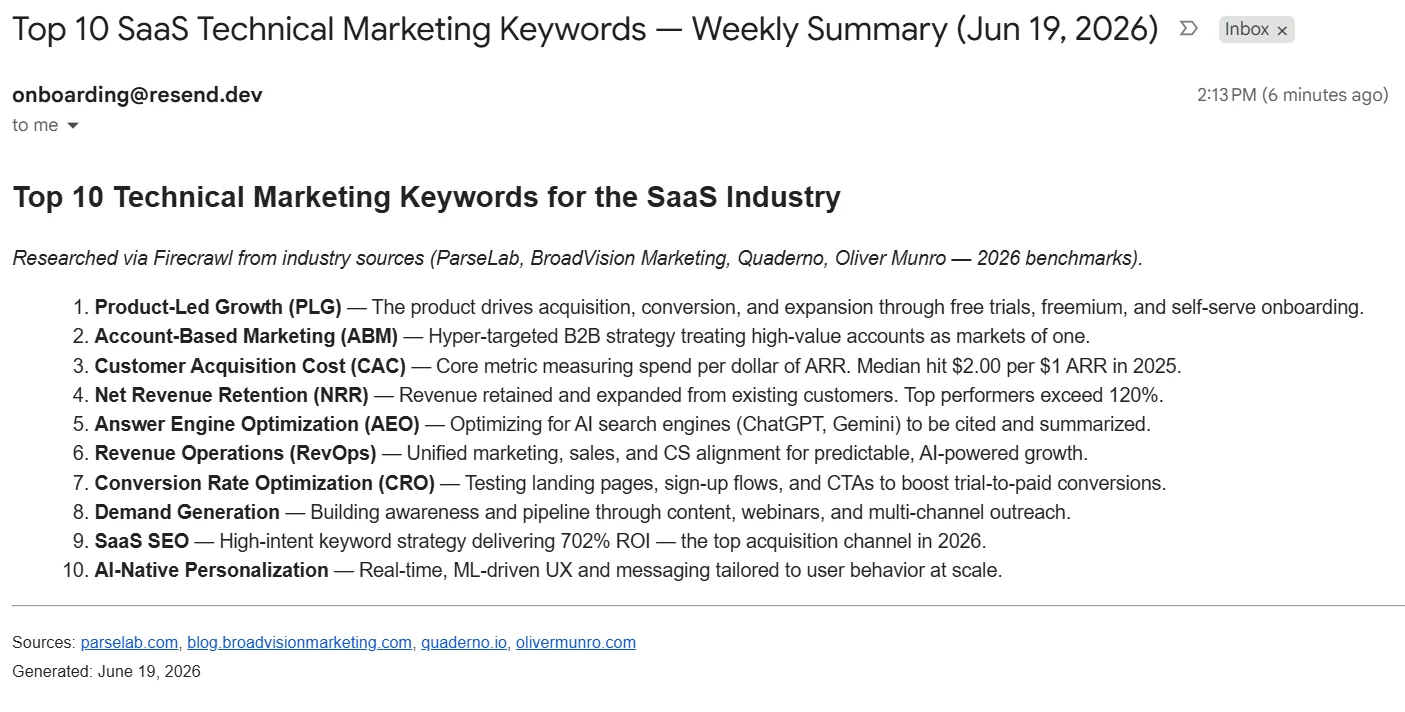
In the image below, the AI agent has now searched and found the top technical marketing keywords. It sent a summary to the available contacts (just me) using Resend. Teams should notice the sender address, onboarding@resend.dev. When sending in production, you need to configure Resend using either domains or a simple mail transfer protocol (SMTP) server.
Managing memory and context across multiple runs
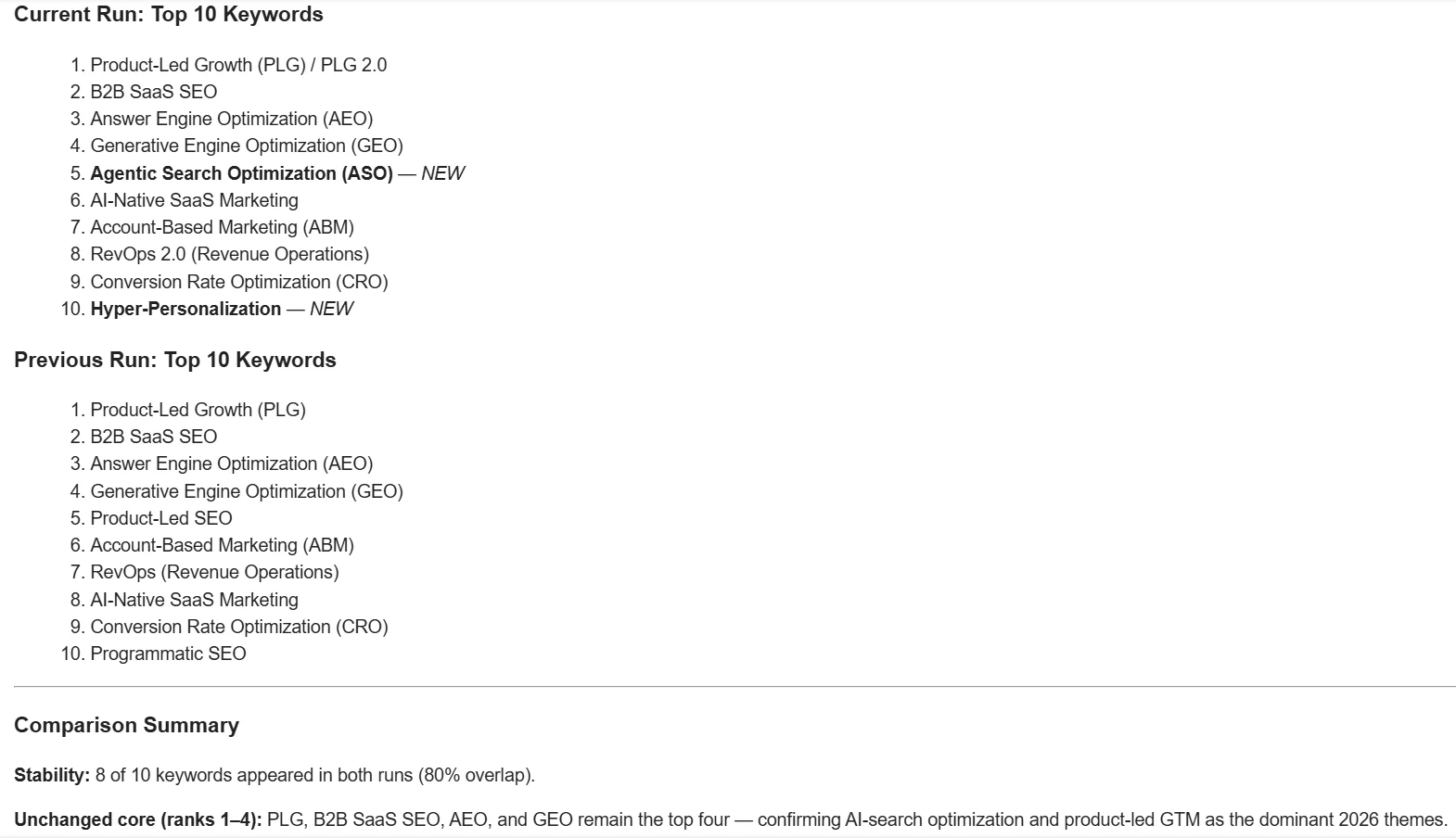
To add memory support across runs, simply tell the agent to store a memory. In the example below, I changed the prompt again. I tell the agent to save the results to memory and to compare them against previously saved results. I also tell the AI agent to send to only one email address, mine.
When our agent can access the same memories across multiple runs, our data becomes easier to analyze and so is our model performance.
Use firecrawl for web access.

Extract the top 10 technical marketing keywords specifically for the SaaS industry. Save the returned information as a memory.


Using the Resend tool, send a summary email comparing the results of this run to the results of the last run.

Send the email to <insert-email-address>.
Since the model wasn't storing previously, I need to run it twice. After the second run, I received an email comparing it to the first run. As you can see below, two new keywords have surfaced.
Frequently Asked Questions
What is Cursor Automations?
Cursor Automations is a cloud native platform for deploying AI agents. AI agents can be equipped with MCP tools and set to run from a variety of reactive and scheduled programming triggers.
What is Firecrawl?
Firecrawl is the web data API that gives people and AI models access to the web. Firecrawl provides features like web search, scraping, browser interactions, crawling, and site monitoring.
Do I need a GitHub repo to use Cursor Automations?
No, you don't. GitHub integration is a primary feature of Cursor Automations. However, it's not a requirement.
Do Cursor Automations have any limitations?
Some users have been unable to use Automations when they are a collaborator on a repo. When using Automations with a repo, you need to be the repo owner. Users have also noted that Automations are cloud-only, so you cannot run them on your local machine.
How do I add Firecrawl to a Cursor Automation?
Firecrawl can be added to Cursor Automations through MCP integration.
What do Cursor Automations cost?
Cursor Automations can be expensive to run. Costs vary based on model selection. Frontier models can rack up expenses fast. Cursor's in-house model family, Composer, can help keep costs under control.
Can I try Cursor Automations for free?
No, Cursor Automations are only available on paid Cursor plans. They are available on Cursor's lowest-tier paid plan for $20/month.
Can I use Cursor Automations without coding experience?
Yes, Cursor Automations are designed specifically for no-code development. Agents are built with natural language prompts. Active and inactive agents are handled with a toggle button. You can deploy Cursor Automations with zero coding experience and zero DevOps experience.
What is the difference between Cursor Agents and Cursor Automations?
Cursor Agents are the AI workers that perform tasks. Cursor Automations are the deployment layer that runs those agents on Cursor's cloud and connects them to triggers like schedules, Slack messages, GitHub events, or webhooks. You build the agent once and an Automation handles when and where it runs.
Can Cursor agents access the web?
Yes. Cursor agents can be equipped with MCP tools like Firecrawl to search, scrape, and extract data from the live web. Without web access, agents are limited to the context they were given at the start of the run.
Do Cursor agents remember context between runs?
Yes. Agents can store memories across runs. When you instruct an agent to save a result to memory, future runs can reference that memory regardless of which model is being used. This is useful for tracking changes over time, comparing runs, or building a knowledge base the agent reuses.
Can I run Cursor agents from my phone?
Yes. Cursor Web works from any device, including mobile phones and iPads. Because Cursor agents run on Cursor's cloud rather than on your local machine, you can start, monitor, and review them from anywhere.
What models can Cursor agents run on?
Cursor agents can use frontier models from OpenAI (GPT-5.5, GPT-5.3 Codex), Anthropic (Claude 4.6 Sonnet, Claude Opus 4.8, Claude Fable 5), Google (Gemini 3.1 Pro, Gemini 3.5 Flash), xAI (Grok Build 0.1), and Cursor's in-house Composer 2.5. Automations always run in Max Mode for larger context windows, and you can switch between providers mid-workflow while preserving memory.
Can I run multiple Cursor agents at the same time?
Yes. Each Automation runs independently in Cursor's cloud, so multiple agents can fire in parallel. This is useful for fanning out work across triggers, for example one agent watching competitor pages while another runs a scheduled SEO audit.