How to Use WebMCP with a Headless Agent (Claude Code) Using Firecrawl
 Richard Oliver Bray
WebMCP is an upcoming web feature that makes any site easier for an AI agent to use. Instead of the agent scraping a page's HTML to work out how it functions, the site hands it developer-defined tools, just like an MCP server, which saves a lot of tokens.
The catch: WebMCP only works inside a live browser tab, and most agent harnesses like Claude Code or a custom agentic workflow don't have one. Firecrawl's interact endpoint closes that gap by running a real browser in the cloud.
What WebMCP actually is
Websites are built for humans, not agents. They're full of images, animations, and accessible markup that mean nothing if all you want is for an AI to book you a table. So engineers from Google and Microsoft put forward a proposal for WebMCP: a developer registers tools for the actions an agent can take on a page, using JavaScript or HTML.

Each tool gets a name, a description, an input schema, and the logic that runs when it's called, exactly like a regular MCP tool. So booking a table becomes a single tool call instead of the agent finding every input, filling each one in, and clicking submit. Much less work, and far fewer tokens.
But there's a hard limitation, spelled out in the Chrome WebMCP docs: right now there's no support for agents to call these tools in a headless browser. The agent has to drive a live browser directly, which means the browser itself needs an onboard agent to use WebMCP.
This is where Firecrawl comes in. Its interact endpoint runs a real browser in Firecrawl's cloud that your agent controls, either by describing what you want in a prompt or by executing code directly on that browser. So a headless harness gets a live browser tab to run WebMCP tools in, without shipping one itself. Here's how to set it up.
The demo site
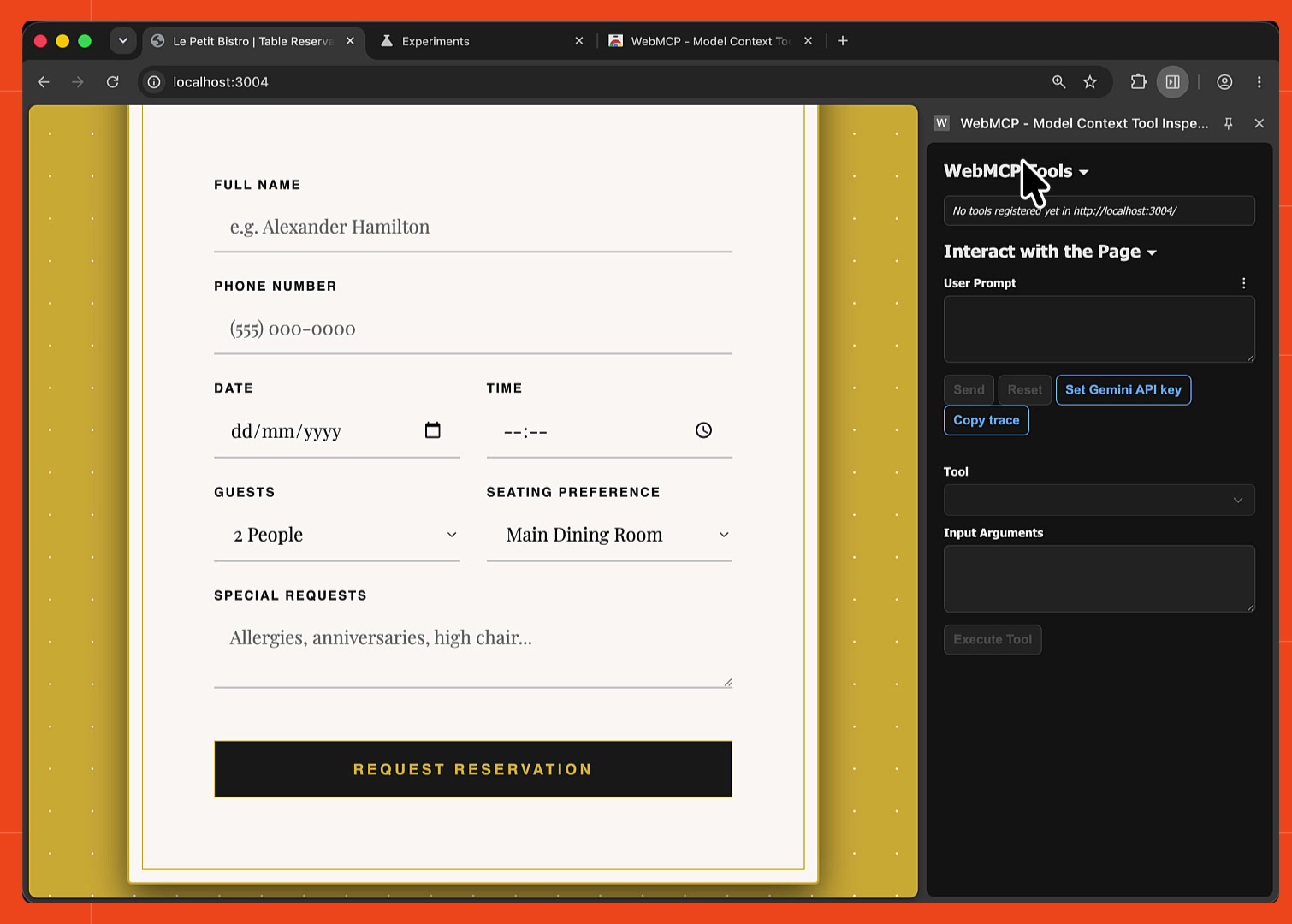
To keep it concrete, this walkthrough uses a fake restaurant, Le Petit Bistro, where you fill in a form to book a table. It's based on Google's French Bistro demo, which ships with WebMCP tools already registered. I stripped all of them out to use as a clean before baseline: a plain reservation form with no agent tools at all. You can clone that starter from the webmcp-firecrawl-demo repo (its stage-1 branch adds the WebMCP tool back).
Because I removed them, the site has no WebMCP tools right now. You can confirm that by enabling WebMCP for testing in Chrome and installing the WebMCP Tool Inspector extension, which reports what's registered on the page:
Giving the site a WebMCP tool
WebMCP is set to ship natively in Chrome 157, targeted for stable release around November 2026. As of writing, stable Chrome is only on version 150, so native WebMCP hasn't landed yet, it currently runs behind a flag and through origin trials. To build a demo today you use the @mcp-b/webmcp-polyfill package instead.
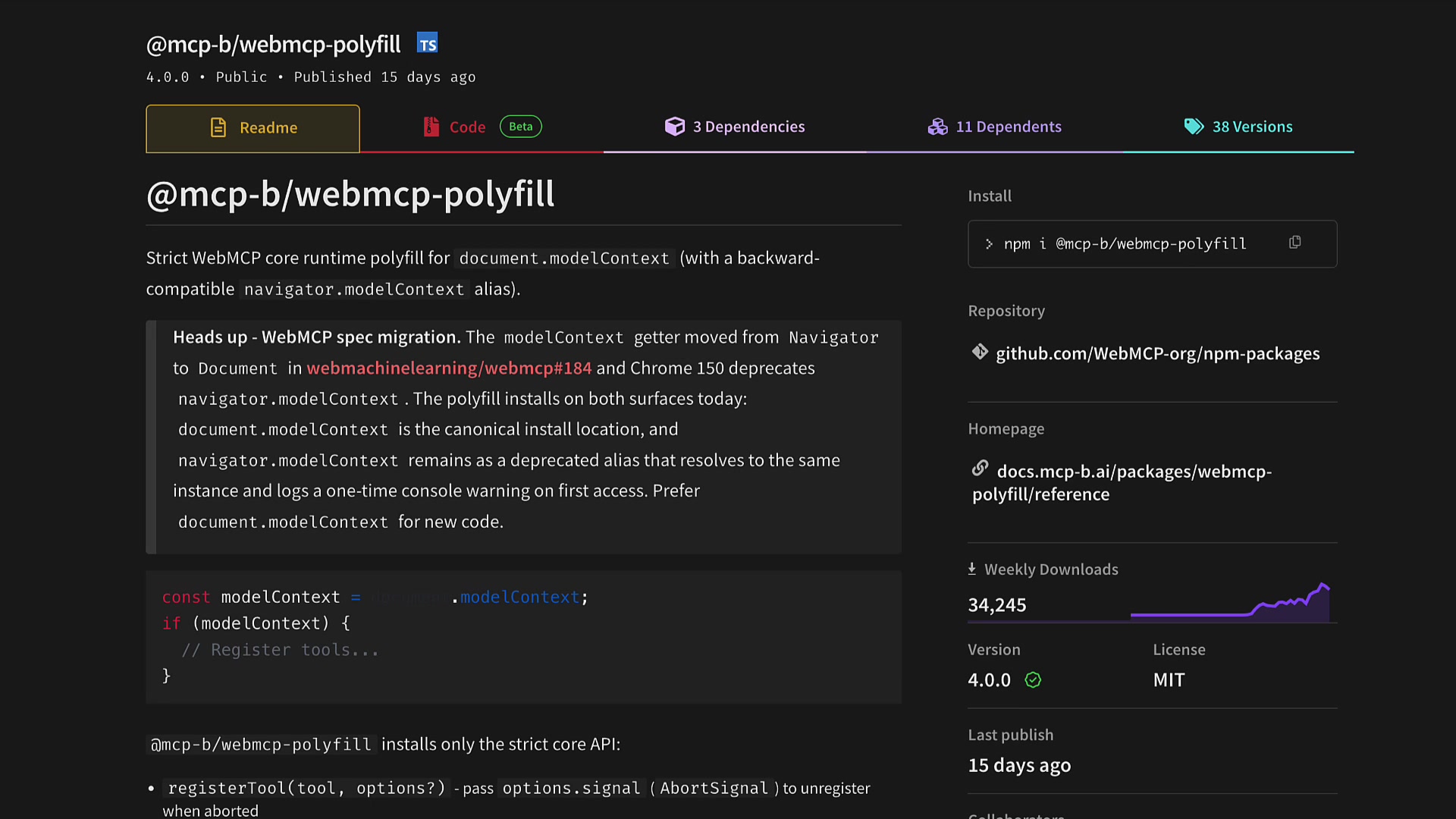
After initializing the polyfill, you register a tool whose input schema mirrors the form's fields, then define an execute function that does the real work:
// script.js

import { initializeWebMCPPolyfill } from "@mcp-b/webmcp-polyfill";

initializeWebMCPPolyfill();

document.modelContext.registerTool({
  name: "book_table_le_petit_bistro",
  description:
    "Initiates a dining reservation request at Le Petit Bistro. Accepts customer details, timing, and seating preferences.",
  inputSchema: {
    type: "object",
    properties: {
      name: { type: "string", description: "Customer's full name (min 2 chars)" },
      phone: { type: "string", description: "Customer's phone number (min 10 digits)" },
      date: { type: "string", format: "date", description: "Reservation date (YYYY-MM-DD)." },
      time: { type: "string", description: "Reservation time (HH:MM)" },
      guests: { type: "string", description: "Number of people dining." },
      seating: { type: "string", description: "Preferred seating area" },
      requests: { type: "string", description: "Special requests (allergies, occasions, etc.)" },
    },
    required: ["name", "phone", "date", "time", "guests"],
  },
  execute: async (input) => {
    document.getElementById("name").value = input.name;
    document.getElementById("phone").value = input.phone;
    document.getElementById("date").value = input.date;
    document.getElementById("time").value = input.time;
    document.getElementById("guests").value = input.guests;
    if (input.seating) document.getElementById("seating").value = input.seating;
    if (input.requests) document.getElementById("requests").value = input.requests;

    validateForm();
    if (formValidationErrors.length) {
      return {
        content: [{ type: "text", text: JSON.stringify(formValidationErrors) }],
        isError: true,
      };
    }

    showModal();
    return { content: [{ type: "text", text: modalDetails.textContent }] };
  },
});
The key part is registerTool. The inputSchema is plain JSON Schema, so the agent knows exactly which fields the tool takes and which are required, no scraping the DOM to guess at what the form wants.
The execute function is what actually runs when the agent calls the tool. It receives those validated input arguments and holds the site's own logic: it drops the model's values into each form field, runs the page's existing validateForm() check, returns the validation errors with isError: true if anything's wrong, and otherwise shows the confirmation modal and hands the reservation text back to the agent.
Reload the page and the tool now shows up in the inspector, with book_table_le_petit_bistro selectable and its full schema visible:
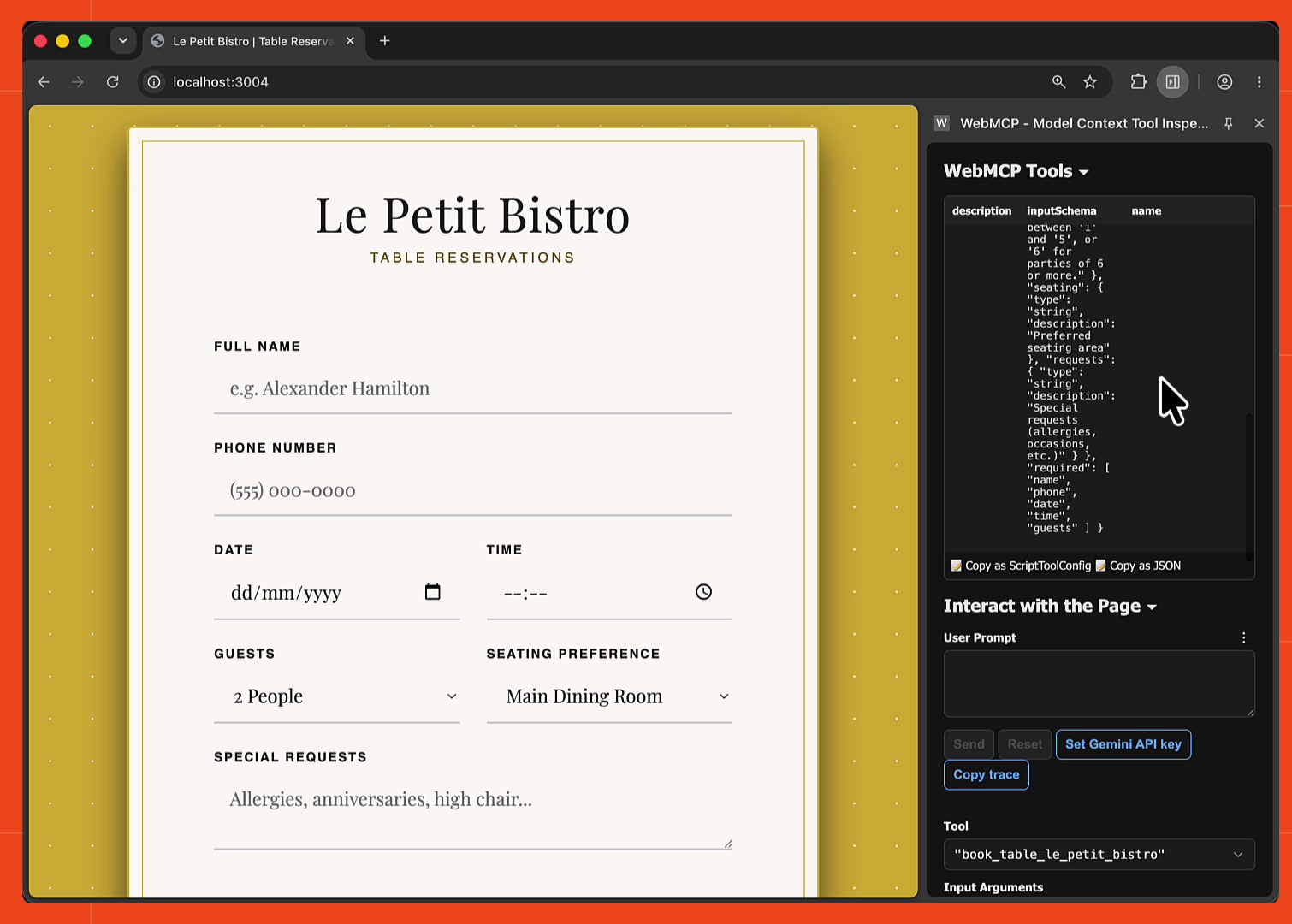
With a Gemini API key you could type a prompt right into the inspector and let it fill the form. But point Claude Code at the same page, even with a browser MCP, and it does the slow thing: scrapes every input, fills each one, then takes a screenshot with computer use to check its work. You can imagine how many tokens that burns.
The local baseline: agent-browser
Before bringing in Firecrawl, it helps to see the mechanism locally with agent-browser, a CLI that runs a browser you can drive with code. A small script uses its eval command to run JavaScript in that browser: it looks for document.modelContext, and if it finds one, reads the available tools and can execute any of them by name with JSON arguments.
# find-webmcp-tools.sh

# Open the page in the local browser, then read its WebMCP tools
agent-browser open "$URL"

agent-browser eval "
  document.modelContext
    ? document.modelContext.getTools().then(t =>
        t.map(({ name, description, inputSchema }) => ({ name, description, inputSchema }))
      )
    : 'document.modelContext is undefined (no WebMCP support on this page)'
"
agent-browser open loads the URL in a local browser and keeps the tab alive, then agent-browser eval runs JavaScript in that page, the same as calling document.modelContext.getTools() from the console. To call a tool you run a second eval that finds it by name and passes it to document.modelContext.executeTool().
That works, and it's fast, no scraping or screenshots. But agent-browser needs a real browser on the machine to do it: it drives a local Chrome, downloading Chrome for Testing on first run via agent-browser install. If your agent runs somewhere you can't install or launch one, an online environment, a CI pipeline, a locked-down work machine, that path is out.
The bridge: Firecrawl interact
This is where Firecrawl's interact endpoint comes in. It gives you the same kind of browser control, but the browser lives in Firecrawl's cloud sandbox, so nothing is installed on your machine.
Install the Node SDK first:
npm install firecrawlThe flow is scrape, then interact. You scrape the page first to open a browser session and get a scrapeId, then keep that same session alive by calling interact against it:
// find-webmcp-tools-firecrawl.ts

import { Firecrawl } from "firecrawl";

// No API key needed to get started, add one for higher rate limits.
const firecrawl = new Firecrawl({ apiKey: process.env.FIRECRAWL_API_KEY });

// 1. Scrape to open a browser session. maxAge: 0 forces a real browser load,
// a cache-served scrape returns a scrapeId with no live session behind it.
const scrapeResult = await firecrawl.scrape(url, { formats: ["markdown"], maxAge: 0 });
const scrapeId = scrapeResult.metadata?.scrapeId;

// 2. Interact, discover the WebMCP tools in that same session.
const discovery = await firecrawl.interact(scrapeId, {
  code: `
    const tools = await page.evaluate(() => {
      return document.modelContext
        ? document.modelContext.getTools().then(t =>
            t.map(({ name, description, inputSchema }) => ({ name, description, inputSchema }))
          )
        : 'document.modelContext is undefined (no WebMCP support on this page)';
    });
    JSON.stringify(tools);
  `,
  language: "node",
});
console.log(discovery.result);

// 3. Stop the session when you're done.
await firecrawl.stopInteraction(scrapeId);
The code you pass to interact runs in the cloud browser, where page is a Playwright Page object already connected to the session. Inside page.evaluate(), you're running JavaScript in the actual page, so document.modelContext.getTools() returns exactly what the site registered. That's the whole trick: it works because it's a real browser, so WebMCP just works, with no special integration on Firecrawl's end.
A couple of things worth calling out. The only real difference from the agent-browser script is that this uses Playwright's page.evaluate() instead of agent-browser eval. Firecrawl interact lets you write Node or Python Playwright, or agent-browser commands in bash mode, and since Node Playwright is the default code mode, writing it directly is the cleaner choice here.
To actually call a tool, you run a second interact against the same scrapeId, find the tool by name, and hand it to document.modelContext.executeTool():
// find-webmcp-tools-firecrawl.ts

const invocation = await firecrawl.interact(scrapeId, {
  code: `
    const toolResult = await page.evaluate(async (argsB64) => {
      const tools = await document.modelContext.getTools();
      const tool = tools.find(t => t.name === ${JSON.stringify(toolName)});
      if (!tool) return 'Tool not found: ${toolName}';
      const args = JSON.parse(atob(argsB64));
      return document.modelContext.executeTool(tool, JSON.stringify(args));
    }, ${JSON.stringify(argsB64)});
    JSON.stringify(toolResult);
  `,
  language: "node",
});
console.log(invocation.result);
The arguments are passed in as base64 (argsB64) and decoded inside the page with atob, which keeps quoting reliable across Firecrawl's transport. From the agent's point of view, calling book_table_le_petit_bistro is now one step, the same single tool call WebMCP promised, just proxied through a headless-friendly API.
Driving it from Claude Code
Wrap those two calls in a small runner that discovers a page's tools, then calls one by name. Now you can point Claude Code straight at it. Ask it what tools a URL exposes and it finds the exact tool you registered, along with its required and optional fields:
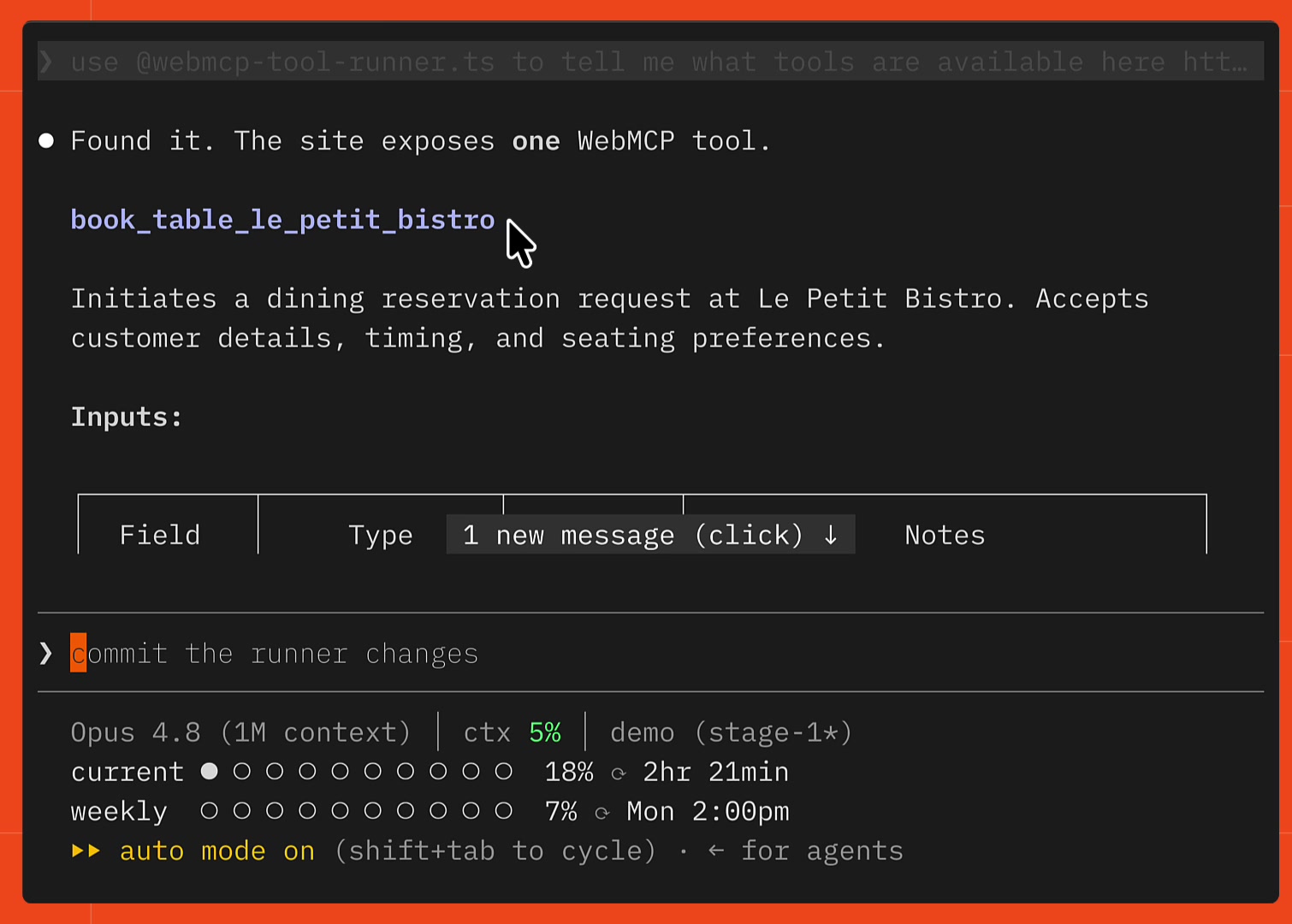
While it runs, the Firecrawl dashboard shows the live session under Interact with a page, the cloud browser temporarily spun up to load the site:
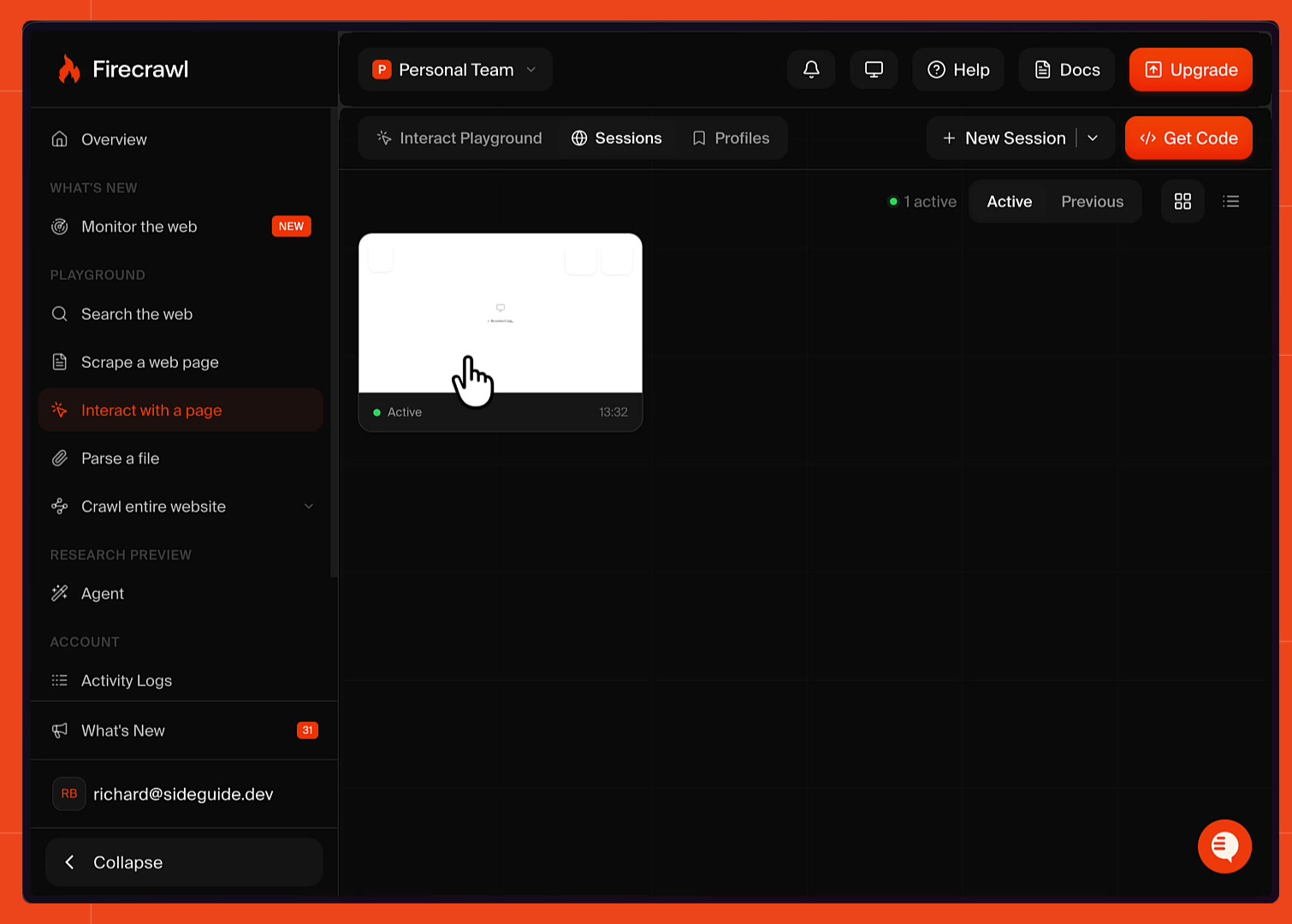
From there you just ask in plain language, "book me a table for next Thursday for two people." If you leave out required fields like the time or phone number, the agent asks or makes them up, then books the table with a single call. No local install, no scraping, no screenshots, and done in under a minute in the cloud.
Caveats, and where this leaves you
This approach isn't perfect. Because a page has to use the polyfill today, and the polyfill runs on JavaScript, the discovery script works now. But once Chrome ships native WebMCP and sites declare tools with plain HTML tags instead, a script like this will need updating to look for those tags. The spec is also young: it recently renamed navigator.modelContext to document.modelContext, so more changes are likely before release.
Until (and if) an official headless story arrives, Firecrawl gives you a way to use WebMCP headlessly, from Claude Code or any agent, today.
Check out the Firecrawl interact docs or the interact endpoint deep-dive to go deeper.
Frequently Asked Questions
What is WebMCP?
WebMCP is a proposed web platform feature that lets a website register tools an AI agent can call directly, using a name, description, and input schema, just like a Model Context Protocol server. Instead of scraping the page and clicking through the DOM, the agent calls one tool, for example book_table, and the site's own code runs the logic.
Can you use WebMCP with a headless agent?
Not natively. WebMCP tools only exist inside a live browser tab through document.modelContext, so server-side agents, CI jobs, and API-only apps that have no browser can't reach them. Firecrawl's interact endpoint gets around this by running a real browser in the cloud that a headless agent controls over the API.
Does WebMCP work with Claude Code?
The terminal-based Claude Code CLI has no browser of its own, so it can't call document.modelContext directly (the Claude Desktop app is the exception). By pointing the CLI at a small script that opens a Firecrawl interact session, it can discover and call a page's WebMCP tools through Firecrawl's hosted browser, no local Chrome, extension, or Chrome flag required.
When is WebMCP shipping in Chrome?
WebMCP is targeted to ship in Chrome 157, with a stable release expected around November 2026. Before that it runs behind a flag and through origin trials in earlier Chrome versions. The spec is still an early W3C community group draft and could change before release.
Do you need an API key to use Firecrawl's interact endpoint?
No. Scrape, search, interact, and parse all work keyless from an official Firecrawl client (the SDK, CLI, or MCP server), rate-limited per IP. Signing up for a free API key raises those limits and gives you 1,000 credits.
How do you call a WebMCP tool without a local browser?
Scrape the target page with Firecrawl to open a browser session, then call interact with Playwright code that reads document.modelContext.getTools() and runs document.modelContext.executeTool(). The browser lives in Firecrawl's cloud sandbox, so nothing is installed on your machine.
What is document.modelContext?
document.modelContext is the browser API WebMCP exposes for tool registration and execution. A page calls registerTool() to add tools, and an agent calls getTools() and executeTool() to list and run them. It was recently renamed from navigator.modelContext in the spec.
Is WebMCP the same as MCP?
They share the same idea, exposing named tools with input schemas to an AI agent, but WebMCP is scoped to a single web page and lives in the browser, while a normal MCP server is a standalone process any client can connect to. WebMCP tools are registered in page JavaScript rather than a separate server.
